

- Slack
- Microsoft Teams
 Slack
Slack Microsoft Teams
Assigning roles yourself
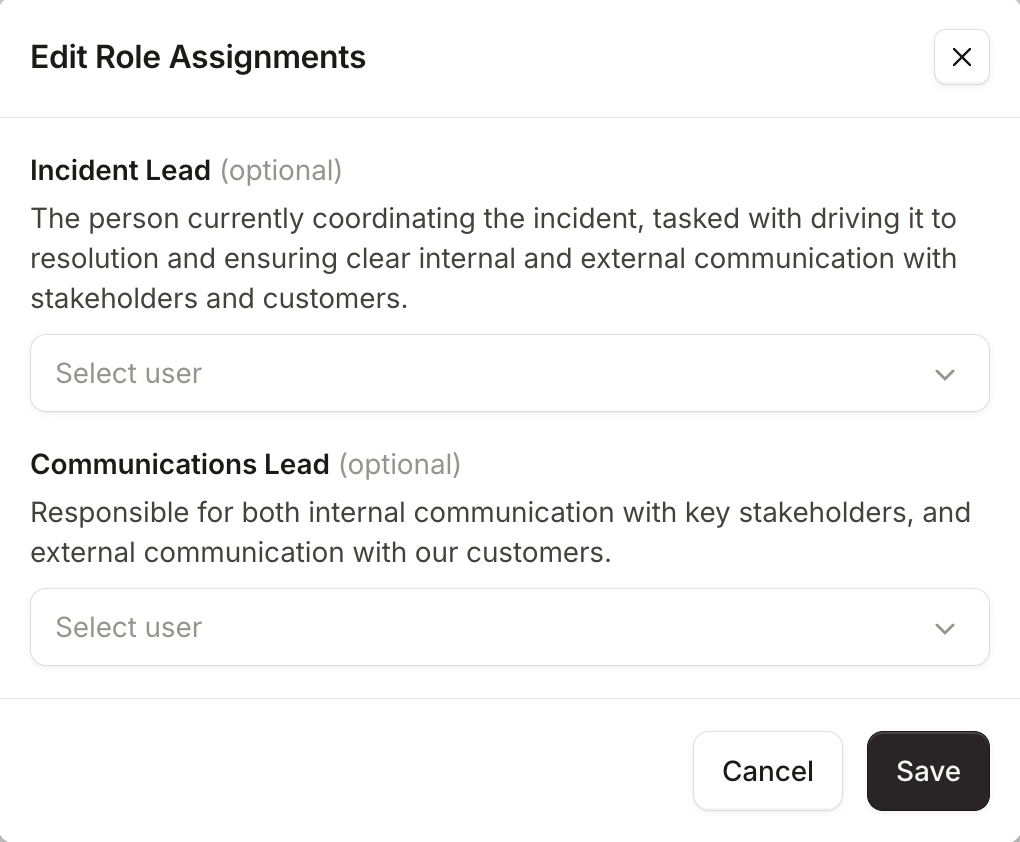
From the roles modal
Type/inc roles in the incident channel to see every role on the incident and who currently holds it.In a single command
Type/inc role [role] [@user] to assign someone without opening the modal. For example, /inc role lead @bea makes Bea the Lead.The role part is the role’s Slack reference, a lowercase shorthand set when the role is created.From the dashboard
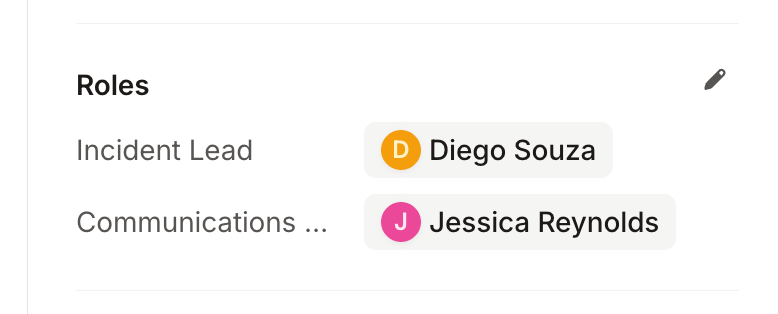
Open the incident and select Assign next to a role, or the edit icon on the Roles section to set several at once.What happens when you assign a role
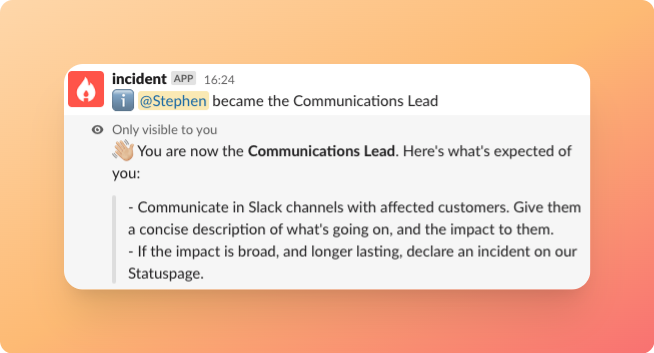
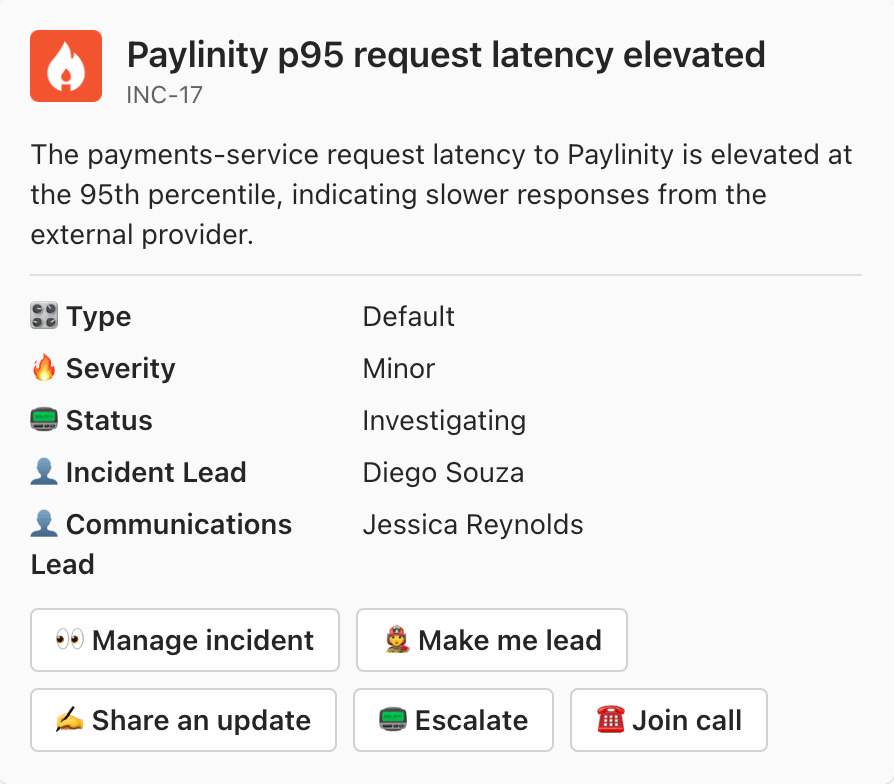
We post the change in the incident channel, so everyone following along sees who picked it up.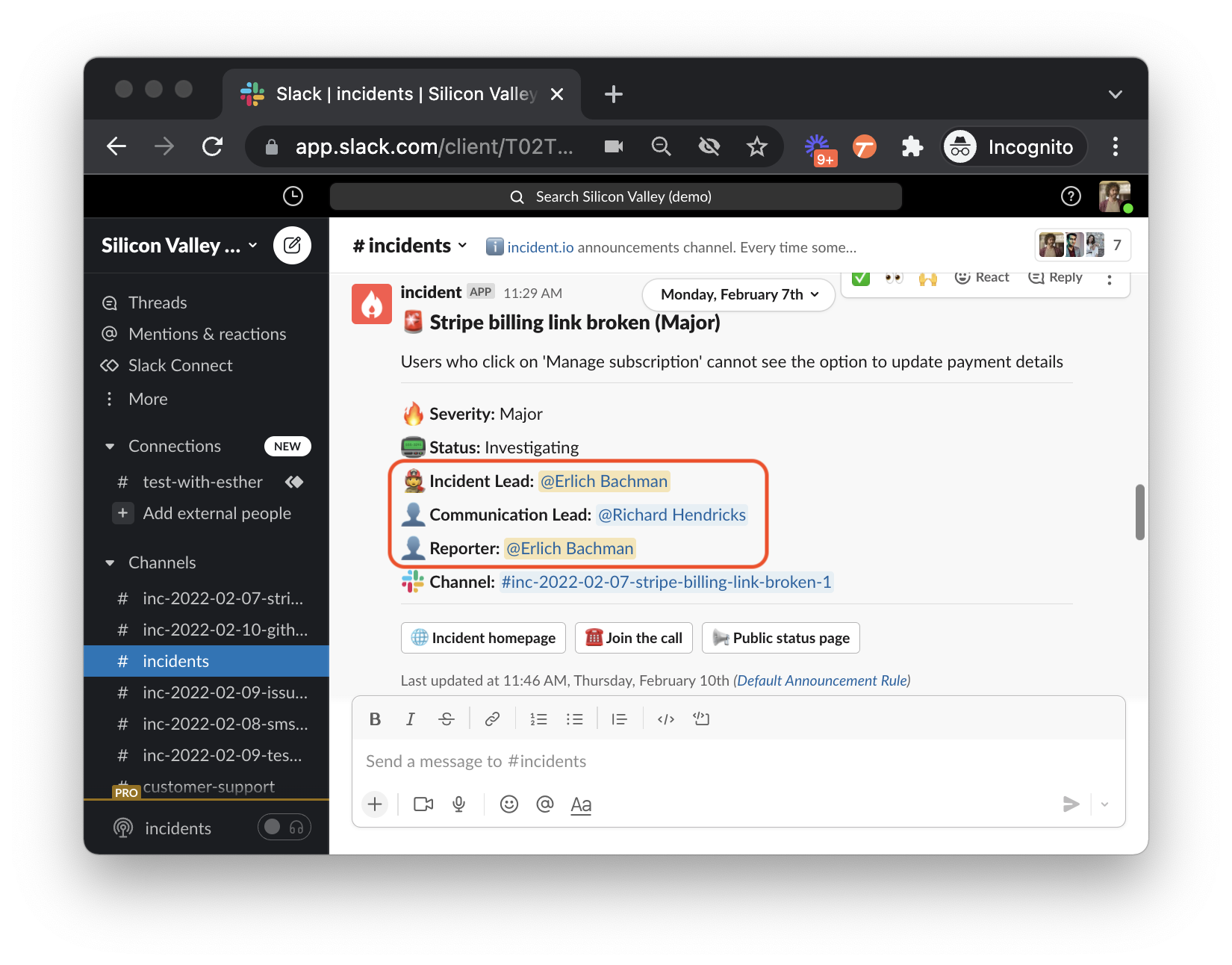

Assigning roles automatically
You don’t have to assign roles by hand. Workflows can fill them the moment an incident is declared, including putting whoever’s currently on call into a role, so the right people are in place before anyone thinks to look. See Incident roles for the common patterns.FAQs
Who can assign roles?
Who can assign roles?
Assigning a role needs permission to update role assignments, which your team controls under User roles and
permissions. You can also limit who’s eligible to hold a particular role on a particular
incident type, for example requiring that only your security team can lead a security incident. See Role
restrictions.
Why can't I see all my teammates in the drop-down?
Why can't I see all my teammates in the drop-down?
The drop-down shows a selection of incident.io users rather than everyone, so start typing a name to find someone
who isn’t listed. If they still don’t appear, they may never have been invited to incident.io. See Why can’t I see
all my team in the drop-down of incident roles?.
Can I change what someone's told when they take a role?
Can I change what someone's told when they take a role?
Yes. Each role has a description, shown wherever someone’s assigning roles, and instructions sent to whoever picks
the role up. Edit both from Settings → Incident roles, or
read more in Incident roles.
Can the Reporter be reassigned?
Can the Reporter be reassigned?
No. The Reporter records whoever declared the incident, so it’s set automatically and stays put. Every other role
can be reassigned as often as you need.