

The macOS app is available to all paying customers. Download it from Settings → Desktop
app in your dashboard.
Not on macOS? Use the remote MCP server instead — same incident.io tools, available from any OS,
Claude.ai in a browser, ChatGPT, or automated agent pipelines.
What you can do
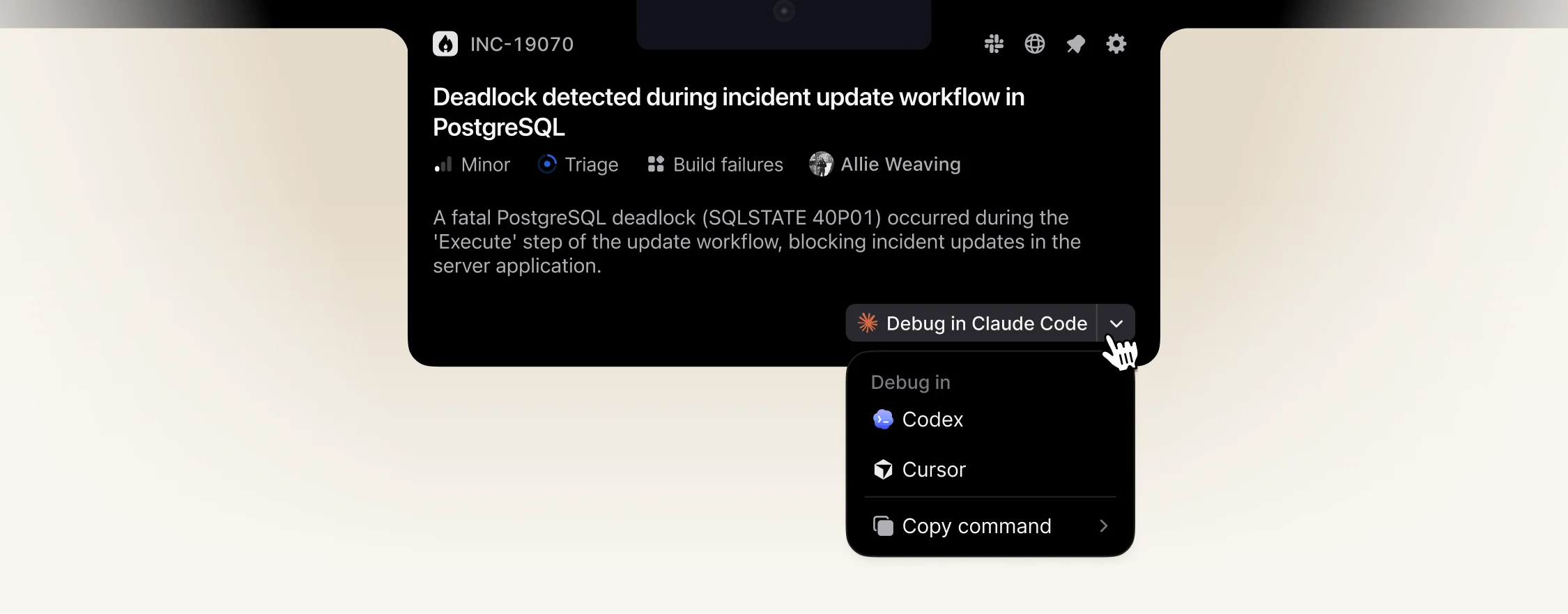
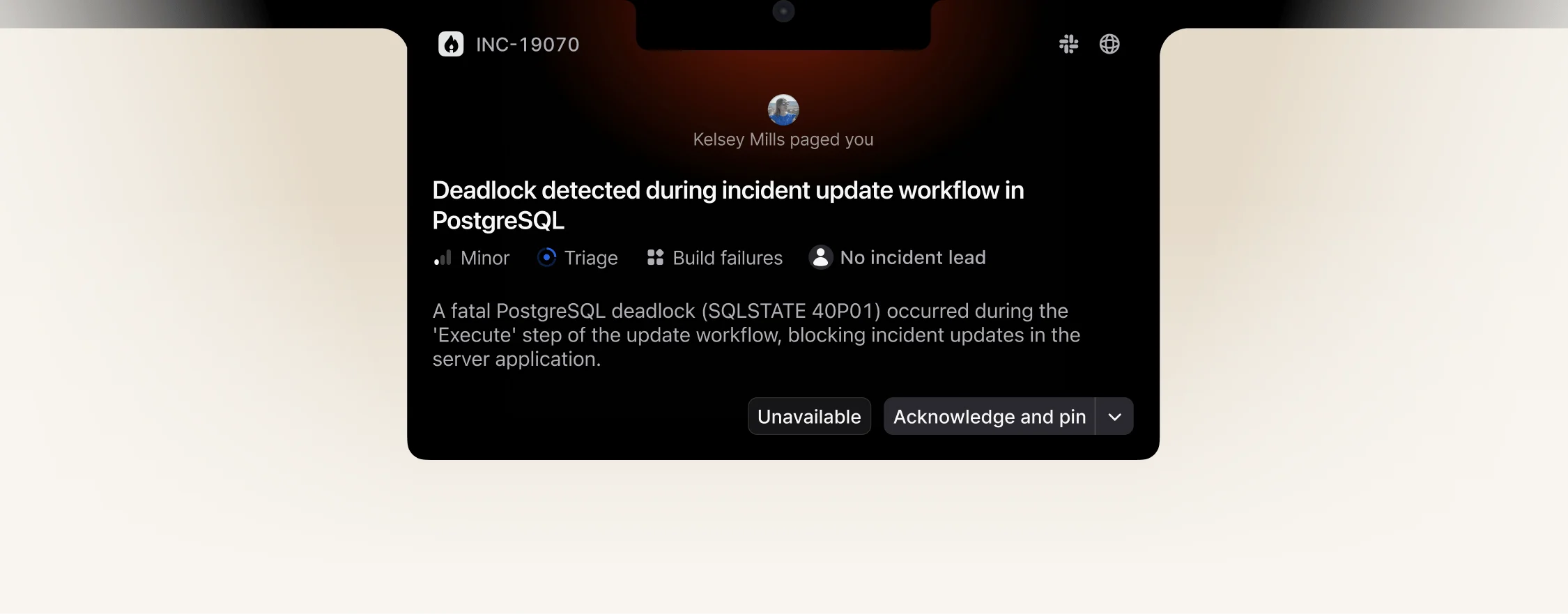
The macOS app is designed to help you from the moment you’re paged, until you resolve the incident, without context-switching back and forth between your coding agent and Slack or Microsoft Teams.- Get paged and jump straight in. High-urgency escalations appear in your notch (or notification center if you prefer menu-bar mode). Acknowledge the page, pin the incident, and start debugging in your coding agent.
- Investigate with your agent of choice. The app ships with a local MCP server and one-click integrations for Claude Code, Codex, and Cursor. Any other MCP-compatible client (e.g. OpenCode) can be configured manually.
- Share findings without leaving your terminal. Post updates, snippets, and findings directly to the incident channel via the MCP without tabbing away to write them up.
- Stay in the loop. New incident updates and status page changes arrive as native notifications, so you can stay heads-down in the code while still tracking what the rest of the team is doing.
Display modes
Both modes have full functionality: escalation prompts, an incident list, event notifications, and the same incident detail view. Pick whichever fits how you like to work, and switch between them from the app menu at any time.- Notch mode surfaces escalations and incident updates ambiently from the notch area, so you can stay aware of what’s happening without switching context. Works on external displays too.
- Menu bar mode is the minimalist option with a small menu bar icon that opens the same UI on click. Use this if you’d rather keep incident.io out of sight until you need it.
Coding agent integrations
The onboarding flow walks you through installing the integration for your coding agent. You can also add or change integrations any time from the app menu. One-click integrations are available for Claude Code, Codex, and Cursor. Any other MCP-compatible client (e.g. OpenCode) can be set up manually using the MCP config shown in the app menu.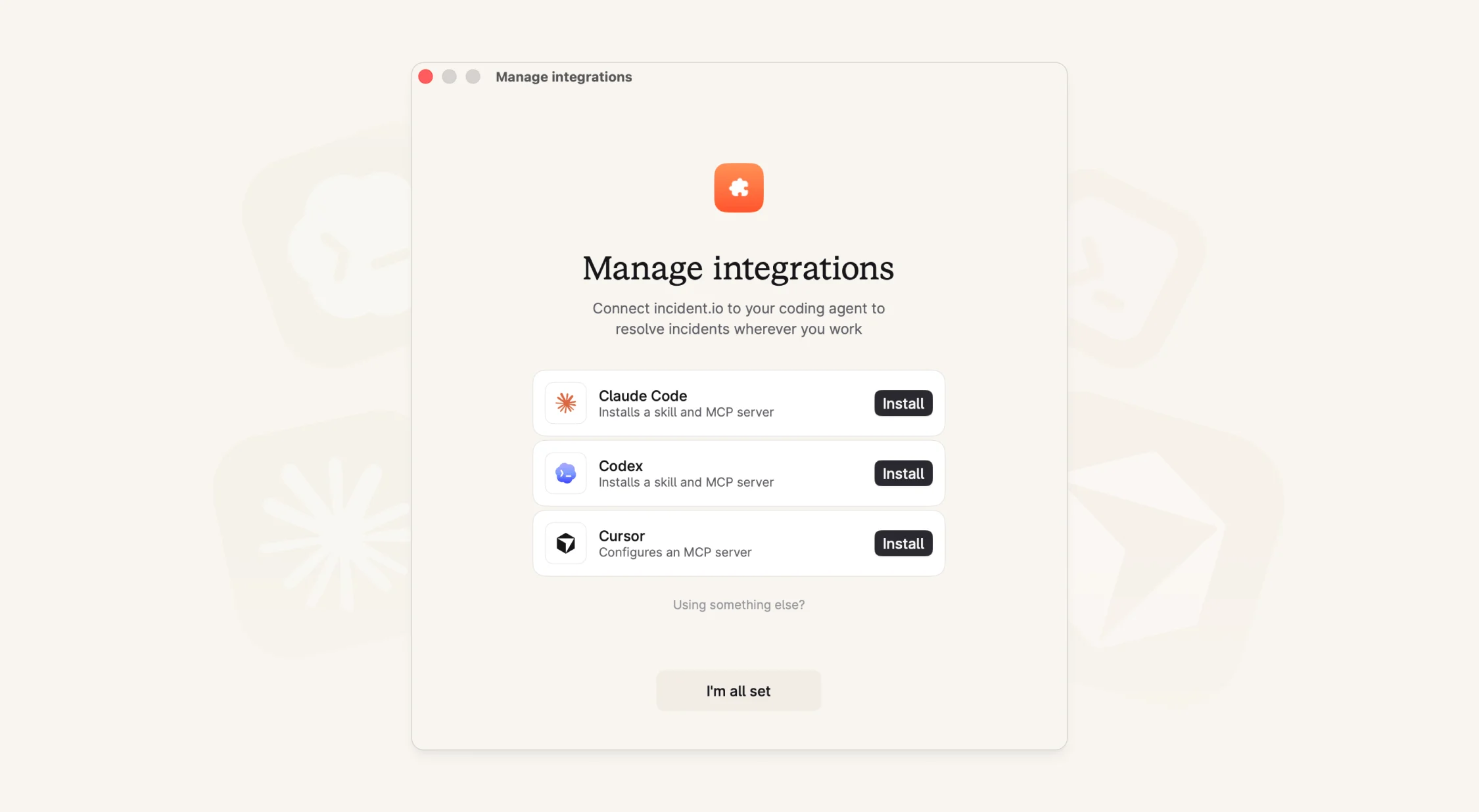
The local MCP exposes the same tools as the remote MCP server, plus extra tooling for live
investigation work and posting back to the incident channel. See the available tools
list on the remote MCP page — everything there works in the macOS app too.
Pinning incidents
Pin an incident to set it as the active one your coding agent works on. While pinned:- Your agent treats it as the active incident, so you don’t need to repeat the ID each time.
- You receive event notifications when there are new updates on that incident.
Investigations
Investigations are currently in Private Beta and aren’t available to everyone yet. If your
organization doesn’t have access, the rest of the macOS app still works. Your coding agent will use the MCP tools to
query incident data on demand.
- “Investigate why we’re seeing elevated error rates on the checkout service.”
- “What’s the current load on the production database and how does that compare to normal?”
- “Have any of my recent deployments affected error rates in production?”
Requirements
- macOS 15 (Sequoia) or later
- Apple Silicon (M1+) or Intel
- An incident.io account on a paid plan
FAQs
Should I use the macOS app or the remote MCP server?
Should I use the macOS app or the remote MCP server?
If you’re on a Mac and do local development, use the macOS app — it has everything the remote MCP has, plus native
notifications, integration installers, and richer support for investigations. Use the remote MCP
server if you’re on Windows or Linux, develop in a remote/cloud environment, or want to plug
incident.io into an automated agent pipeline.
Can I run the macOS app and the remote MCP server at the same time?
Can I run the macOS app and the remote MCP server at the same time?
Not in the same coding agent — they expose the same tools, and your agent will get confused if both are connected.
See Multiple incident.io MCPs authorized for how to resolve duplicates. Running them in
different places (e.g. macOS app on your Mac, remote MCP on a separate Linux box) works fine.
What does it cost?
What does it cost?
The macOS app is free. Capabilities of the MCP are tied to your plan and products — for example, tools to manage
escalations require access to On-call, and asking about telemetry requires access to Investigations.
How do I uninstall it?
How do I uninstall it?
Use incident.io menu → Reset to remove credentials, the bundled CLI, and any agent integrations the app
installed. To remove the app itself, drag it from
/Applications to the Trash.