

- Single pay configuration
- Multiple pay configurations
Single pay configuration
For most organizations, leveraging a single pay configuration will suffice as it supports those that pay all of their on-call responders the same rate. To generate a report, you will need to first create a pay configuration via the ‘Configure’ button on the top right. You can also manage pay configurations through the API.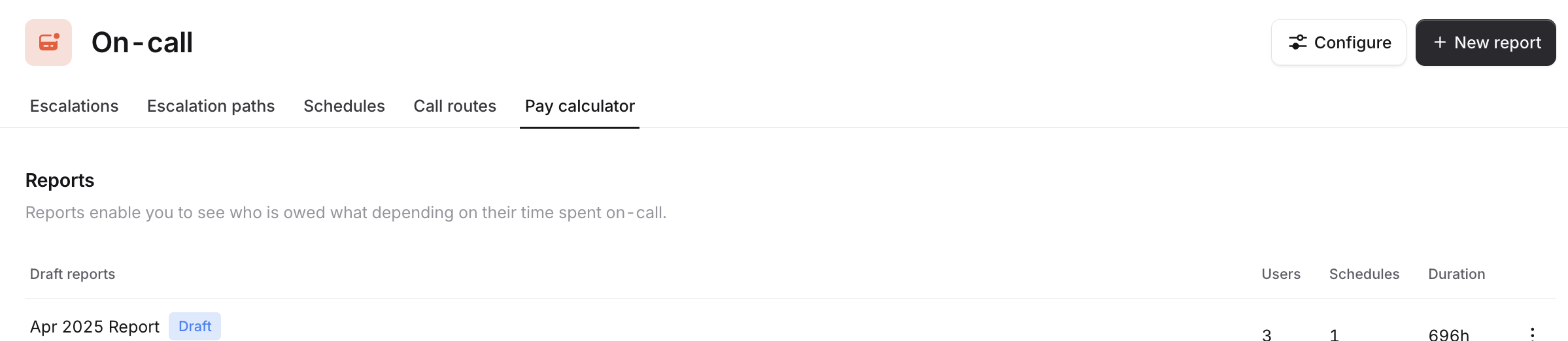
- Currency to be paid in
- Holidays
- Daily or hourly pay rates
- For example, if you pay £10 / hr every day, except Monday - Friday 9am - 5pm during working hours, this would look like:
- Settings Please create a name and specify the time range for your pay report (ie. the past month)
- Schedules Here you can select any schedules that should receive compensation for being on call.
- Payments Within Payments, you should select ‘Same pay rules for everyone’ and then select the payment configuration you set to apply to the report.
- Holidays Please check that you have accounted for any holidays that require additional or different payment. You can either import public holidays from our tool or you can manually add (useful if you have separate company holidays!).
- Generate Once you’ve completed all the above steps you can generate your report in a draft state so you can review before finally publishing!
Multiple pay configurations
Now, if your organization pays on-call responders different rates depending on different factors, you will want to generate a report using multiple pay configurations. Examples of this include:- Location-based compensation
- Role-based compensation
- Tier 1 vs Tier 2 engineer compensation
-
Team United Kingdom
- Currency: £
- Timezone: London (GMT)
- Hourly pay rates: £10 / hr every day, except Monday - Friday 9am - 5pm during working hours
- Holidays: United Kingdom
-
Team USA
- Currency: $
- Timezone: New York (EST)
- Hourly pay rates: $15 / hr every day, except Monday - Friday 8am - 6pm during working hours
- Holidays: United States
-
Team Australia
- Currency: AUD
- Timezone: Melbourne (GMT+10)
- Hourly pay rates: $10 / hr every day, except Monday - Friday 9:30am - 5:30pm
- Holidays: Australia
- Anna is in the Melbourne Office
- Sarah is in the NY office
- Ben is in the London office
- Settings Please create a name and specify the time range for your pay report
- Schedules Here you can select any schedules that should receive compensation for being on call.
- Payments Here you should select ‘Different pay rules for different groups.’ From here you will want to use If expressions to connect Users → Office → Pay configurations. See screenshot for an example of how this can be set up:
- Holidays Please check that you have accounted for any holidays that require additional or different payment. You can either import public holidays from our tool or you can manually add (useful if you have separate company holidays!).
- Generate Then you can generate your report in a draft state so you can review before publishing!
Exporting a report
Once you’ve published a report, you can export it in two formats:- Summary for payroll: a single CSV with total pay per person, ready to hand off to your finance team or import into payroll
- Schedule by schedule: a ZIP containing one CSV per schedule, with a full shift-by-shift breakdown (useful if you need to audit or verify individual shifts)
Additional tips for generating reports
- Deduplication: If you have users that are on-call for multiple schedules at once, and want to deduplicate payments, please select ‘Pay only once for overlapping shifts’ while generating a report.
- Create using old report: You can create a new report based on a previous one (which will reuse the same schedules and pay configurations so you don’t have to reselect everything each month!).