

Streams are available on the Enterprise plan.
- Slack
- Microsoft Teams
 Slack
Slack Microsoft Teams
Creating streams
To create a stream, type/incident stream in an incident channel.You’ll be presented with a modal to:- Set a name for the stream
- Assign a stream lead. This is usually a different person to the main incident lead, to avoid splitting their focus.
- Invite anyone else who should collaborate on the stream

If you’ve configured automatic call links we’ll also create one for your stream. If not, you can manually link a video call from the stream channel, just like in an incident channel.
Managing streams
A stream runs much like a small incident of its own, with its own updates, actions, and roles.Posting updates
To share an update, type/incident update in a stream channel, just like you would in an incident channel.You’ll be presented with a modal that:- Lets you provide a short message to update people on what’s going on
- Lets you set a reminder for your next update, so you don’t have to remember manually. We’ll come back and remind you when an update is due.
Creating actions
Track the work happening in a stream by creating actions, just like you would in an incident. Actions are the things that need doing now to move the stream forward, like rebooting a server, drafting customer comms, or pulling a list of affected accounts.You can create and manage actions from the stream channel, or from the stream’s dashboard page:- In Slack, run
/incident actionin the stream channel. With no message we’ll show the open actions for that stream. Add a description (for example/incident action draft customer comms) to jump straight to creating one. You can also react to any message with:boom:to turn it into an action. - In the dashboard, open the stream and use the Actions section on the Overview tab. Select the + button to add an action, then assign it, mark it complete, edit, or delete it.
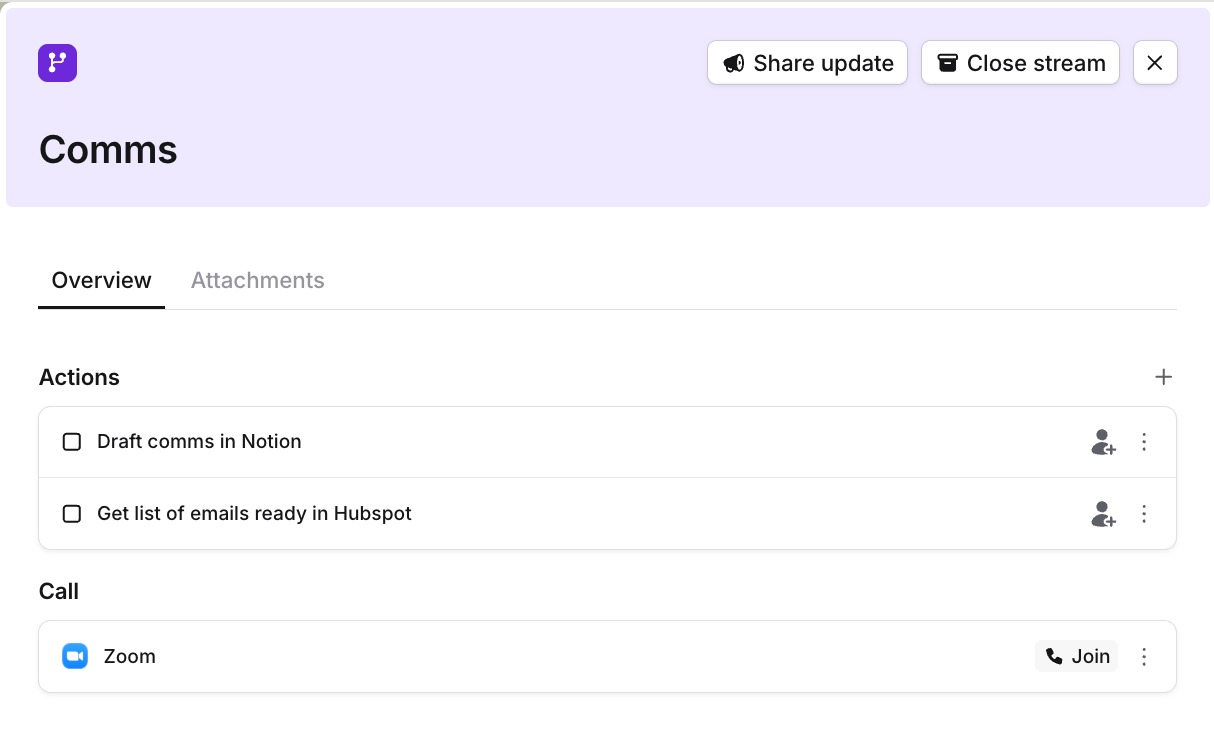
Actions in a stream don’t convert into follow-ups. Streams don’t have their own post-incident flow. Once a stream is closed you can still update or tidy up its existing actions, but you won’t be able to create new ones.
Assigning roles
Just like incidents, nominate a person to lead each stream. We recommend a separate lead for each stream, as they cover different areas of work in different Slack channels.If you’ve set up custom incident roles, we’ll make those available in streams too. Any role available in the parent incident is available in its streams.From within the stream channel, use commands such as/inc lead and /inc handover to reassign roles, just as you would in an incident.Restricting access to streams
You can restrict access to a stream by making it private, so sensitive work stays visible only to the people who need it. Read more about private streams here.Shortcuts and emoji
If you’ve learnt just one command you can use it in streams too. Type/inc in a stream’s Slack channel to pop up a menu of every action you can run in a stream.You can also react to messages in a stream channel with:The full set of stream commands:
Closing streams
Once a stream of work is complete, type/incident close in the stream channel.You’ll be presented with a modal that asks you to provide a final update on the stream.The stream is marked as closed, and the final update is posted in the incident channel to keep everyone up to speed.


FAQs
Do streams have their own roles and leads?
Do streams have their own roles and leads?
Yes. Each stream has its own stream lead, and any custom incident roles you’ve configured are
available in streams. We recommend assigning a different lead for each stream and the parent incident, to avoid
splitting focus.
Do actions in a stream become follow-ups?
Do actions in a stream become follow-ups?
No. Streams don’t have their own post-incident flow, so actions in a stream don’t convert into
follow-ups. Once a stream is closed you can still update its existing actions, but you
won’t be able to create new ones.
Can I create a video call for a stream?
Can I create a video call for a stream?
Yes, on both Slack and Microsoft Teams. If you’ve configured automatic call links, we
create one automatically when the stream is created. You can also add or change the call link yourself from the
stream’s page in the dashboard. In Slack, you can additionally set it with
/incident call from the stream channel.