

What do private streams do?
Private streams are by nature full of sensitive information. To keep that information safe, there are some restrictions and exceptions we’ve put in place:- Private streams are by-invitation only
- Updates from private streams will not be shared to the incident channel
- Private streams are not included in the incident timeline, exports or Insights tabs
- When you escalate a private stream, we won’t include any information about the stream, other than a link to the dashboard, in the escalation.
Remember that incident.io Workspace owners AND Slack Workspace owners have access to all private incidents and streams, even those they are not actively invited to!
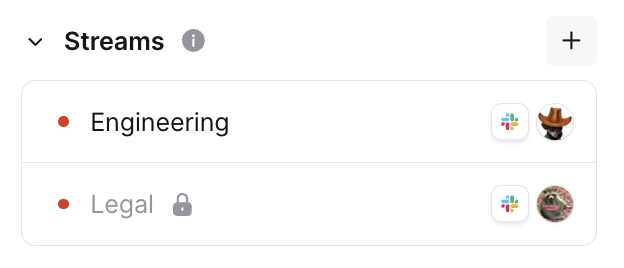
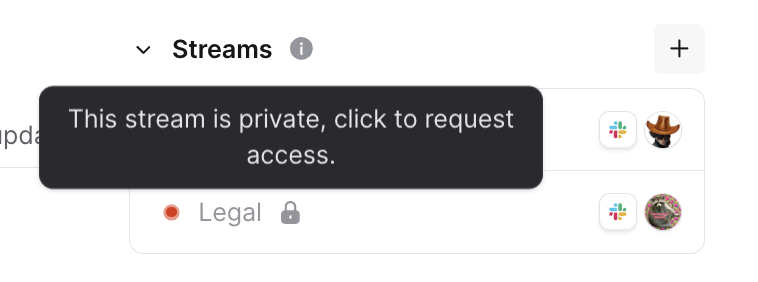
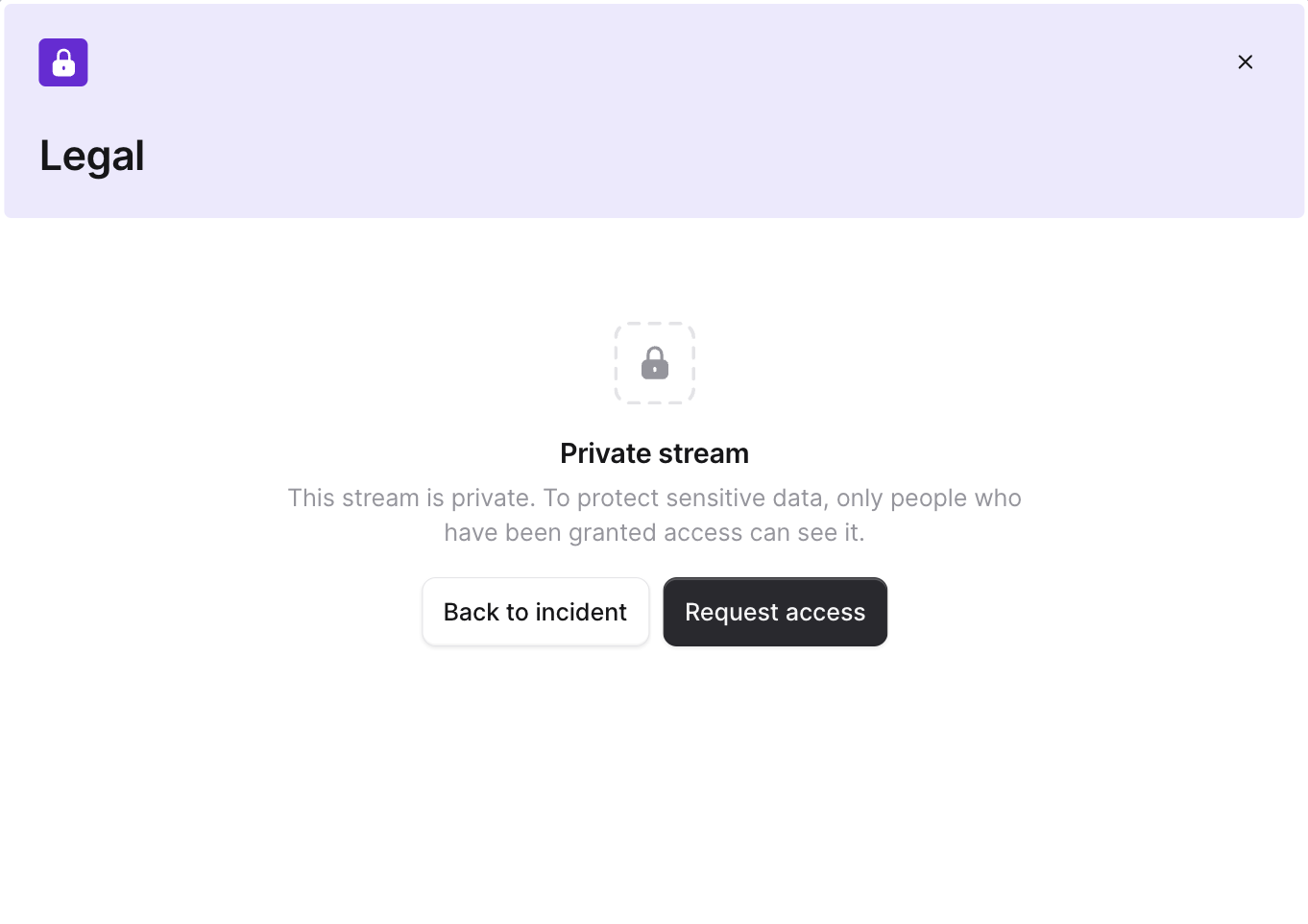
Unlike private incidents, users without access to a private stream will still be shown some basic information about it (stream name and lead) in order to know which stream of work they should request access to.
Enabling private streams
If you are an Admin or Owner of your company’s incident.io workspace, you can opt-in to Private Streams from Settings > Security.
Creating a private stream
You can make an stream private from the start when you declare it, or turn a public stream private.Declaring a private stream
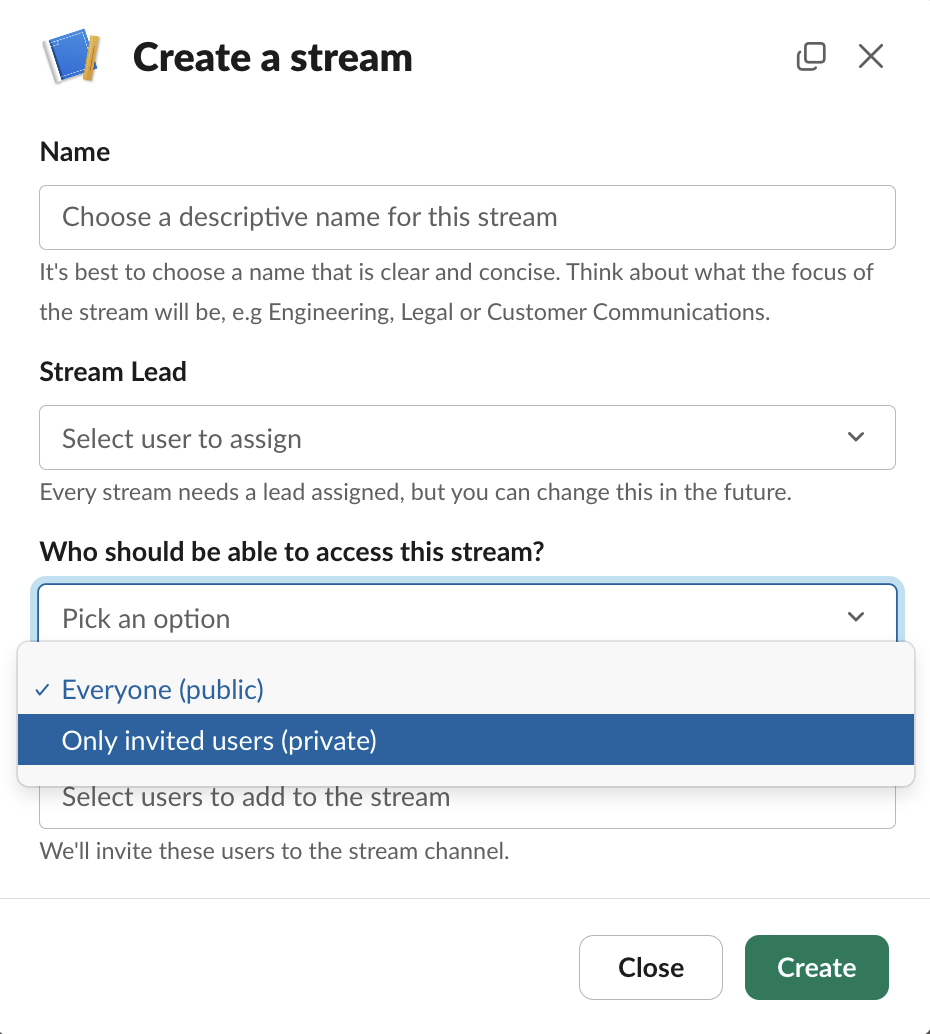
To create a private stream, simply use the usual/incident stream Slack Command (or create a new stream through the dashboard).
We will add a drop-down labeled ’ Who should be able to access this stream? ’. To make the stream private, select ’ Only invited users (private) ’.
Turning a public stream private
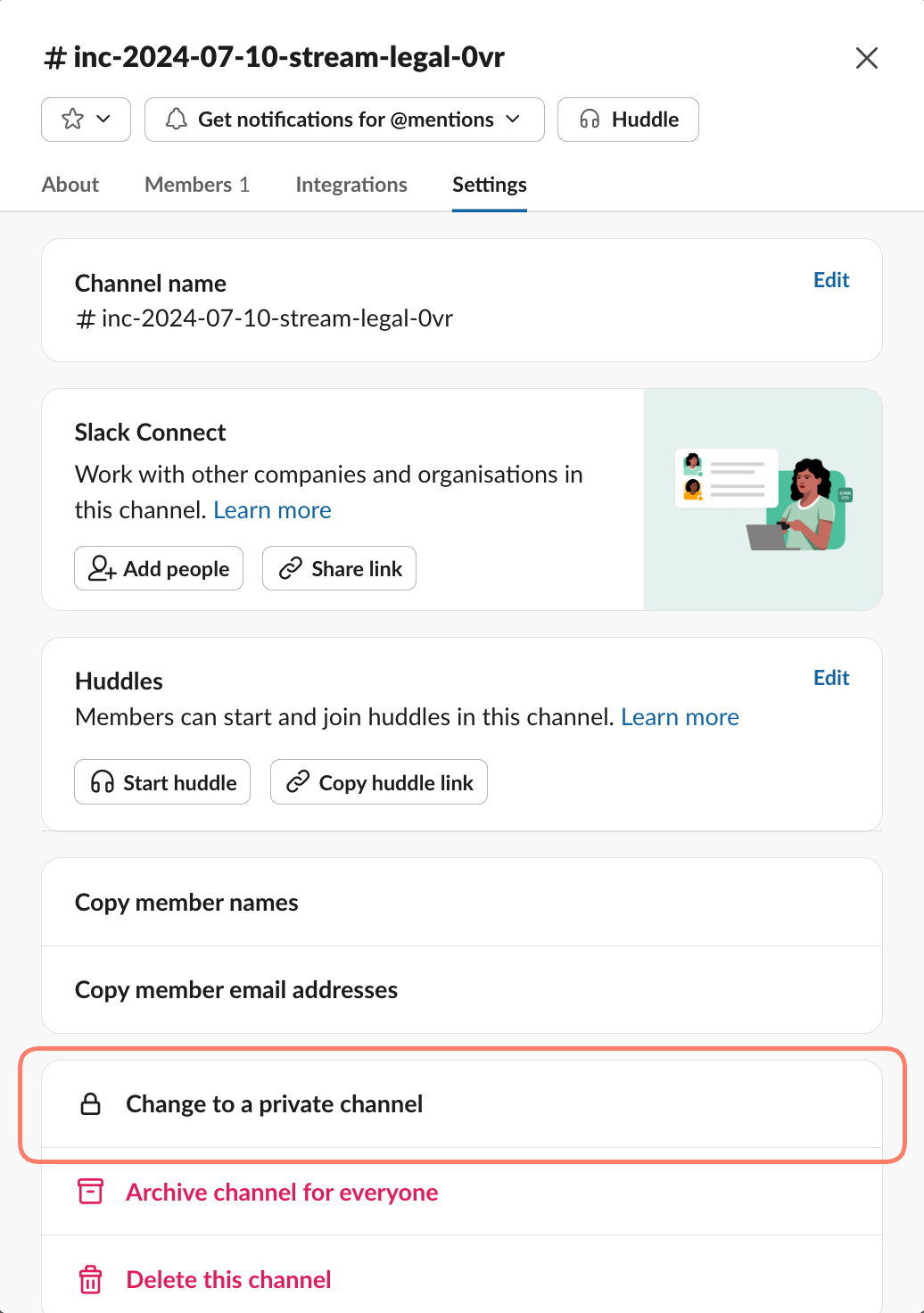
Sometimes, you might not know if a stream should be private when you declare it - you might still be investigating and it’s not quite clear what the issue and its impact is. Nothing to worry about! You can very easily convert a public stream into a private one by simply making the streams#inc-... channel private from Slack. We’ll take care of locking it down for you from here.
Turning a public incident with streams private
If you convert a public incident with streams to private, we’ll restrict access to all streams in the dashboard, and filter it out from any queries and insights, however:We aren’t able to change the visibility of slack channels, so you’ll also need to make any stream channels private from Slack.
Turning a private stream into a public stream
If you ever find the need to revert a private stream back to a public one, you can simply convert the incident’s slack channel to public. We’ll then do the same to the stream.Turning a private incident with streams into a public incident
If you ever find the need to revert a private incident back to a public one, you can simply convert the incident’s slack channel to public. This won’t impact the streams associated with the incident, which will remain private. You can individually change their visibility by converting the stream’s slack channels to public.Requesting access to a private stream
Only people who are in a private stream’s#inc-... channel will have access to it:
- If a stream is created as private from the start, this includes the stream’s creator, the stream lead, and anyone they actively invite into the private channel;
- If you turn a public stream private, this includes anyone who was on the public-turned-private channel, and anyone invited to the private channel hereafter.
Managing access
The stream drawer will show you who has participated in the private stream ( Active Participants ) and who has been a member ( Observers ). Granting and revoking access can be done through the ’ Manage Access ’ button. Participants and Observers indicate members who at any stage have participated or observed, so even if their access has been revoked they’ll remain in the list.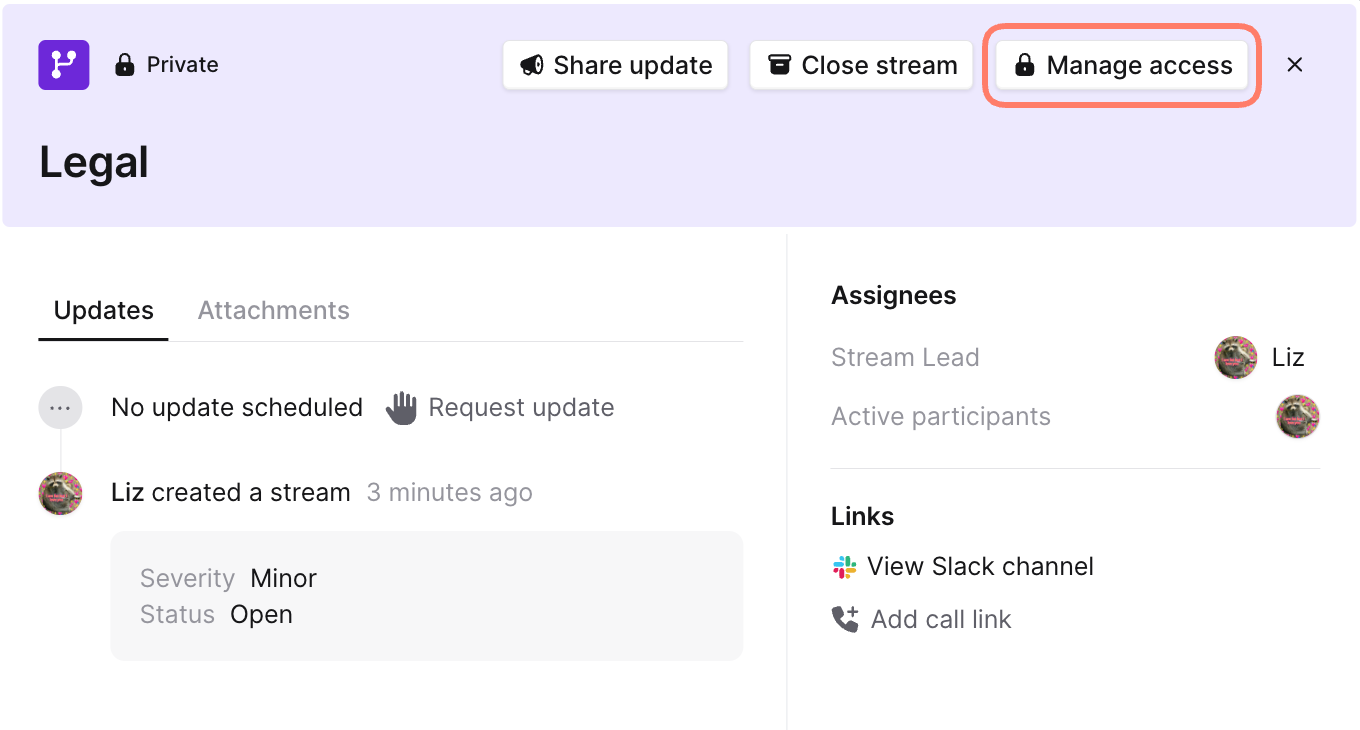
Manage Access button will allow you to:
- Grant access : users you invite will be added automatically to the stream Slack channel, and will be able to view stream information in the dashboard
- Revoke access : revoking someone’s access will mean they are removed from the Slack channel and they will no longer be able to see the stream details drawer. They’ll see the stream name and lead listed, but won’t have access to any of the information in the stream details drawer