

Where’s the timeline?
You can find an incident’s timeline on theTimeline tab.
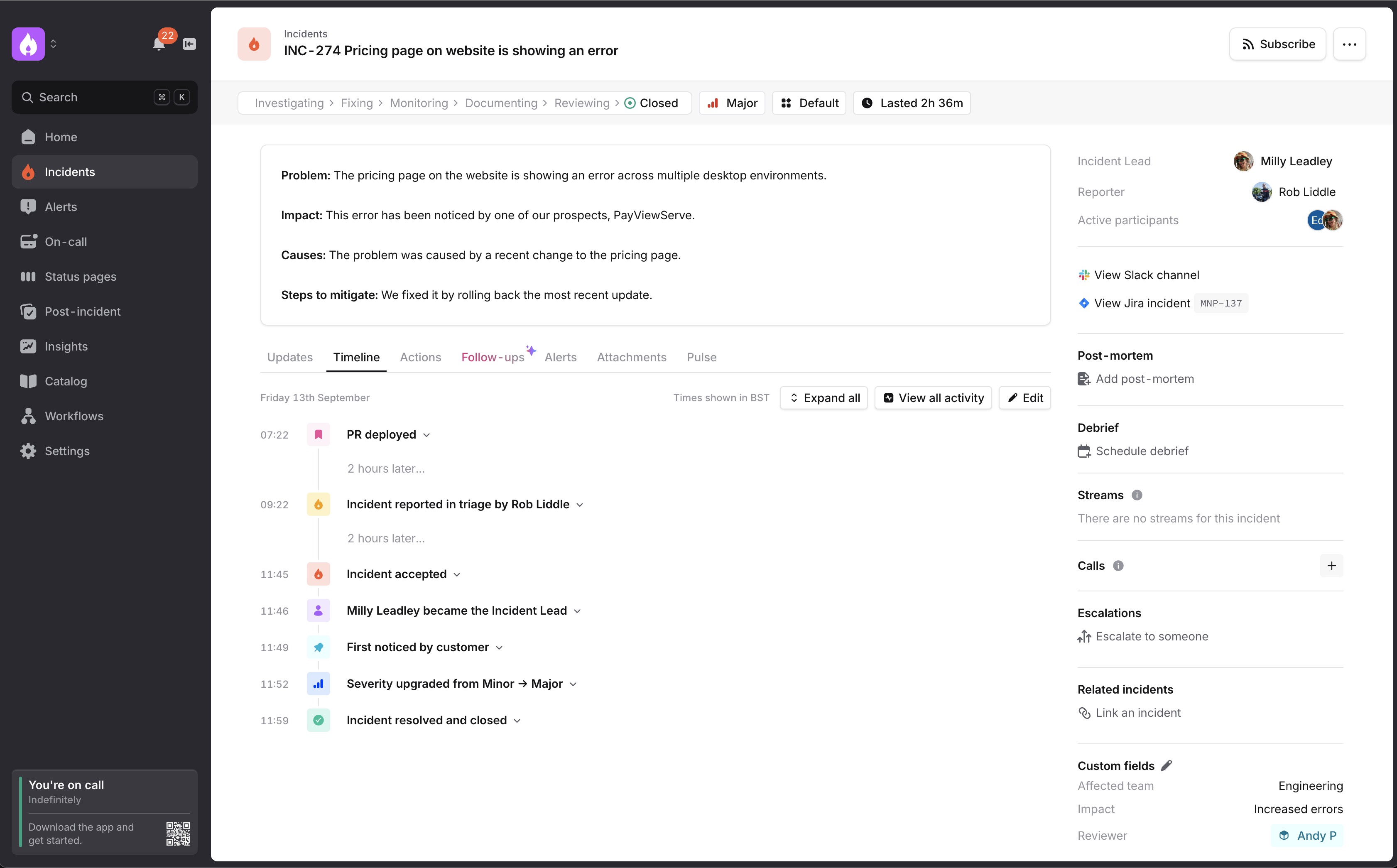
Editing the timeline
We’ll automatically create events on your timeline using your incident updates (e.g. severity changes, status changes) and pinned slack messages.
Edit button.
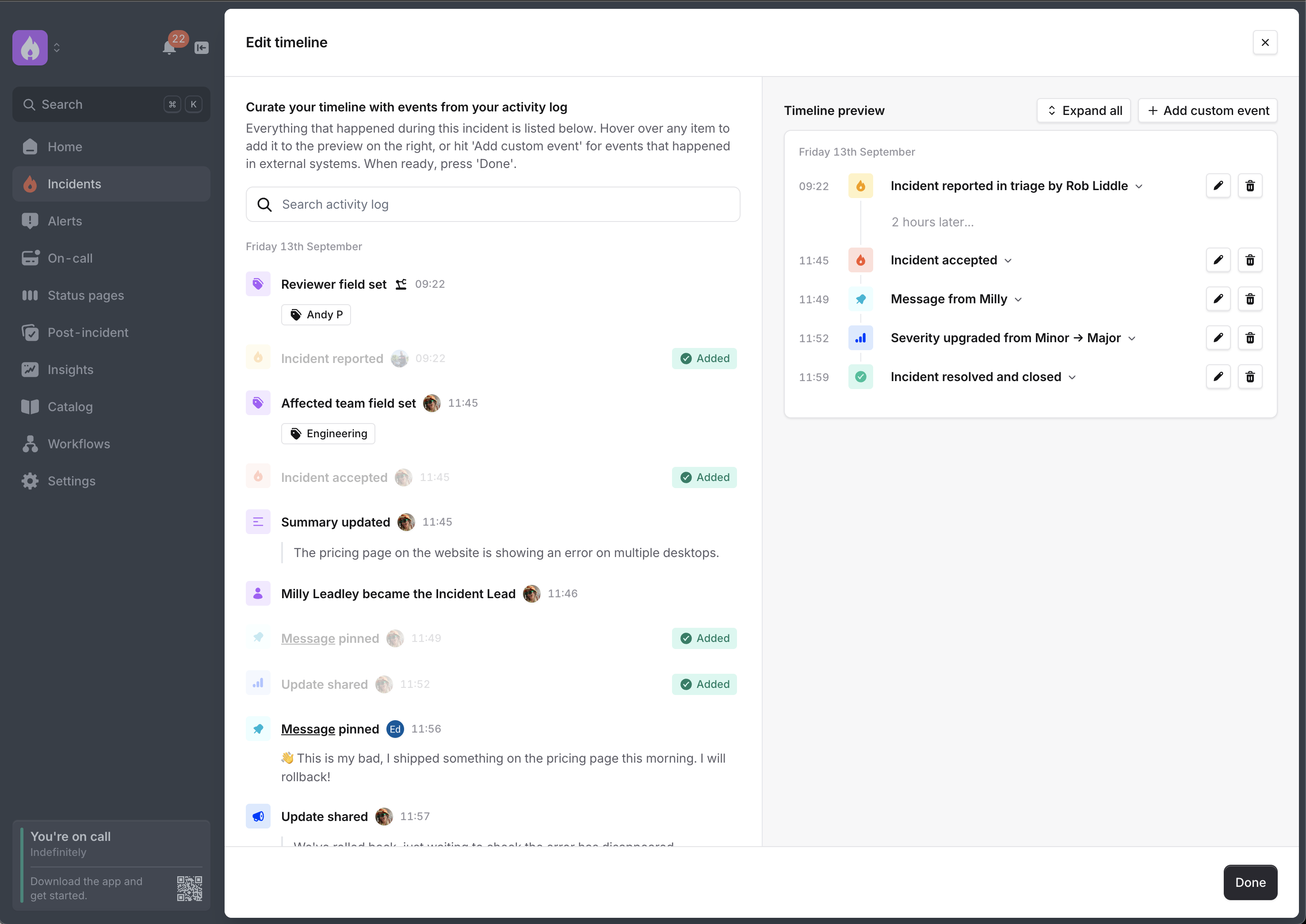
Adding other events
You can do this a few ways.(1) Adding items from the activity log
On the left panel in the editor you’ll notice every event that we detected during the incident. These include:- Role changes
- Updates to the incident summary
- Actions (created, assigned, updated)
- Pull requests and commits in GitHub
- Errors in Sentry
- Images posted in the channel

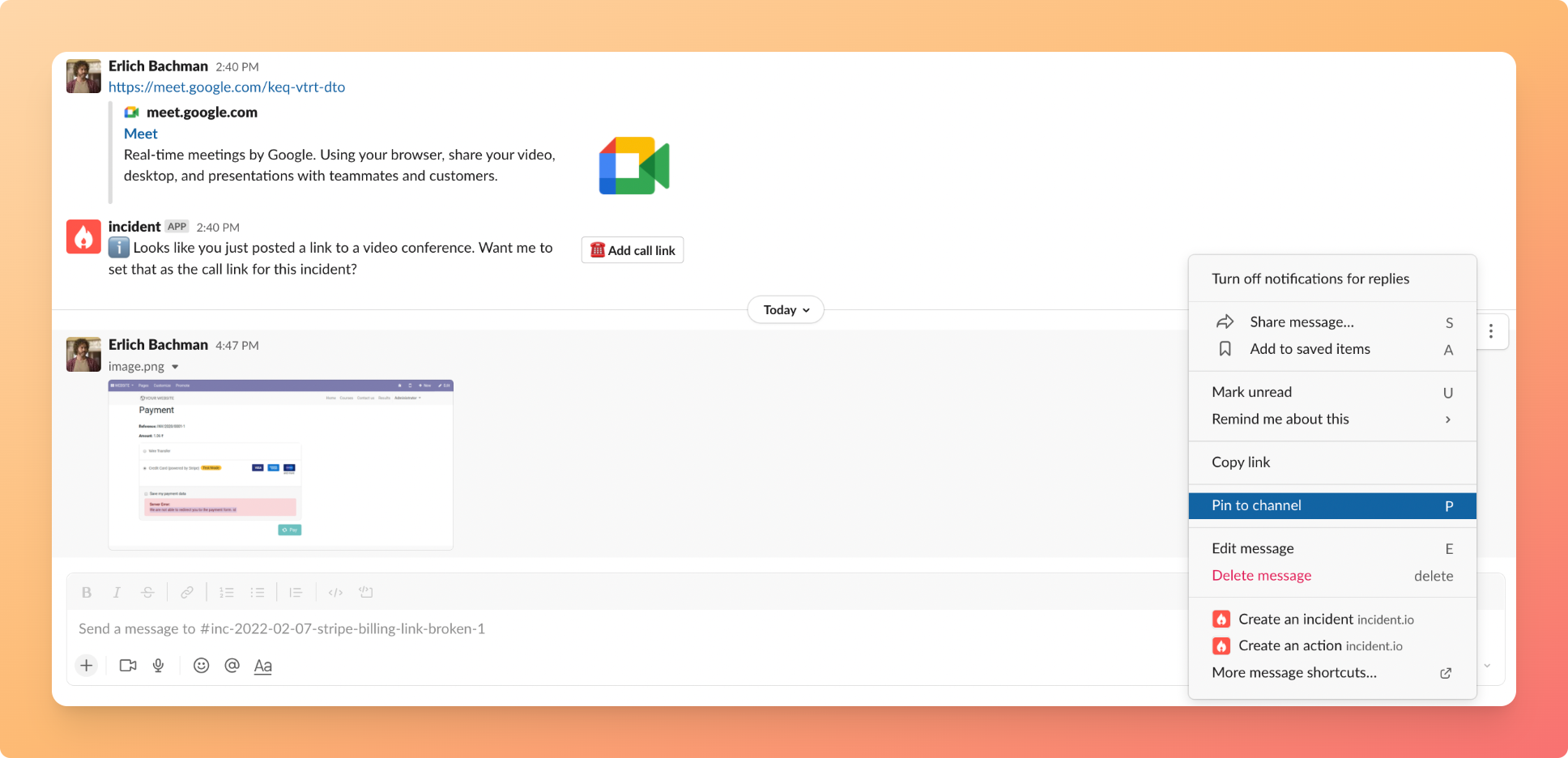
(2) Pinning messages from the Slack channel
While in an incident’s/inc-... channel, simply use the pin emoji on a message, screenshot etc. to add it to the timeline! You can also use Slack’s built-in “Pin to channel” command 👇🏼
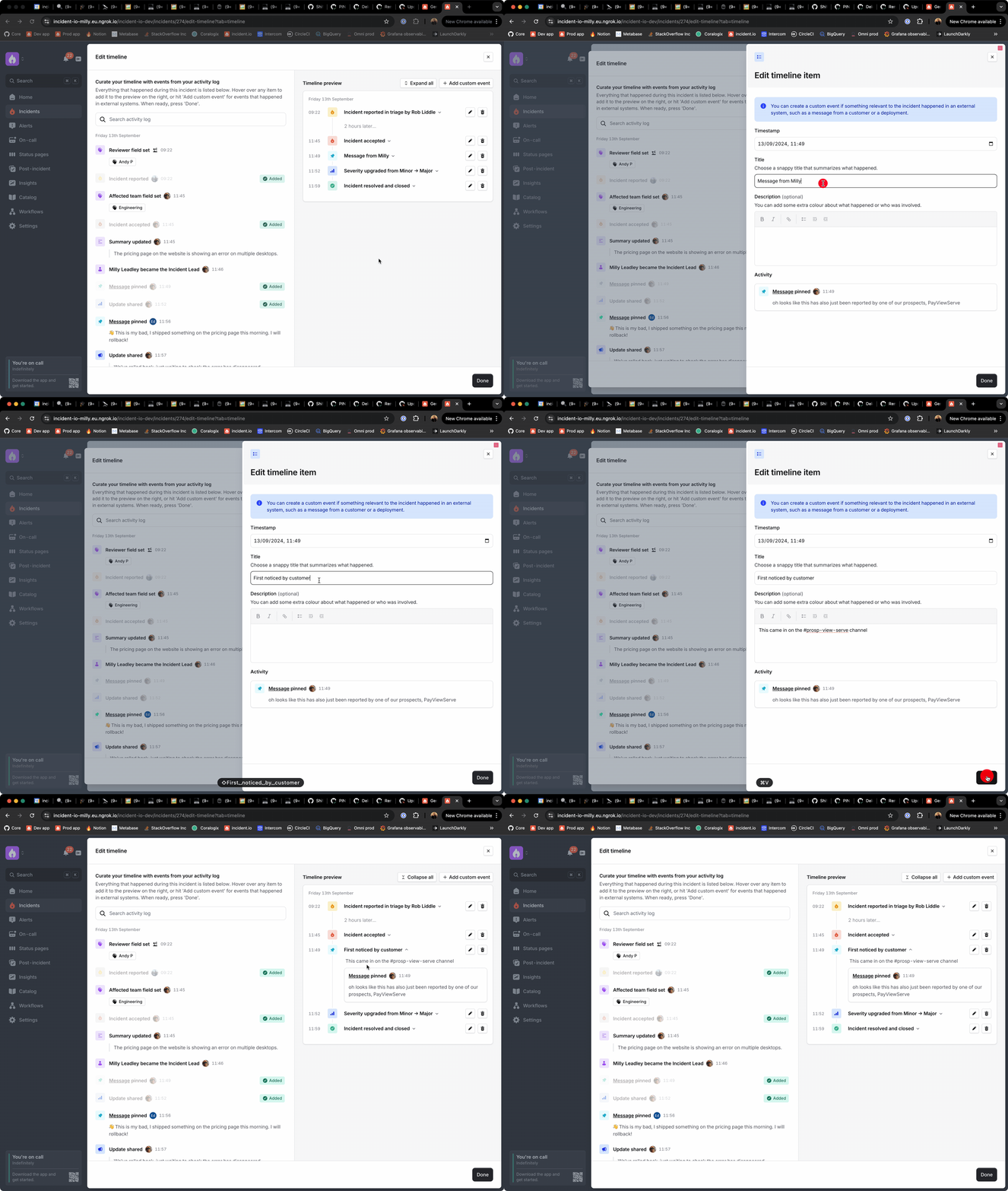
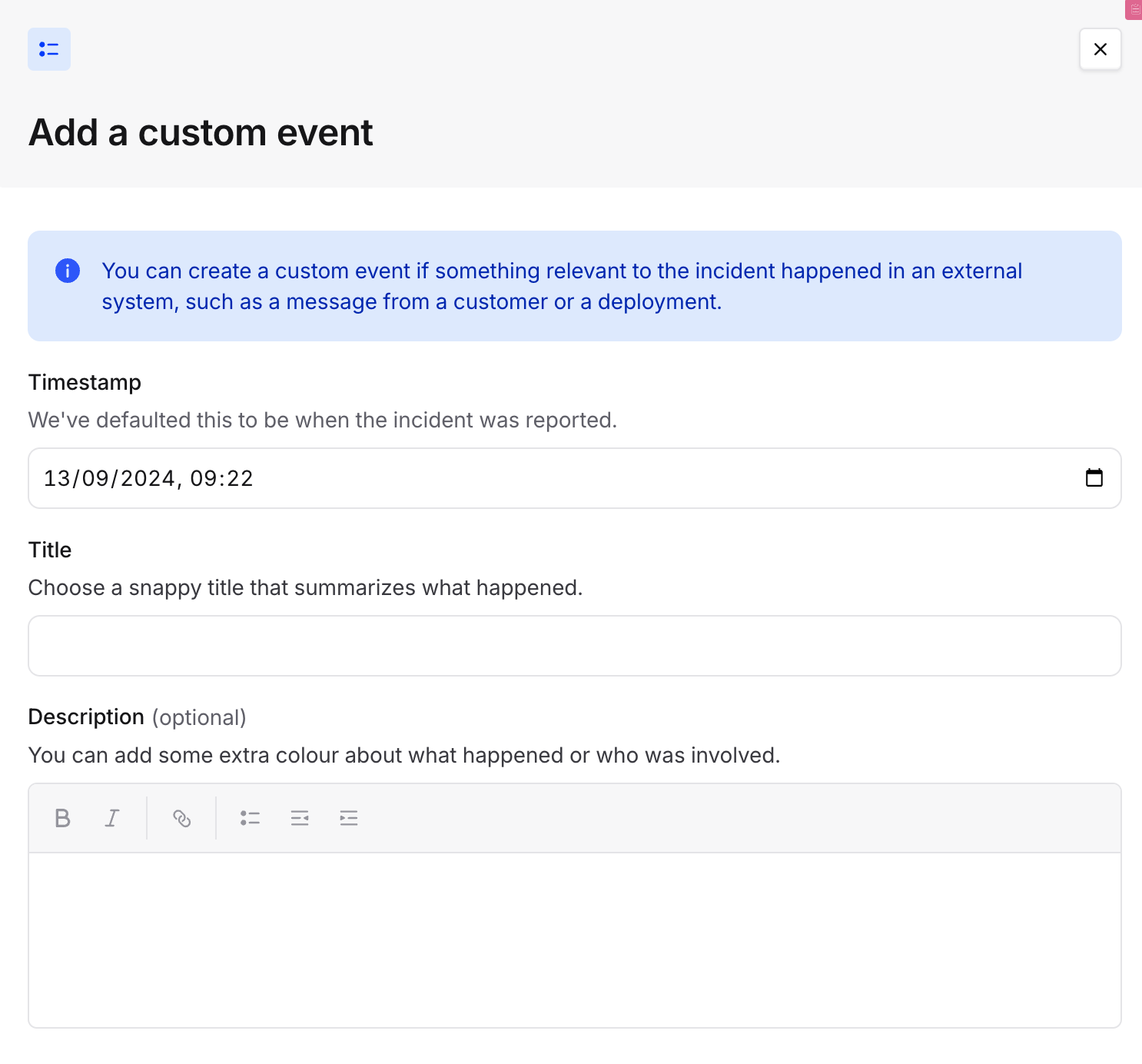
(3) Adding a custom event
If the event happened outside of the incident channel (e.g. a code deployment, a message from a customer), you can still add it to the timeline as a custom event.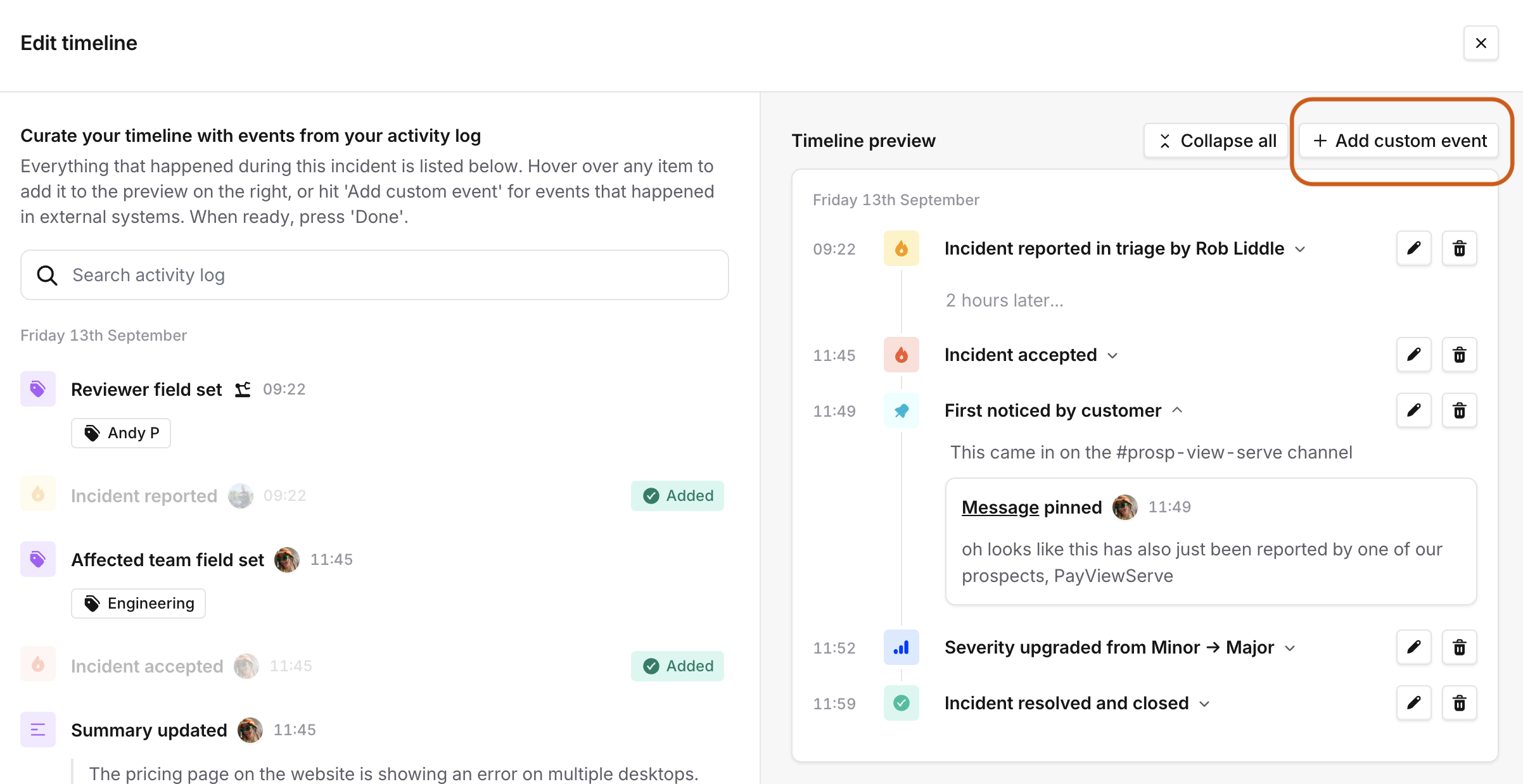
Then what?
Once you’ve curated your timeline, you might want to create a post-mortem in your document provider like Notion. We’ll render a copy of the timeline in your document for you! You may also want to start a discussion about particular events on the timeline. For instance, if there is ambiguity about why something happened that might be relevant to the debrief, you could start a discussion in advance. Just hover over an event to add a comment. Your comment will notify other responders who have been following the incident