

- Slack
- Microsoft Teams
 Slack
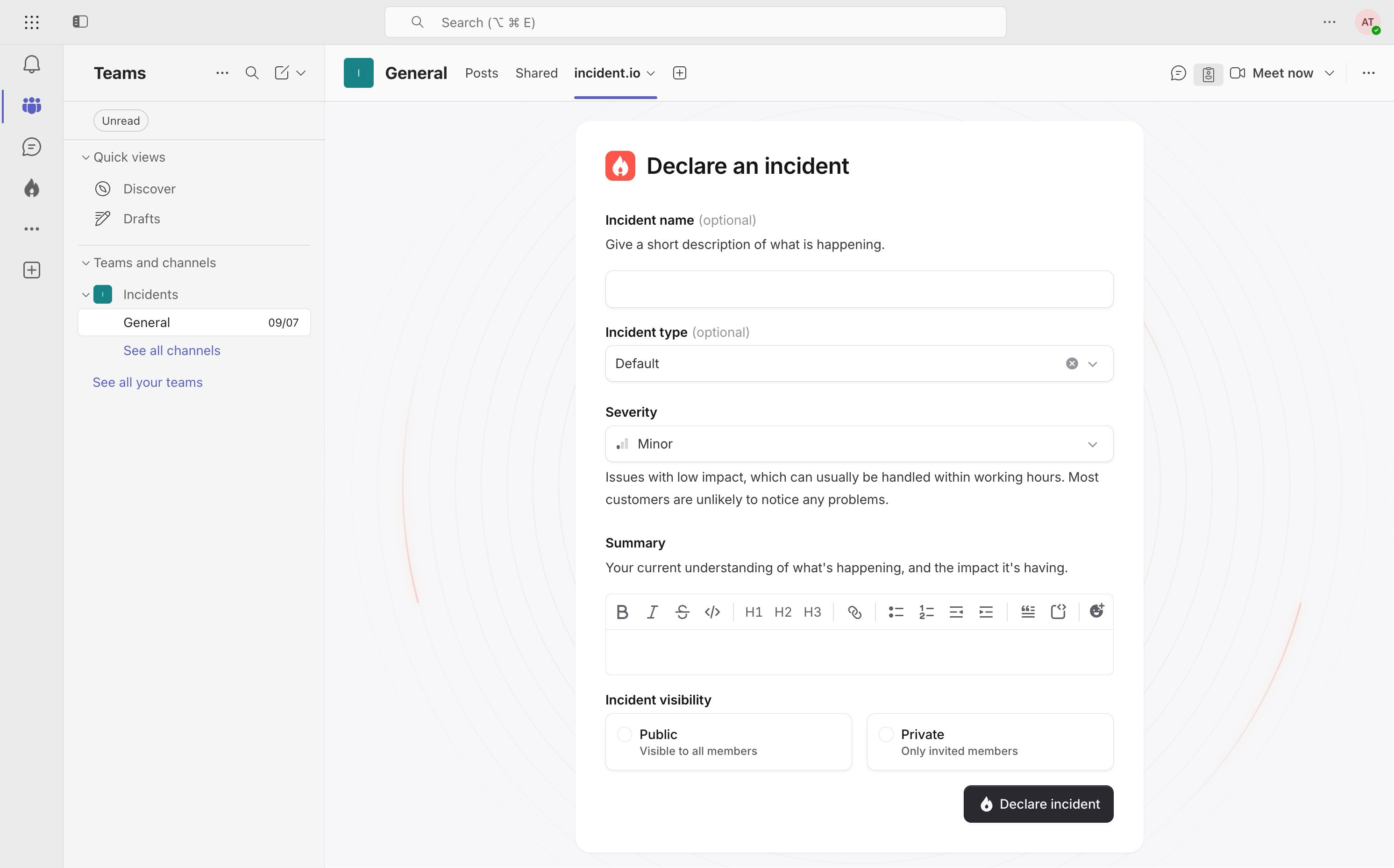
Slack Microsoft Teams
Declare with /incident or /inc
From any channel in Slack, type/incident or /inc and press Enter to open the incident declaration form. To pre-fill the title, add it after the command (e.g. /inc Website is down).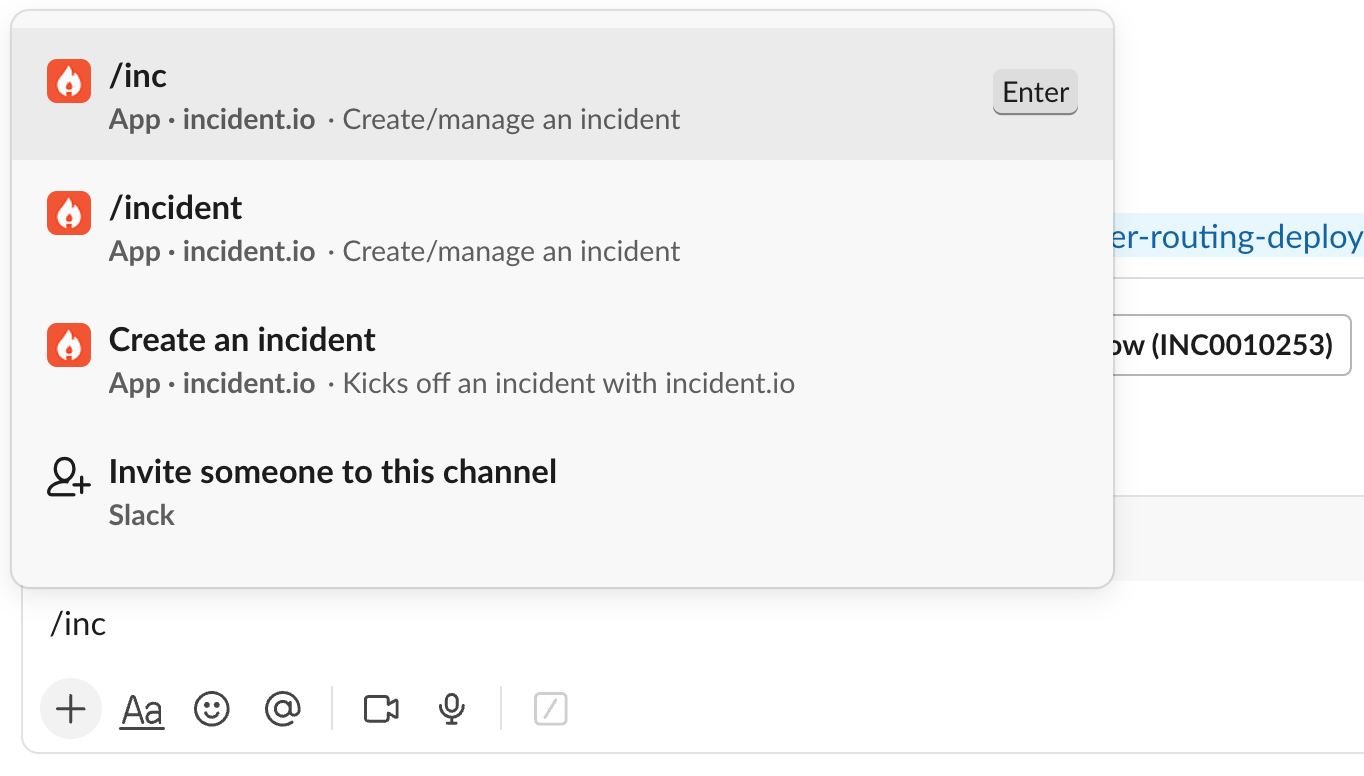
Declare from an existing message
Sometimes the first sign of an incident is a message that’s already been posted, such as a report in your#customer-support or #legal channel, a heads-up in a Slack Connect channel with a customer, or a direct message from a colleague. You can declare an incident straight from that message so the context comes with it.Click the three dots in the top-right corner of the message, choose Connect to apps, then Create an incident.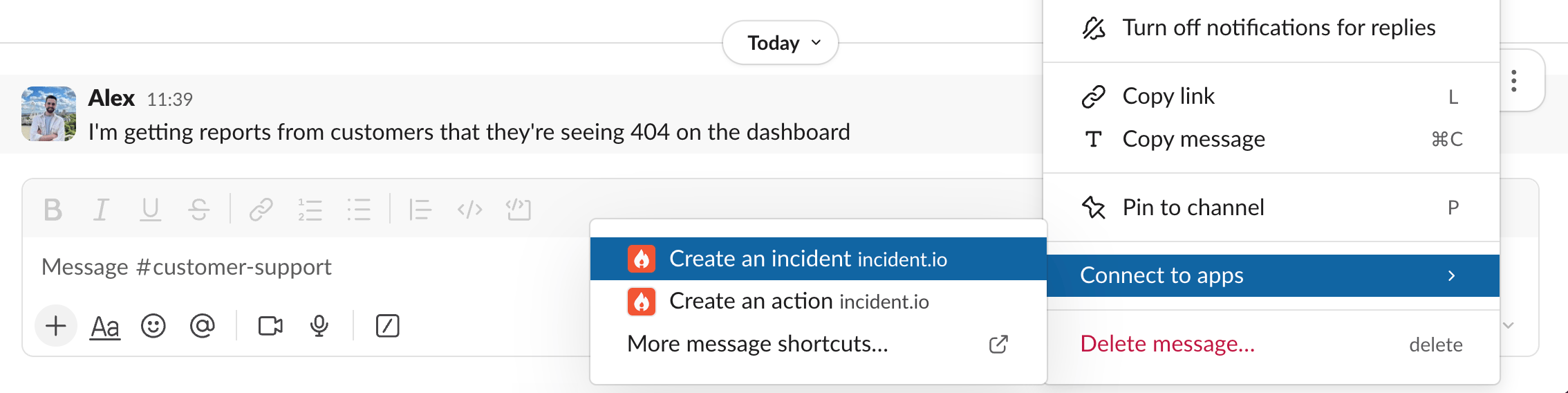
Declare from your browser
Head to inc.new to create a new incident. Fill out the details and hit Declare, just as if you’d used the slash command. You can switch between live, retrospective, and test incidents from the tabs at the top of the form.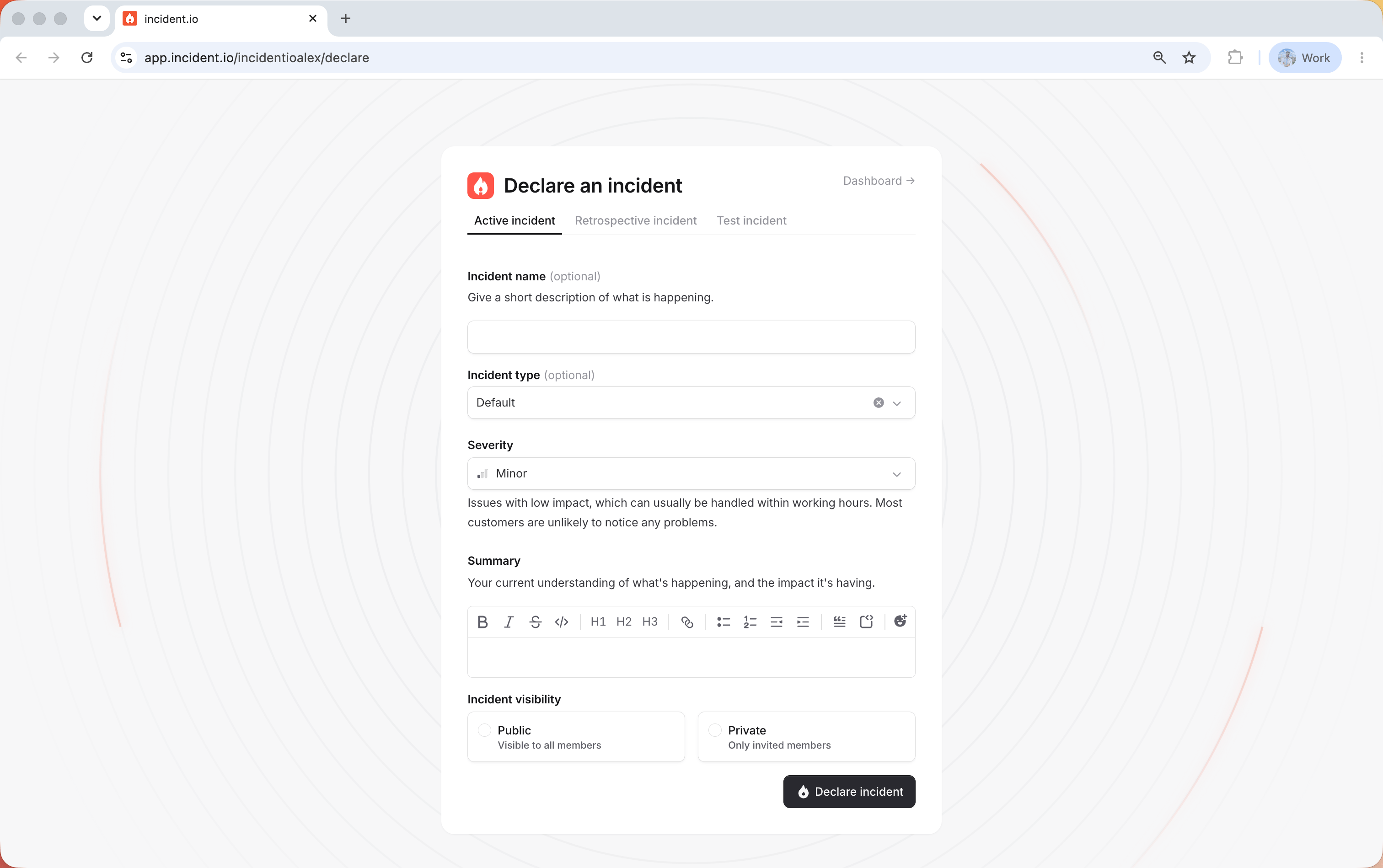
What happens next
As soon as you declare, we automatically set up your incident response workspace:- A dedicated Slack channel that brings responders, updates, and actions together in one place.
- A video call for a digital war room, using Google Meet, Zoom, or another provider.
- A linked ticket in your issue tracker, like Jira or Linear, keeping the work visible where your engineers already are.
- A heads-up in your announcements channel,
#incidentsby default.
FAQs
Who can declare an incident?
Who can declare an incident?
By default, anyone can declare an incident. Admins can restrict who can declare a particular incident
type, for example limiting a security incident to your security team.
Do I have to fill in the whole form when declaring?
Do I have to fill in the whole form when declaring?
You can configure which fields are required and which are optional, so an incident can be declared with just a few
details. Anything filled in is easy to change later during the incident.
Can I declare a private incident?
Can I declare a private incident?
Yes, if private incidents are enabled for your workspace. The declaration form will include an option to make the
incident private, visible only to invited responders.