

Setting up
To configure a role, head to Settings → Types and select the incident type you want to configure. Scroll to the Roles section.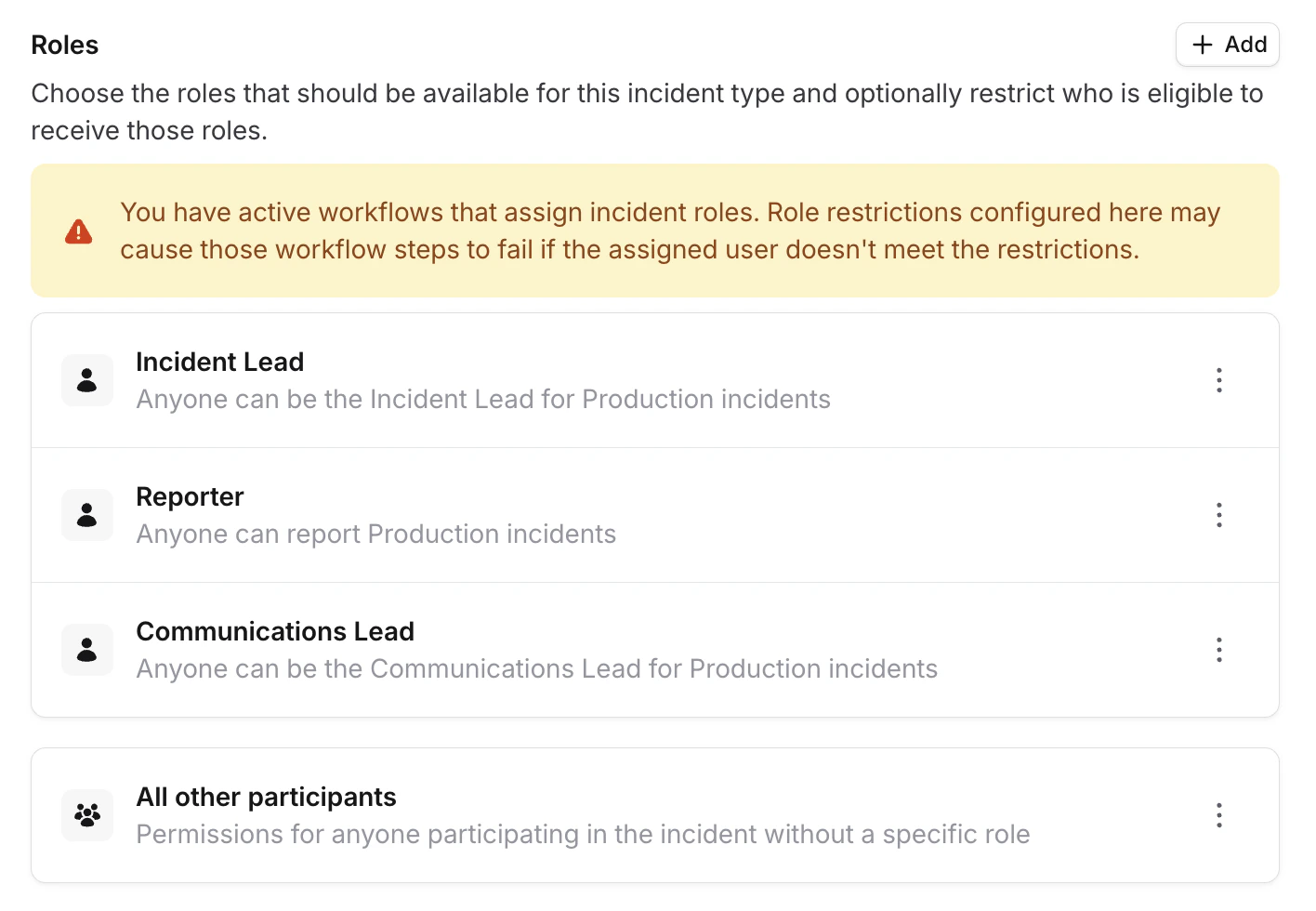
The Roles section before any restrictions are configured
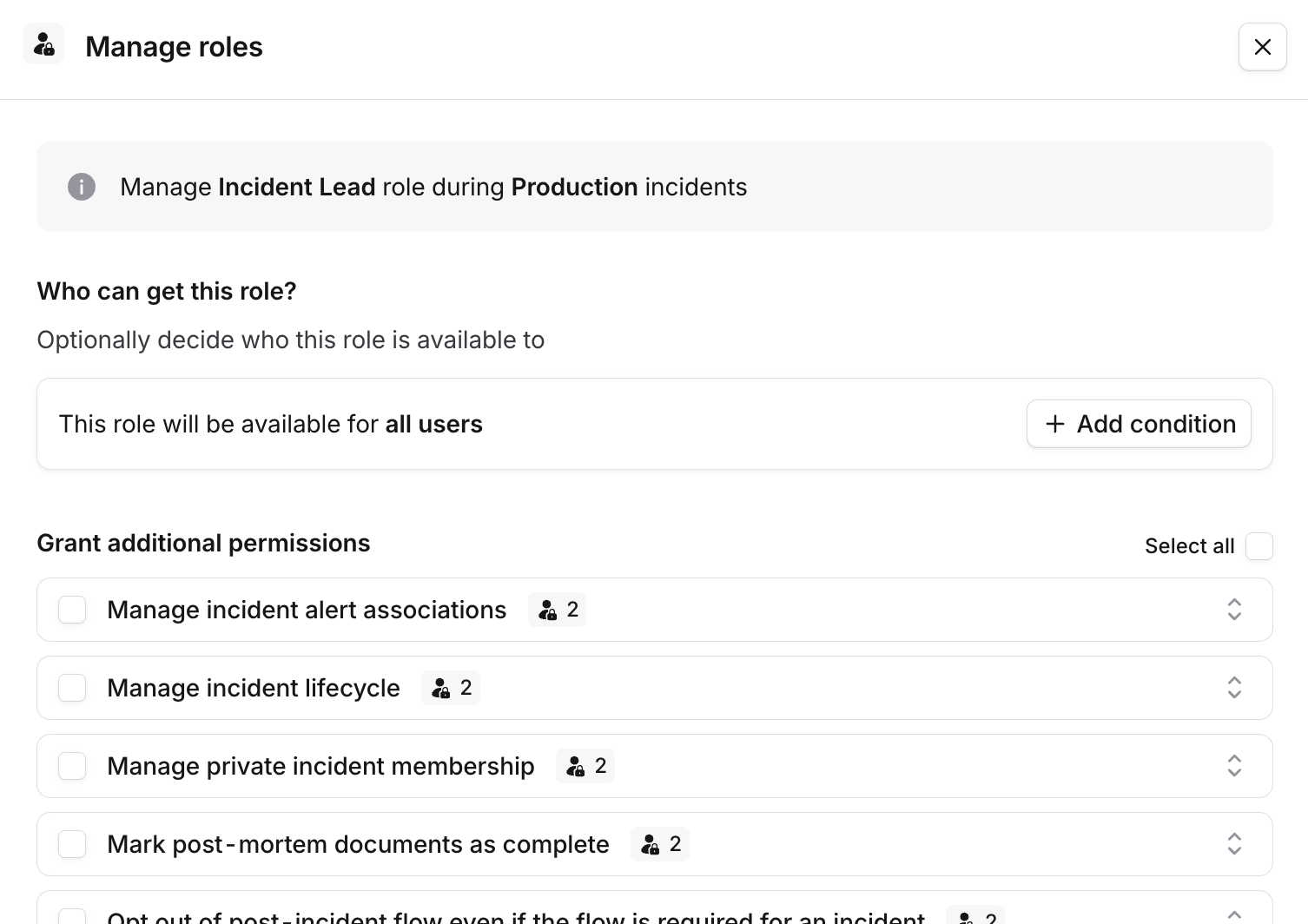
The role restrictions drawer before adding any restrictions
Who can get this role?
Restrictions are built using the expression builder. Select a user attribute to restrict on, choose an operator, and pick the values to match against.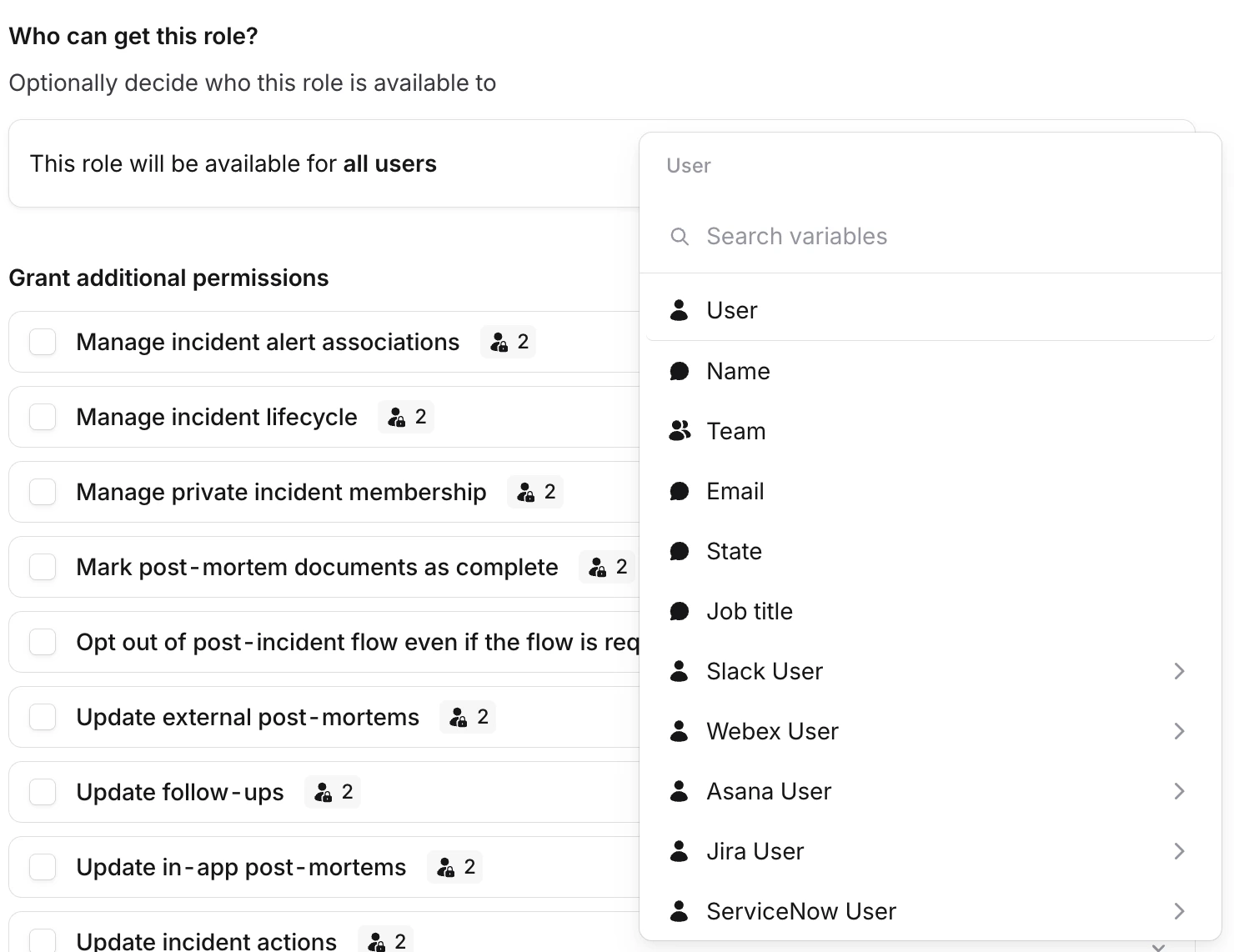
Choosing a variable to restrict on
- Conditions within the same group use AND logic - all conditions must be met
- Separate groups use OR logic - any group can match
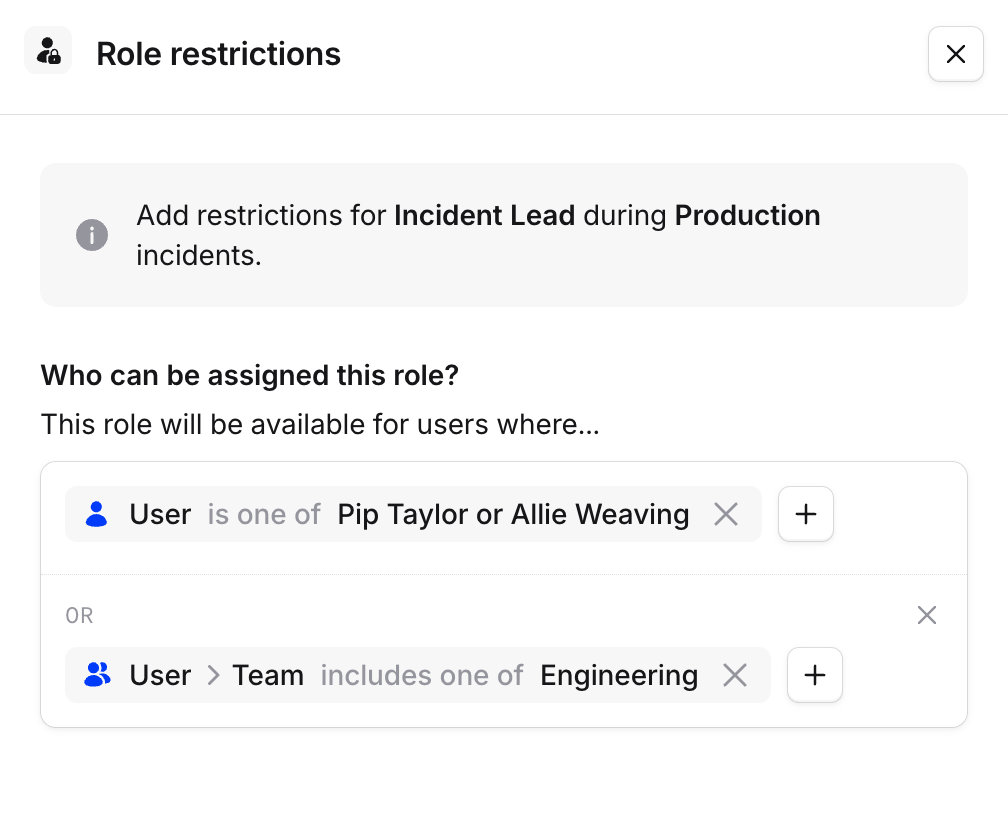
A completed restriction with multiple conditions
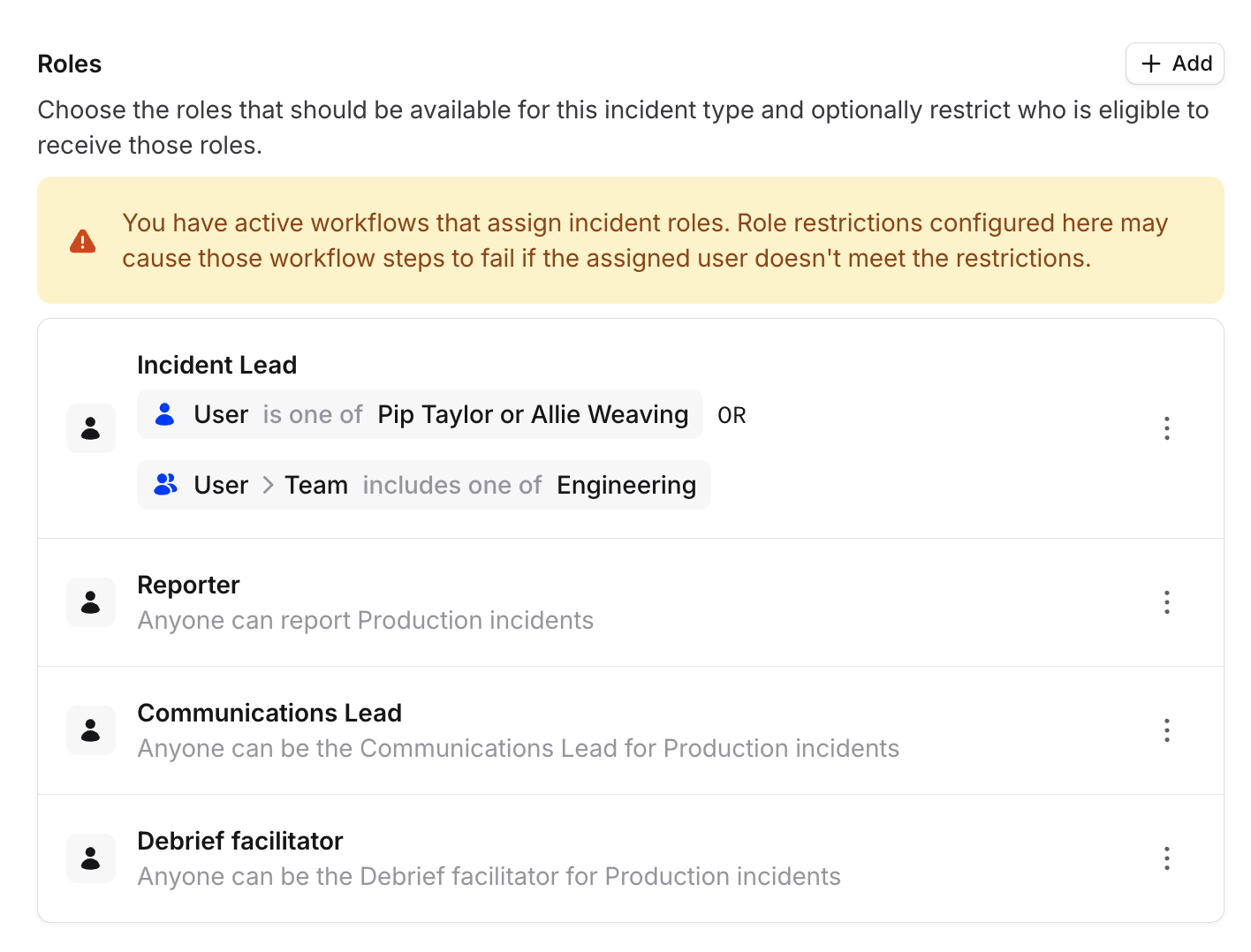
The Roles section showing configured restrictions
- Slack - when assigning roles via
/inc roleor the channel announcement buttons - Microsoft Teams - when assigning roles via channel announcement buttons
- Dashboard - when picking roles during incident declaration or while managing an active incident
- Workflows - any steps that assign roles to ineligible users will cause the workflow to fail
Grant additional permissions
The Grant additional permissions section lists permissions you can grant to users holding that role during incidents of this type. Check the ones you want to grant. For example, you might grant the Incident Lead permission to manage the incident lifecycle and update fields, while giving the Communications Lead only permission to update the timeline.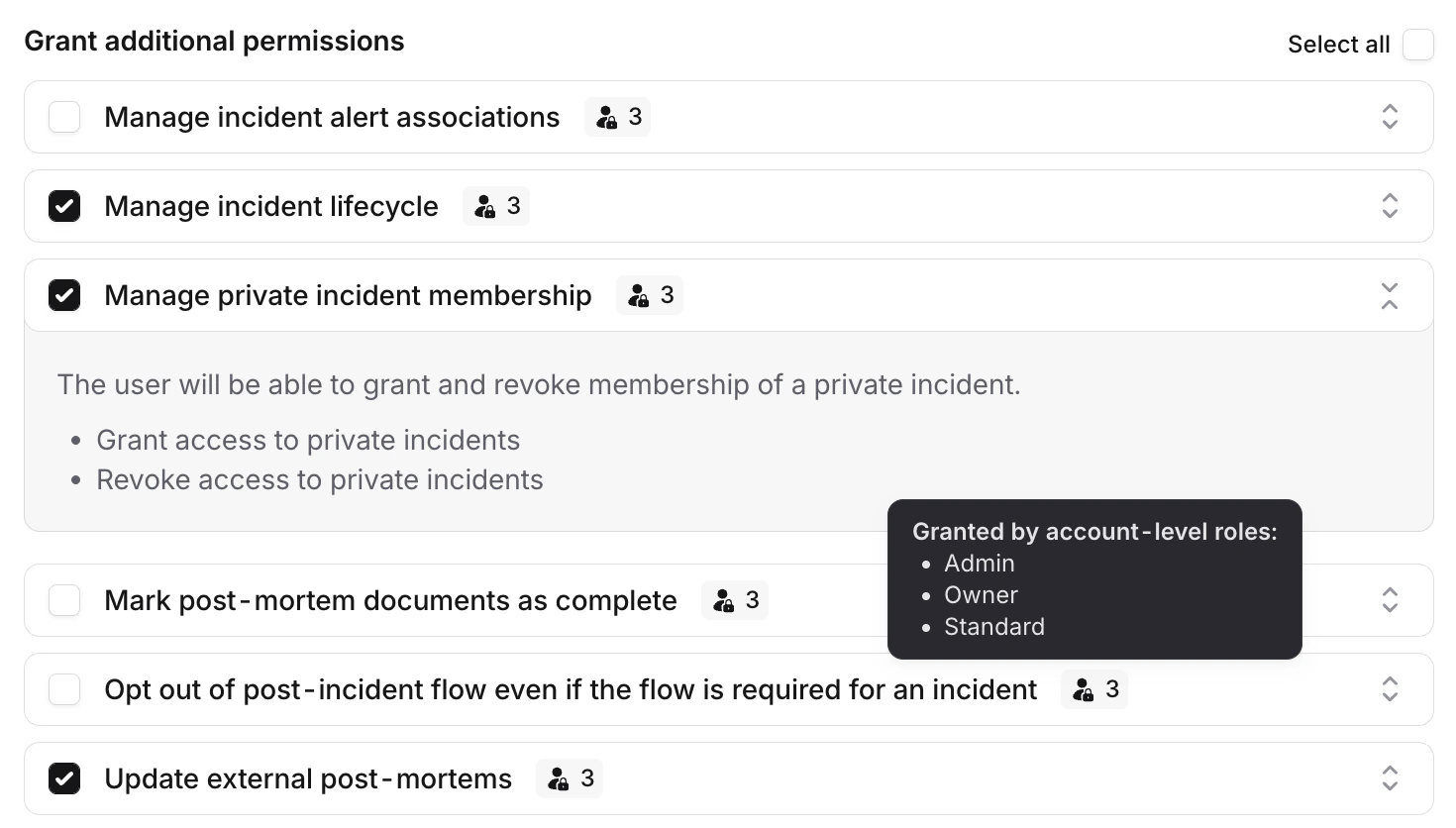
Granting permissions to the Incident Lead role, with the tooltip showing which account-level roles already grant a permission
All other participants
Below the named roles, there’s an All other participants entry. Use this to configure permissions for anyone participating in the incident who doesn’t hold a specific role. This is useful for tightening permissions on sensitive incident types — for example, granting permission to update follow-ups or manage post-mortems only to the Incident Lead, while leaving other participants with more limited access.Workflows
When you have active workflows that assign roles, you’ll see a warning banner in the Roles section of your incident type settings reminding you of this. Review your workflows after adding role restrictions to make sure the users being assigned still meet the new requirements.FAQs
Can I set role restrictions globally across all incident types?
Can I set role restrictions globally across all incident types?
No - role restrictions are configured per incident type. You’ll need to set up restrictions individually for each
type where you want them.
What happens if no one meets a role's restrictions?
What happens if no one meets a role's restrictions?
The role dropdown will show all users as disabled. Consider broadening your restrictions if this happens.