Setting Up
To switch this feature on, navigate to Settings > Incident Types After enabling, you’ll be directed to edit an existing incident type: this is the default incident type that all your existing incidents are associated with. 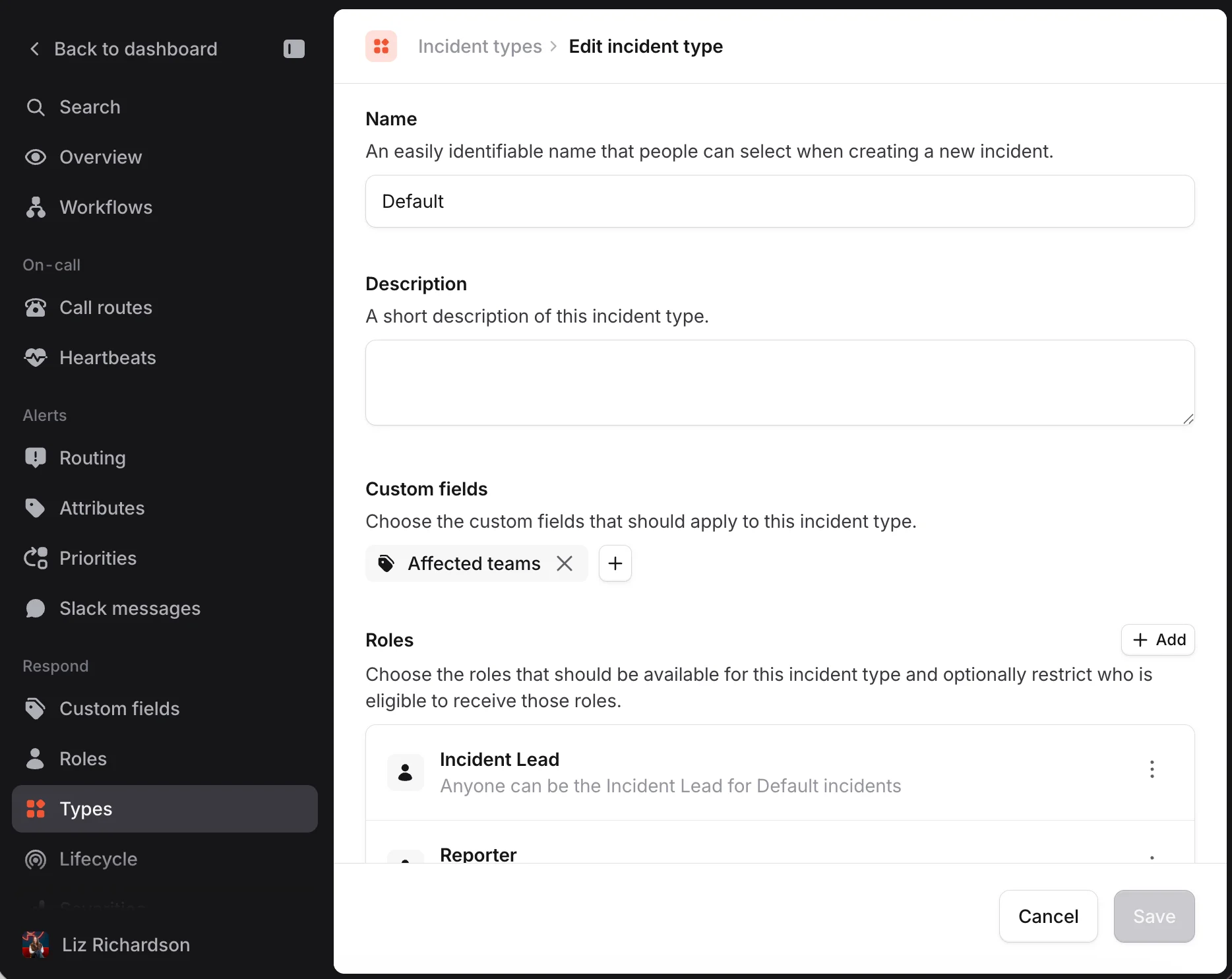
Using Incident Types
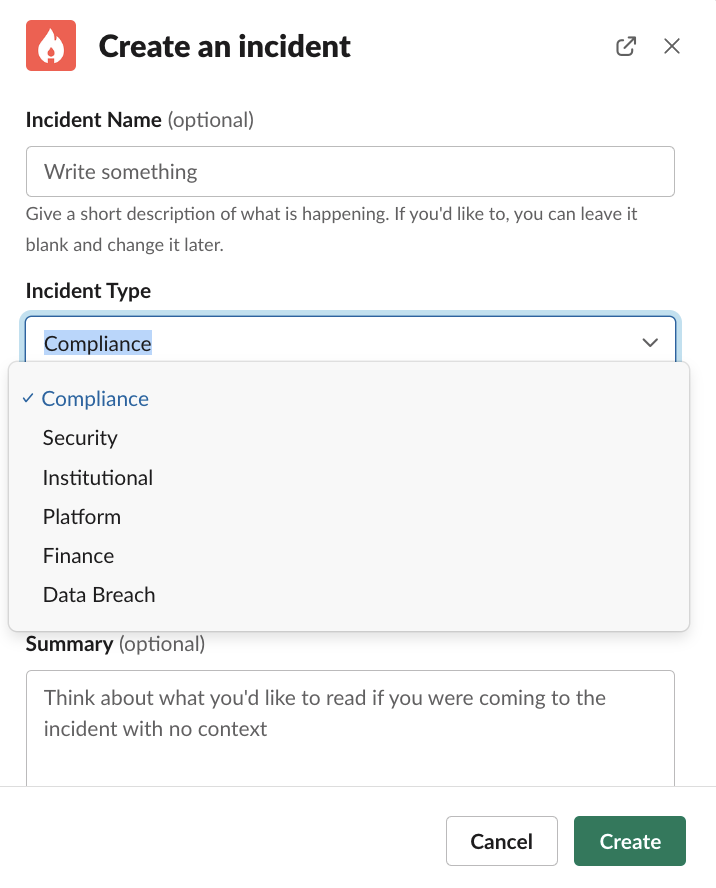
Now you’ve created some incident types, reporters will be asked to pick an incident type whenever declaring an incident. That means we’ll ask for a type in:- Slack app, after running
/inc - Web dashboard, when clicking “Declare incident”
Custom Fields
Custom fields can apply to a specific subset of incident types, which you can configure either by:- Selecting existing custom fields in the incident type create/edit flow:
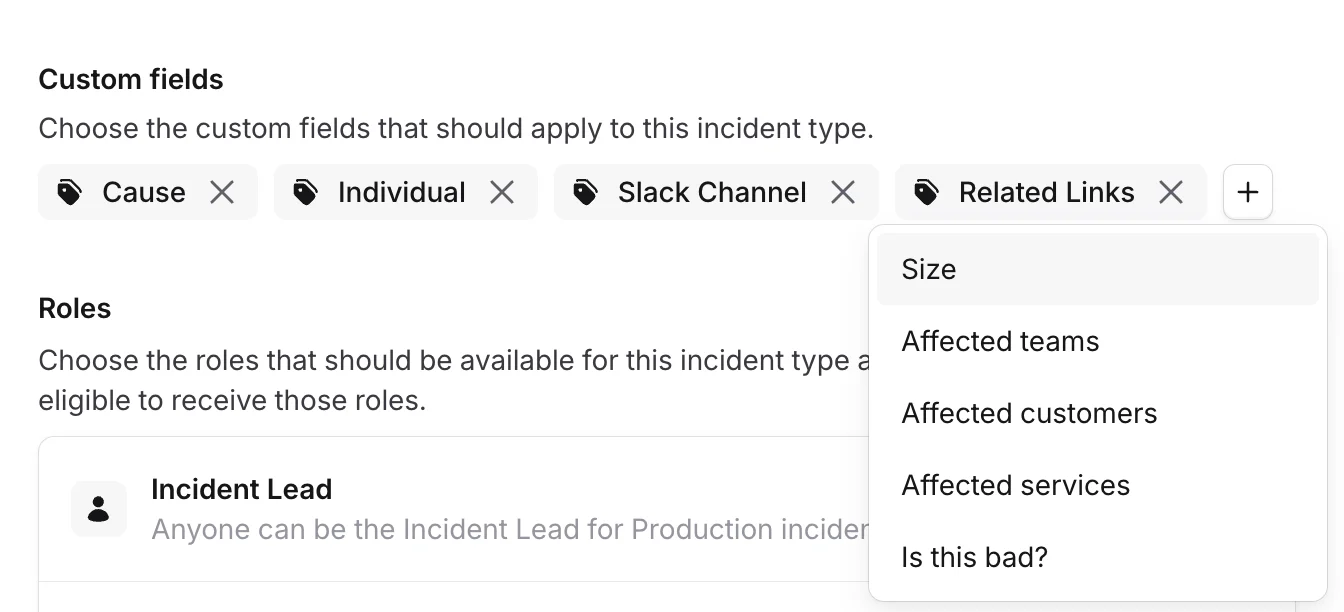
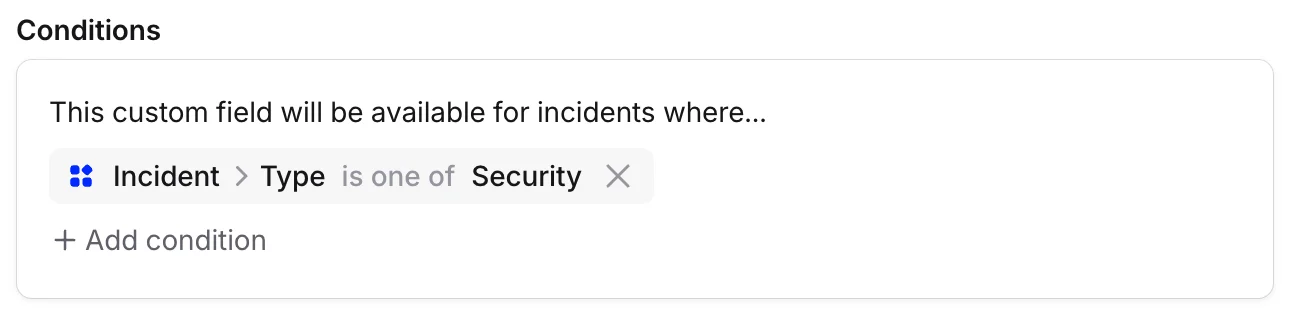
- Adding a condition on incident type to the custom field in the create/edit flow:
Roles
Roles can also be configured to only apply to certain incident types. Roles are configured in the same two ways as custom fields, via the incident types flow, or through conditions on the roles edit route. You can also restrict who can be assigned to each role based on user attributes like team membership or job title.Severities
Incident types allow you to customize how incident severities appear, if you need a severity (eg. Major) to have different descriptions depending on the type. Before we explain how to change the description, it’s important to understand that even with customized severity descriptions, severities are shared across incident types and their order will remain consistent. This ensures you can compare the severities of different incident types, and the fact that severity names remain the same helps your organization leverage a consistent terminology. So, how do you customize severities? You’ll do this in the incident type create/edit flow: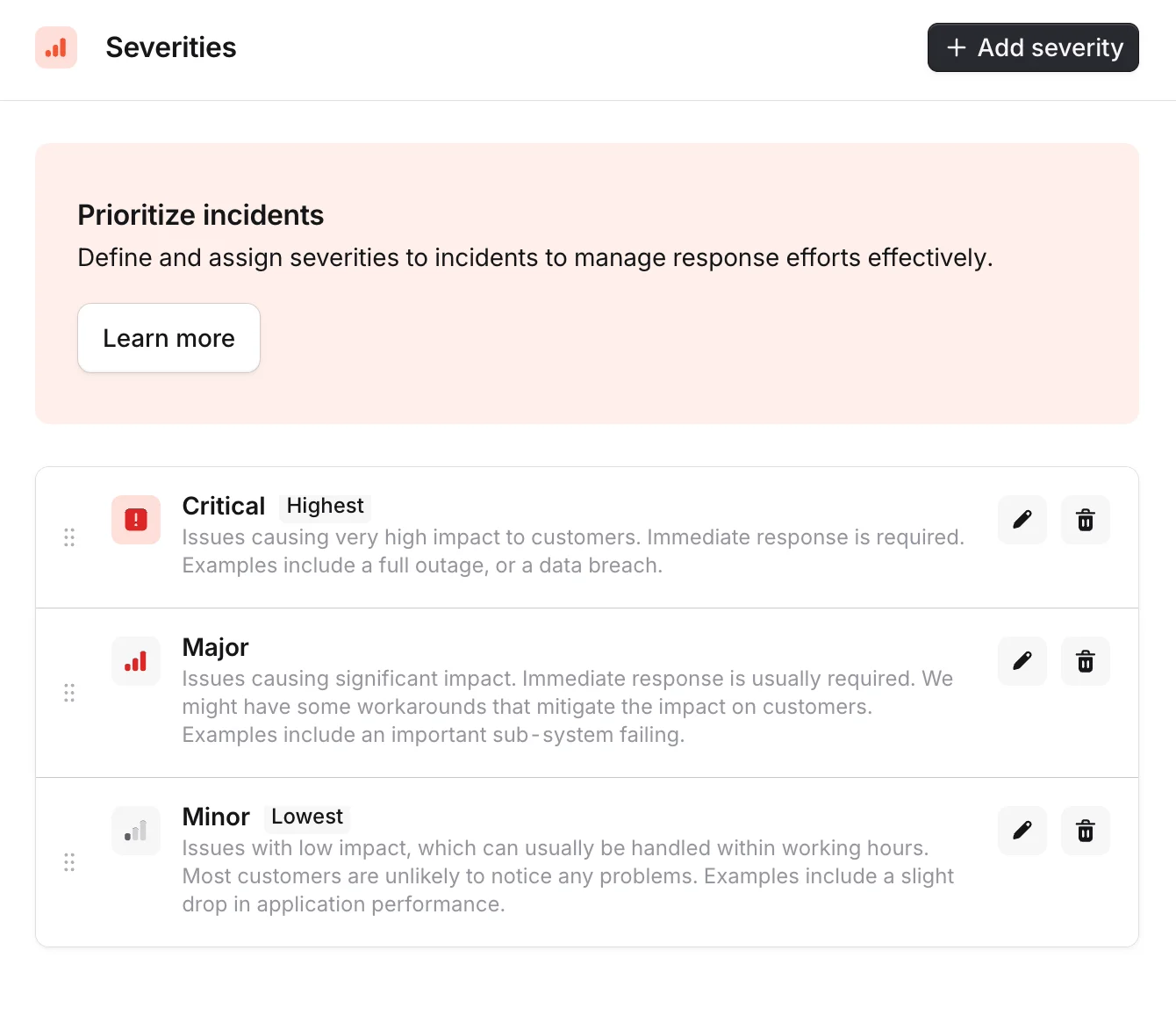
Team ownership and permissions
By default, managing incident types requires the account-level Manage incident types permission, which is usually held by admins. As you grow, you might want to restrict the number of people with that global permission, instead allowing individual teams to configure their own incident types. To do this, give a type an owning team. In the incident type create/edit flow, use the Incident type owner field to choose which team (or teams) own it. Once a type has an owning team, only the following can edit, create, or delete it (or override its forms):- Anyone with the Manage incident types permission granted globally, such as an admin
- Members of an owning team who have the permission granted to that team
Reassigning ownership always requires the permission granted globally. A team can manage a type they own, but can’t hand it to another team or remove their own team from it.
Workflows
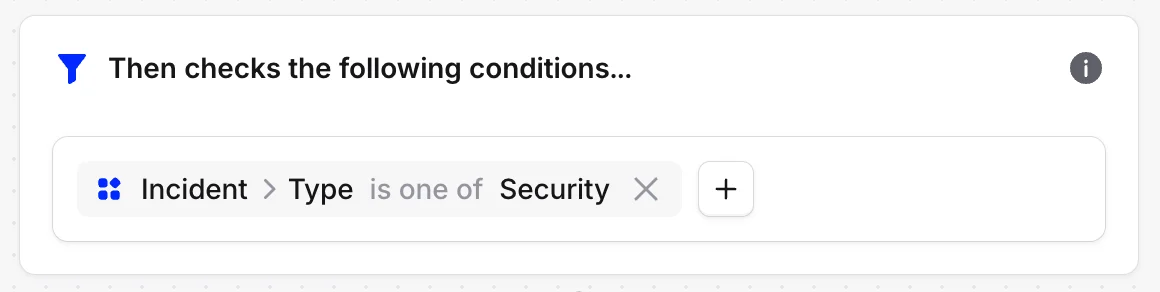
Workflows can be configured to run only on incidents that match a specific type, just as you can configure other workflow conditions. To use this, visit Workflows and edit the workflow you want to make conditional on the incident type. Once in the edit page, click “Add condition” to open the condition modal, and create a condition on incident type: