

Seat types at a glance
Each paid seat maps to a product — Responder for Response, On-call for On-call. Users can hold one or both paid seats, and anyone without a paid seat can still use parts of our product as a Viewer. As a rule of thumb, Responder and On-call seats are for users who actively engage with incident.io to be On-call, manage incidents, whereas Viewers (free seats) are users who declare and join an incident channel to contribute information, but do not actively participate in incident response.
Someone with a paid Responder or On-call seat can have the role permissions of an Administrator, Owner or any custom role. Viewers can only have the Standard set of permissions.
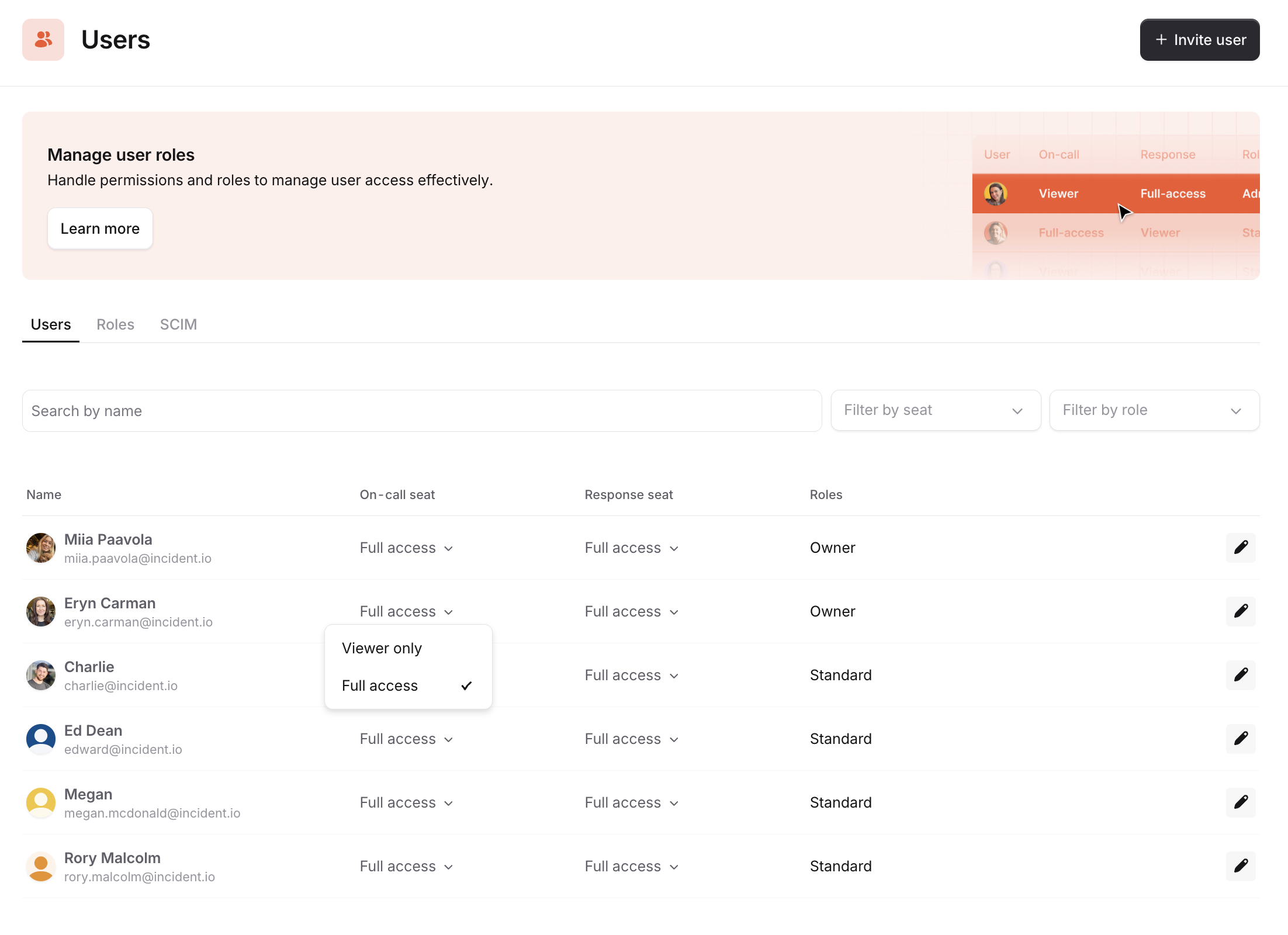
On-call seat (paid)
Users who have an On-call seat can:- Be added to a schedule
- Be added to an escalation path
- Have access to the mobile app
- Incidents
- Escalations
- Schedules
- Overrides
- Cover me
- Get paged via all methods (phone, SMS, WhatsApp, Slack, app, email)
- Request cover via mobile app and Slack
- Create overrides via dashboard, mobile app and Slack
- Create pay reports from On-call
Responder seat (paid)
Someone with a responder seat can have the role permissions of an Administrator, Owner or any custom role. Viewers can only have the Standard set of permissions. Users who have done the following will qualify as Responders: Managing and running incidents- Changed the status, severity, or custom field values
- Posted an incident Update
- Changed the incident Status, includes accepted and declined an incident.
- Was assigned or assigned someone else an incident role (Lead or other)
- Handed over the Lead role
- Created, assigned, updated, was assigned to, or completed an action or a follow-up
- Changed the Call URL associated with the incident
- Changed the incident Type
- Updated the incident Summary
- Pinned a Slack message to the timeline
- Revoked someone’s access to a Private Incident
- Renamed an incident
- Merged an incident
- Created or edited a Post-mortem
- Set a Timestamp
- Removed an Attachment
Viewer only (free)
If you don’t have a paid Responder seat or an On-call seat, you can still use parts of the product as a viewer. Viewers can create an incident, observe what is happening in the incident, and post messages in the channel. As a viewer, you can:- Create incidents (everyone in the company can declare incidents for free)
- Decline an incident
- Join incident channels and post in them (everyone can track and contribute important information to incidents for free)
- Go through a tutorial incident (everyone can - and should! - learn the ropes of incident.io for free)
- View alerts, escalations and schedules
- Add an Attachment (e.g. Zendesk, Github, etc.)
- Escalate to someone (e.g. via incident.io On-call/Opsgenie/PagerDuty)
- View internal status pages
- Publish to status pages (both incident.io status pages and Atlassian Statuspage)
- View post-mortems
- Use @incident bot. Note: using the bot to make changes to the incident that only responders should do will upgrade you to a responder (see above actions for responders)
Adding and removing seats
For details on how to add, remove, or change seats, see Managing seats.FAQs
Will I become a paid user if I use an incident tutorial?
Will I become a paid user if I use an incident tutorial?
Learning is free at incident.io. Everyone in your company can — and should! — learn the ropes of incident.io without getting penalized by it and billed.Your teammates won’t be considered Responders (paid users) if they go through our tutorial flow.
How does billing work?
How does billing work?
You can find full details of our billing methods and mechanics here.