

How post-mortems work
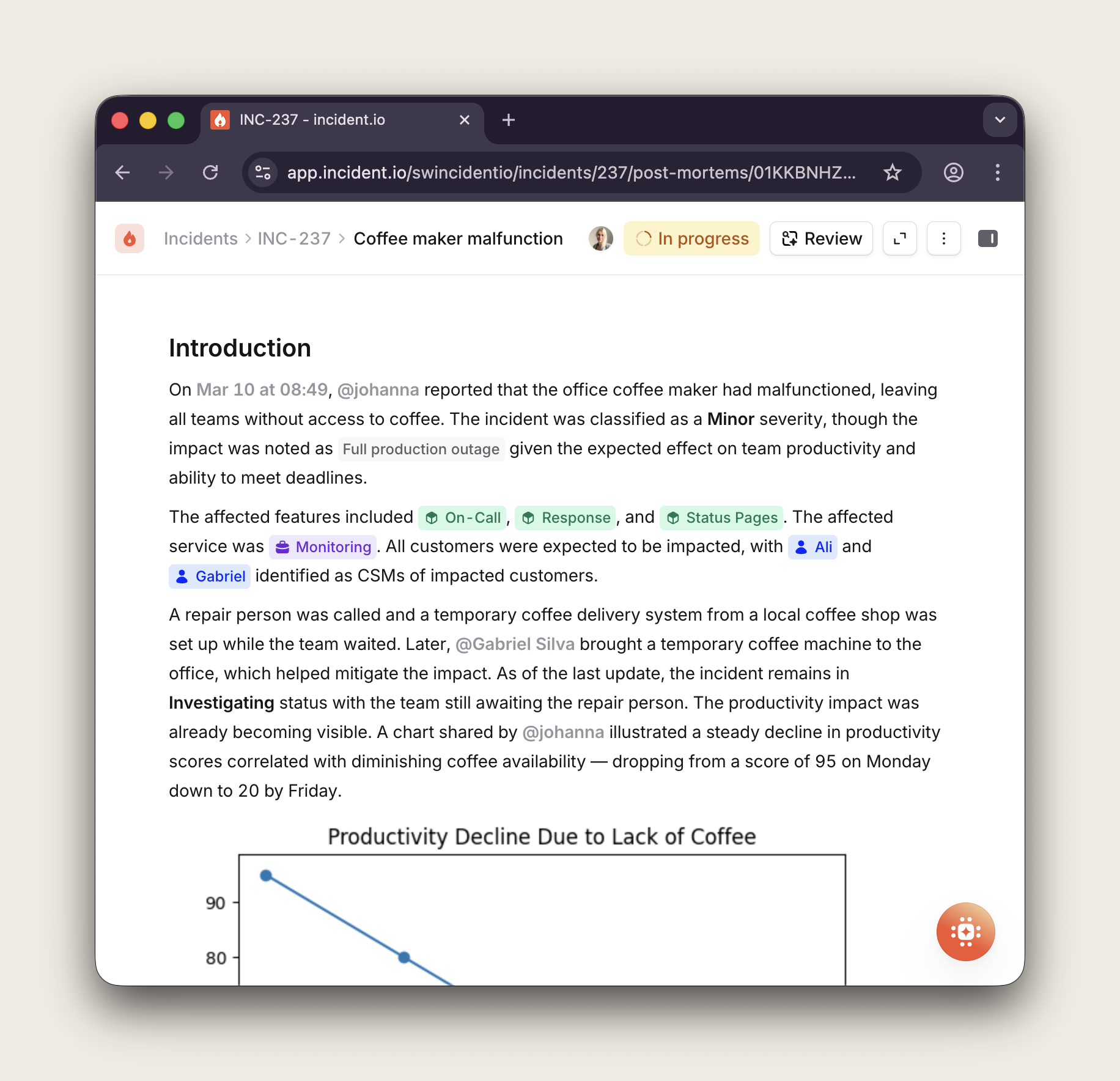
Every organization does post-mortems differently. Some teams write them collaboratively during a debrief call. Others have the incident lead draft it solo and pass it around for review. Some want a lightweight summary for minor incidents and a thorough root cause analysis for major ones. Our goal is to support all of these approaches, so you can set up a process that works for your team instead of adapting to ours. Here’s what you get:- An editor built for post-incident context. Your timeline, the people involved, custom fields, catalog entries, and more are all available directly in the document and kept in sync as the incident evolves. If you’ve used Notion-style editors, you’ll feel right at home, but this one is purpose-built for writing about incidents.
- AI that writes the first draft for you, pulling from your timeline, Slack or Teams conversations, and investigation data. You can also use AI to review a finished document and get inline suggestions, or to redraft sections that need work.
- Templates that give your team a consistent starting point. You can set up different templates for different types of incidents, and configure which sections AI should help with.
- Real-time collaboration with live cursors, threaded comments, and @mentions. Multiple people can write and give feedback without leaving the document.
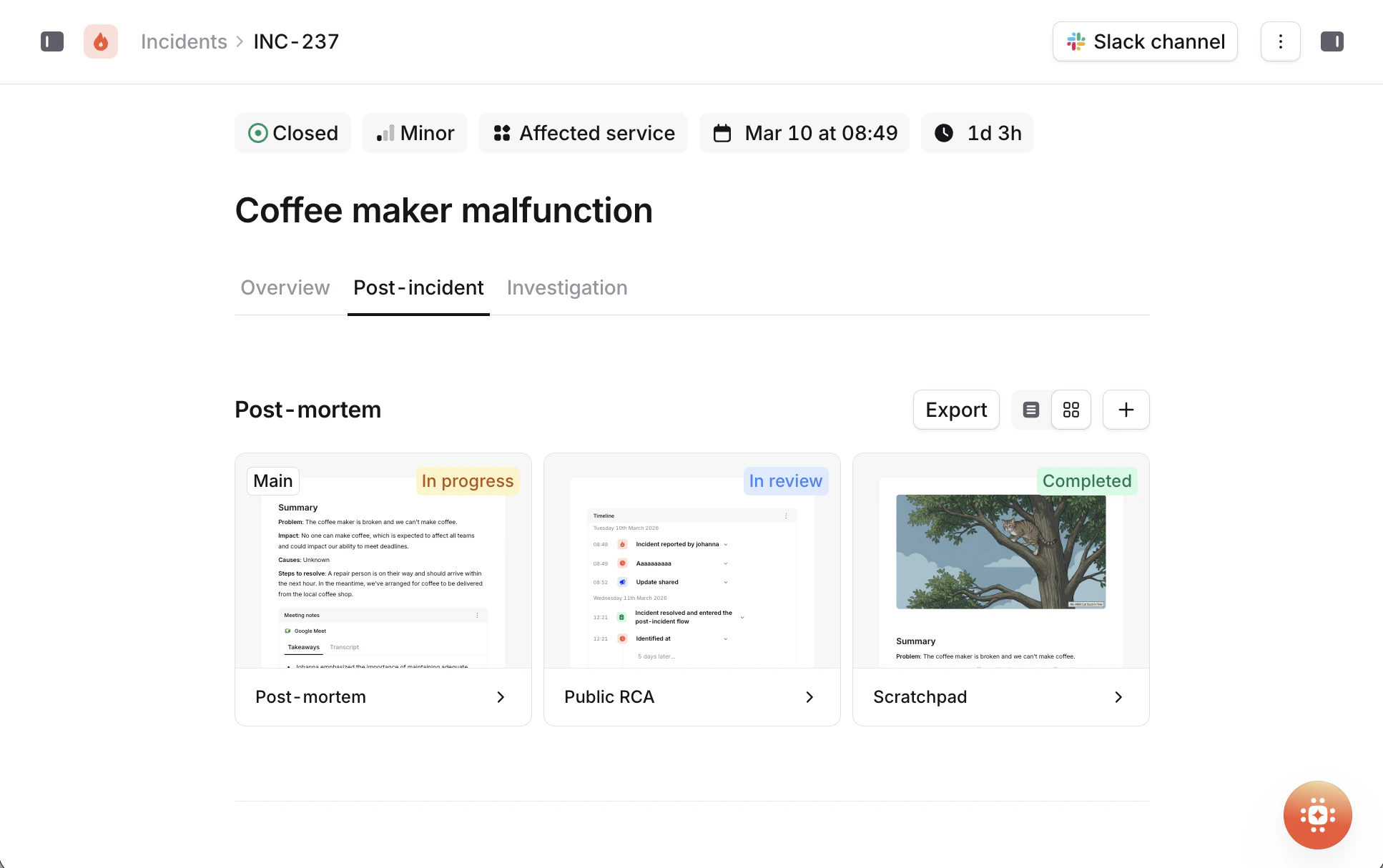
- A status workflow to track where each document is: In progress, In review, and Completed. You can move through these however makes sense for your team.
- Sharing and export to get your finished post-mortem in front of the right people, whether that’s announcing it in Slack or exporting it to Google Docs, Notion, Confluence, or SharePoint.
- A post-mortem list view that gives you a filterable view of every post-mortem across your organization, so you can see what’s been completed and what’s still outstanding.
Multiple documents per incident
You can create multiple post-mortem documents for a single incident. Each document has its own status and can use a different template. This is useful when you need both an internal technical post-mortem and a customer-facing summary, for example.Creating multiple documents per incident requires a Pro or Enterprise plan.
Private incidents
Post-mortems for private incidents work the same way, with a few restrictions. AI features (first draft generation, review, and redraft) are only available if your organization has opted in to sending private incident data to AI subprocessors in Settings → AI governance. If this isn’t enabled, AI features won’t appear for private incidents. Sharing via Slack is not available for private incidents, since the post-mortem may contain sensitive information. You can still export to external tools and manage access through those tools’ own permission systems.Custom terminology
If your organization calls them something other than “post-mortems” (retrospectives, incident reviews, learning reviews, etc.) you can rename them in your post-mortem settings. The custom name is used throughout the product, including in Slack messages and the post-incident flow.What’s next
Writing & editing
The editor experience: creating a document and working in it with your team.
Templates
Set up the structure your post-mortems follow, with per-section AI configuration.
AI-native writing
Generate first drafts, get inline review suggestions, and redraft sections with AI.
Scribe
AI note-taker for debrief calls that feeds directly into your post-mortem.
Sharing & exporting
Announce your post-mortem via Slack and export it to external tools.
Managing your post-mortems
Track completion across your org with list views, policies, and SLAs.
Workflows
Automate sharing, exporting, and notifications when post-mortems are completed.
API
Programmatic access to your post-mortem documents, metadata, and content.
External documents
Write your post-mortems in Google Docs, Confluence, Notion, or SharePoint.