

What private incidents do
Private incidents hold sensitive information, so we apply some extra protections by default:- They’re visible only to people and teams with access. That means people you invite directly, members of teams you’ve granted access, and anyone with the org-wide Manage private incidents permission. Everyone else can’t see the incident at all.
- They aren’t announced by default. Private incidents are skipped by announcement rules unless you explicitly opt a rule, workflow, or
/inc announceinto announcing them. - Workflows don’t run by default. You can enable workflows on private incidents when you need them.
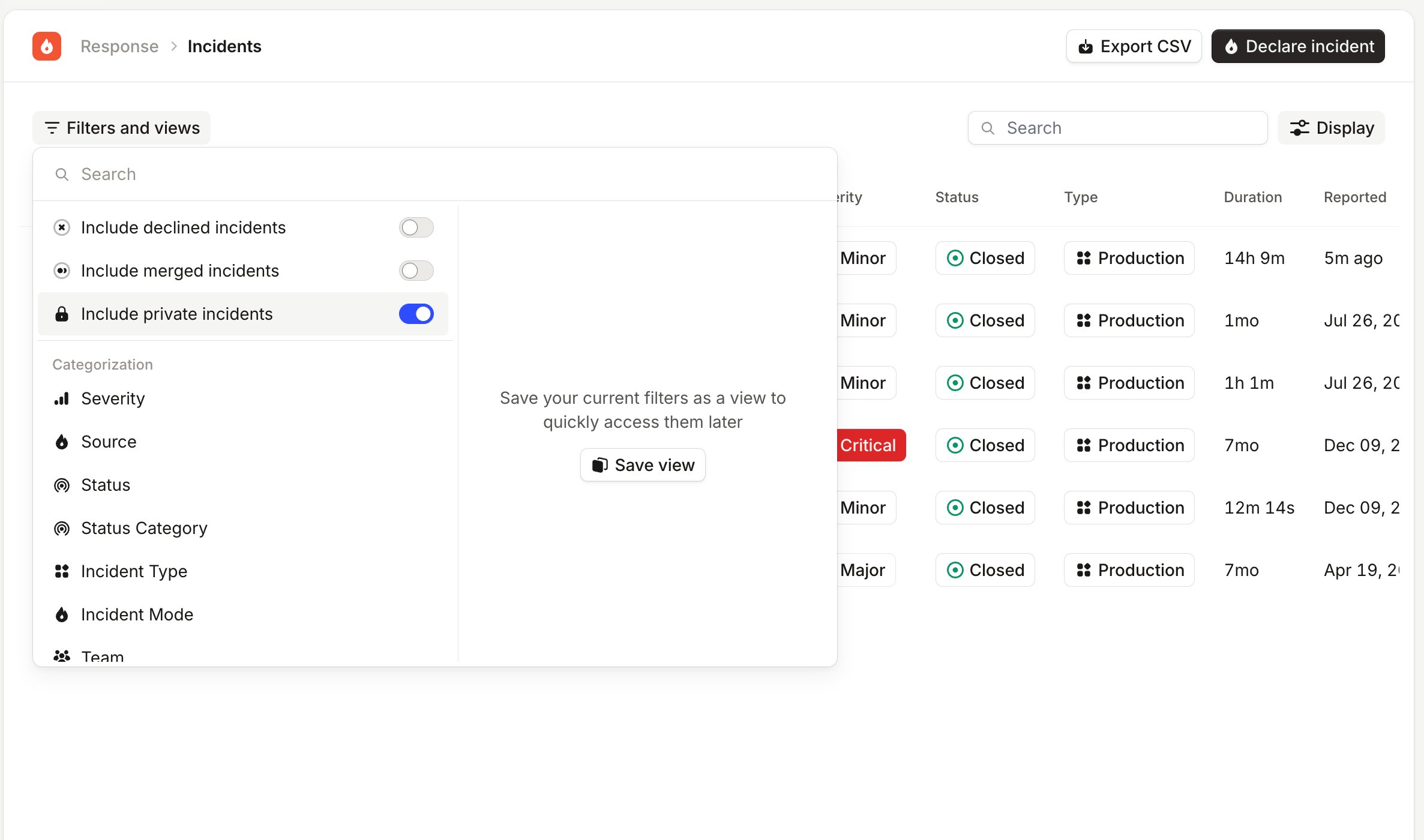
- You choose whether they appear in CSV exports and Insights. The incidents and follow-ups exports both have an Include private incidents toggle, off by default, and it only adds the private incidents you already have access to. A few private-aware dashboards can include them, but only for people who can already see every private incident.
- Escalations don’t leak details. When you escalate a private incident, we include only a link to the dashboard, not the incident’s information.
Enabling private incidents
If you’re an Admin or Owner, opt in to private incidents from Settings → Security.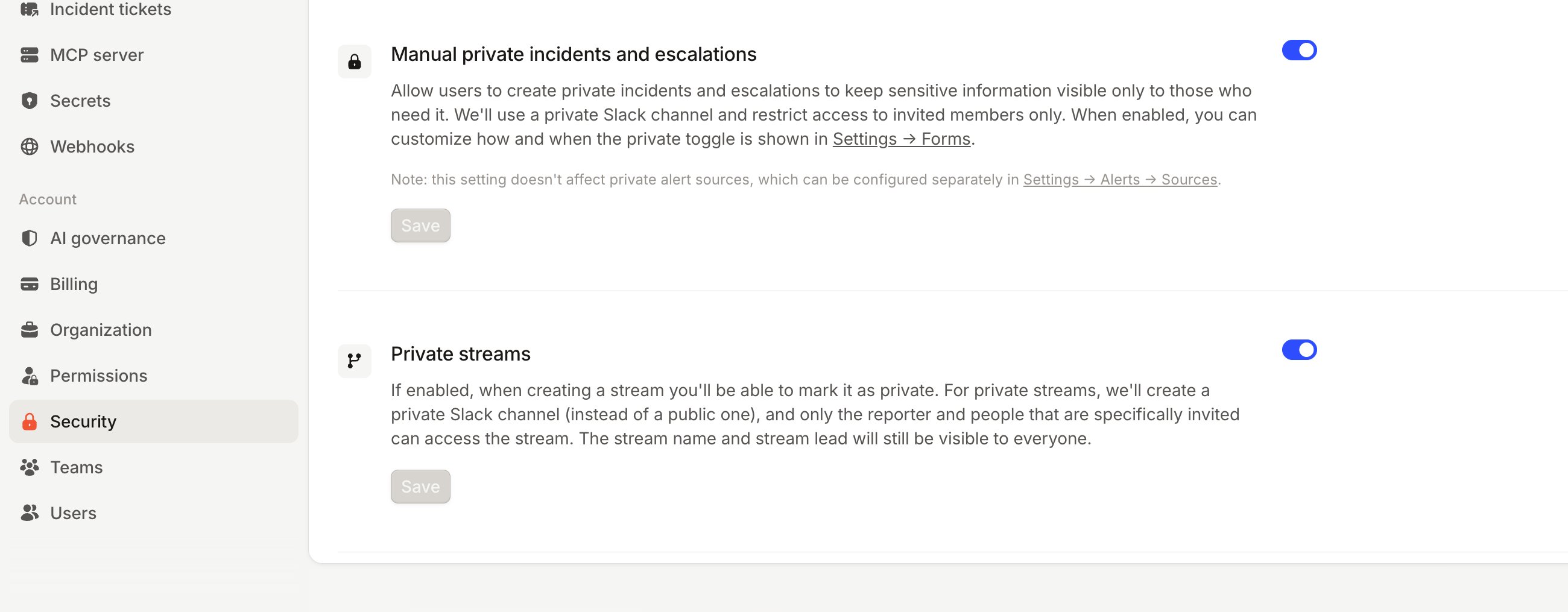
Using Microsoft Teams? Private incidents run as private group chats, and enabling them may require re-authorizing our
bot. See using private incidents in Microsoft Teams.
Making an incident private
You can make an incident private when you declare it, automatically from an alert, or by converting an existing public incident.Declare a private incident
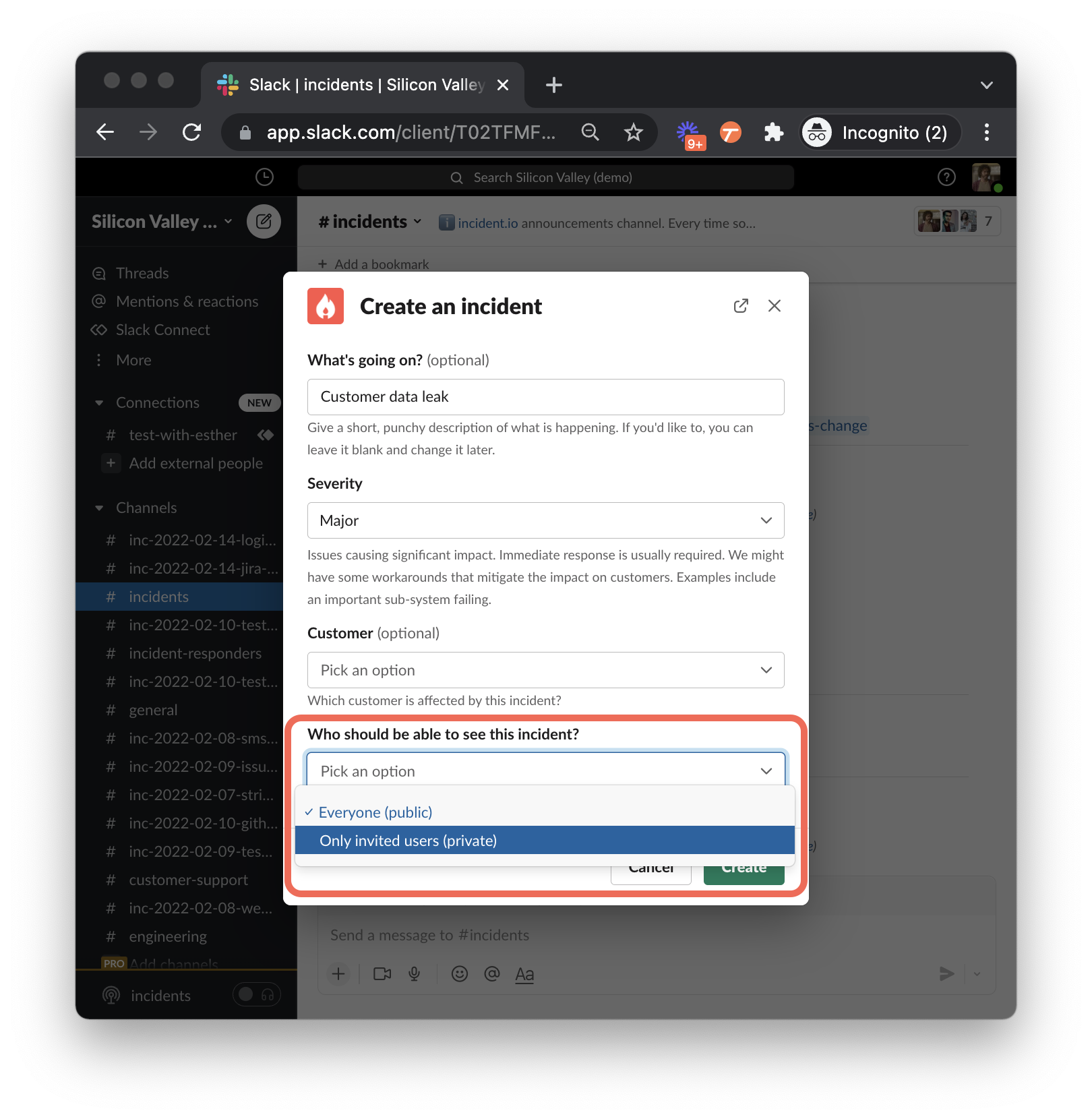
Declare an incident using the/incident Slack command (or any other method). In the declaration form, set Who should be able to see this incident? to Only invited users (private).
Create a private incident from an alert
You can create private incidents automatically from alerts using private alert routes. Any incoming alerts then create private incidents by default. See private alerts.Convert between public and private
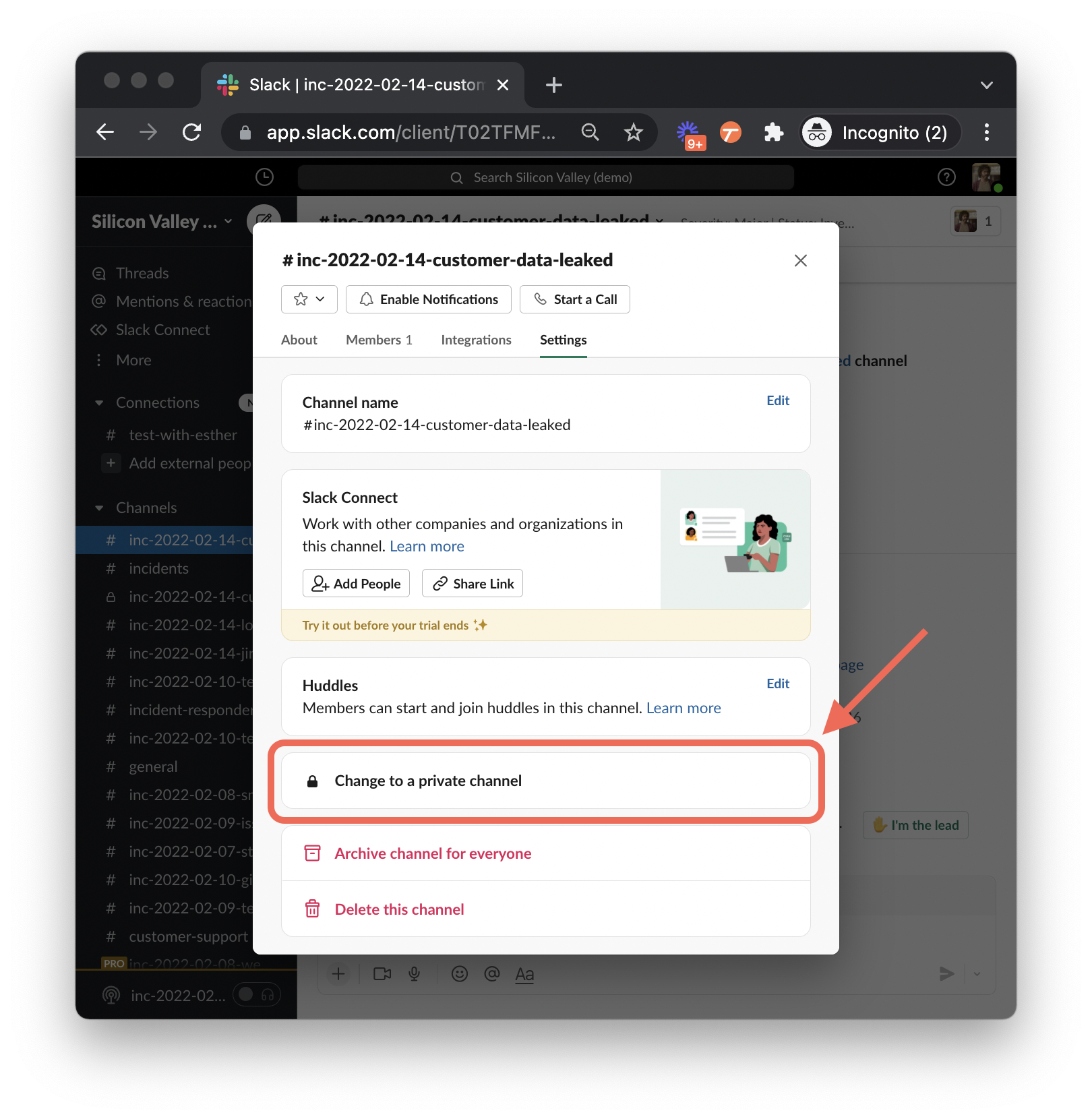
If you’re not sure whether an incident should be private when you declare it, you can change your mind later:- Public to private: make the incident’s
#inc-...channel private in Slack, and we’ll lock the incident down to match. - Private to public: convert the channel back to public, and we’ll do the same to the incident.
Who can see a private incident
A person can see a private incident if any of the following are true:
Direct and team access sit alongside each other. Someone might have access because they were invited directly, because one of their teams was granted access, or both.
Managing access
Open the incident and select Manage access to see who has access and to grant or revoke it. The incident’s homepage also shows who has taken part: Active participants and Observers remain listed even if their access is later revoked.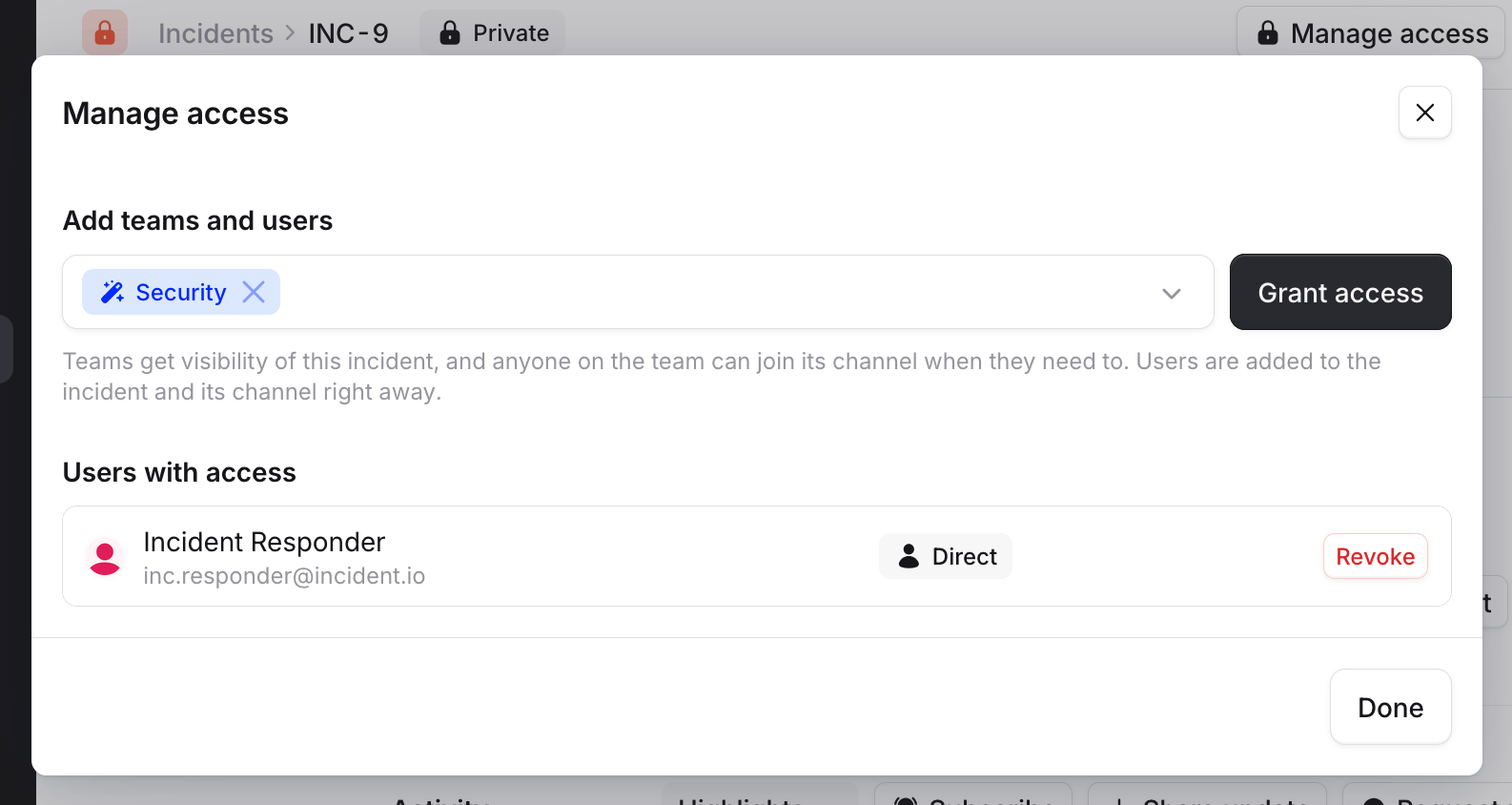
Grant access to a person
Invite individual users from Manage access. People you invite are added to the incident’s Slack channel automatically and can view the incident homepage. When you revoke someone’s access, they’re removed from the Slack channel and can no longer see the incident or find it on their dashboard.Grant access to a team
Instead of inviting people one at a time, you can grant access to a whole team. This is useful when a team routinely handles confidential work, like a security team that owns every sensitive incident. Grant the team once, and new members get access automatically without anyone having to remember to invite them.Team access gives members visibility, not an automatic seat in the Slack channel. People aren’t pulled in. They
add themselves from the announcement post or from the incident’s dashboard
when they need to get involved.
- Every member of the team, and of its sub-teams, can view the incident in the dashboard.
- Members can self-join the incident’s Slack channel, but aren’t added automatically.
- The incident can be announced to a channel the team watches, so they can discover incidents they have access to.
- A per-team breakdown of how many members each team has.
- The people who will newly gain access.
- Members who already have access, annotated with how: directly, via another team, or because they hold the Manage private incidents permission (shown as Global).
Revoke a team
Revoke a team from Manage access, or via the API. As with granting, we preview who’s affected first. Revoking a team removes its members’ access, including removing them from the incident’s Slack channel. We won’t remove anyone who still has another valid route to the incident, though: a direct invitation, another team that still has access, or the org-wide Manage private incidents permission. Those people keep their access, and the revoke preview shows you exactly who. To remove someone who keeps access through another route, revoke that route too. For example, revoke their direct access individually.Set default team access
Rather than granting the same team access to every incident of a kind, you can pre-authorize teams so they get access automatically. There are three ways to do this.Incident types
Make every incident of a given type private, and choose which teams get access by default. Navigate to Settings → Incident types, edit a type, and under Privacy enable Private by default. Then add the teams that should be able to view private incidents of this type. We show a running count of how many people across how many teams that covers.Workflows
Use the Grant team access to private incident workflow step to grant teams access based on incident conditions. For example, grant your security team access to any incident tagged as a security issue. See workflows on private incidents.Public API
Grant and revoke team access programmatically with the Incident Team Memberships API, so you can wire private-incident access into your own tooling. Create grants a team access to a private incident; Revoke removes it.Requesting access
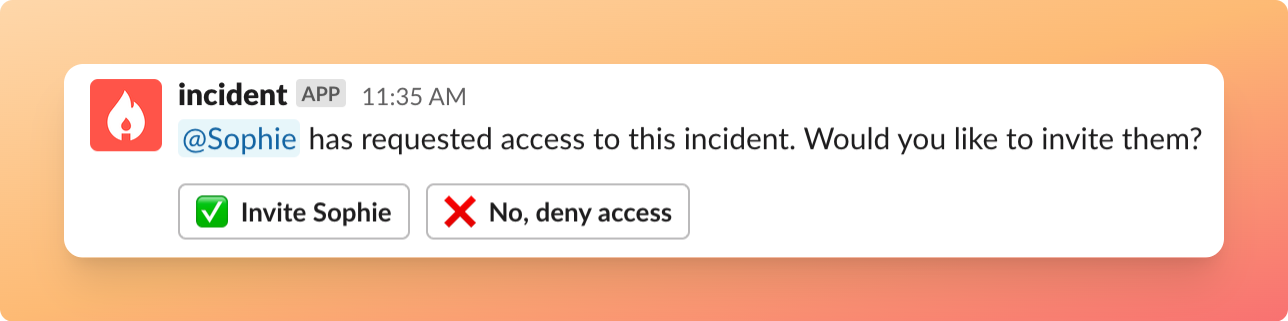
Only people who already have access can see a private incident, so private incidents are undiscoverable to everyone else. If someone outside the incident is paged about it, or sent a link to the channel, they can request access from a placeholder page.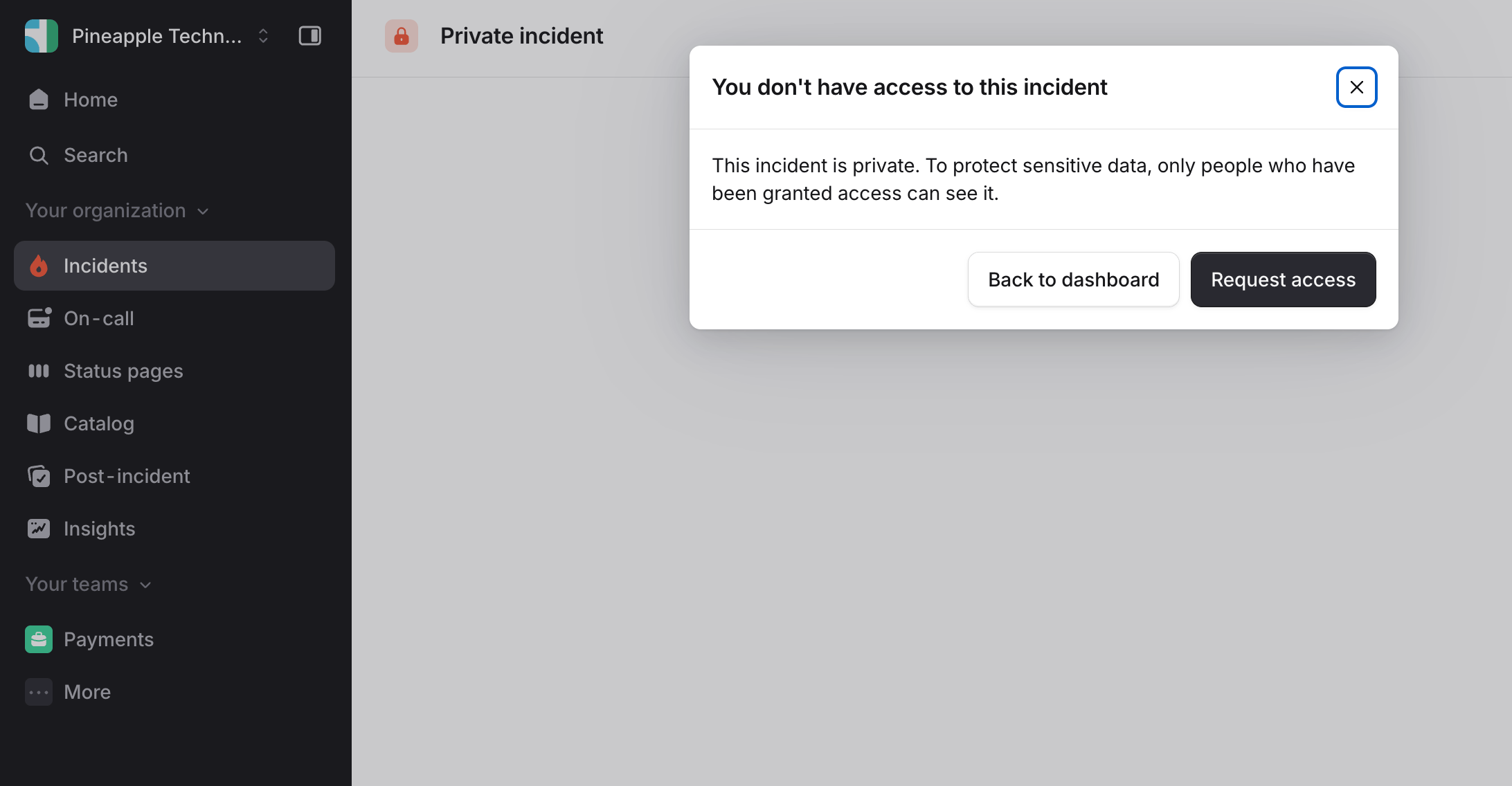
Permissions
See user roles and permissions for how permissions are assigned to roles.
FAQs
If someone leaves the private channel voluntarily, do they still have access?
If someone leaves the private channel voluntarily, do they still have access?
If a member leaves a private channel on their own, we send a message to the channel asking whether you’d like to
remove their access to the incident. If you dismiss it, they keep their access and can rejoin from the incident
homepage at any time.
Do Active participants and Observers lose their listing when access is revoked?
Do Active participants and Observers lose their listing when access is revoked?
No. Active participants and Observers reflect anyone who has taken part or observed at any stage, so they
remain in the list even after their access is revoked.
Can I announce a private incident without exposing it to everyone?
Can I announce a private incident without exposing it to everyone?
Yes. You can opt specific announcement rules, workflows, or
/inc announce into announcing private incidents, most
often to a private channel watched by the team that has access. Anyone in the channel you choose will see the
announcement, so choose carefully. See announcing private incidents.Related
- Announcing private incidents: announce private incidents safely
- Workflows on private incidents: automate response on private incidents
- Private alerts: create private incidents automatically from alerts
- Team structure: how teams and sub-teams work