

Setting up private alerts and escalations
Go to On-call → Alert routing and create a new alert source and follow its setup instructions - note that it isn’t yet private, so be considerate with what you send in any test events. In the “Configure” step, under “Alert privacy”, select “Private” and name at least one team under “Visible to teams”. The alert source itself remains visible to everyone—only the alerts created from it are restricted. To configure automatic private escalation and incident creation from these alerts, continue on to creating a private alert route.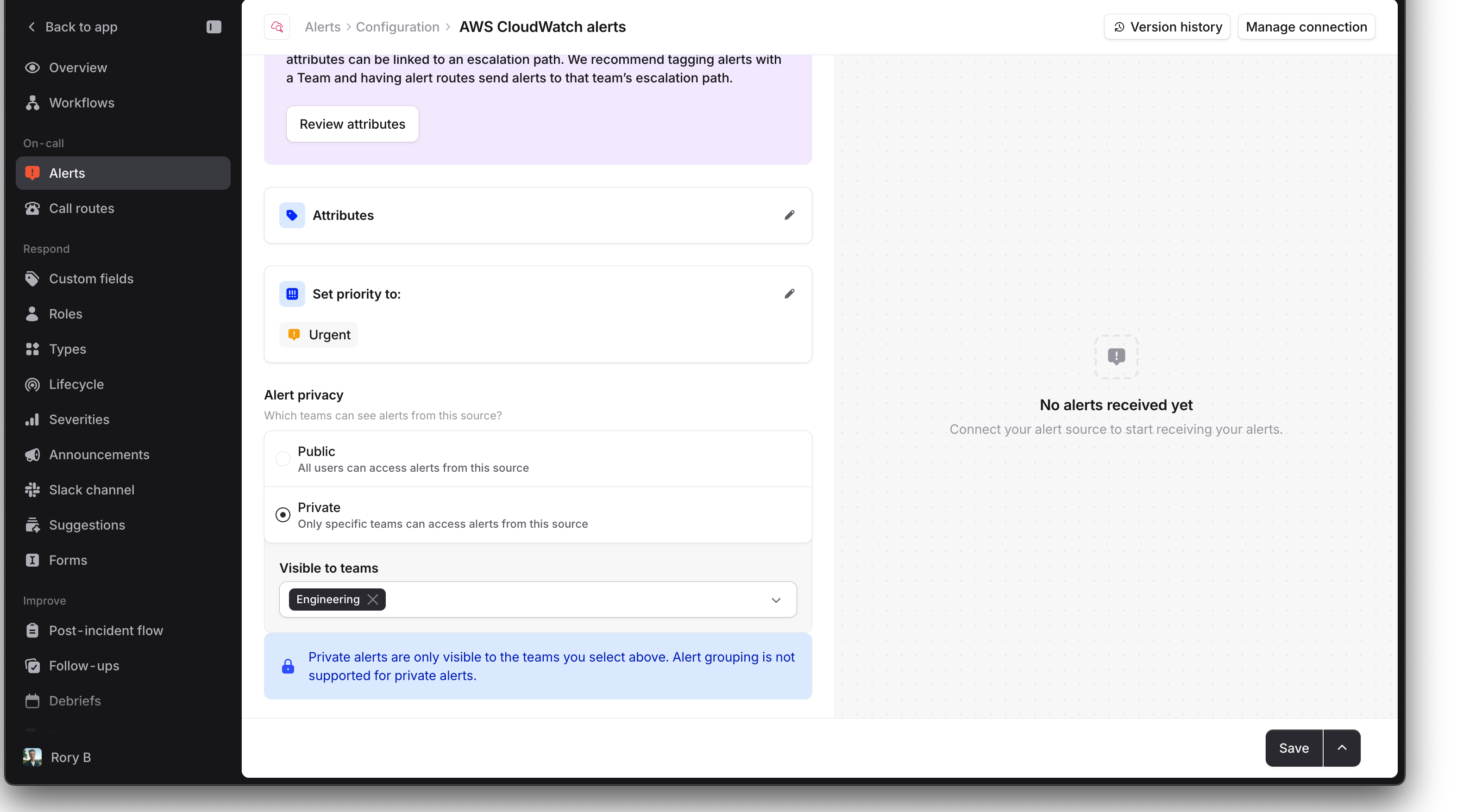
Note that if you escalate these alerts, anyone who’s escalated to will also be able to see the alert that paged them.Similarly, if you create private incidents from these alerts, anybody who you invite to that incident will also be able to see its related alerts.
Create a private alert route
In On-call → Alert routing, create a route that references your private alert source and configure the escalation path as normal. Private alert sources can only have a single alert route. You can group alerts from a private route — see Private alerts for how visibility works for private alert groups. When an alert is sent to your private source, the alert will be private, and any escalations and incidents created from it will also be private. You cannot mix public and private visibility in this chain. Note that any users who are paged as a result of these escalations will be given full access to view the alert and the escalation. If your escalation path is configured to notify a Slack channel, notifications to private Slack channels are delivered normally, but public channel notifications will be skipped (and we’ll indicate this on the timeline) to avoid leaking private information. Microsoft Teams channel notifications are not currently supported for private alerts.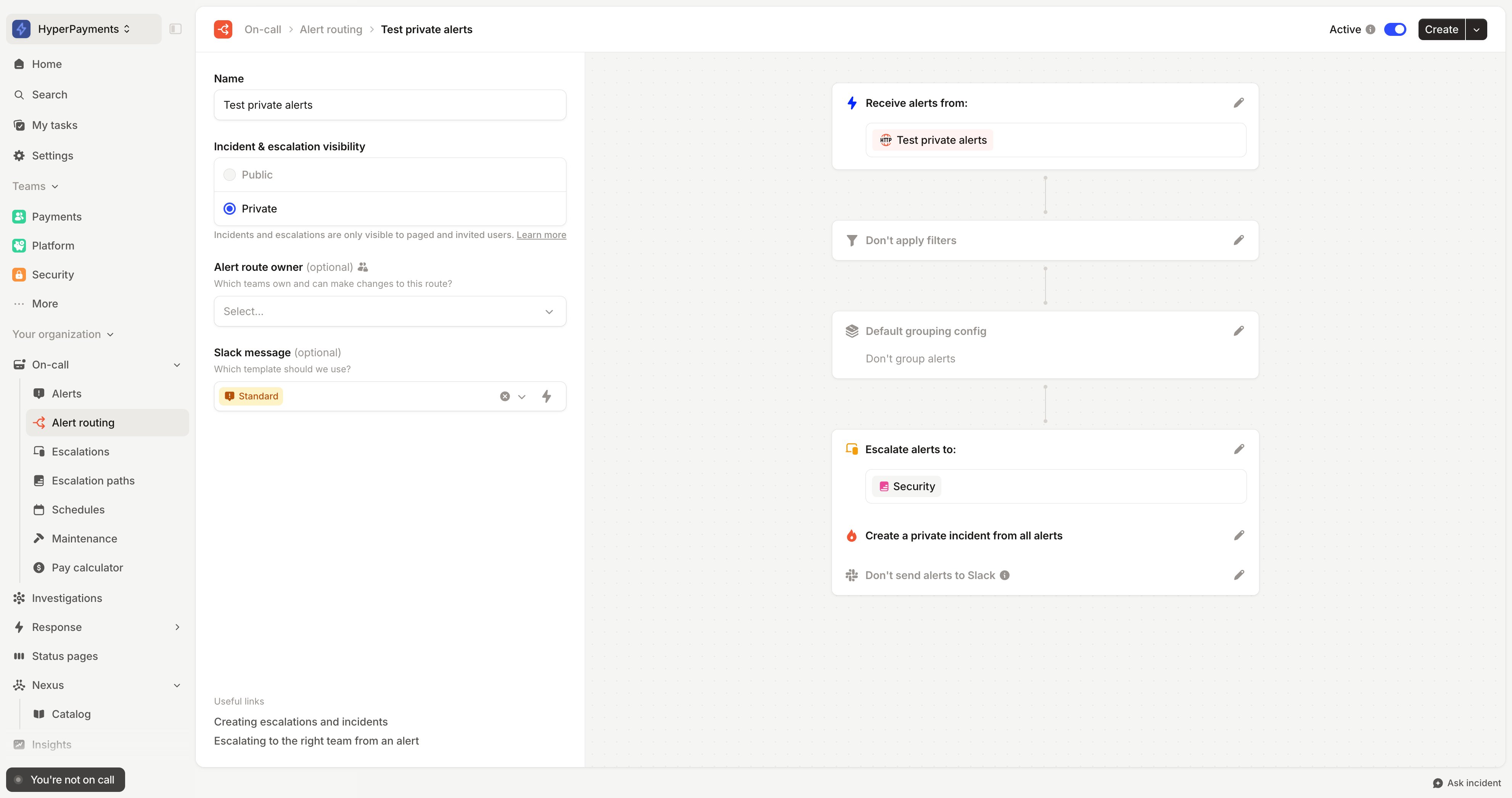
Previously, you could configure alert routes to create private incidents while the alerts themselves remained public. With the new private alerts feature, the entire chain (alert, escalation, and incident) must have the same visibility.If you have existing alert routes configured to create private incidents but using public alert sources, you can edit your source to make it private. If you’ve got many sources connected to a single private route, you’ll need to split them out 1-1 with a route to make them fully private.
Understanding access to private resources
Access to private alerts, escalations, and incidents follows specific rules detailed below.Alerts
You can view a private alert if:- You’re an organization owner (or you have the “private alerts view” global scope)
- You’re a member of one of the teams configured in the alert source’s “Visible to teams” setting
- You were paged via a private escalation that was triggered by the alert
- You’re a member of a private incident that was created by the alert
- The alert created an escalation that paged an escalation path, but you weren’t personally paged
- You were invited to the incident created from the alert and then removed (and you’re not in a configured team or weren’t paged)
Escalations
You can view a private escalation if:- You created the escalation
- You were paged as part of the escalation
- You’re a member of a private incident that the escalation is related to
- Your team can see the alert that created it, but you weren’t personally paged or invited to the incident
- You were invited to the incident and then removed (and you didn’t create the escalation or weren’t paged)
Incidents
You can view a private incident if:- You were invited to it manually
- It was created by an alert, and you were paged by an escalation that was also created from that alert
- A workflow that was opted into running on private incidents automatically invited you to it
- It was created by an alert you can see—being able to see the alert doesn’t automatically grant access to the incident
Other notes
- Team membership determines alert access: If you’re removed from a team, you’ll lose access to alerts only visible to that team (unless you have proxy access through being paged or being in the incident).
- Insights: certain on-call dashboards (currently Alerts and Pager load) can include private alerts and escalations, but only for people who can already see every incident, alert, and escalation across your organization. This requires the “Manage private incidents”, “Manage private alerts”, and “Manage private escalations” permissions.