

- You want to increase awareness about what alerts are coming through to incident.io
- You want a space directly in Slack to take actions from your alerts
- You want to declare incidents manually from alerts, rather than automatically
Enabling sending alerts to Slack
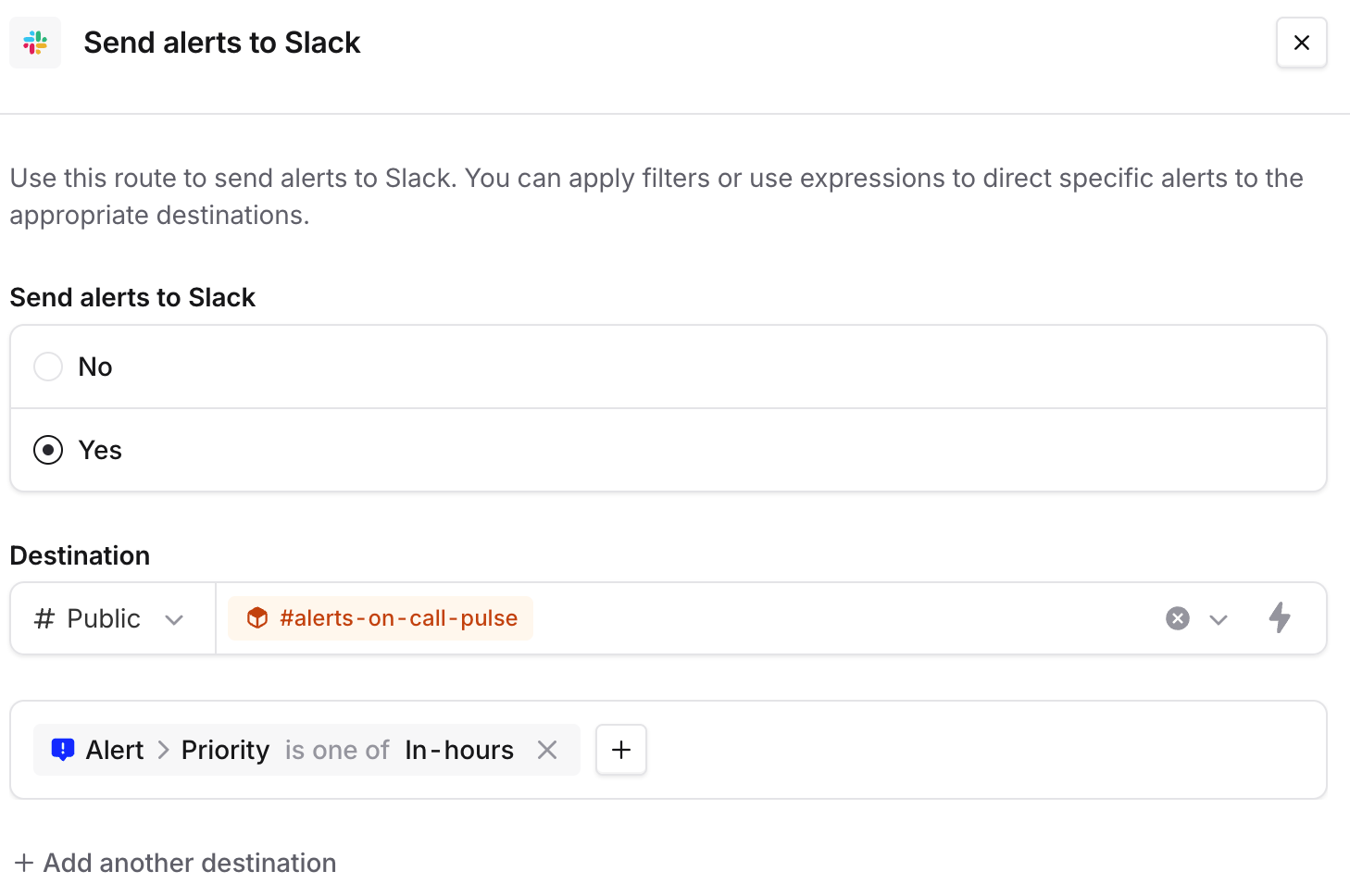
You can choose to enable sending alerts to Slack from an alert route. Once enabled, you’ll be able to select private or public channels to send your alerts to.Filtering the alerts you send to Slack
Sending alerts to a different channel according to the alert
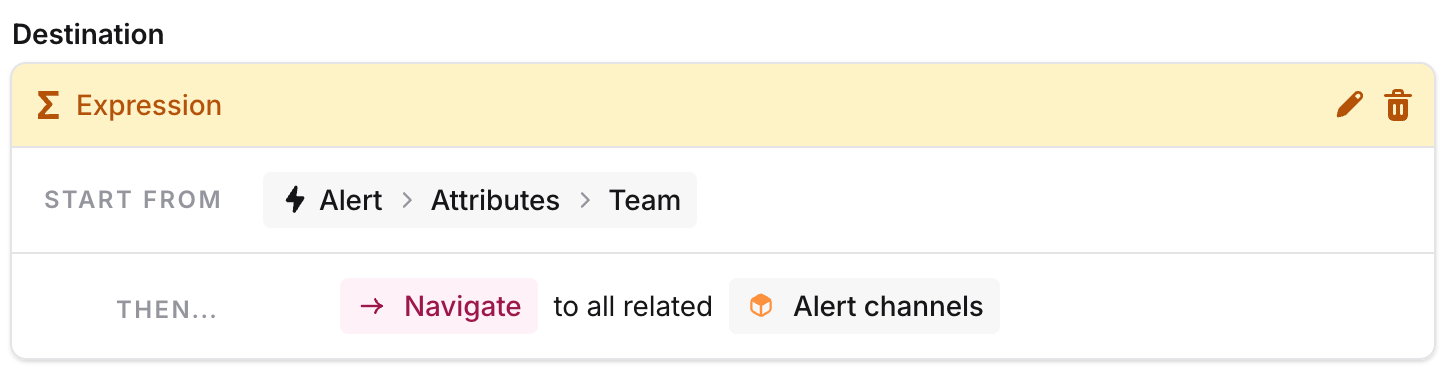
Using expressions and the Catalog, you can choose to send alerts to different Slack channels according to alert attributes. For example, if you have aTeam alert attribute, and your Team has a Slack Channel attribute, you’ll be able to dynamically pick where to send your alerts:
Taking actions from the alert
From an alert in Slack, you’ll be able to:- Declare an incident, or join one if it already exists
- Go to the alert’s source - this could be a Grafana dashboard, an external issue, or a custom URL
- Silence an alert, for alert sources that support it
- Resolve an alert
- Go to the alert in the incident.io dashboard, and view more from there!
If your alert route is set to create private incidents, incidents declared from an alert in Slack will be created as private. The person declaring the incident will be automatically invited.