

- Sent directly to channels
- Escalated to a channel or a user
- Attached to incident channels
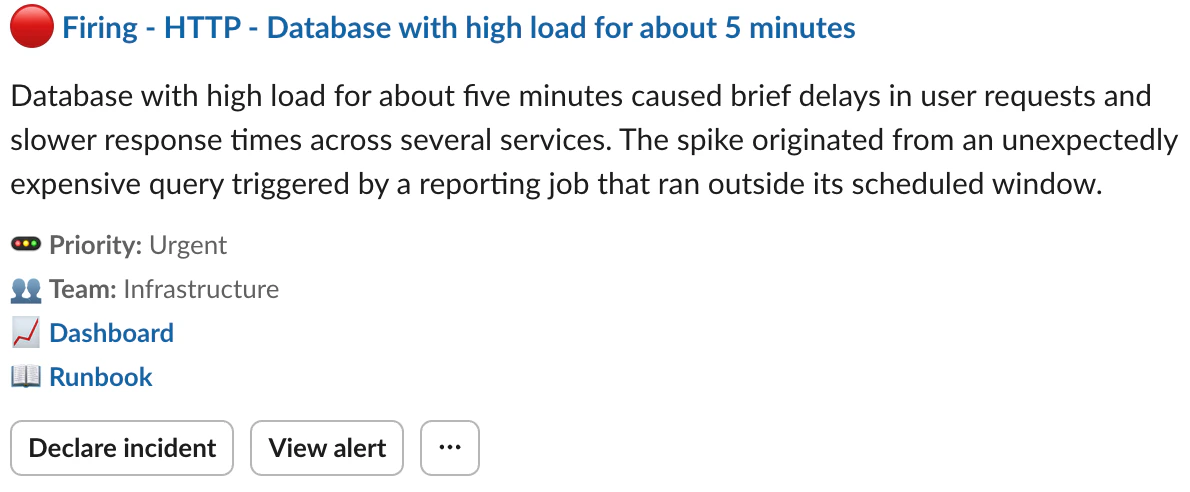
An alert message sent to a Slack channel
Creating a template
Manage your templates in Settings → Alert Slack messages, or Settings → Alert Teams messages if you use Microsoft Teams.By default, all admins have the permission to manage alert message templates: this can be configured in Settings → Permissions.
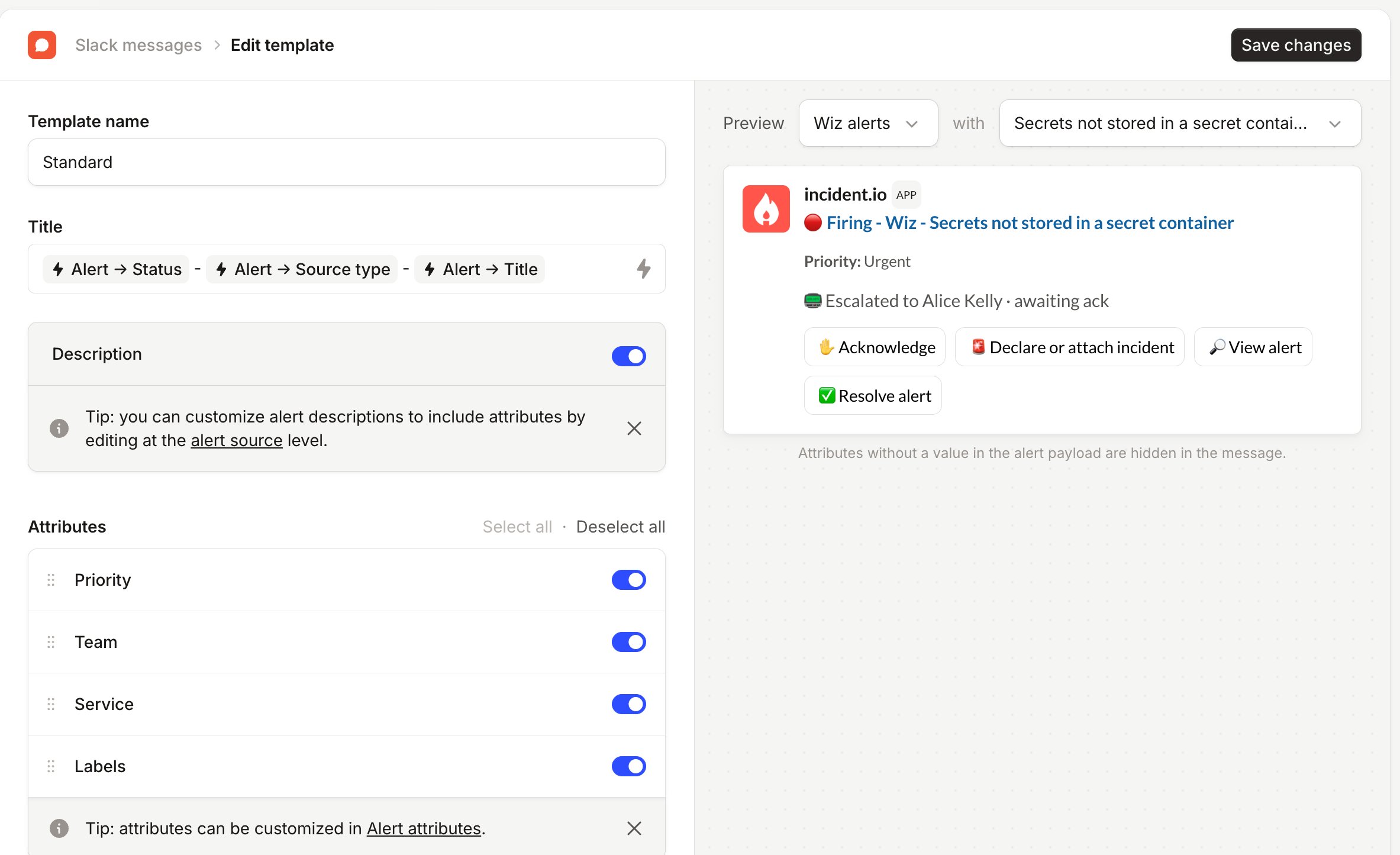
Applying templates to alert routes
You can configure which template an alert route should use. If no template is specified, then we will apply the default template. The default template can be changed in Settings → Alert Slack messages, or Settings → Alert Teams messages. You can select a specific template to use, or use an expression. For example, you can conditionally select templates based on alert attributes, alert source types and more.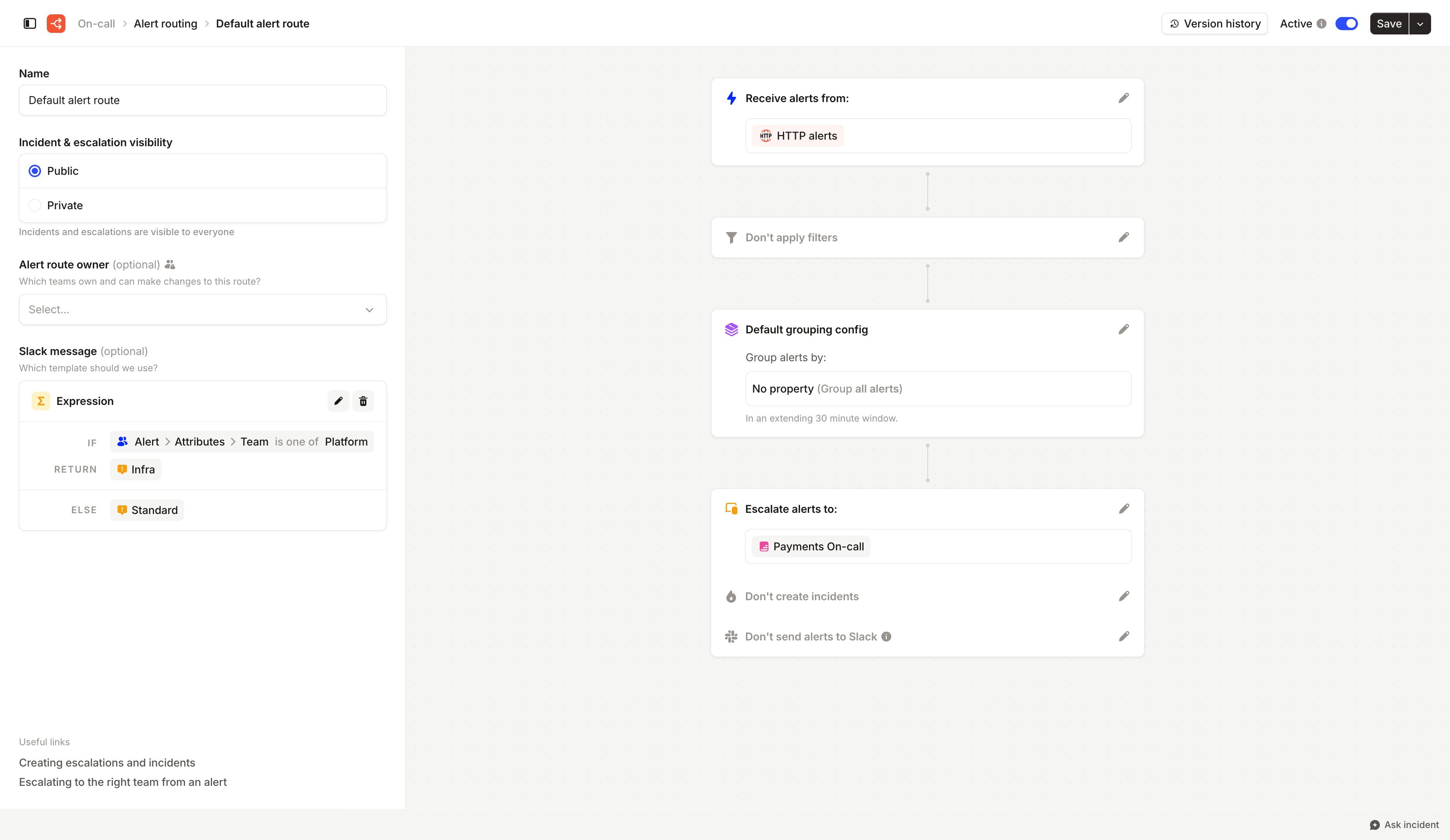
Using an expression to apply different templates for different teams' alerts