- How to route alerts to the correct escalation path
- Which (if any) alerts should create incidents, as well as alert grouping behavior
Creating a new Alert route
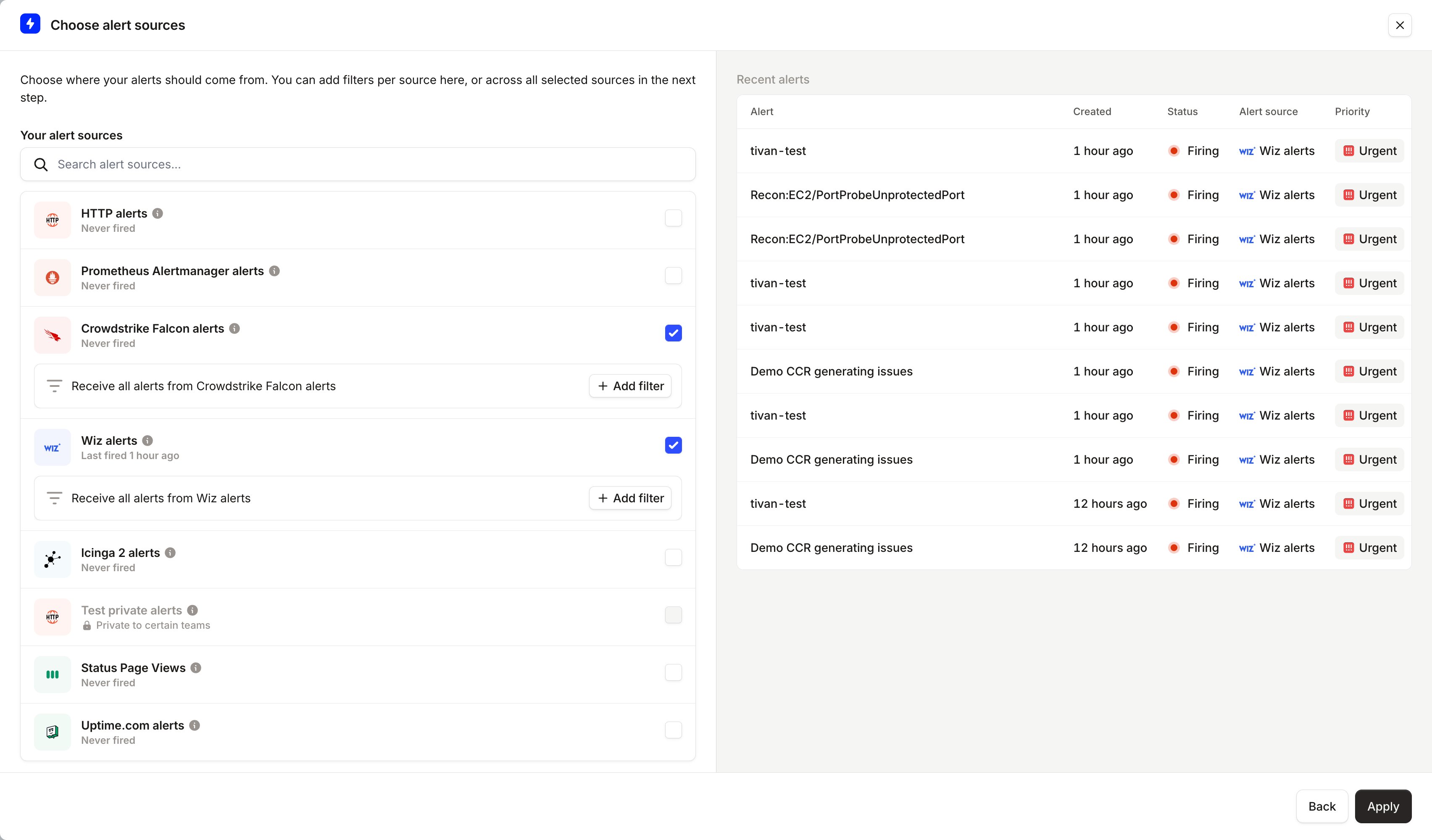
After you have connected your alert source, it’s time to create one or more alert routes from it. Remember, you can bring data from multiple data sources to one route!- Head to On-call → Alert routing and open the Routes tab
- Create a new Alert Route, and give it a name
- Choose the alert sources you want to bring to this route
- Hit Apply
Filtering alerts
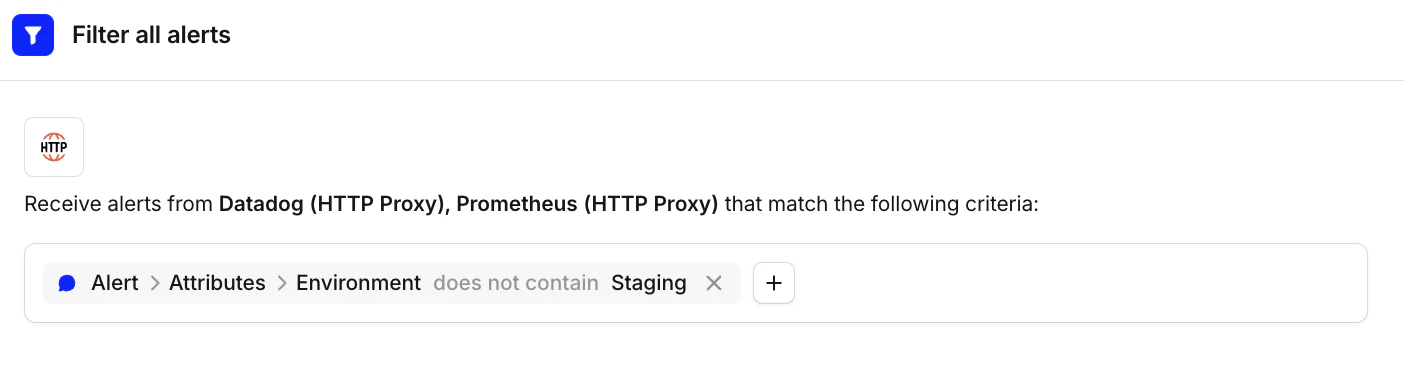
You can filter alerts out if they are irrelevant to your alert route. Any data from the alert’s payload can be used to filter out alerts (leveraging attributes ), as well as first-order filters like Source or Priority. Example: Have an attribute on your alert to captureStaging versus Production environment, so you can filter out Staging alerts.
Grouping alerts
Group related alerts by time window and/or context (via attributes like service or team) to decrease noise from similar alerts and reduce alert fatigue. See Alert grouping for how to set this up and how it behaves.Creating escalations from an alert route
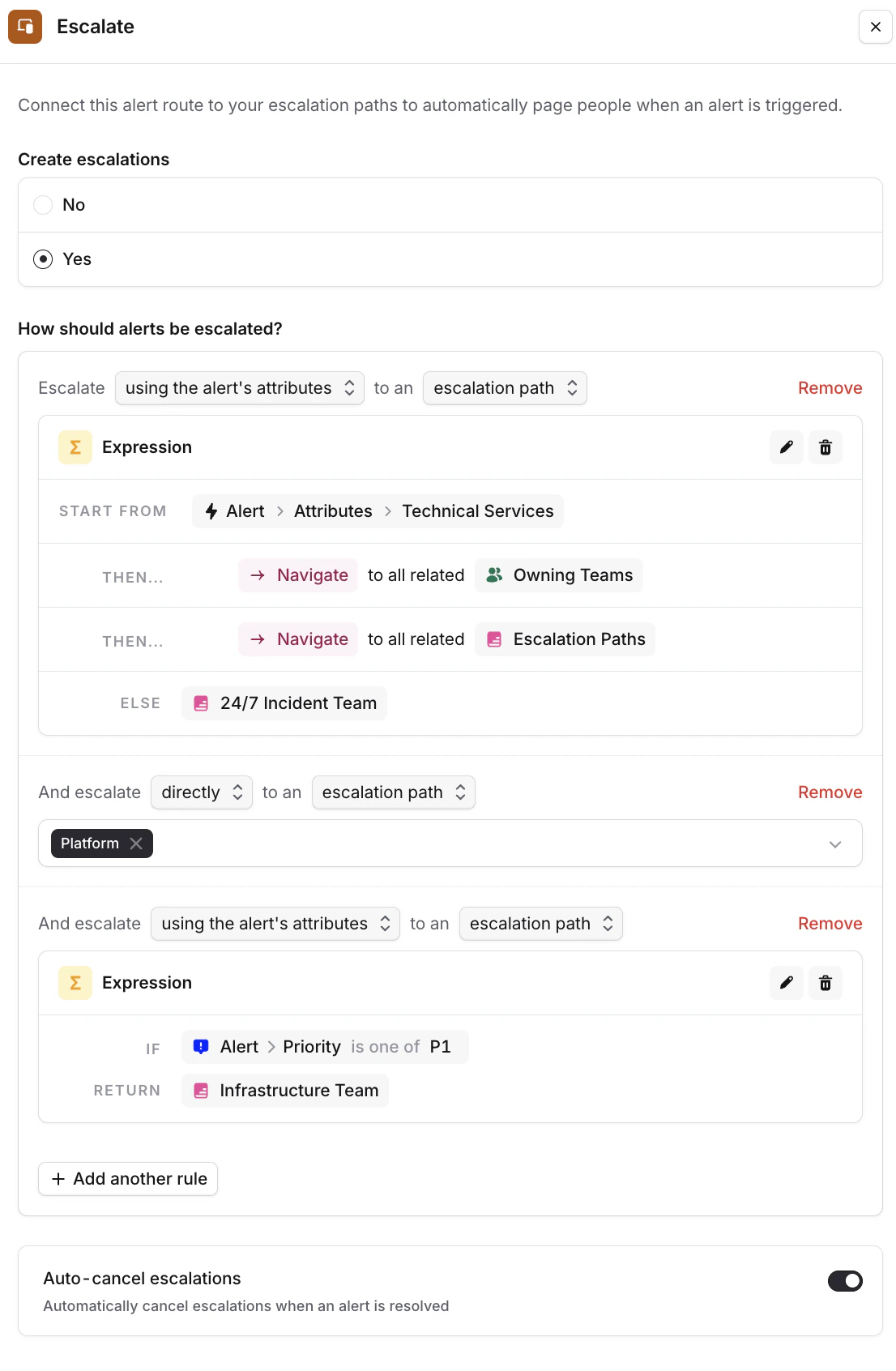
You can choose whether you want to page people for your incoming alerts. Alerts can be escalated to Escalation paths, users, or a combination thereof. You can either point directly to a specific Escalation Path or user; or (which we recommend!), leverage Expressions to dynamically pick the right Escalation Path depending on the alert’s context.- Go to the Alert Route > Set Escalate alert to “Yes”
- Choose the escalation path(s) you’d like to page (we recommend leveraging a query-based expression to pick the right Path based on e.g. the impacted Service or Team on the alert)
- Optionally, you can stack multiple escalation rules (for example, “Escalate to the Team labeled against the alert, AND escalate to the Infrastructure team if alert priority = P1”)
- Toggle on auto-cancel escalations if you wish to cancel pages when an alert is resolved (this is useful for flappy alert sources)
Creating incidents
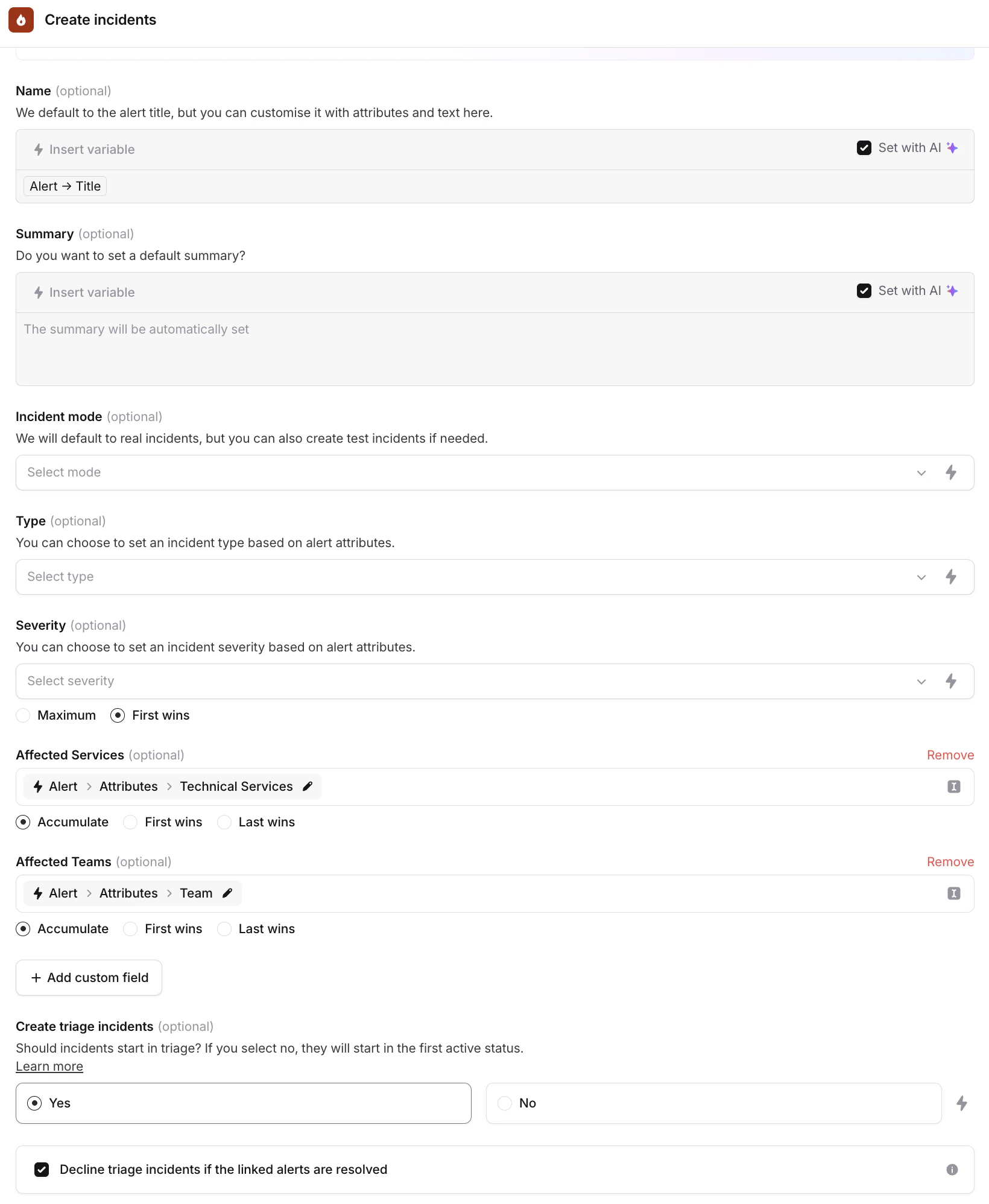
You can choose exactly when and how you want to create incidents, and what type of incident, when alerts are received. The incident details a route applies come from an incident template. Pick the template the route should use, or set it with an expression to choose a different template per alert. Editing a shared template updates every route that references it.- Go to the Incident Details
- Choose what information you want to get shown about an incident in the Slack channel when it is posted. You can see a preview on the right side of the screen.
- Dynamically set the incident’s severity, and pass any data from your alert to your incident using the “Add Custom Field” option (this will let you e.g. pass the tagged Service on your alert as the Affected Service on your incident), keeping data consistent and auto-populated
- Tick the “Decline triage incidents’ box if you’d like to automatically reject triage incidents when the alert resolves itself