

1. Head to your Integration settings
First, head to your integration settings to review the setup you have for Auto-create. ( Pagerduty or Opsgenie )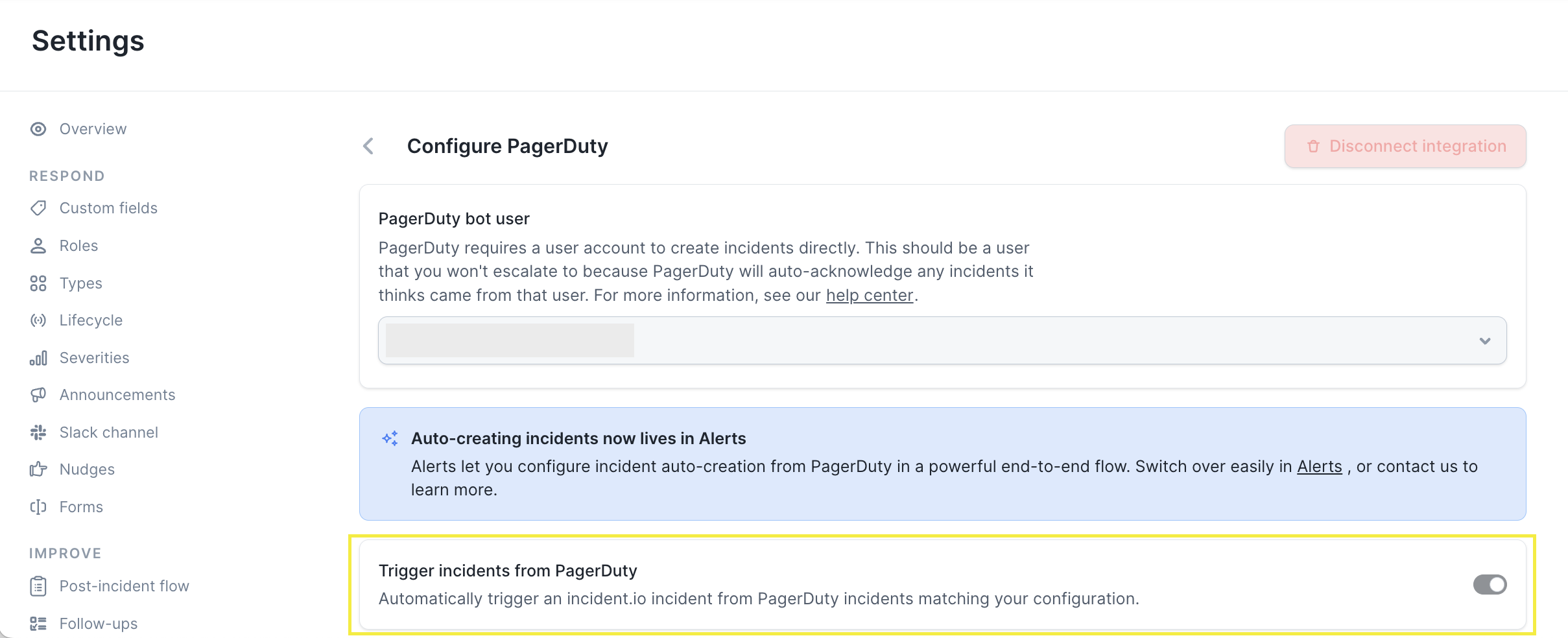
2. Take a screenshot of the setup you have in the Auto-create functionality
To understand your setup and to easily migrate them to Alerts, take a screenshot of your current filters and groupings. This allows you to review and update them when re-creating them in Alerts.3. Head to Alerts and connect your Data sources
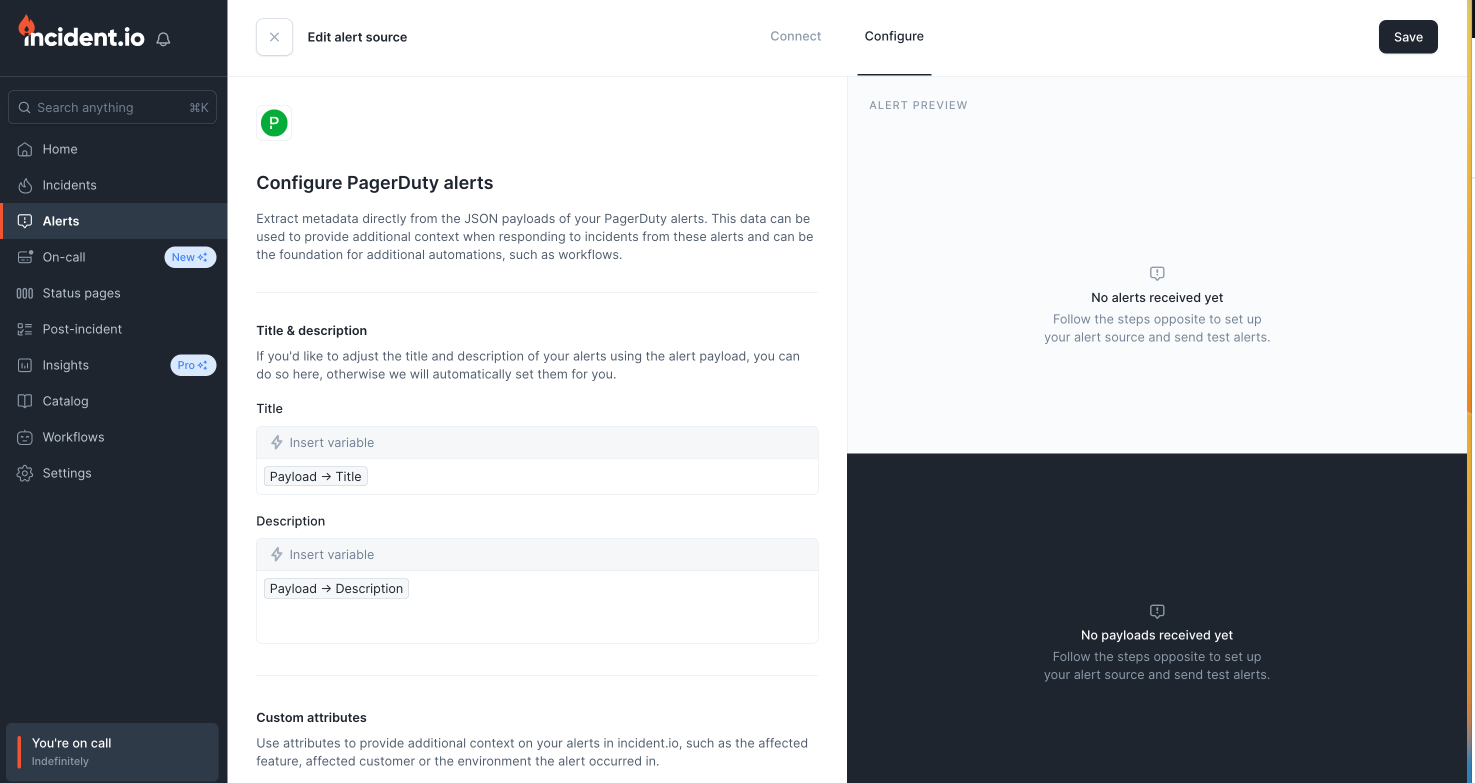
- Navigate to Alerts > Create alert source
-
Select the source that you want to import.
- Previously you had alerts coming from Pagerduty or Opsgenie, where they were acting as an in-between layer to incident.io, but you can now bring those data sources straight into incident.io.
- If you want to continue with Pagerduty or Opsgenie, just search it from the list and continue
- Follow the steps provided for your chosen source to connect it and receive your first alert
- You can try sending a test alert from your source to check your configuration, and if successful, you’ll see live alerts come in!
4. Configure your Alert Routes
Now that you have an alert source that’s receiving alerts, you need to connect it to an alert route to start creating incidents from your alerts.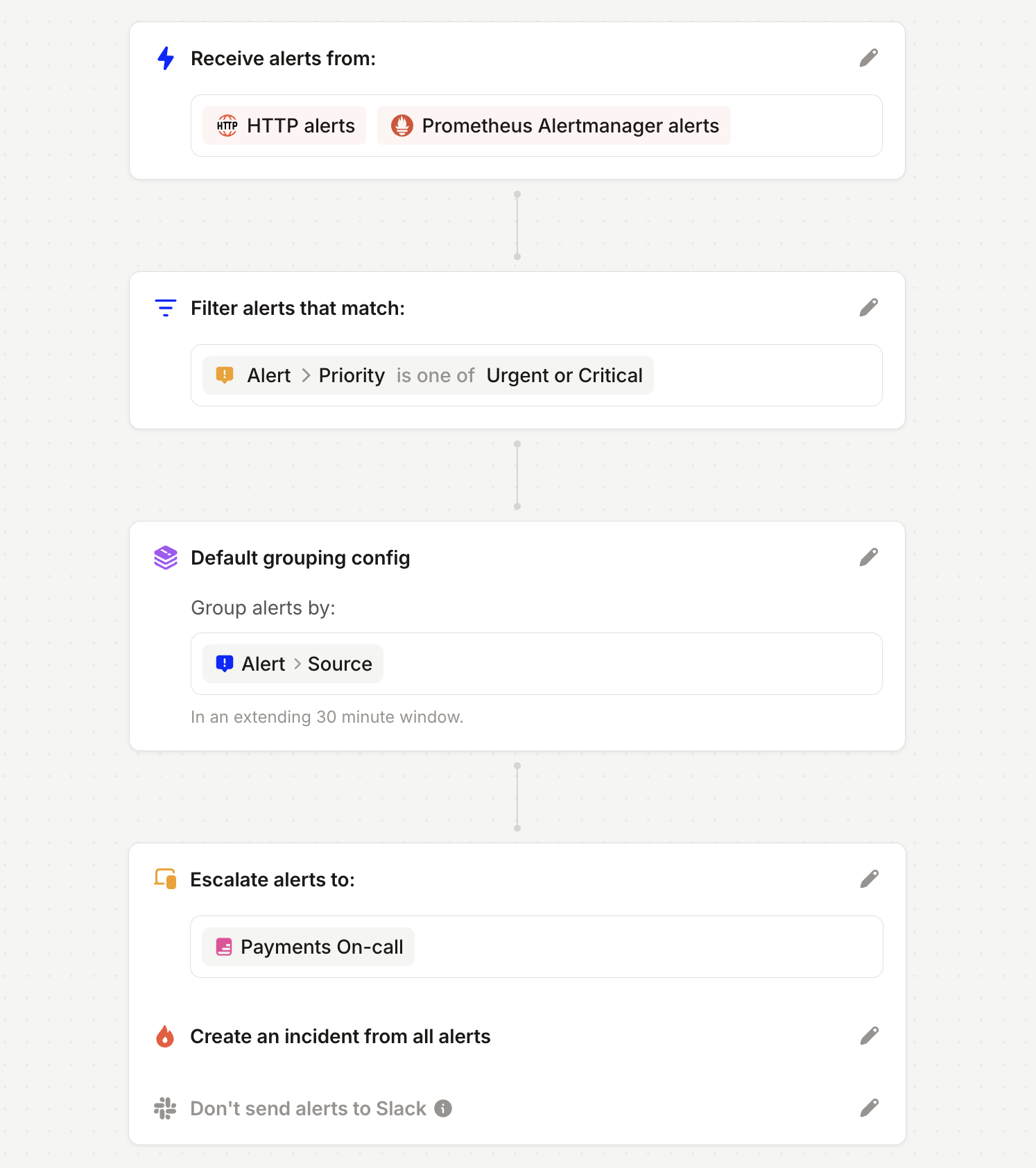
-
Select alert sources
- Select any alert sources that should trigger incidents
- You can filter which specific alerts should create incidents later
-
Filter and group
- Filter out alerts that should not auto-create incidents (i.e. Low Priority alerts)
- Group alerts, so when an alert fires, we find active incidents with similar alerts and give responders the ability to attach the alert to an incident or create a new incident from that alert (ie. grouping alerts by the Team that owns the alert). More on that later.
- Note : Pagerduty auto-create was previously grouped by Service by default, please add this grouping to the Alert route, to ensure the same behavior.
-
Configure incidents
- Choose how you want the incidents created from your alerts to look.
- You can select the title and summary from the alert details you previously selected above
- Add any custom fields that should be set based on details on your alerts
5. Disable Auto-create from the Integration Settings
After you have set your Alerts and routes live, it’s time to disable the legacy setup from the Integration settings ( Pagerduty or Opsgenie ).Good to know about Alerts and payloads
The alerts we send operate exactly the same as Opsgenie and PagerDuty Autocreation. We recommend creating some test incidents or alerts to show some example payloads to get started in your alert route. When an alert comes in with the new set integration in Alerts, you’ll be able to determine if that should create an incident in incident.io, have nothing happen or have it grouped into an existing incident based on conditions. To filter using an urgency value, parse that into an alert attribute within your alert source. Once you have the alert attribute that holds the urgency value from the pagerduty alert, you are then able to use that value to control which alerts should create incidents if needed. This allows to use that attribute to automatically set the incident severity i.e. in my alert route I could have an expression that uses IF/ELSE to determine the incident severity from the Alert urgency. More details on that in Extracting JSON alert data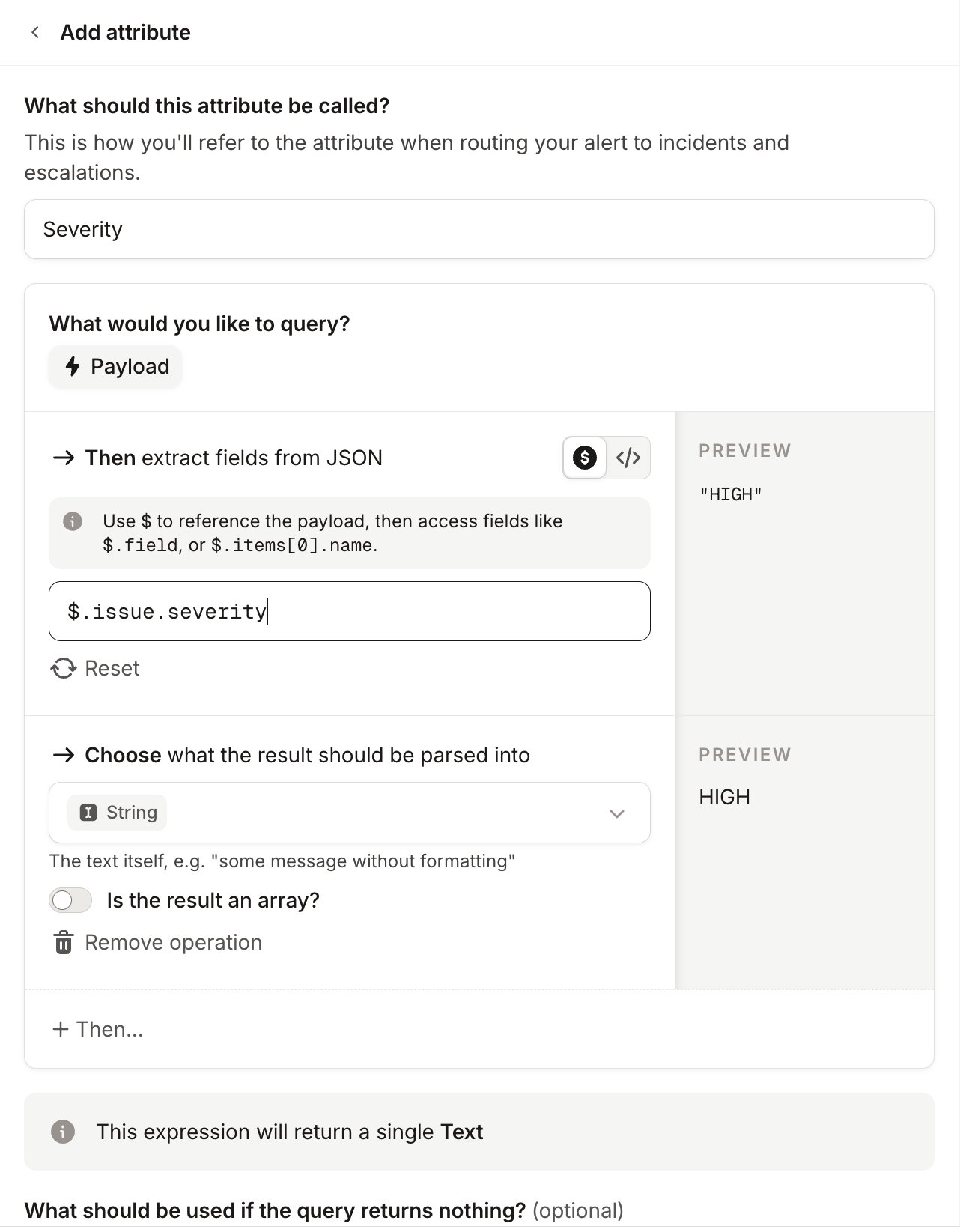
Read more about Alerts here and if you have any questions, just contact our support at support@incident.io