Alert notes let you attach written context to an alert. Use them to document what you investigated, record why you resolved an alert, or hand over context to the next person on call — all without creating an incident. Notes appear in the alert timeline, so there’s a clear, timestamped record of what happened and who did what.

Adding a note

Open an alert and select Add note. Write your note and submit it. Notes support text formatting and image attachments. Notes you’ve written can be edited or deleted. You can’t edit or delete notes written by other users.
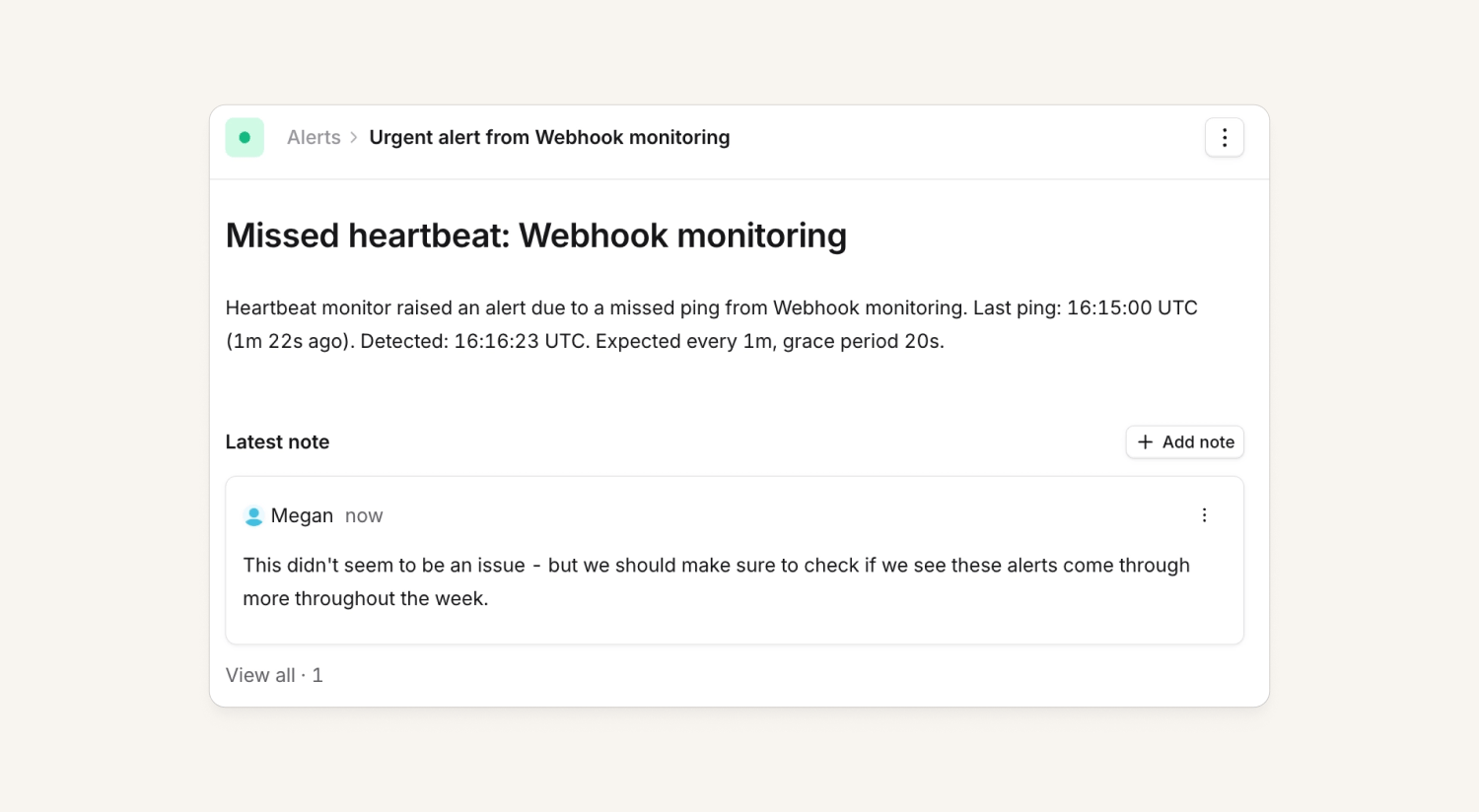
Alert notes in the mobile app

Alert notes are also shown in the mobile app. To create a note from the mobile app, select Add note at the bottom of the alert screen.

Alert notes in Slack

If your alert source sends alert pulse messages to Slack, then alert notes will be posted in the alert pulse thread so your team sees it in context. Also, if @incident is invited to your alert pulse Slack channel, you can react to any reply in the alert pulse thread with a pencil (✏️) or notebook (📓, 📔) emoji to save that message as a note.

Finding alerts with notes

Alerts with notes are tagged with the number of notes in the list alerts page, but you can also use the Has notes filter on the alert list to show only alerts that have at least one note attached.

API access

Use the Alert Notes API to list, retrieve, create, update, and delete alert notes programmatically. Note content is supplied and returned as Markdown. Image attachments can’t be added via the API, but any images attached in the dashboard are returned via presigned URLs with a 10 minute validity.