

This integration is in early access. Reach out to your account team to get set up.
Setting up
Setup involves connecting incident.io to Salesforce Service Cloud, installing our Salesforce app, and configuring who can see the incident.io panel.1
Re-authorize the Salesforce integration
If you already have the Salesforce integration connected for catalog sync, you’ll need to re-authorize it to grant incident.io access to cases.Head to Settings → Integrations → Salesforce and re-authorize the connection. If you’re setting up Salesforce for the first time, the initial authorization will include the required scopes.
2
Install the incident.io app in Salesforce
A Salesforce Admin needs to install the incident.io app into your Salesforce org. This adds the components that power the incident.io panel on case pages.
We’re currently finalizing our Salesforce AppExchange listing. In the meantime, reach out to your account team and we’ll get the app installed for you.
3
Enable the sidebar app in incident.io
Once the app is installed, head back to your Salesforce integration settings in incident.io and click Enable sidebar app.This securely pushes a credential to Salesforce that allows the app to fetch incident data and attach cases to incidents. Without this step, the app won’t be able to communicate with incident.io.
4
Assign the permission set in Salesforce
The app includes a permission set called incident.io that controls who can use the panel — without it, the panel will be visible but non-functional.A Salesforce Admin needs to assign this permission set to any users who should interact with incidents from Salesforce:
- In Salesforce, navigate to Setup → Permission Sets
- Find the incident.io permission set
- Click Manage Assignments and add the relevant users
5
Add the incident.io component to the case page layout
The incident.io panel doesn’t appear on case pages automatically — a Salesforce Admin needs to add it using the Lightning App Builder.
- In Salesforce, navigate to Setup → Object Manager → Case → Lightning Record Pages
- Open the case record page in the Lightning App Builder
- Drag the incident.io component onto the page layout
- Optionally, use component visibility filters to restrict which users or profiles can see the panel (e.g. the same users granted the permission set)
- Save and activate the updated page
Attaching cases
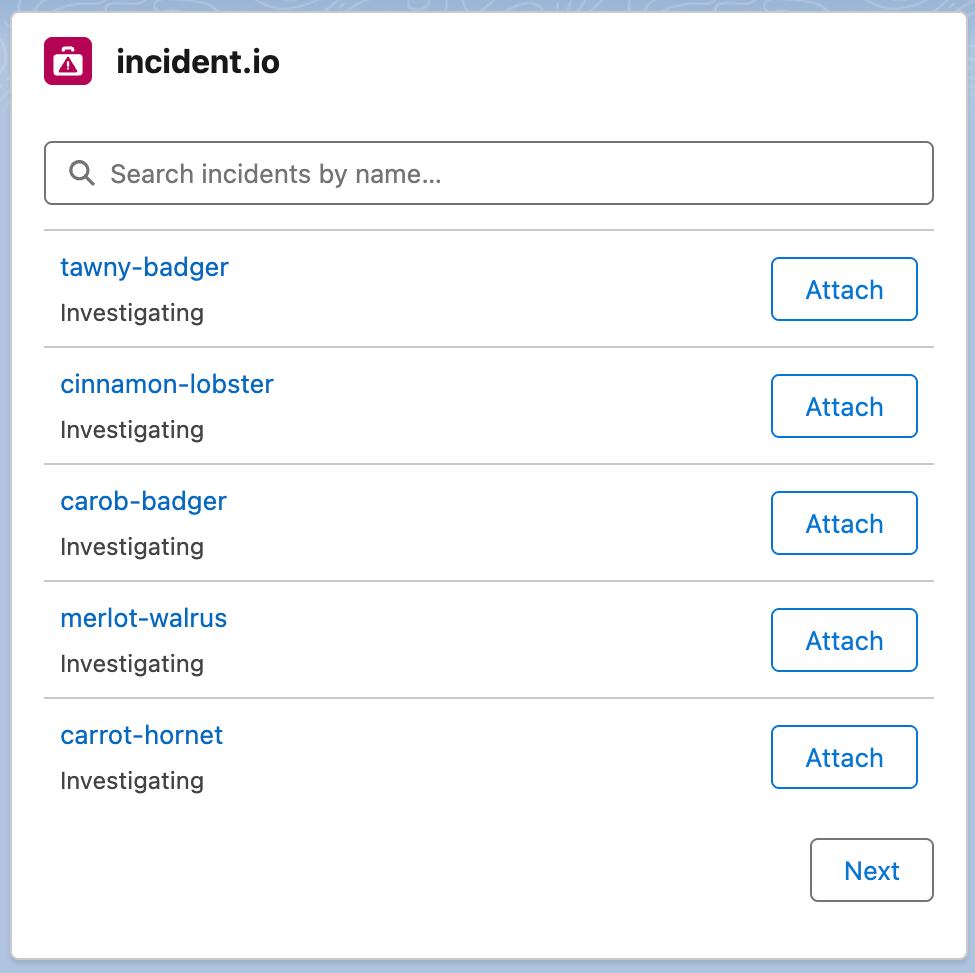
With the integration set up, support agents can link Salesforce cases to active incidents directly from the case view. When viewing a case, the incident.io panel shows a list of active incidents. Agents can search for relevant incidents and attach the case to one — making it clear that the customer issue is related to a known problem. You can also attach cases to incidents from within incident.io, on the incident’s detail page.Incident updates on cases
Once a case is linked to an incident, incident.io automatically posts updates to the case as the incident progresses. Changes like status updates, severity changes, and updates from the incident lead appear as posts on the case’s Chatter feed. This keeps support agents informed without them needing to check incident.io or chase engineers for updates — they can see progress directly on the case they’re working on.Updating the incident channel
When a case is attached to an incident, a notification is posted to the incident channel. This gives responders visibility into customer impact and helps them understand the scale of the issue.Incident tickets
Set up incident tickets to create a Salesforce Case for each incident and keep it current. This is separate from attaching cases that already exist: the incident gets a Case of its own.FAQs
Can I control which users see the incident.io panel?
Can I control which users see the incident.io panel?
The permission set controls who can use the panel, not who can see it. Users without the permission set will see
the panel but won’t be able to interact with it. To also control visibility, Salesforce Admins can set component
visibility filters in the Lightning App Builder to restrict the panel to specific users or profiles.
Why don't I see the panel after installing the app?
Why don't I see the panel after installing the app?
Two things need to happen after installation: a Salesforce Admin must assign the incident.io permission set to
users, and they must add the incident.io component to the case page layout using the Lightning App Builder. The
panel won’t appear until both are done.
Do I need Salesforce Service Cloud specifically?
Do I need Salesforce Service Cloud specifically?
This integration is designed for organizations using Salesforce Service Cloud, which provides the case management
functionality. If you use Salesforce but not Service Cloud, the existing catalog
integration is still available for syncing accounts and other objects.
What happens to updates if a case is detached from an incident?
What happens to updates if a case is detached from an incident?
Detaching a case stops future incident updates from being posted to that case. Any updates that were posted while
the case was attached remain on the case’s Chatter feed.