

Turn on the collaborative editor
Go to your status pages and click Enable on the Try out the new collaborative editor banner. This turns it on for everyone in your organization. Click Disable on the same banner to go back to the publishing form. You need permission to change your organization’s settings to turn it on or off. See user roles and permissions.Start a draft
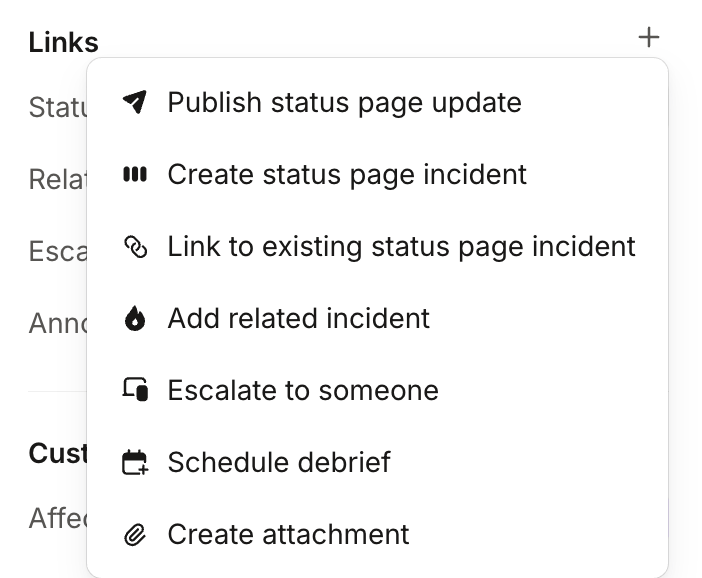
Start a draft from anywhere you publish to your status page:
On an incident, Publish status page update shows once the incident is on a status page.
Write the update
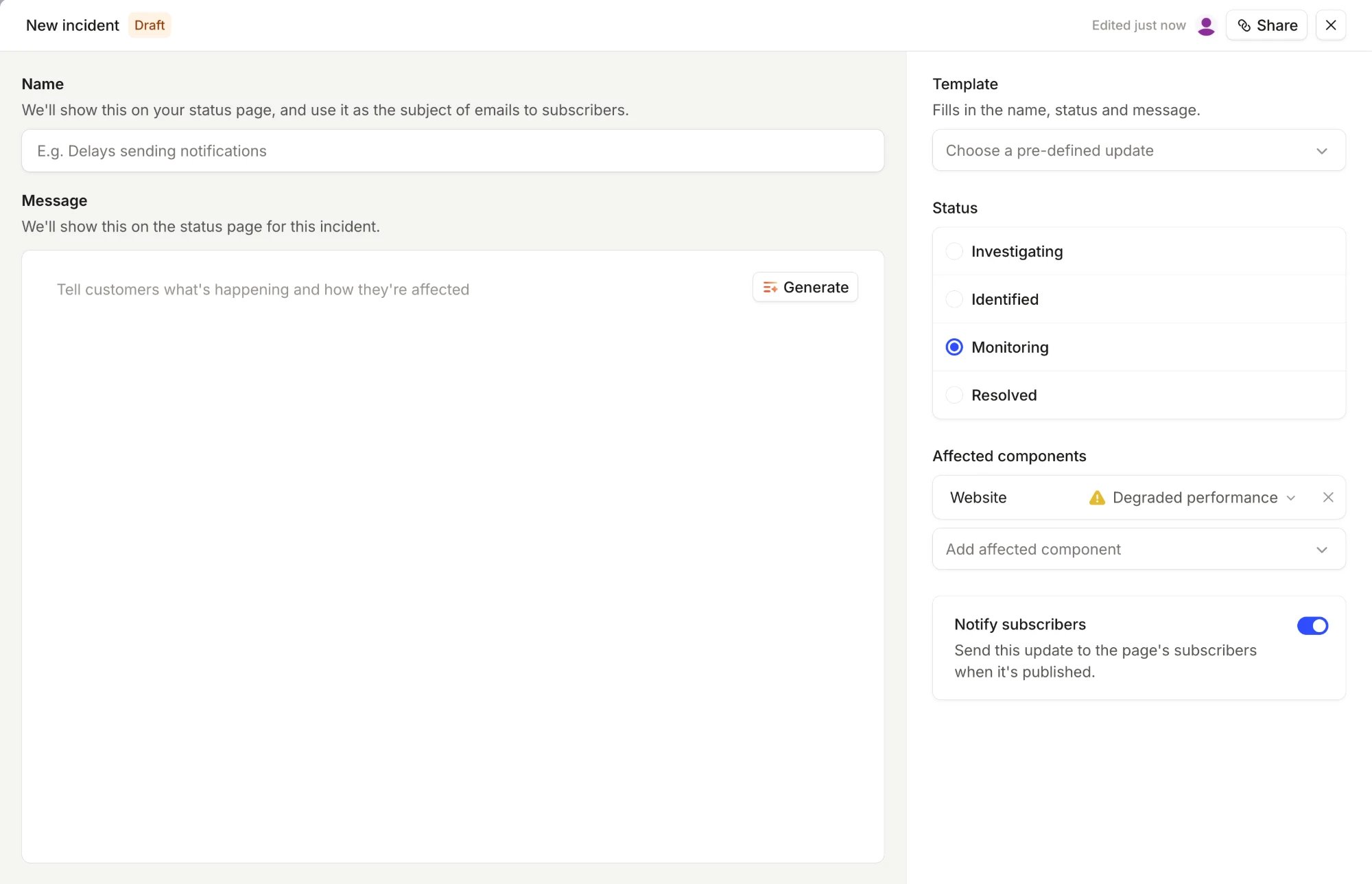
A draft has the same fields as a published update:- Name: the headline we show on your status page and use as the subject of emails to subscribers. Only a new incident has one.
- Message: what your customers read.
- Status, Affected components, and Notify subscribers in the sidebar. Pages with sub-pages also show Affected sub-pages.
Write it together
Everyone with the draft open sees each edit as it happens, and the sidebar shows who is changing which field. Select text in the message to comment on it. We send a direct message to the people you mention, and to everyone already in that comment’s thread.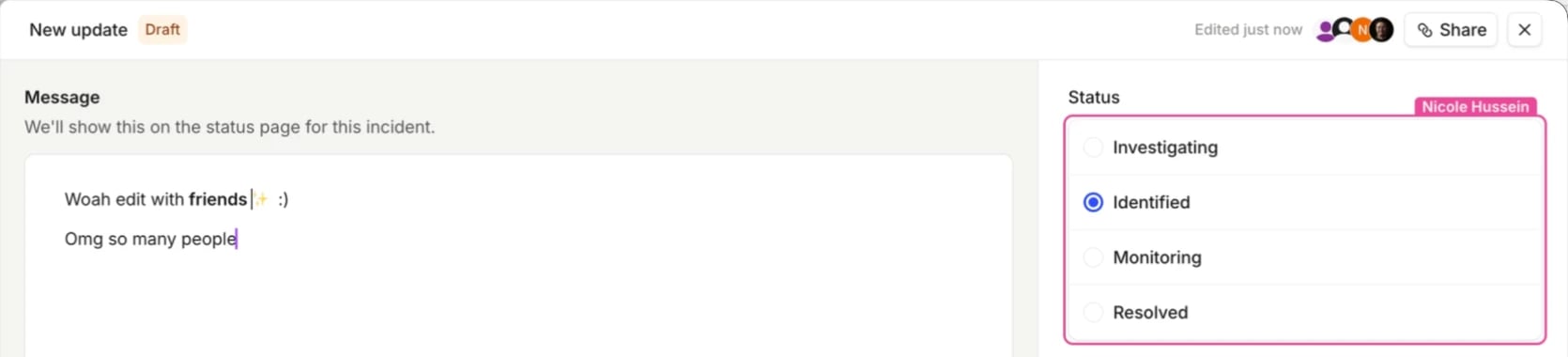
Start from a template
If your status page uses message templates, the template for the draft’s status shows in the empty message. Press Tab, or click Tab to use the template, to add it. Until you start writing, it follows the status you choose in the sidebar. If your status page uses pre-defined updates, choose one from Template in the sidebar. It fills in the status and message, and the name of a new incident. If the message already has text, we ask before we replace it.Let AI write the first version
When a draft is linked to an incident, click Generate in the empty message. We write the update from the incident’s summary, updates and channel messages, following your template if you use one. Edit it like any other text before you publish. Generate uses AI, so it needs your organization’s AI subprocessors allowed in AI governance. For a private incident, AI incident access must also include private incidents.Review and publish
Click Review to check exactly what goes out: the message, the status, each component’s change, and whether subscribers are notified. Turn on Preview email to see the email your subscribers receive. Then click Publish incident, Publish update, or Resolve incident.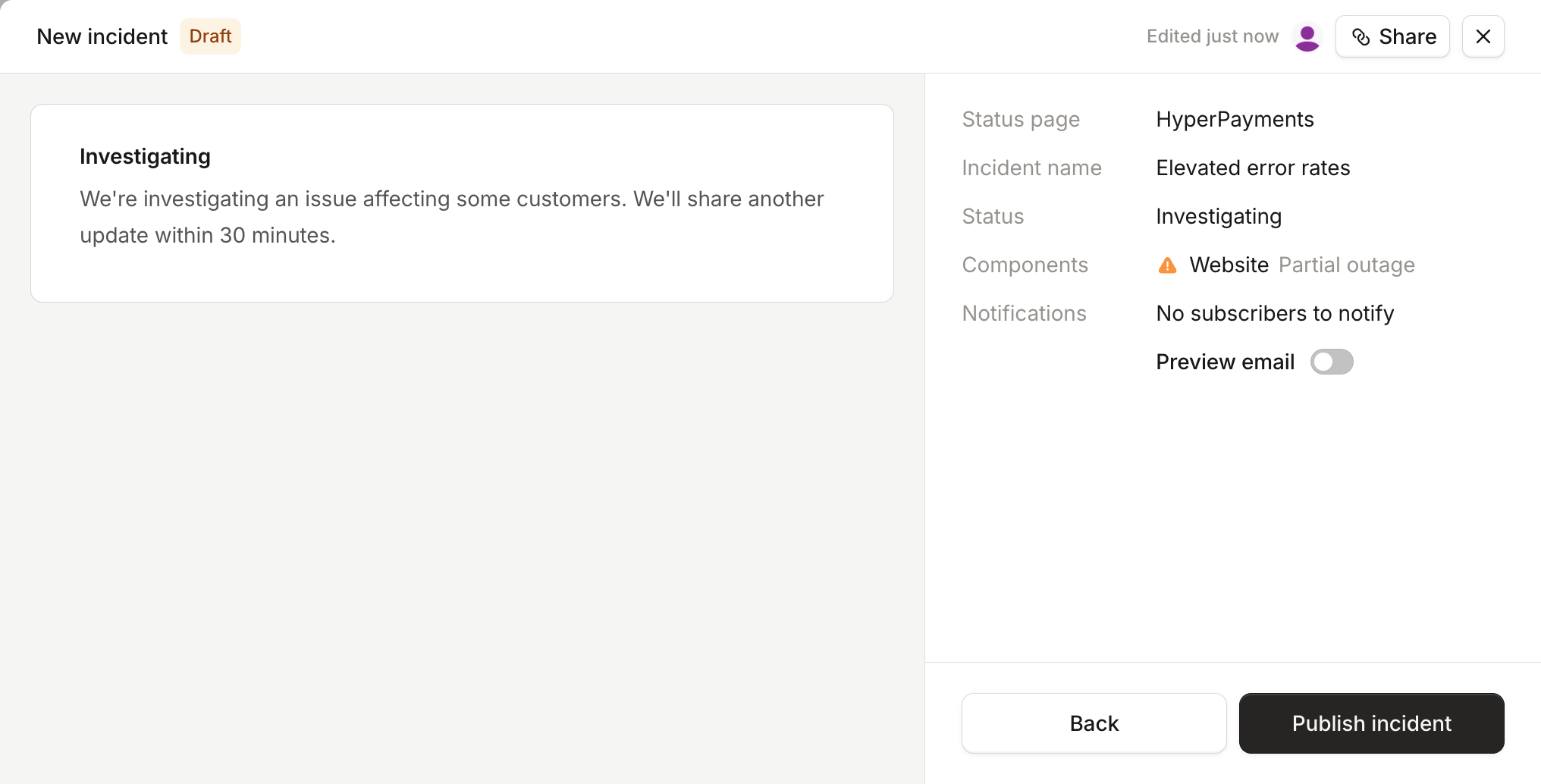
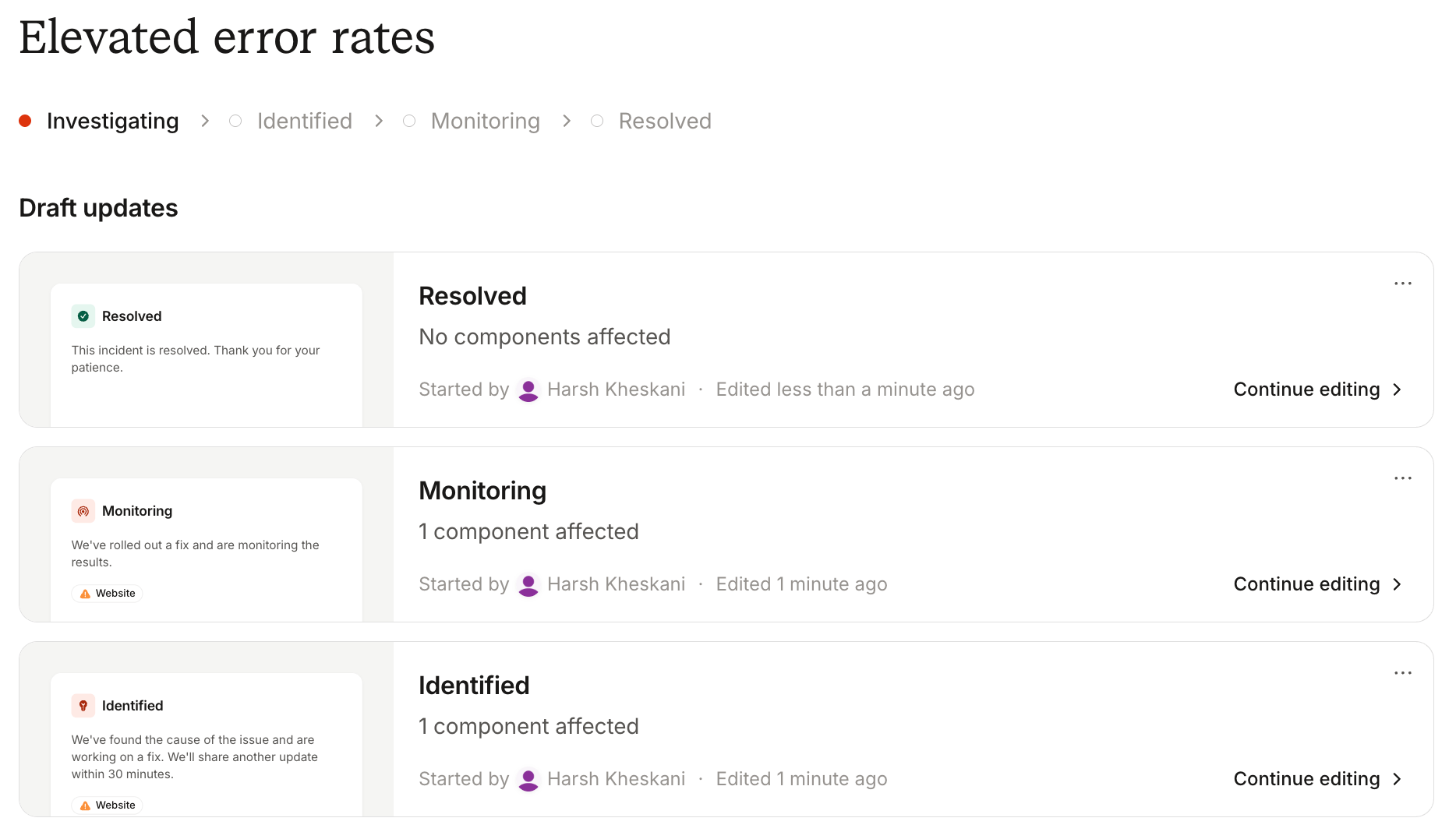
Drafts
You can draft a new incident or an update to one that’s already published, and keep several drafts open at once:- Drafts for a new incident show above the incidents on your status page.
- Drafts for an update show under Draft updates on the status page incident’s page.
Ask the Agent to write it
Ask the Agent to draft, edit, or publish a status page update, or use the same tools from your own AI assistant through the remote MCP server. Either way, it writes into the same draft your team edits, shows you exactly what publishing sends, and publishes only after you approve it.FAQs
Do subscribers see a draft?
Do subscribers see a draft?
No. Subscribers hear about an update only when someone publishes it, and only if Notify subscribers is on.
What happens to open drafts if we turn the editor off?
What happens to open drafts if we turn the editor off?
We keep them. They show again when you turn the collaborative editor back on.