

Why new pages show “no data”
We only show uptime from the point a component first has data to report. Before that, we show “no data” rather than assuming the component was operational, because we have no record of its status either way. To fill in that earlier period, give the chart a starting point: publish a retrospective incident whose earliest update is dated when you want the chart to begin (for example, the day your services went live). From that date onward, each component is shown as operational unless there’s a recorded impact.Backfill your uptime
1
Open Publish retrospective incident
Go to your status pages list and select your page. Open the ⋯ menu in the top right and select Publish retrospective incident.
2
Add the resolved update
Give the incident a name. The most recent update in the timeline must be Resolved — set its Occurred at to the date you want your uptime chart to start from, and add a short message. This update marks all components operational.Then select Add earlier update.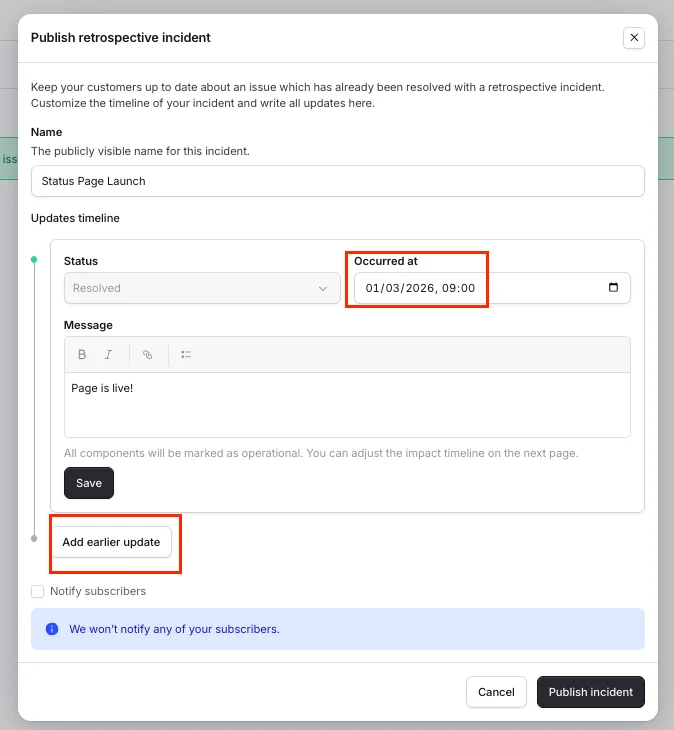
3
Add the earlier update
Set the earlier update’s status to Investigating and its Occurred at to just before the resolved update (a minute earlier is fine). Add a message, then set the affected components to Degraded performance.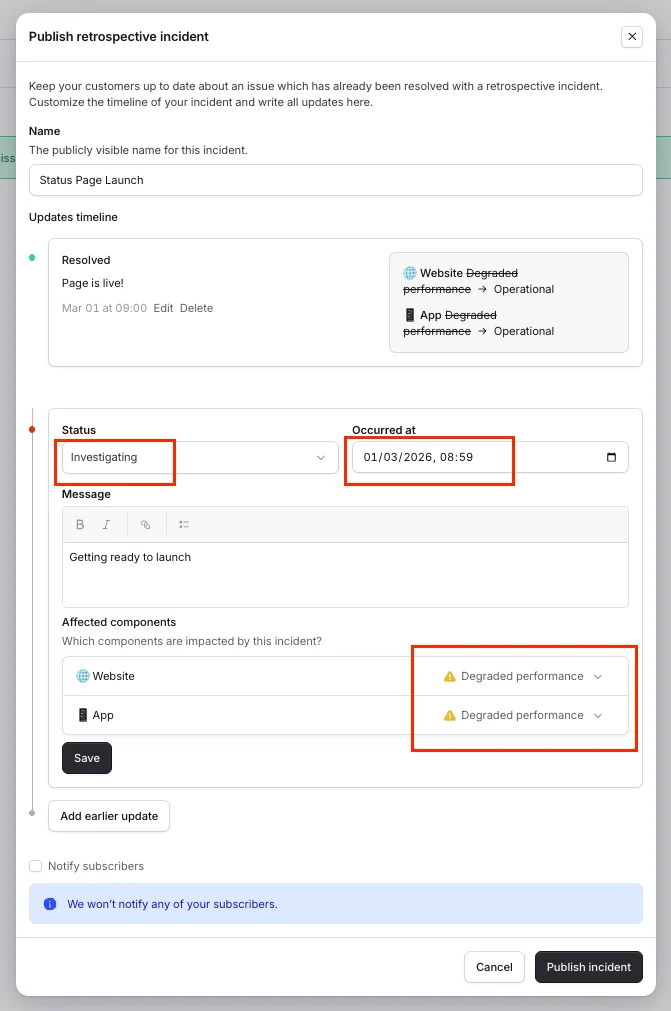
4
Publish
Select Save, then Publish incident. Your uptime chart now starts from the date of the earliest update, and the empty “no data” bars before it show as operational.
This creates a resolved retrospective incident, which appears in your page’s incident history. Publishing a
retrospective incident does not notify your subscribers by default.
FAQs
Why does my new status page show 'no data' bars?
Why does my new status page show 'no data' bars?
The uptime chart only shows data from the point each component started recording it. Before that, we show “no data”
rather than assuming everything was operational. Publish a retrospective incident dated at your launch to backfill
that period.
Will backfilling affect my uptime percentage?
Will backfilling affect my uptime percentage?
Not if you set the anchoring impact to Degraded performance — degraded periods don’t count as downtime. Only
partial and full outages reduce your uptime percentage. See how we calculate
uptime.
Can I set my uptime start date without publishing an incident?
Can I set my uptime start date without publishing an incident?
Publishing a retrospective incident is the self-serve option, and it only ever moves your start date earlier. If
you’d prefer to set the date directly without an incident, reach out to our support team.
Does this notify my subscribers?
Does this notify my subscribers?
Not unless you choose to. Retrospective incidents don’t notify subscribers by default — leave Notify subscribers
unchecked when you publish.