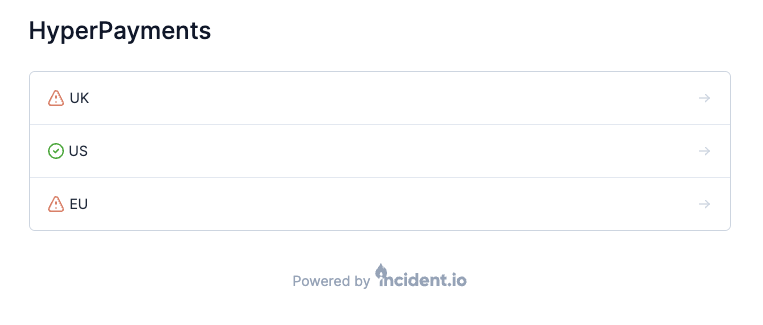
Not sure what sub-pages are? Read our FAQ.
1. Basic details
The first decision you have to make is what you’ll call your status page.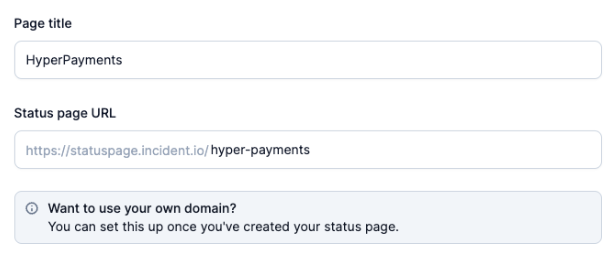
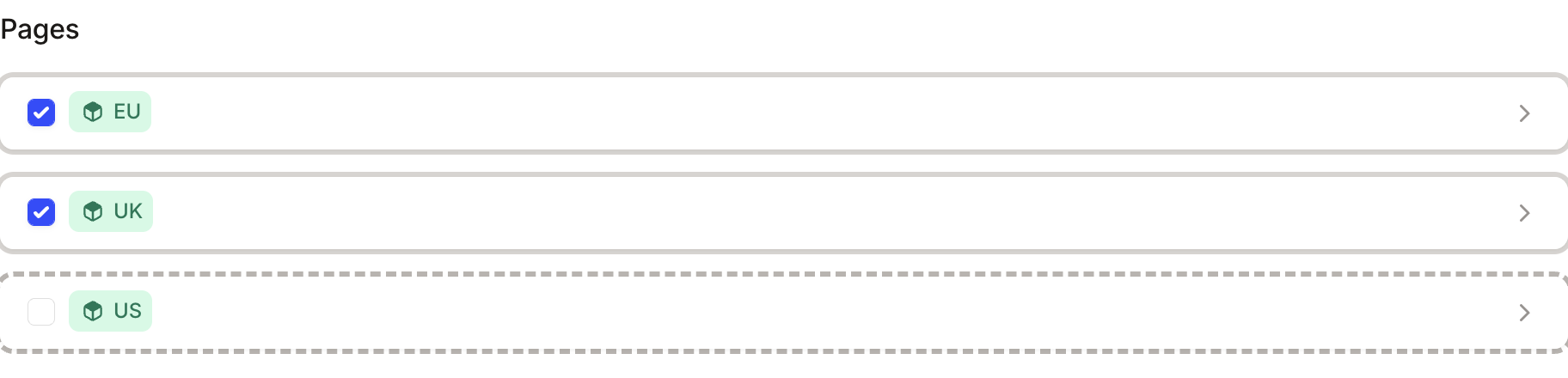
2. Sub-pages (Catalog)
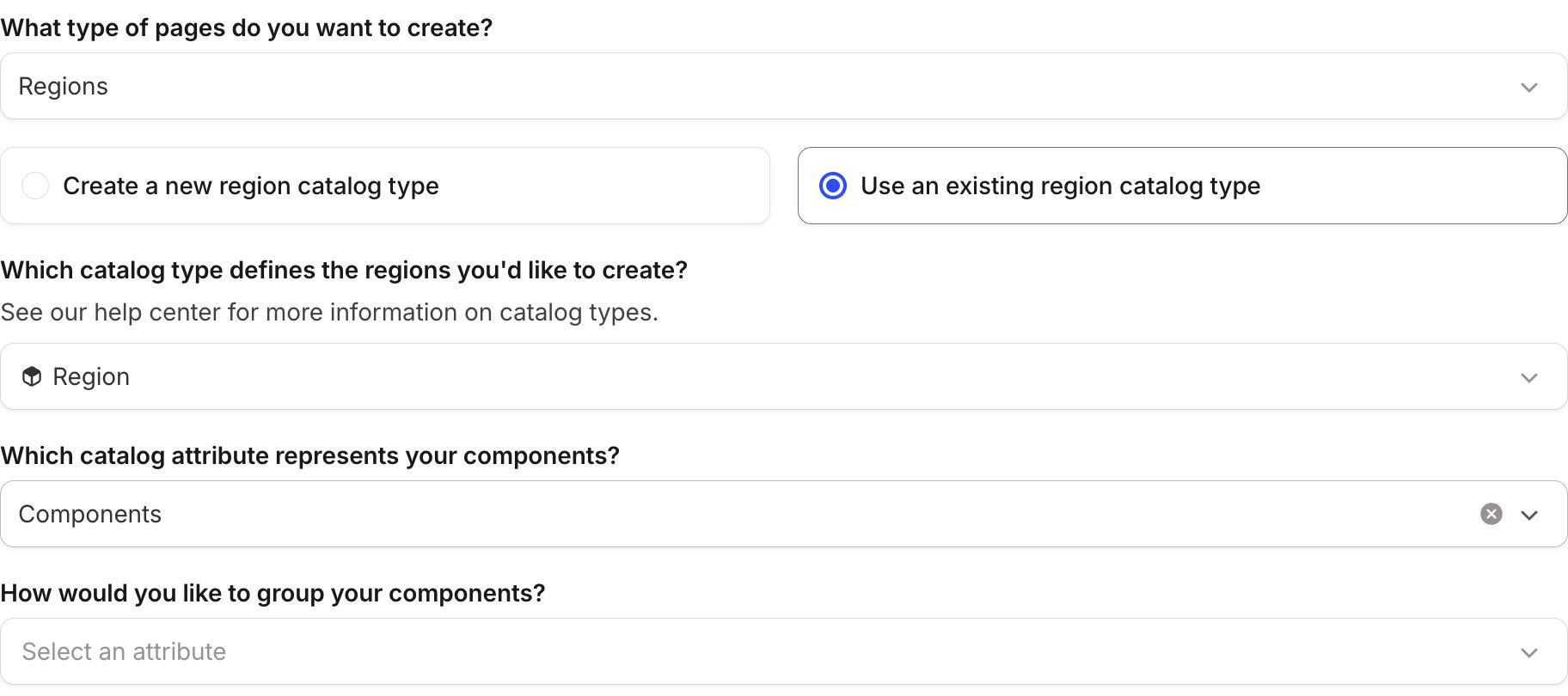
Sub-pages are powered by Catalog. This means that most of what you build whilst configuring your sub-pages can be leveraged in other features, like Workflows. The first decision in this section is to choose what your sub-pages represent. This is often Regions that you operate in, or Products that you sell. It could be anything you want though!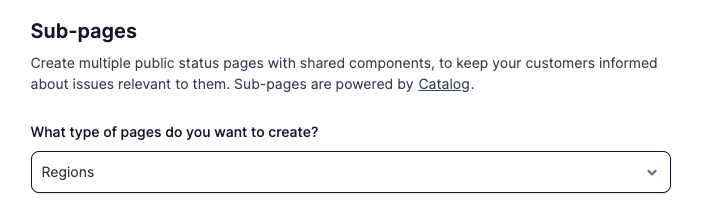
- Create a new catalog type
- Use an existing catalog type
Catalog Option 1 (default): Create a new catalog type
Under Components, you should enter all of the different systems, services, components, or features that you want to map to some (or all) of your sub-pages.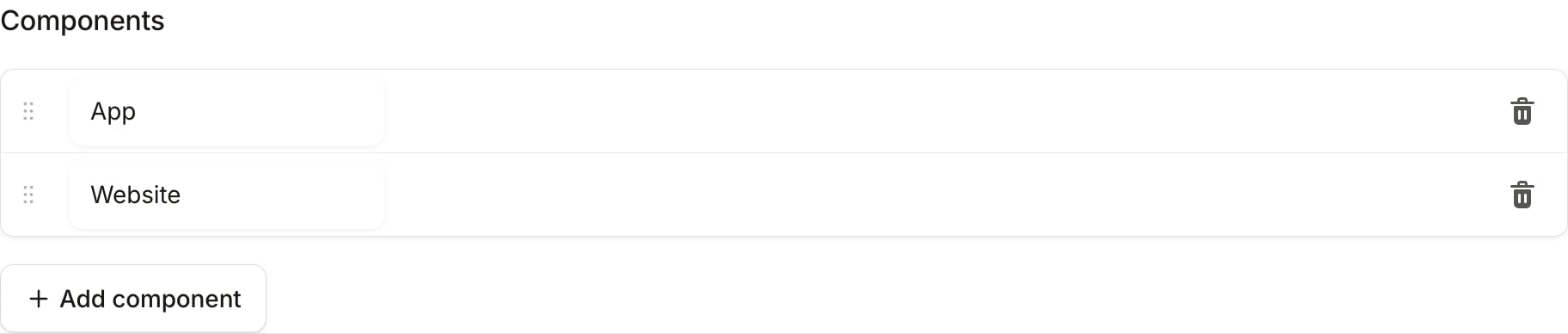
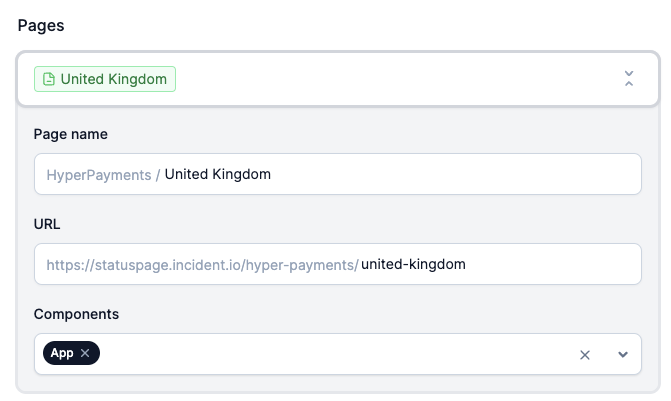
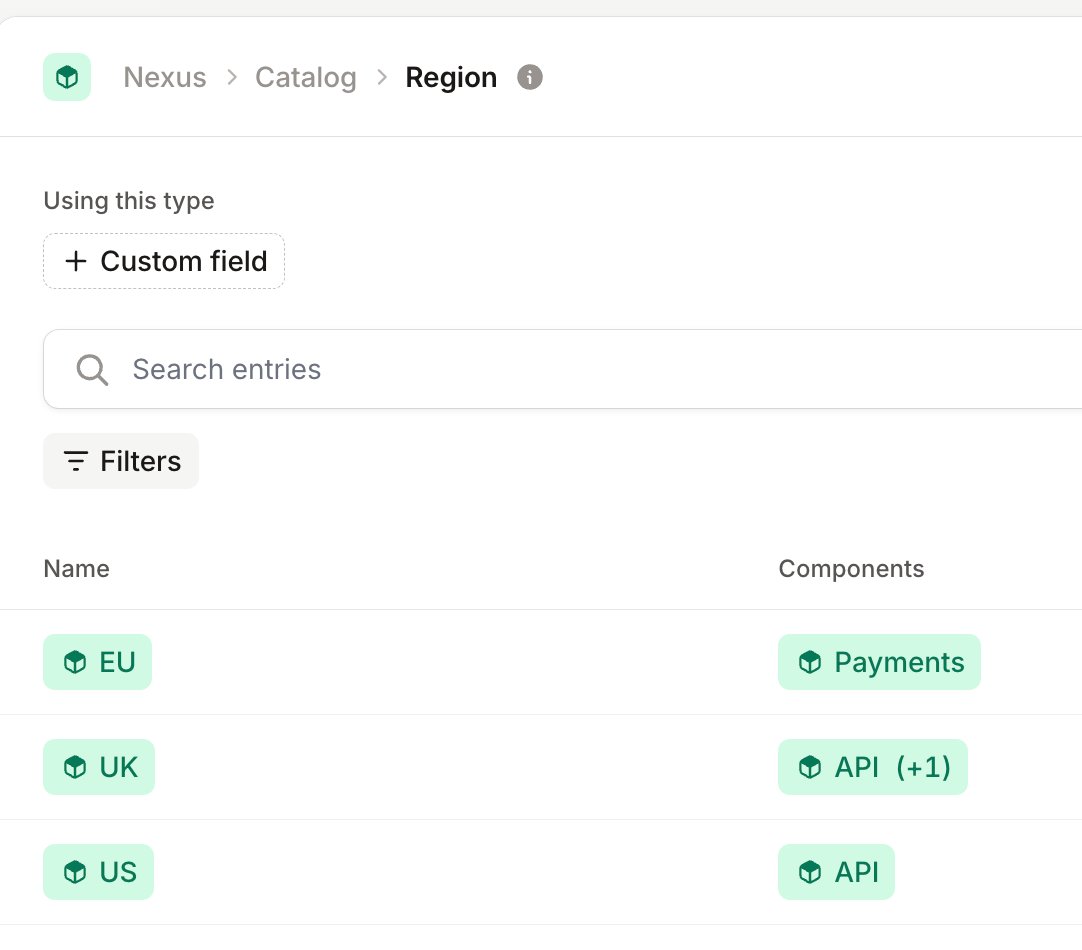
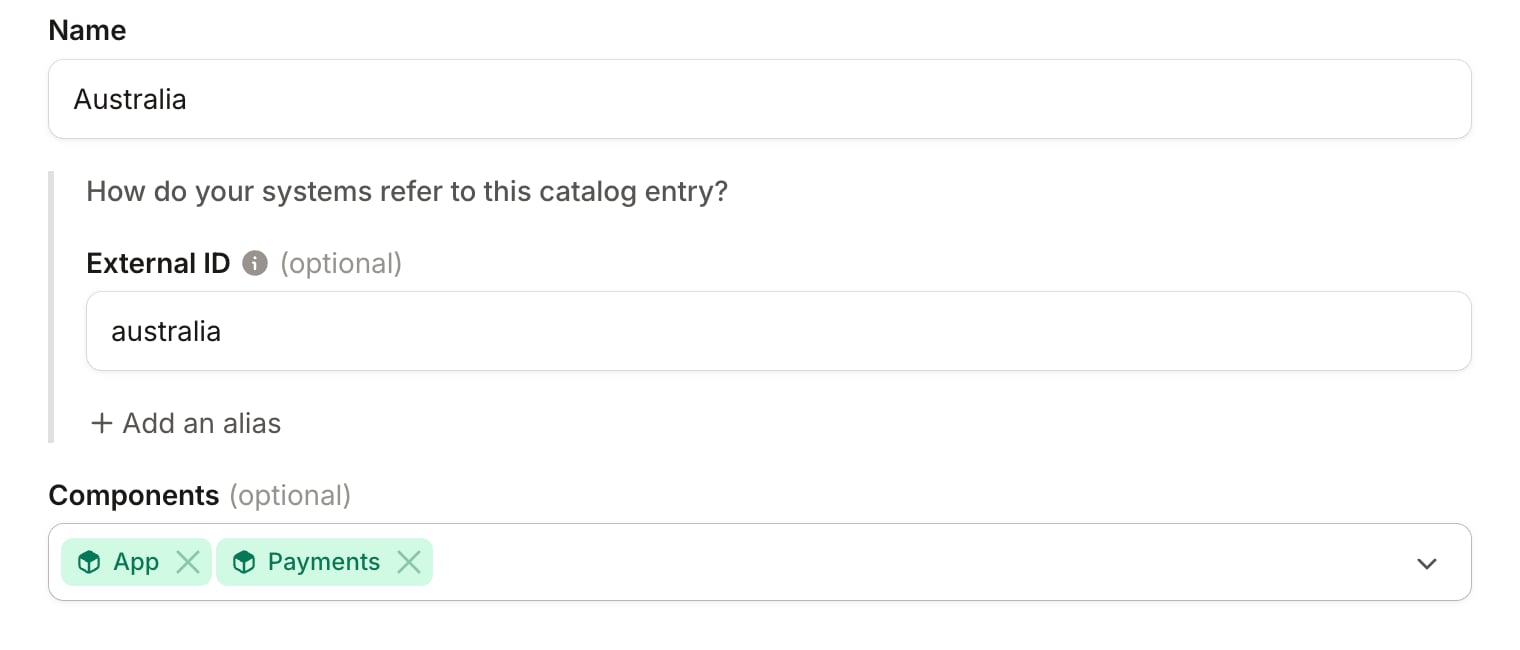
Catalog Option 2: Use existing catalog types
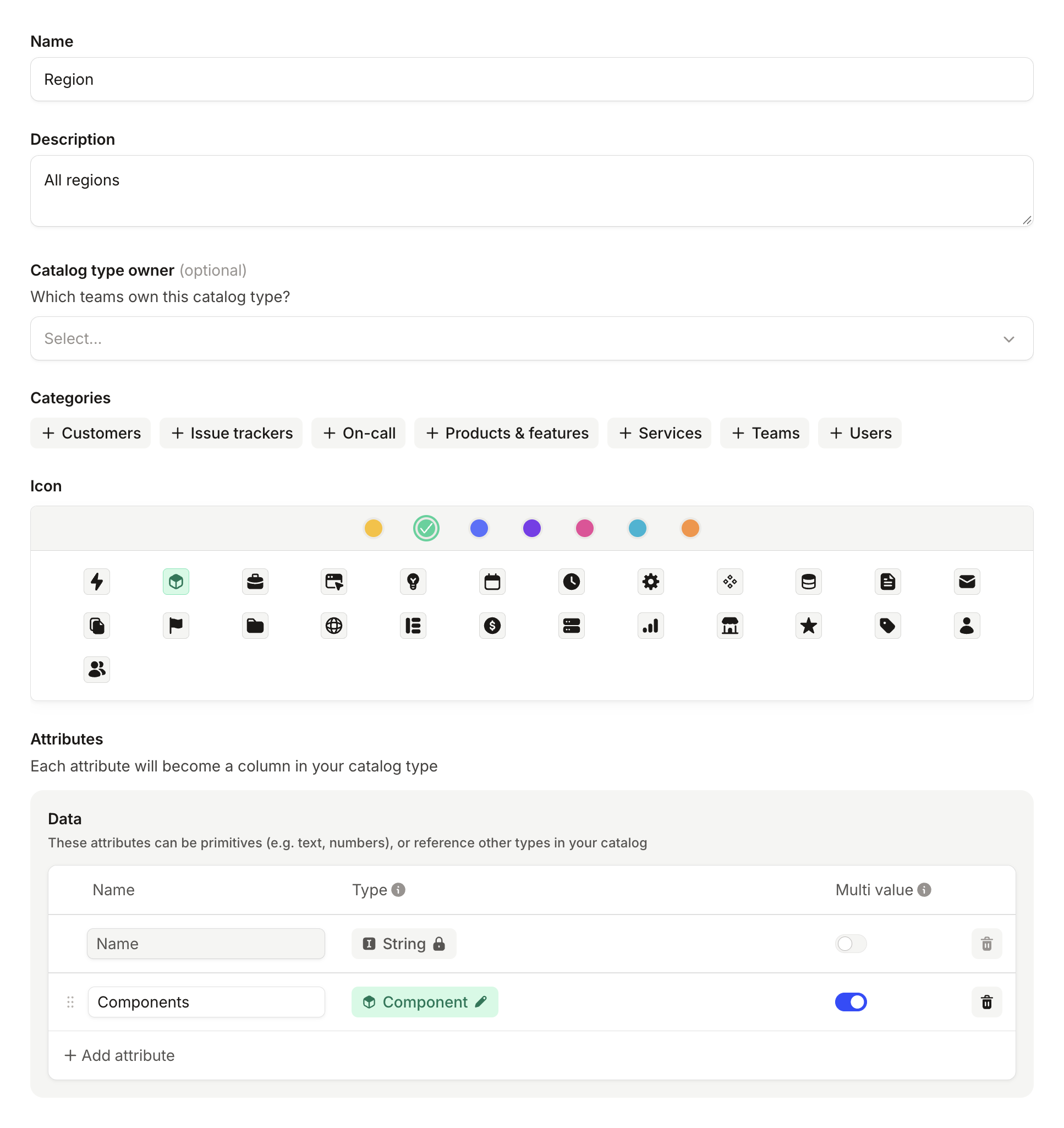
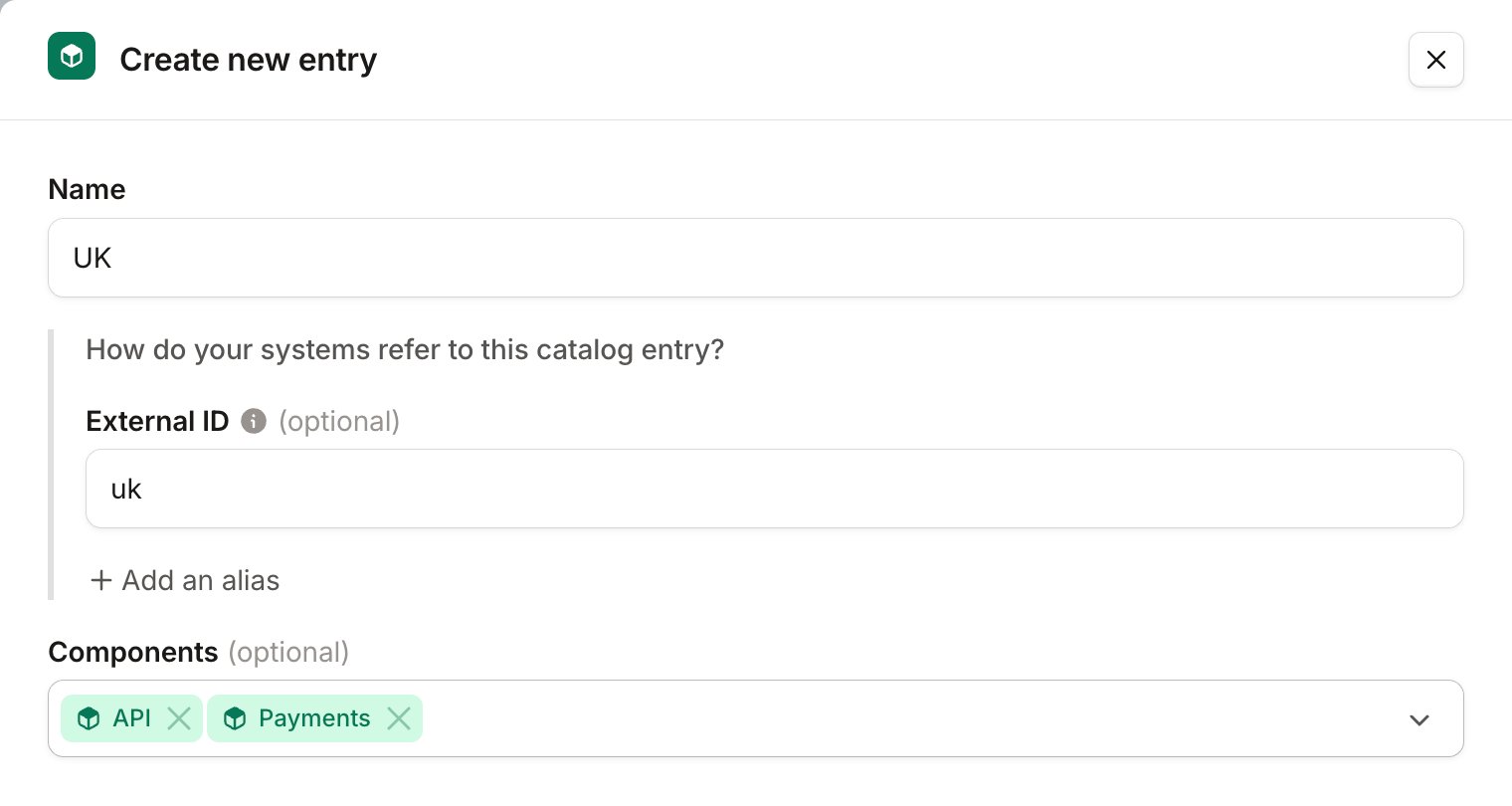
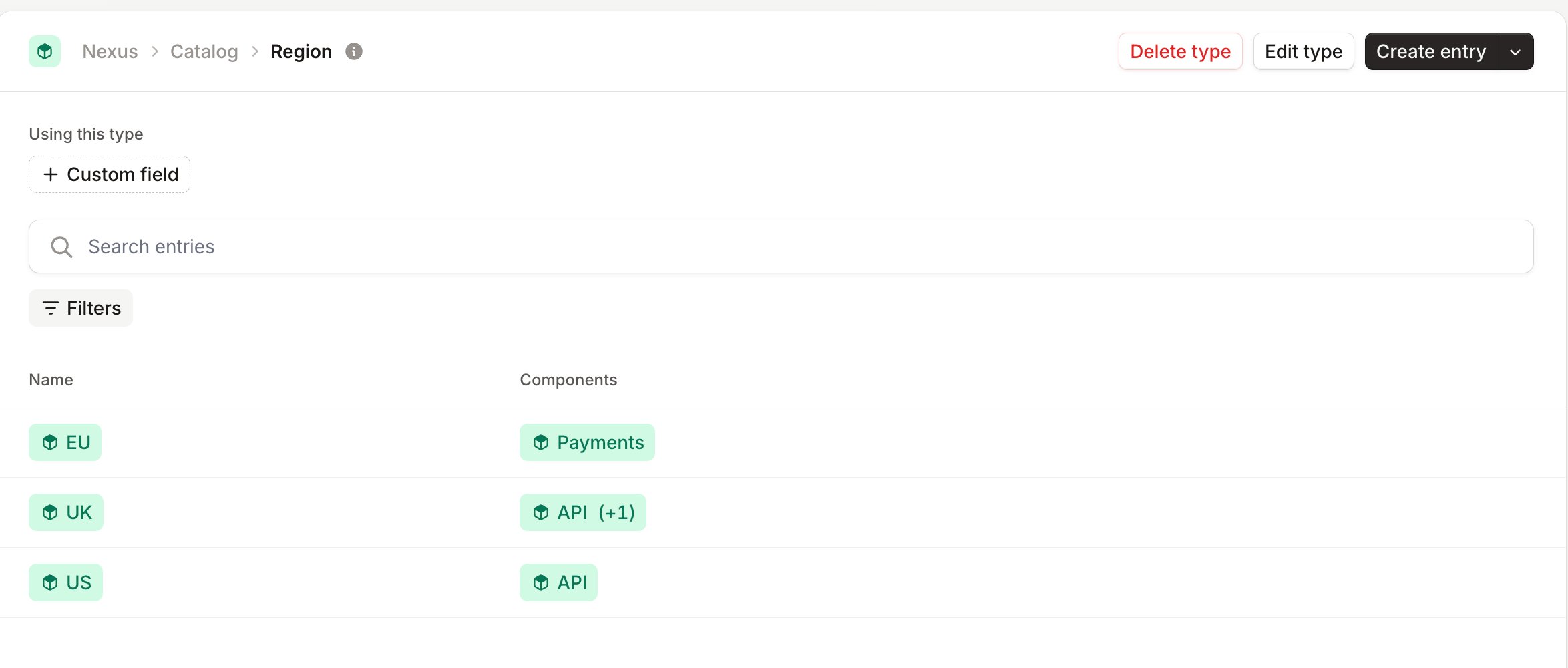
For sub-pages, you’ll need two catalog types: one for your sub-pages (e.g. Regions), and one for your components (e.g. Components, Features, or Feature Areas). If you’ve already imported catalog types from an external system like Backstage, Cortex, or OpsLevel, or you’ve just manually created them independently of sub-pages - you can just reuse those in your setup of sub-pages! If not, you may need to either Create a new catalog type or adjust your existing catalog types. At a minimum, your Component catalog type should look like this: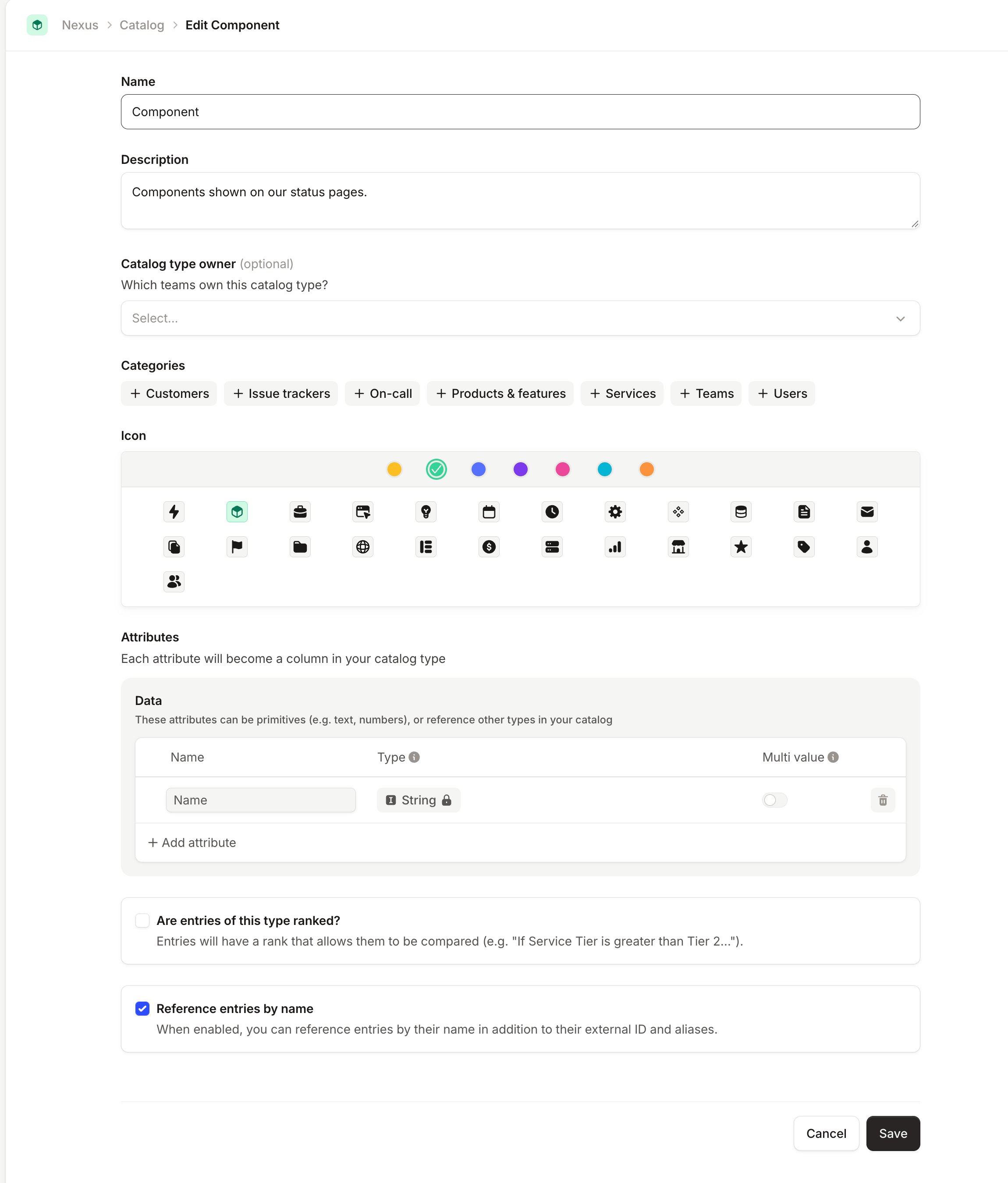
Component Ordering
2 options for the ordering of components:- Alphabetically
- Ranked
3. Page setup
Choose a dark or light theme, pick whether dates show as a calendar or a list, and upload your logo and favicon. The theme and logos apply across every sub-page you create.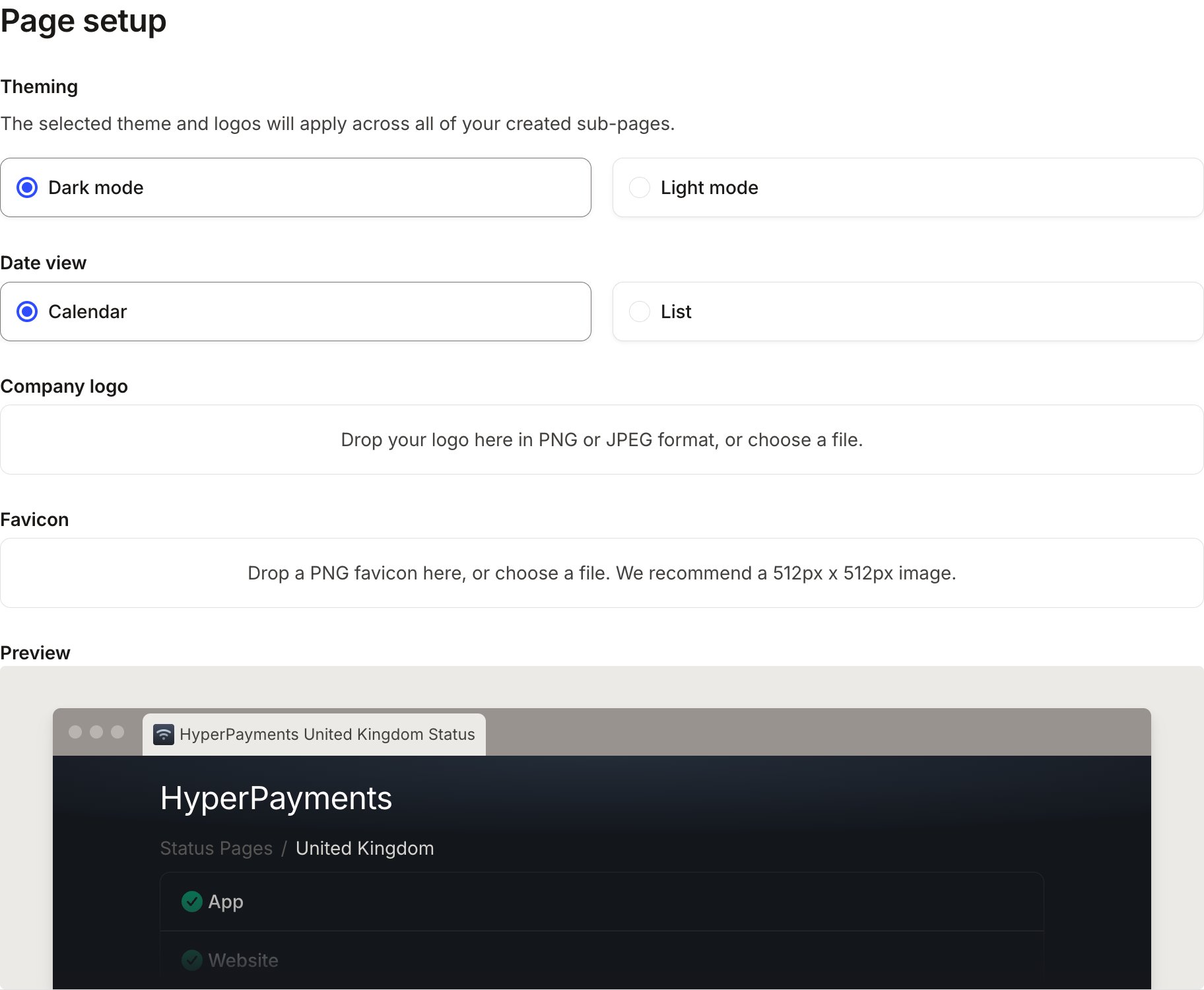
→ What’s next?
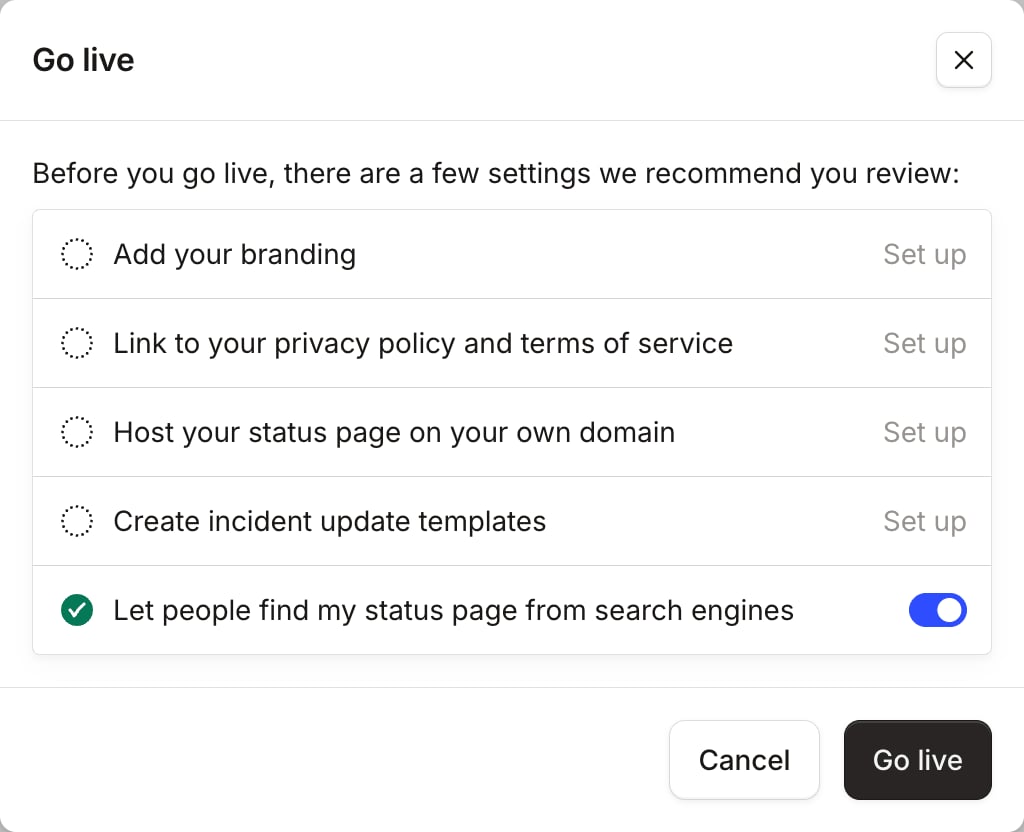
You’re now ready to Go live !
/inc sp in Slack) and publish to your parent page, the incident will automatically appear on all sub-pages where your impacted components are visible.