

This is a beta feature and details may change.
- Summarize what’s known about a new incident and post it to the incident channel.
- Check recent deploys for the affected service and report anything suspicious.
- Decide whether an incident looks like a duplicate, and return the result for a Continue if step to act on.
Write a prompt
Tell the agent what to find out or do, and what you want back. Insert variables from the trigger, such as the incident’s name or the alert’s title, so the agent starts with the right context. It already knows which incident or alert started the workflow, so it can look up anything else it needs.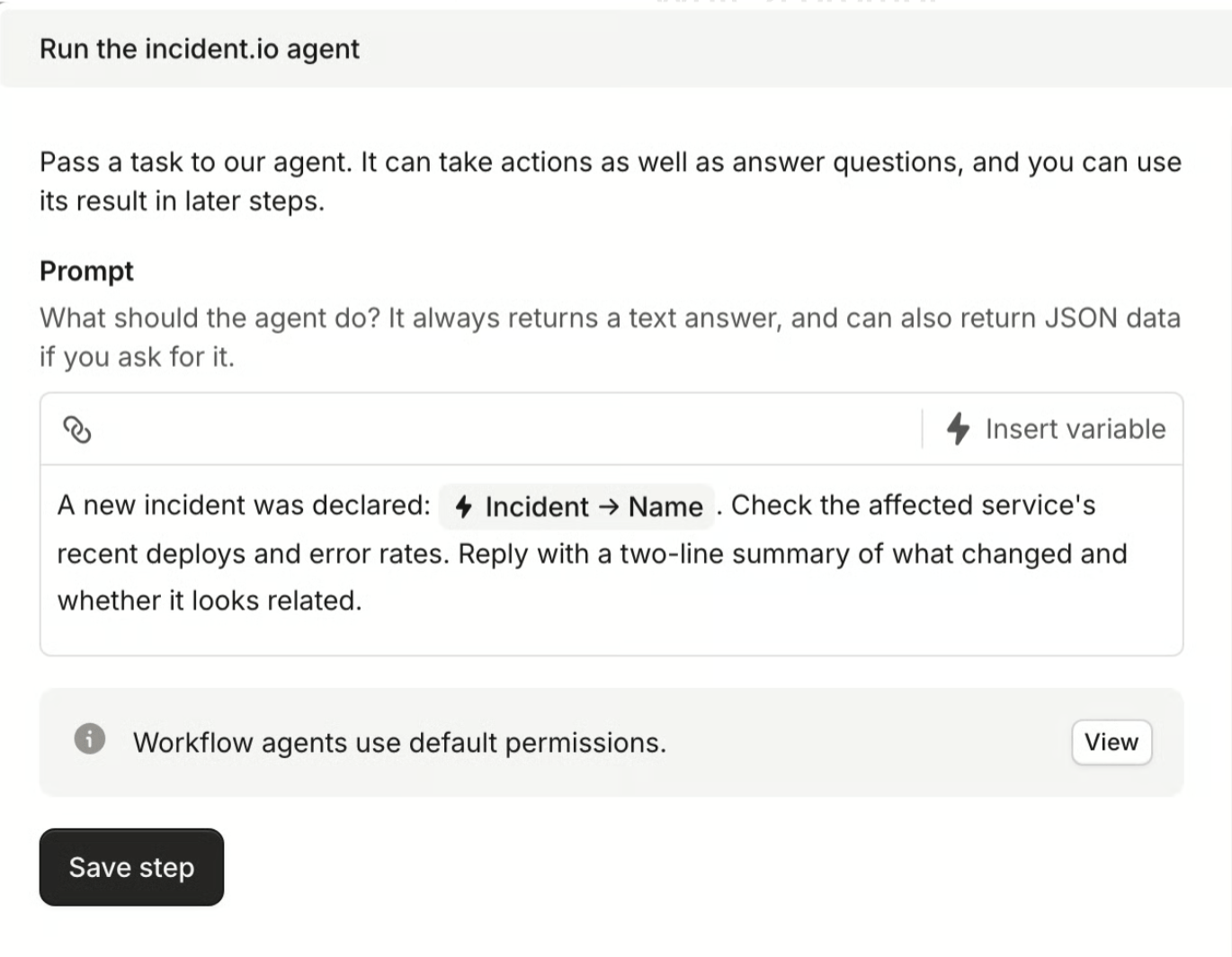
Use the result in later steps
The step returns:- Answer: the agent’s reply, as formatted text. It’s always returned.
- Data: JSON, returned when your prompt asks for it. Describe the fields you want, and use an expression to pick one out, such as
$.likely_cause.
Use a field from Data
To use a field from Data, pull it out with an expression. For example, if your prompt asks the agent to return{"severity": "..."}:
1
Create a Query expression
In a later step, open the variable picker and click Add new expression, then choose Query.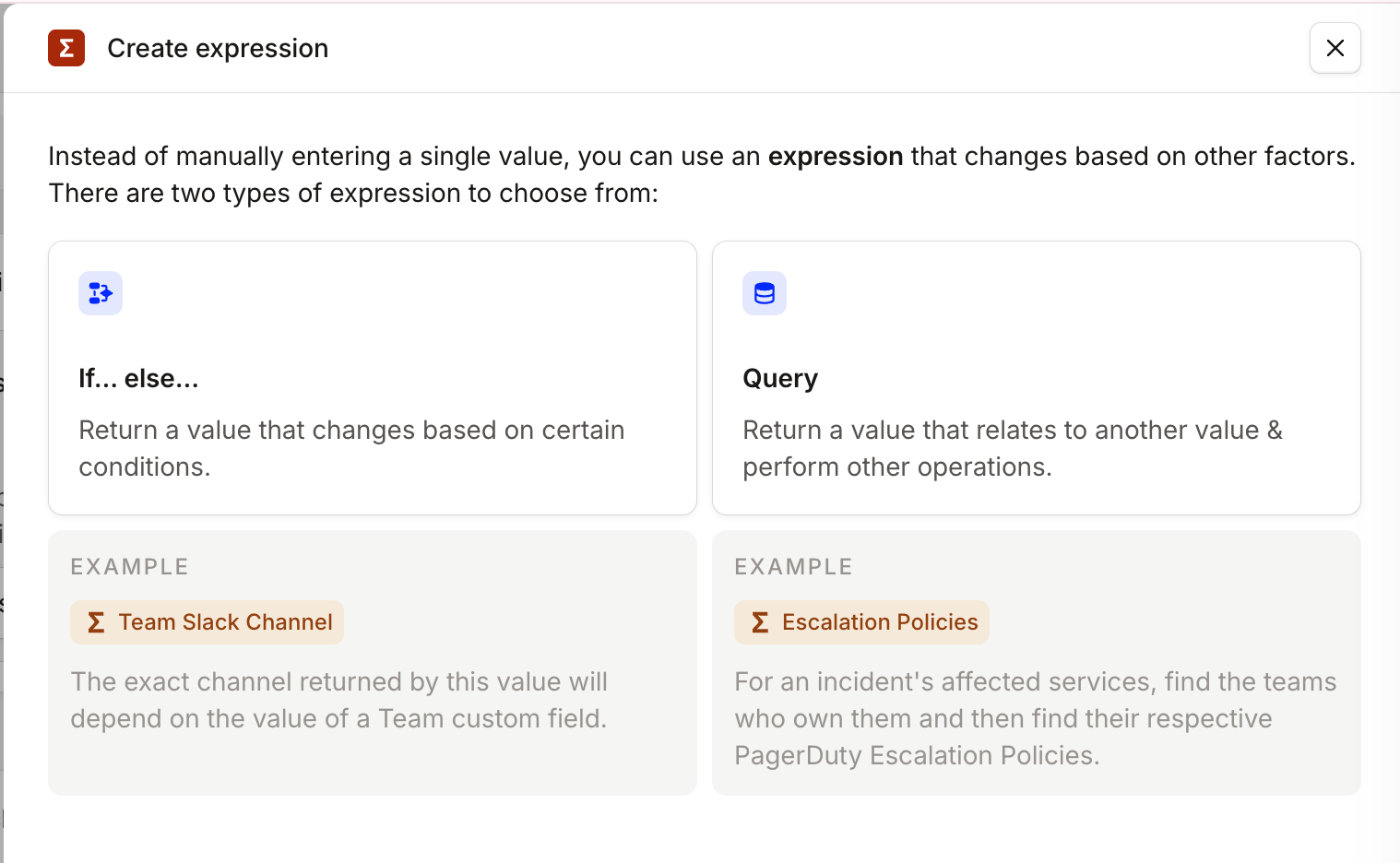
2
Query the agent step's Data
Under What would you like to query?, go to Steps, choose your agent step, then choose Data.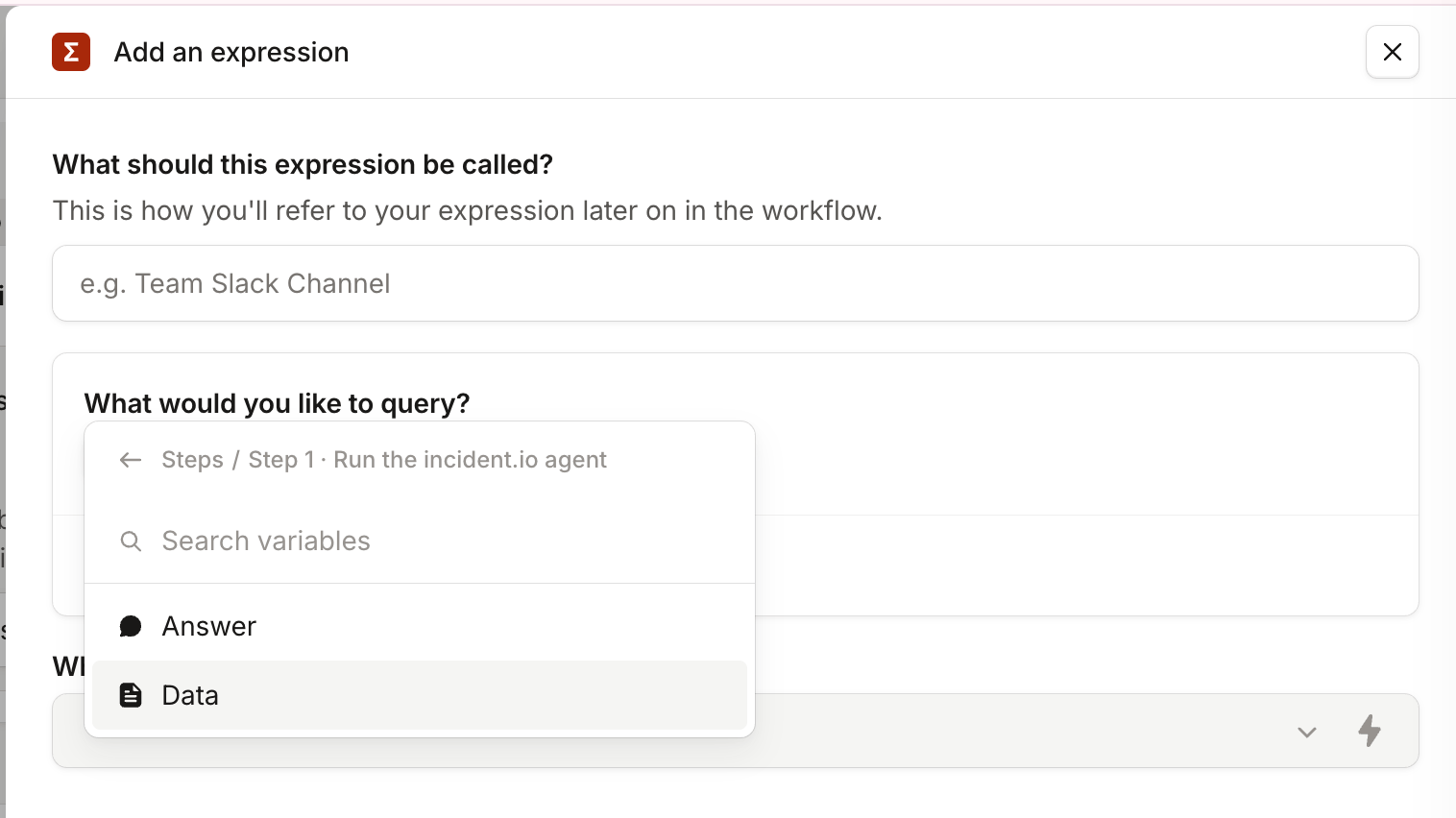
3
Add a Parse operation
Click Then… and choose Parse.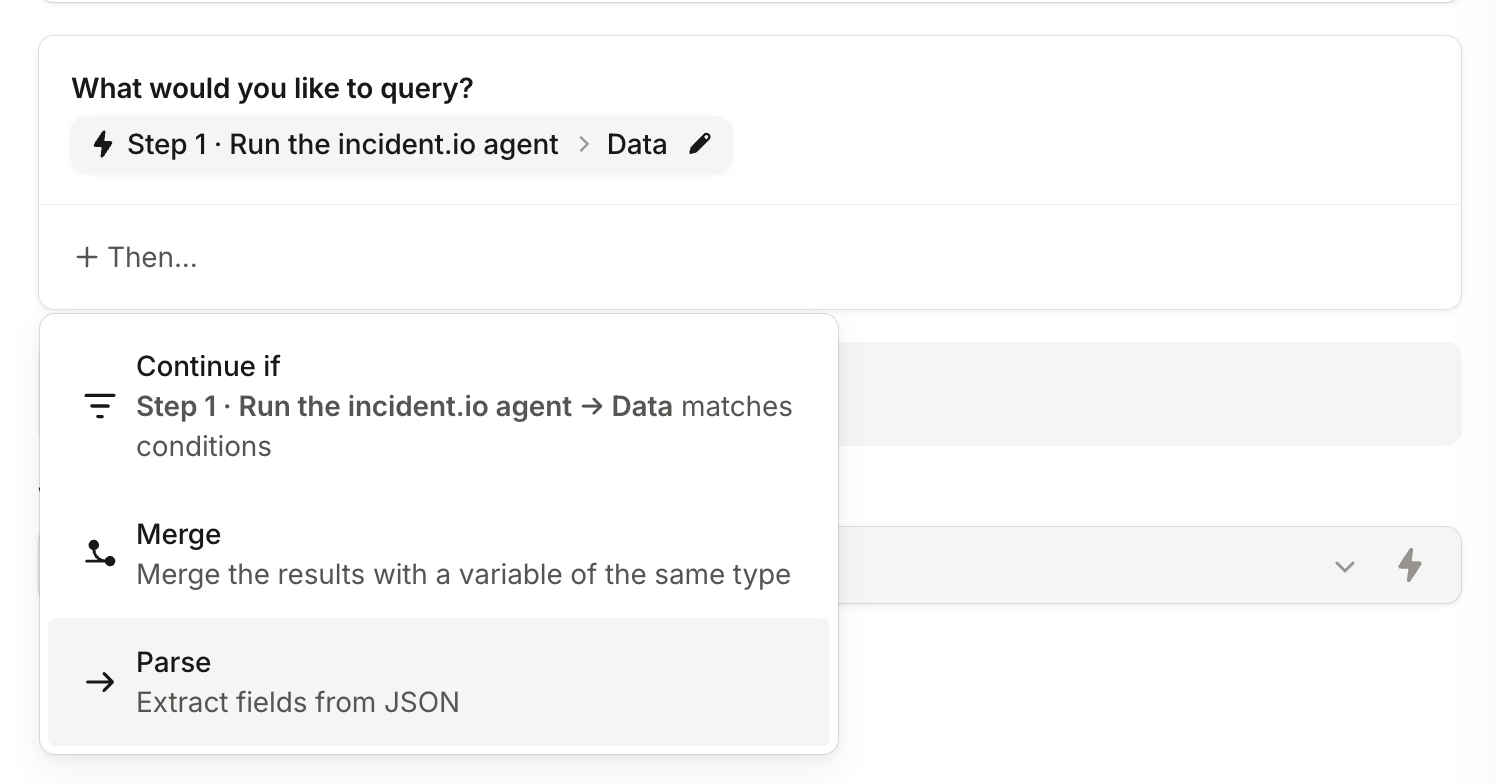
4
Pick the field and its type
Enter the path to the field, such as 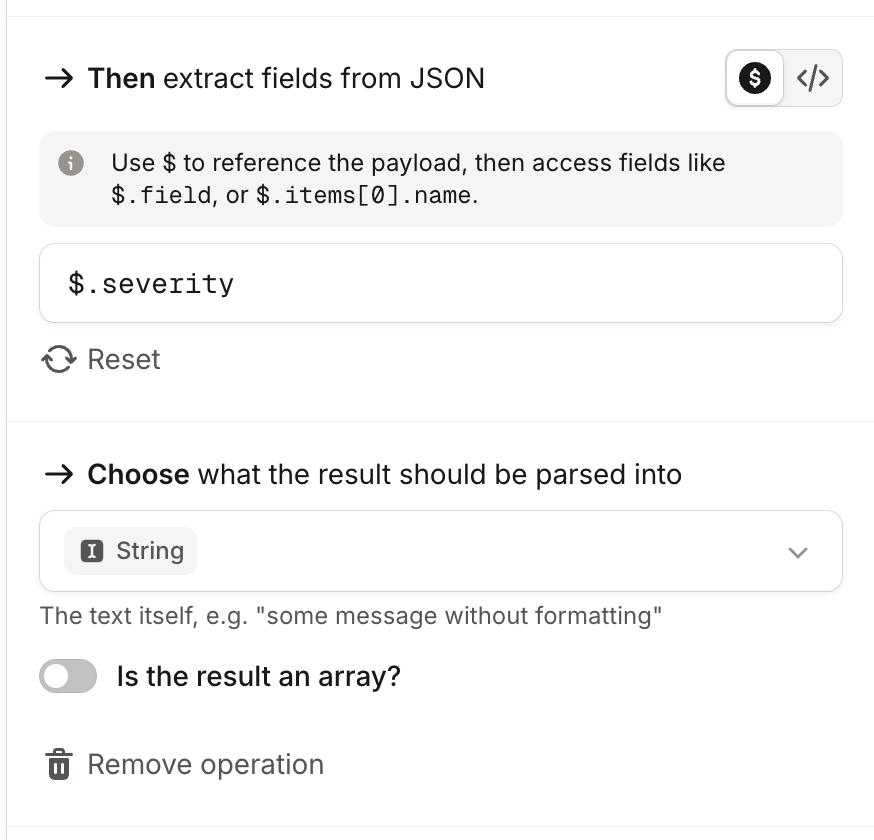
$.severity, and choose the type to parse it into, such as String.5
Name and save the expression
Give the expression a name and save it. You can now use it in later steps, for example to post the value to a channel or in a condition.
{"is_duplicate": true} and parse it as a Bool. Then add a Continue if step that uses the expression. When it’s false, the remaining steps are skipped.
What the agent can do
The agent runs with the same default permissions as other workflow steps. It can:- Investigate: view incidents, alerts, escalations, catalog entries, on-call schedules, maintenance windows, status pages, telemetry, code analysis and knowledge base documents.
- Update incidents: change the name, summary, severity, type, status, custom fields, timestamps and role assignments, share updates and add attachments.
- Change incident state: decline, merge or cancel incidents.
- Escalate and communicate: create escalations and streams.
- Follow-ups and actions: create and update follow-ups, and create actions.
- Post-incident documents: create, update and export them, and change their status.
Running time and test runs
Each agent step runs for up to five minutes. If it hasn’t finished by then, the step fails, and the workflow follows its usual setting for failed steps. When you test a workflow from the editor, the agent step doesn’t run the agent. It returns a sample Answer and Data that match your prompt, so you can check how later steps use them.FAQs
Who can use the agent step?
Who can use the agent step?
The step is available to organizations with AI features enabled. Admins manage these in Settings → AI
governance.
Does the agent step work with private incidents?
Does the agent step work with private incidents?
Only if your organization has opted in to AI features for private incidents and alerts, in Settings → AI
governance. Without that, the step fails on
private incidents and escalations, and the workflow run shows why.
Can I change which permissions the agent has?
Can I change which permissions the agent has?
Every agent step uses the default workflow permissions listed in What the agent can do.