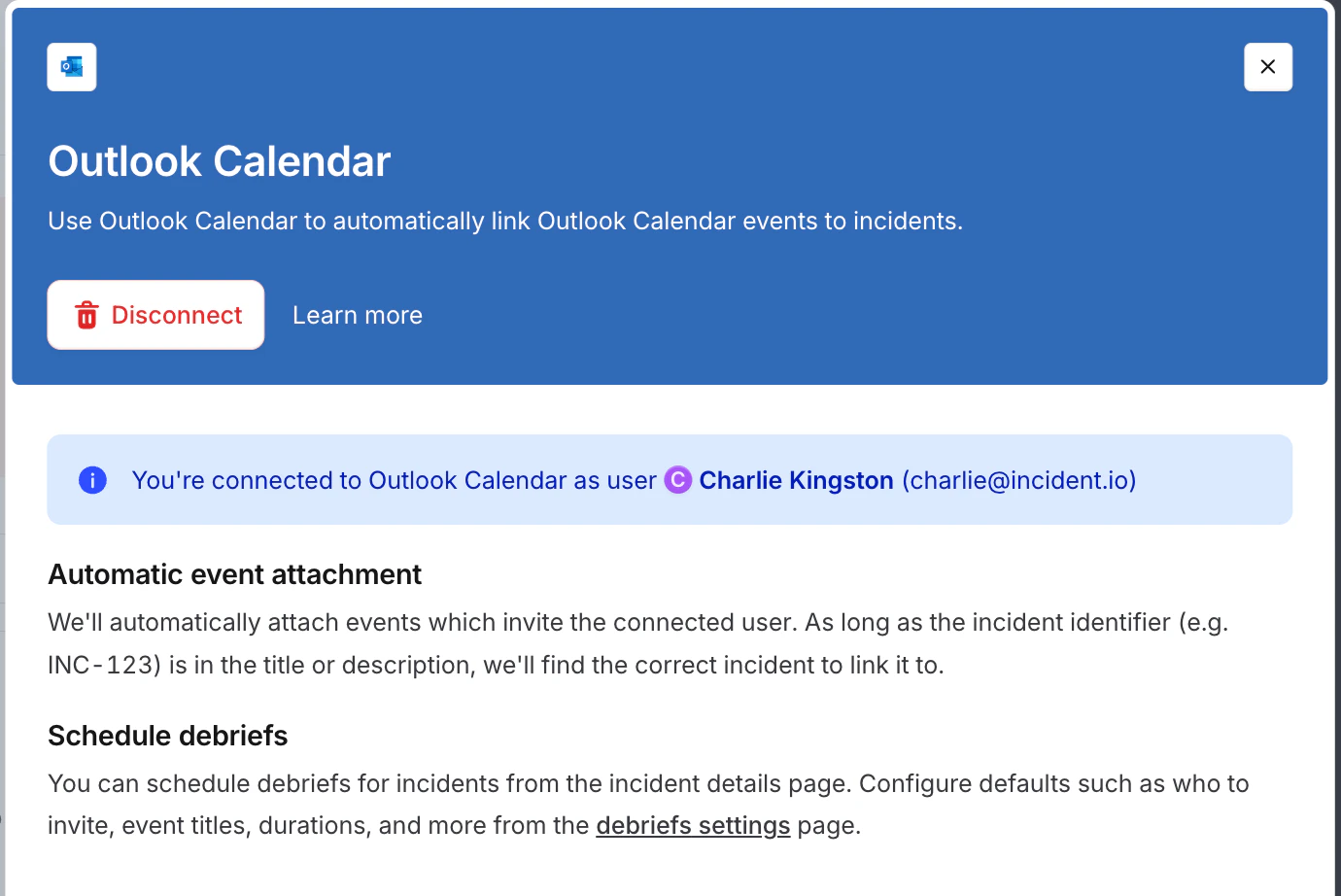
Installation
Go to Settings → Integrations, find Outlook Calendar and click Install. Click Install and you’ll be redirected to the Microsoft installation flow. Review the permissions we’re requesting and click Accept: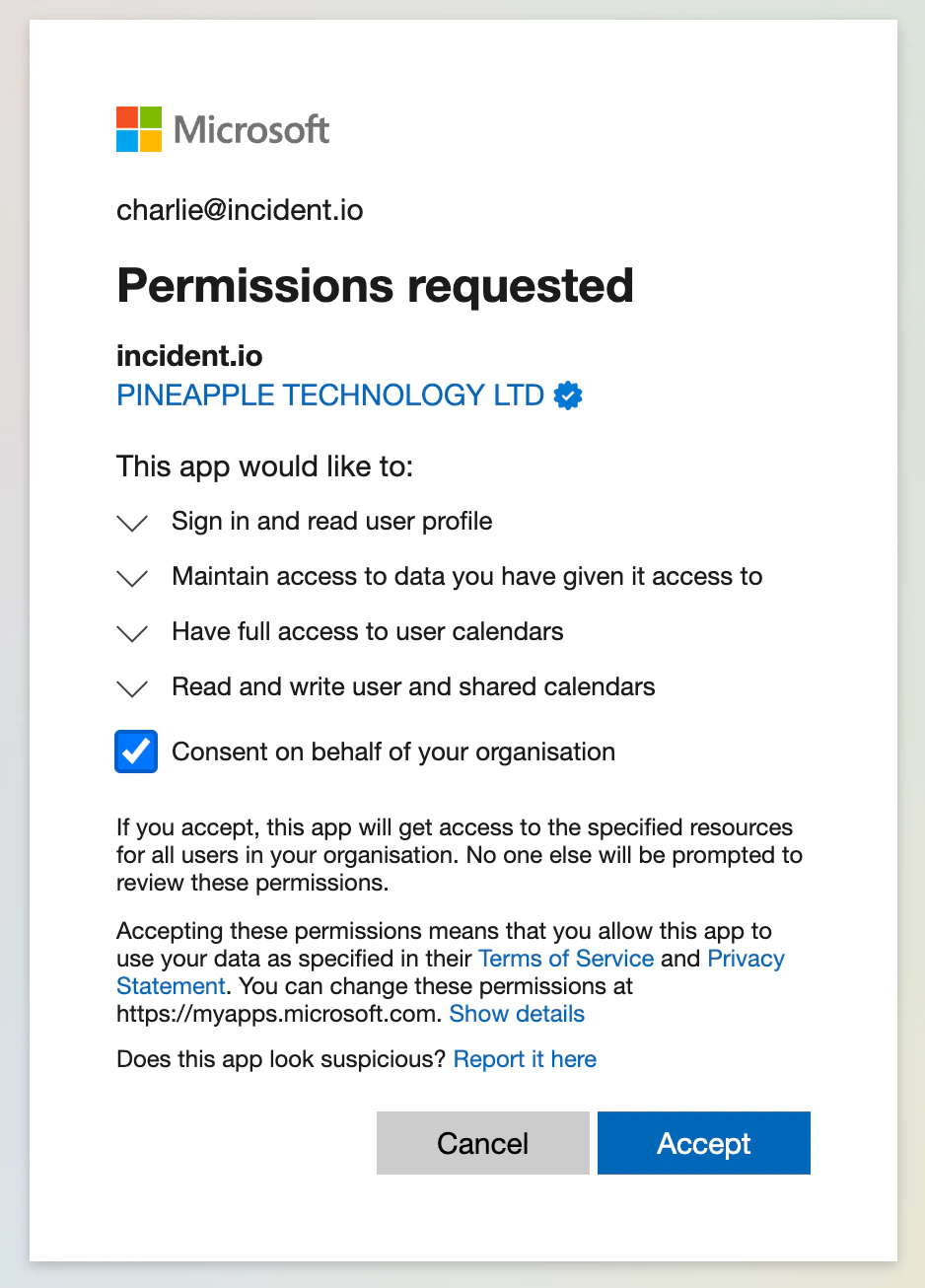
Scheduling a debrief
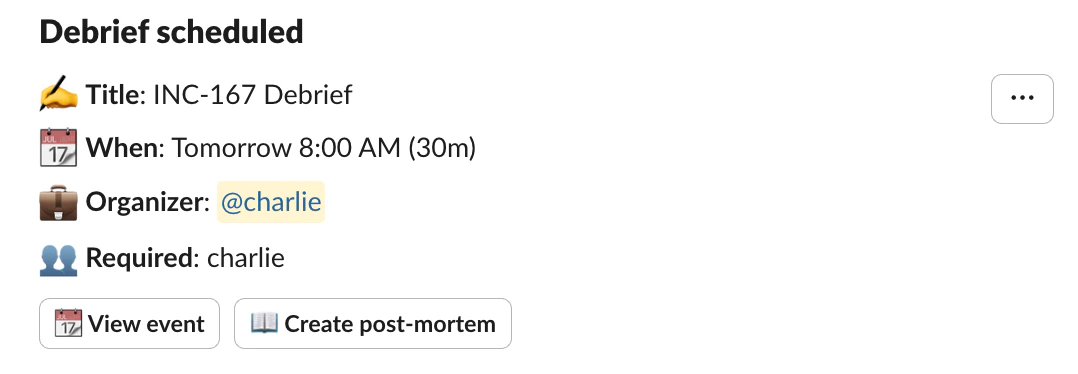
We can create the Outlook event for you, with the right people invited and other useful information filled in. Once your incident has been resolved, a Debrief row appears under Links in the incident’s sidebar, with a Schedule action: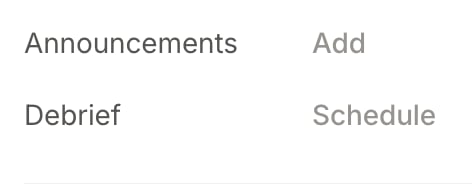
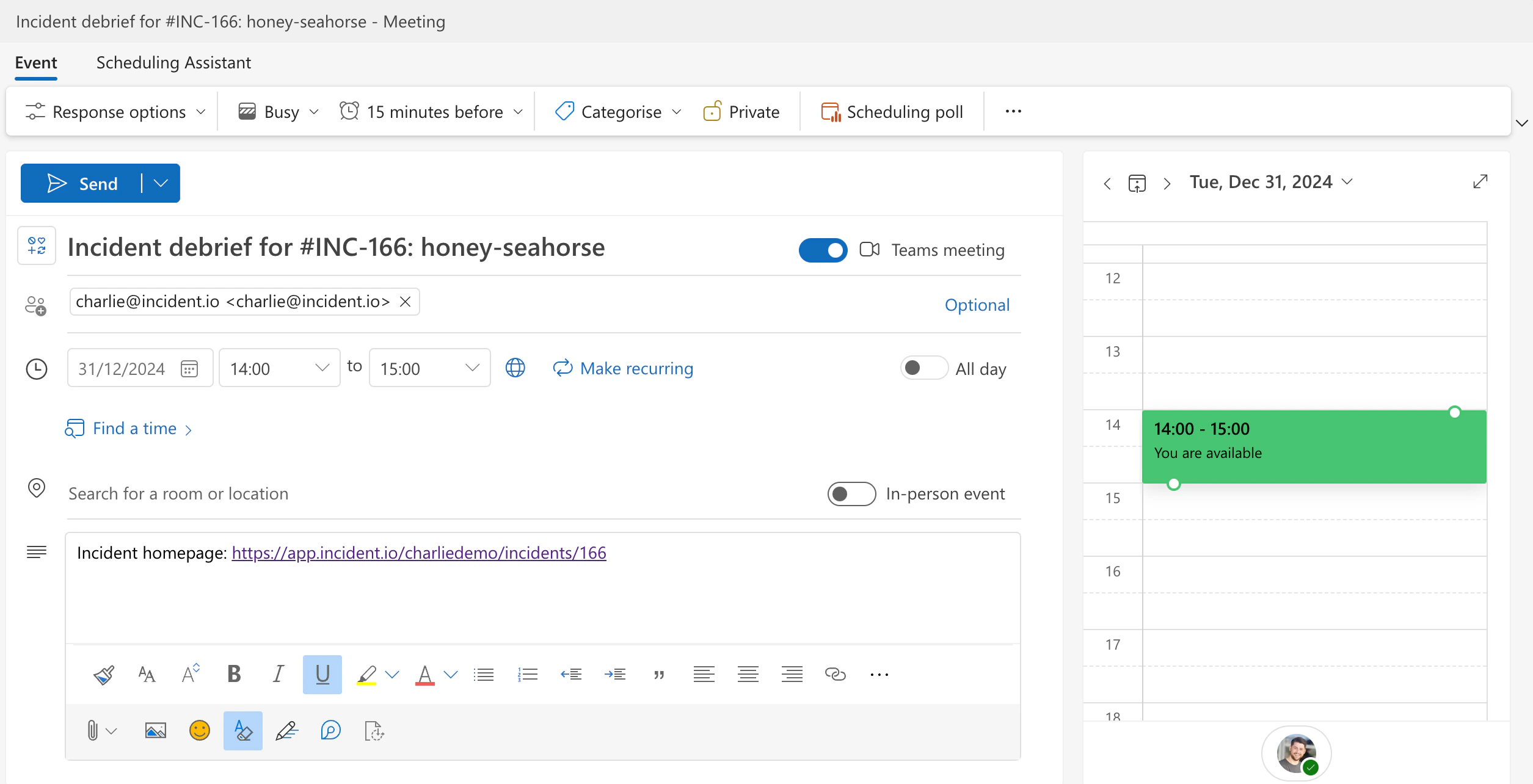
Linking an event from Outlook to an incident
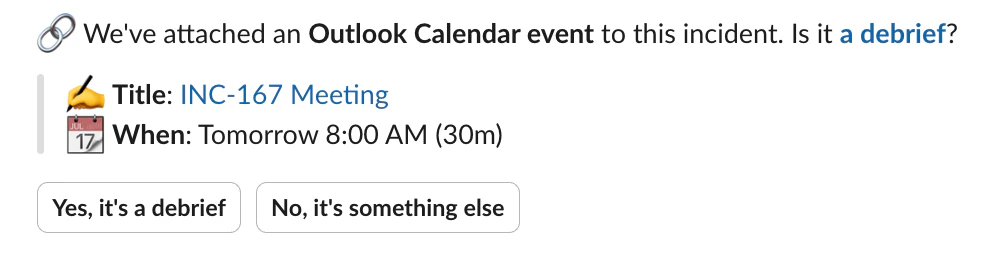
In addition to scheduling a debrief for you, we can also link events created in Outlook to your incidents. You just need to create an event in Outlook which:- Has the incident identifier (e.g.
INC-123) in the title or description - Invites the connected user
Removing a linked event
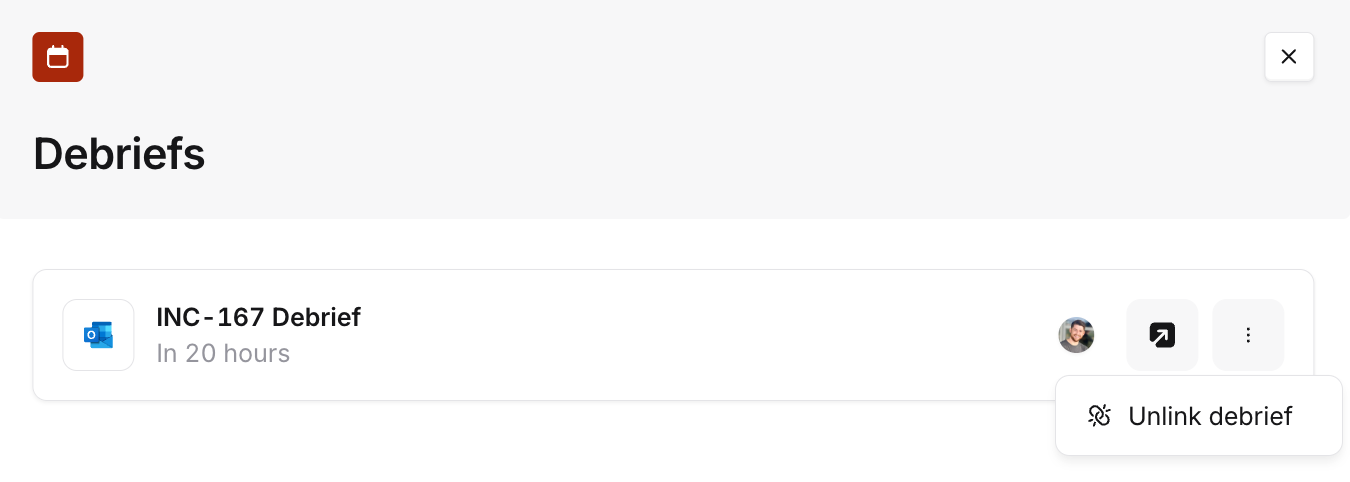
If we automatically attach a debrief which should not be linked to your incident, you can unlink it by heading to the sidebar on the incident details page, clicking the debrief, and then clicking … > Unlink debrief: