

Setting up
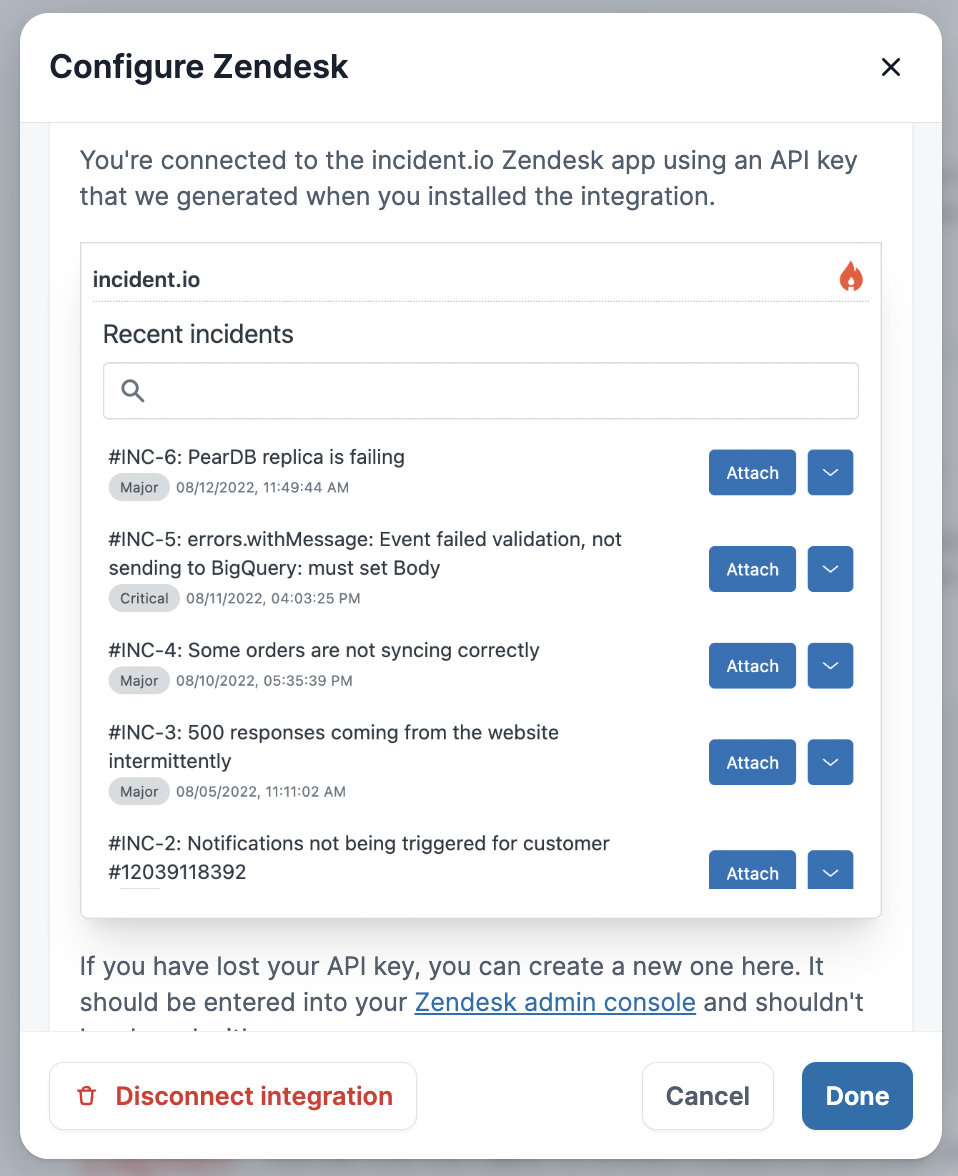
You can add Zendesk to incident.io and configure the settings in just a few clicks.- Go to Settings → Integrations
- Type in your subdomain
Go to Zendesk and approve authorization of incident.io
- Copy the token provided
Install the Zendesk app button
- Paste in the token into the Zendesk UI
Install to complete
Attaching tickets
Now that your account is connected you can start to attach tickets to your incidents. When your support agents are viewing a new ticket they will have a snapshot into any ongoing incidents you and your responders are managing. They’ll be able to search for incidents with certain keywords, to check if the ticket in front of them is related to an existing incident. When the agent finds the relevant incident, they’ll be able to attach it from within Zendesk and have visibility on any updates.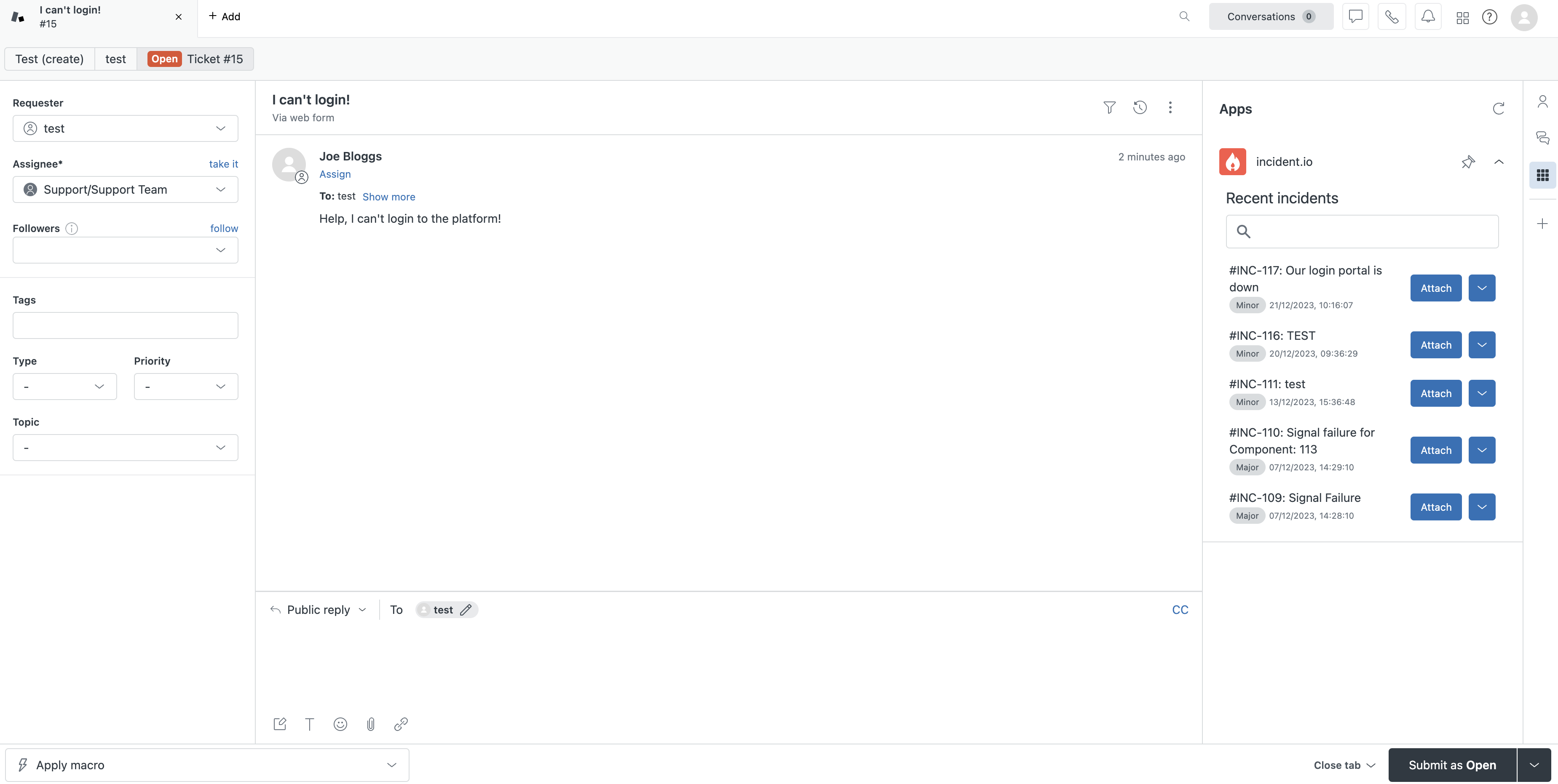
Ticket updates
Once a Zendesk Ticket is attached, we’ll keep it in sync with an incident. Any updates on the incident - such as a change in severity, or a status update from your incident lead - are added as internal notes on the ticket. Similarly, any comments on the ticket are relayed into the incident channel.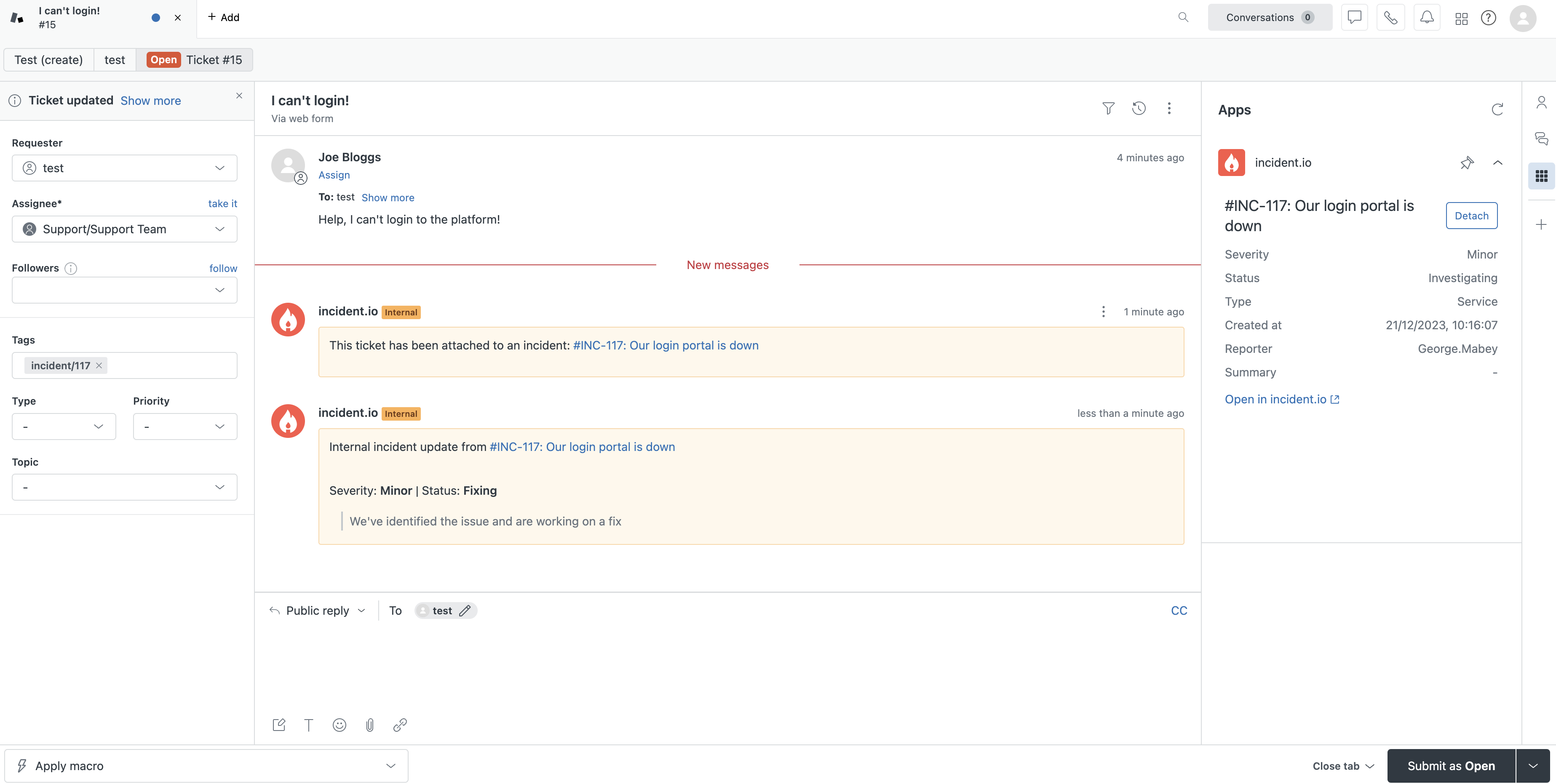
Updating your incident channel
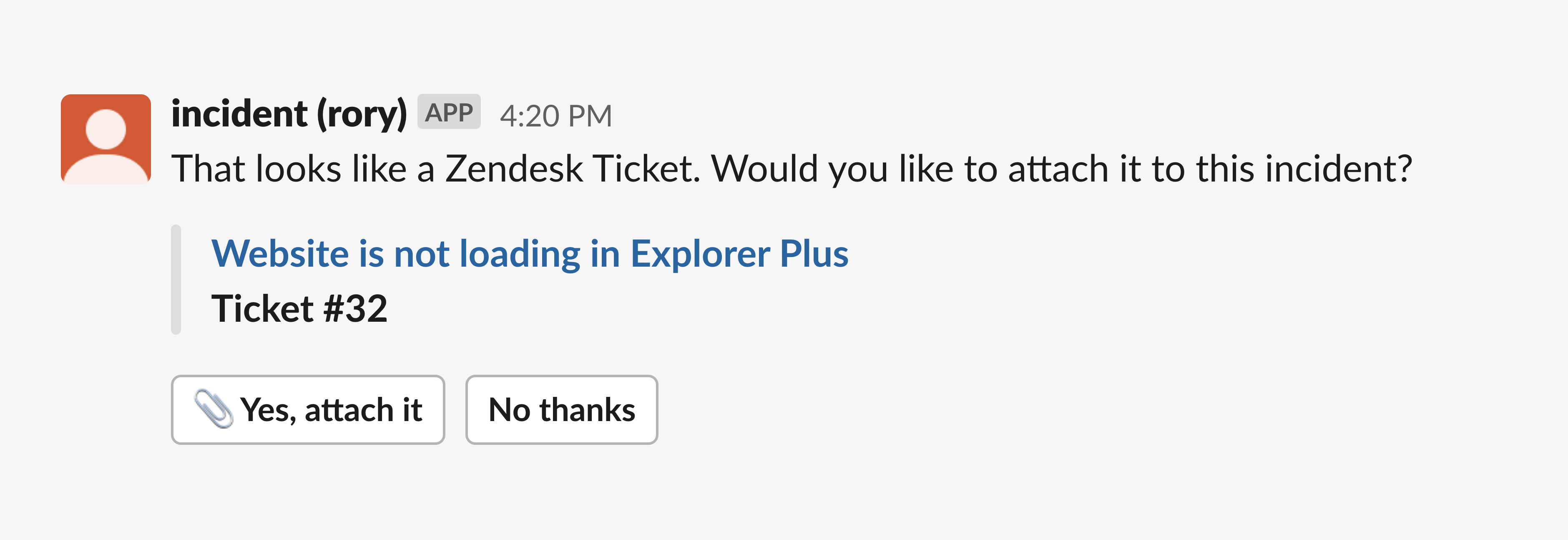
With this integration we’ll make it easy for everyone involved in an incident to get updates.- Attaching tickets pushes a notification to your incident channel This gives responders a quick insight into customer communications and start to get an understanding of the potential impact of the issue.
- Responses and internal notes in Zendesk are pushed to your incident channel. This gives your responders real time updates directly from customers with information that could help them to debug the issue.
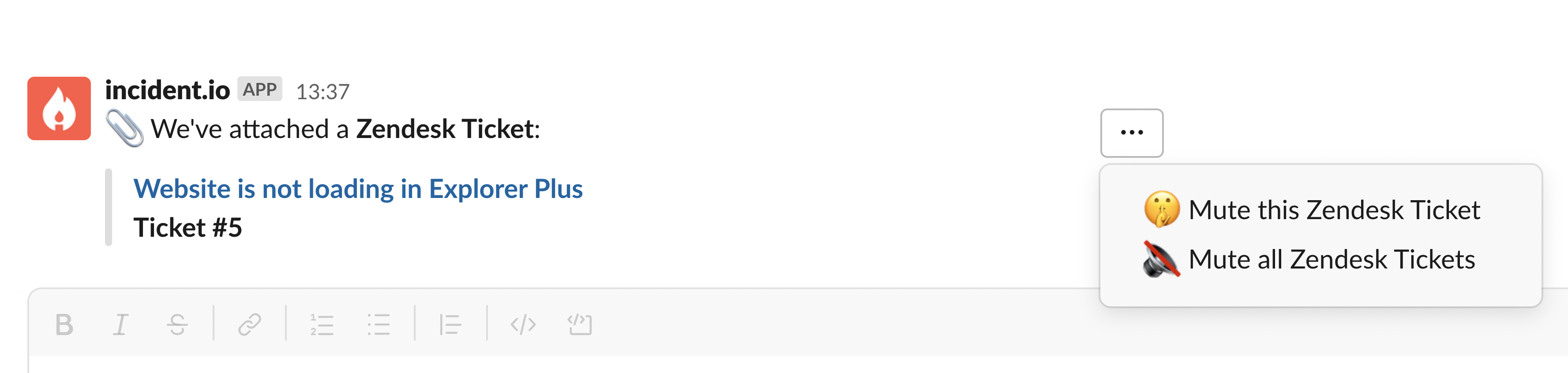
Tagging tickets
Any Zendesk user will know the power of the tag and when it comes to incident.io it’s no different! Every time an incident is attached to a ticket a tag will be added (incident/[id]). If you decide that the ticket isn’t related to the incident, you can simply remove it.
Tagging incidents will also allow you to perform bulk actions.
- Attach multiple tickets to ongoing incidents
- Remove tickets from ongoing incidents
Catalog types
Once you connect Zendesk, you can configure incident.io to pull through organizations from Zendesk into Catalog. This will then allow you to create a custom field based on that Catalog type. This is useful as a way to tag which customers are affected by an incident without having to manually upload a customer list to incident.io via a separate sync process. To enable this sync, switch the toggle in Settings > Integrations > Zendesk and click Save.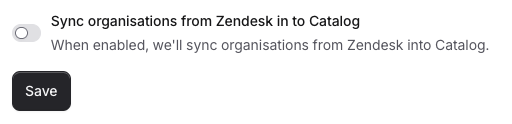
We hope you love the Zendesk integration as much as we do! If you have any questions or feedback please don’t hesitate to get in touch.