

Adding an invitee
To set up automated lists of invitees for your debriefs, navigate to the debrief settings page.
Add invitee button.
When adding an invitee you can choose for them to be invited only under certain conditions. For example, you might only want to invite the team leads for a critical incident:

Enter email(s) instead. This is handy for group / team emails which may not appear in the users list:


Creating a debrief with invitees
Once you’re set up, you can create a debrief from the incident’s sidebar: under Links, find the Debrief row and click Schedule. If you’ve connected Google Calendar or Outlook Calendar, we’ll ask when you’d like the debrief to be and how long it should last. Click Schedule, and we’ll create the event for you, invite everyone your invitee rules match, and link it to the incident straight away.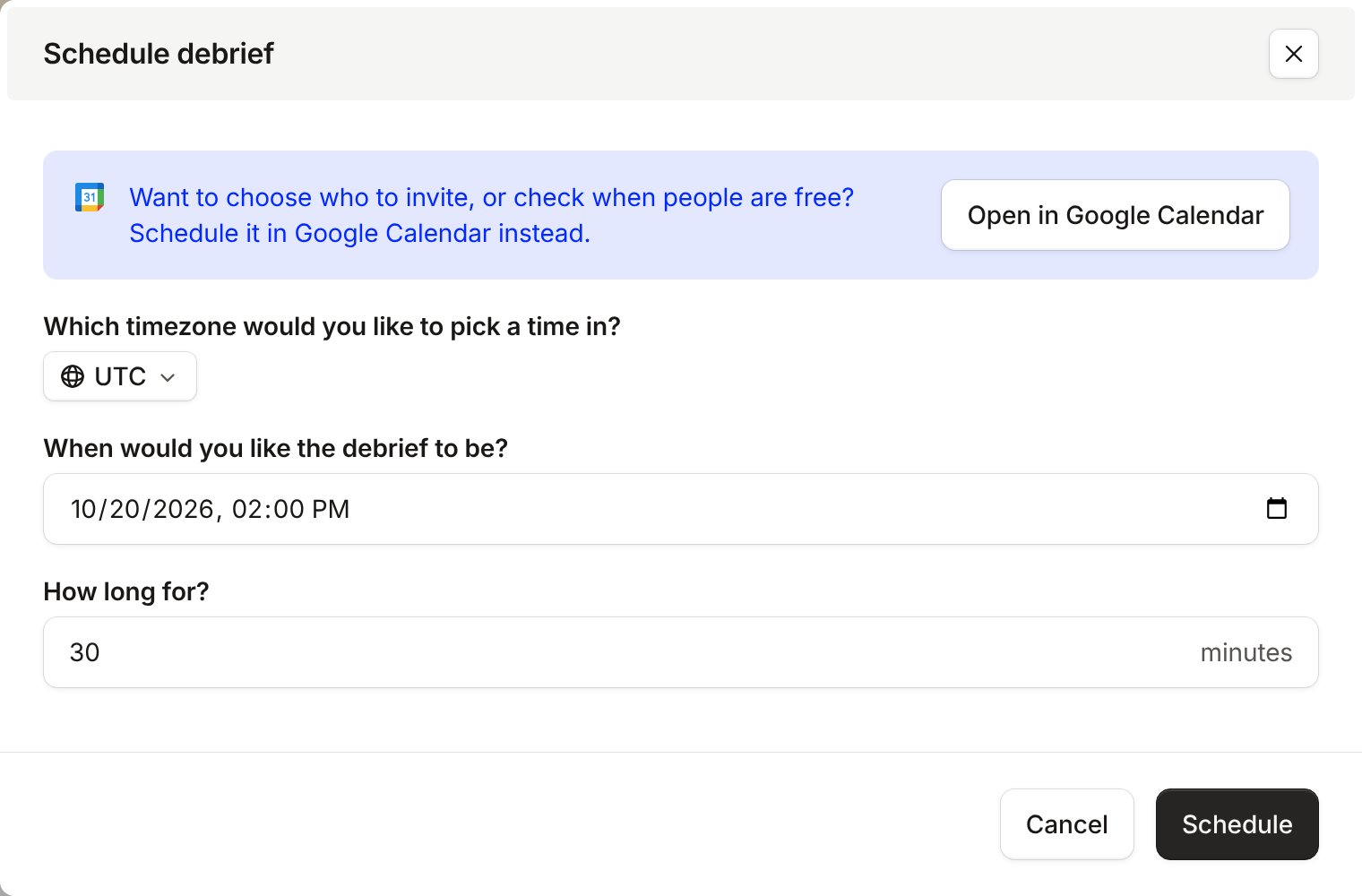
Scheduling in your own calendar
If you’d rather choose who to invite yourself, or check when people are free, click Open in Google Calendar (or Open in Outlook) at the top of the form. Then click the button for your calendar, and we’ll take you to a pre-filled event there, with the same invitees, ready for you to edit and pick a time.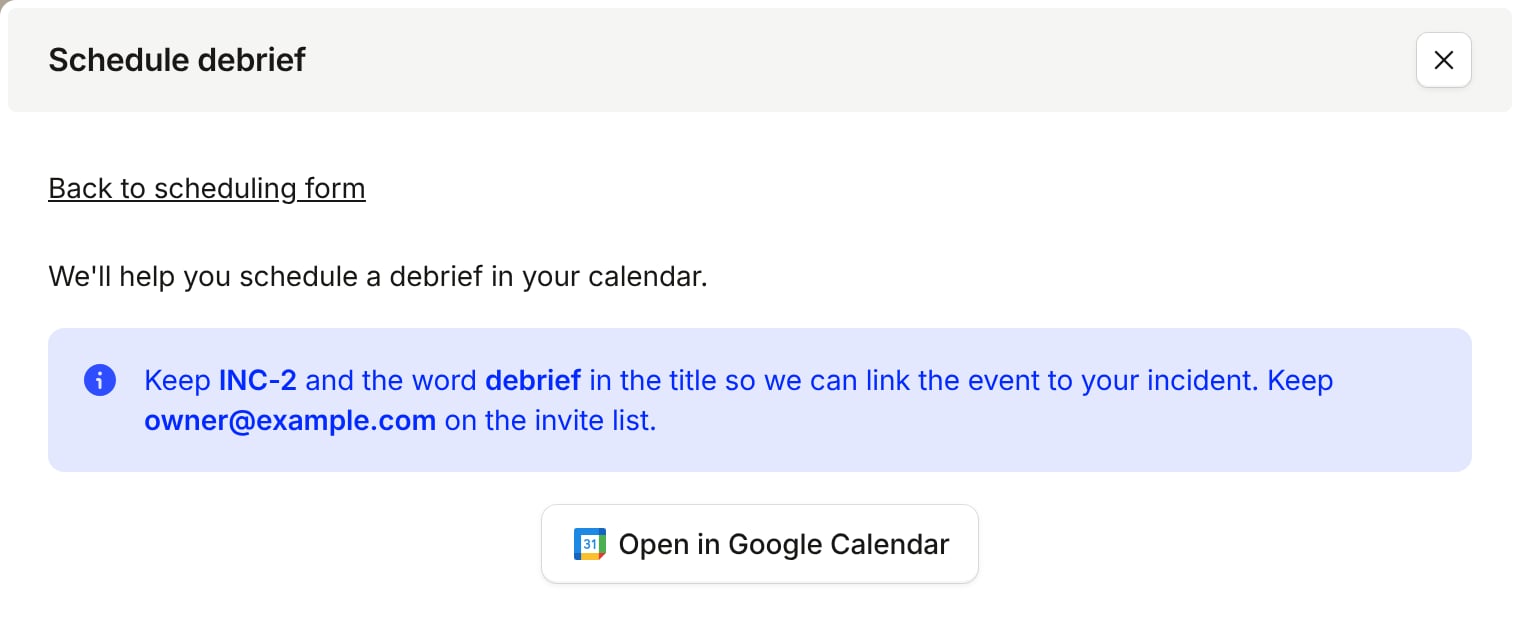
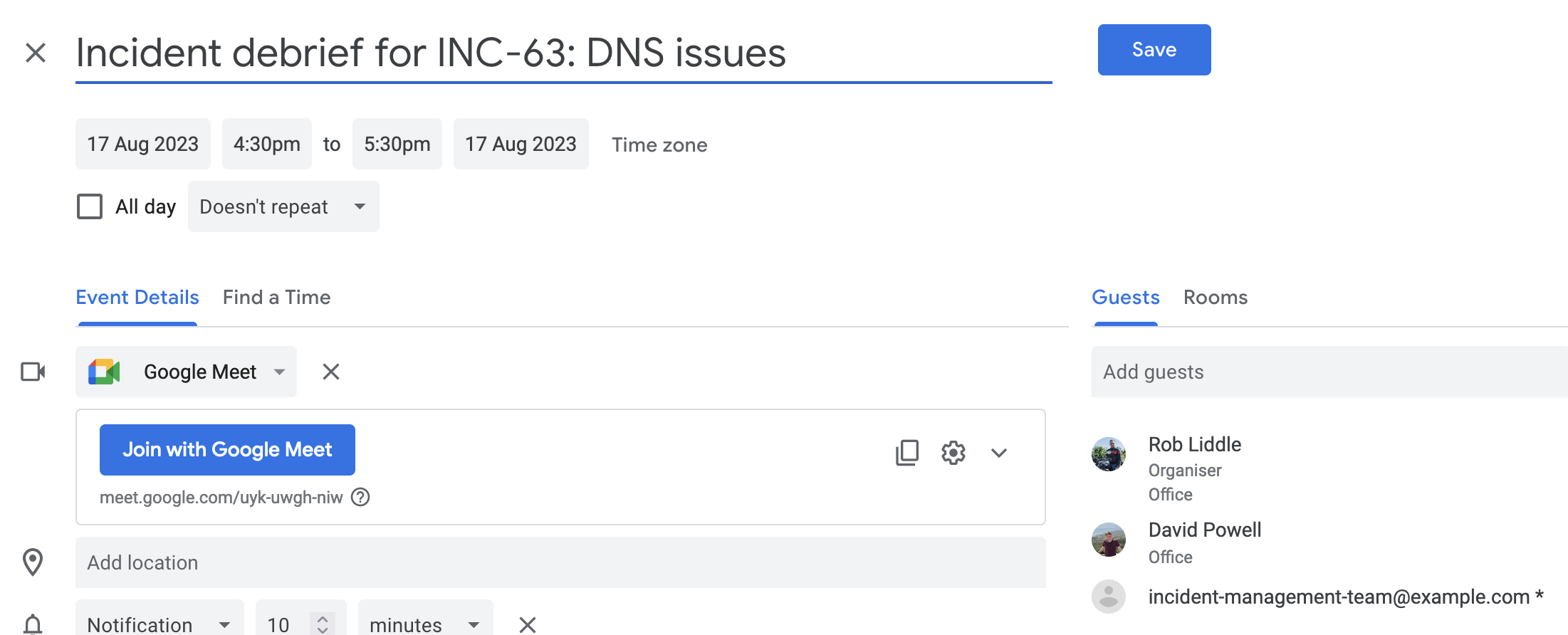
If you’ve installed our Google Calendar or Outlook Calendar integration, we’ll automatically attach this event for you when you hit
Save, so everyone will know when it is. Keep the incident ID and the word “debrief” in the title, and keep the connected user on the invite list.