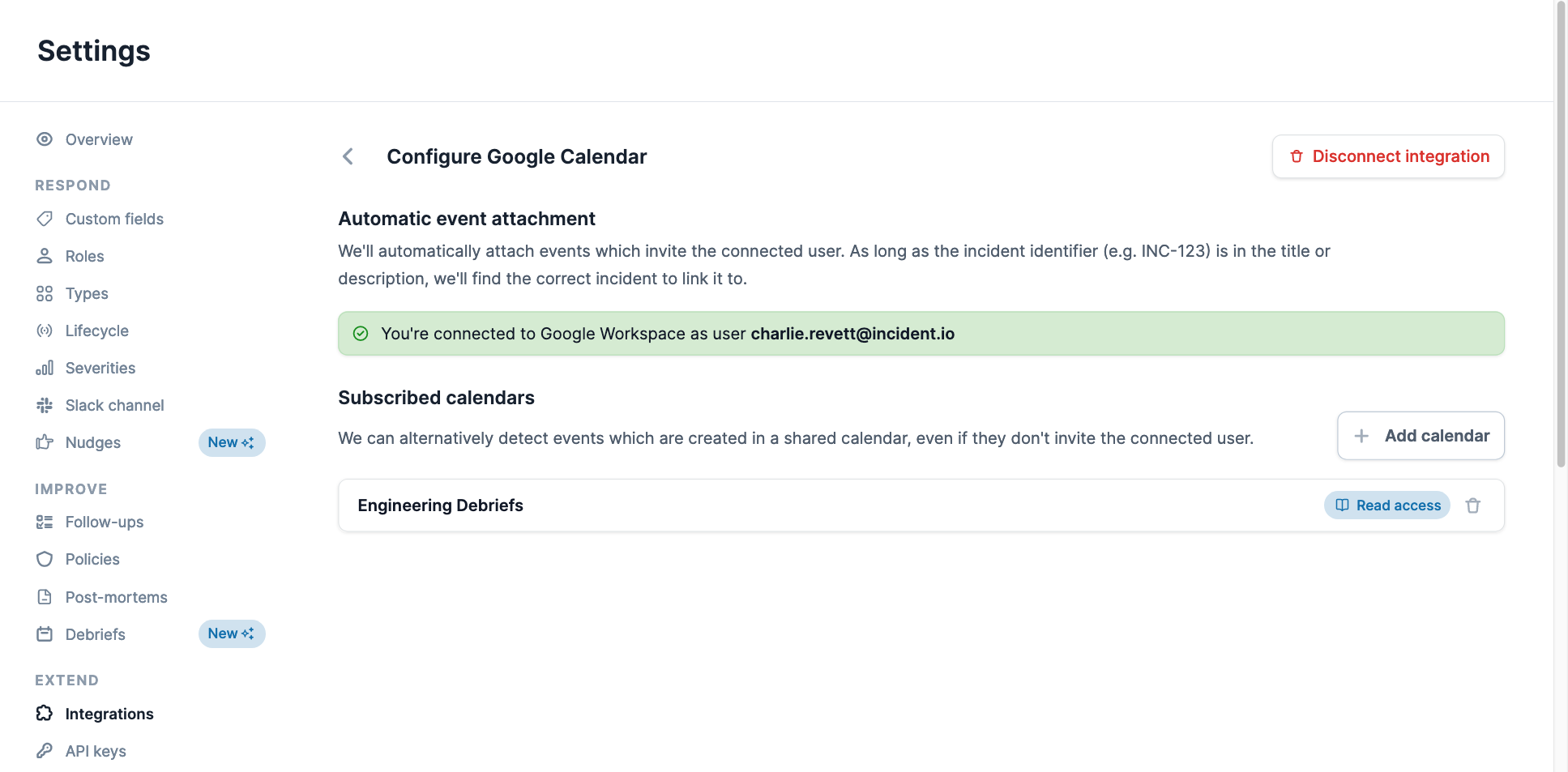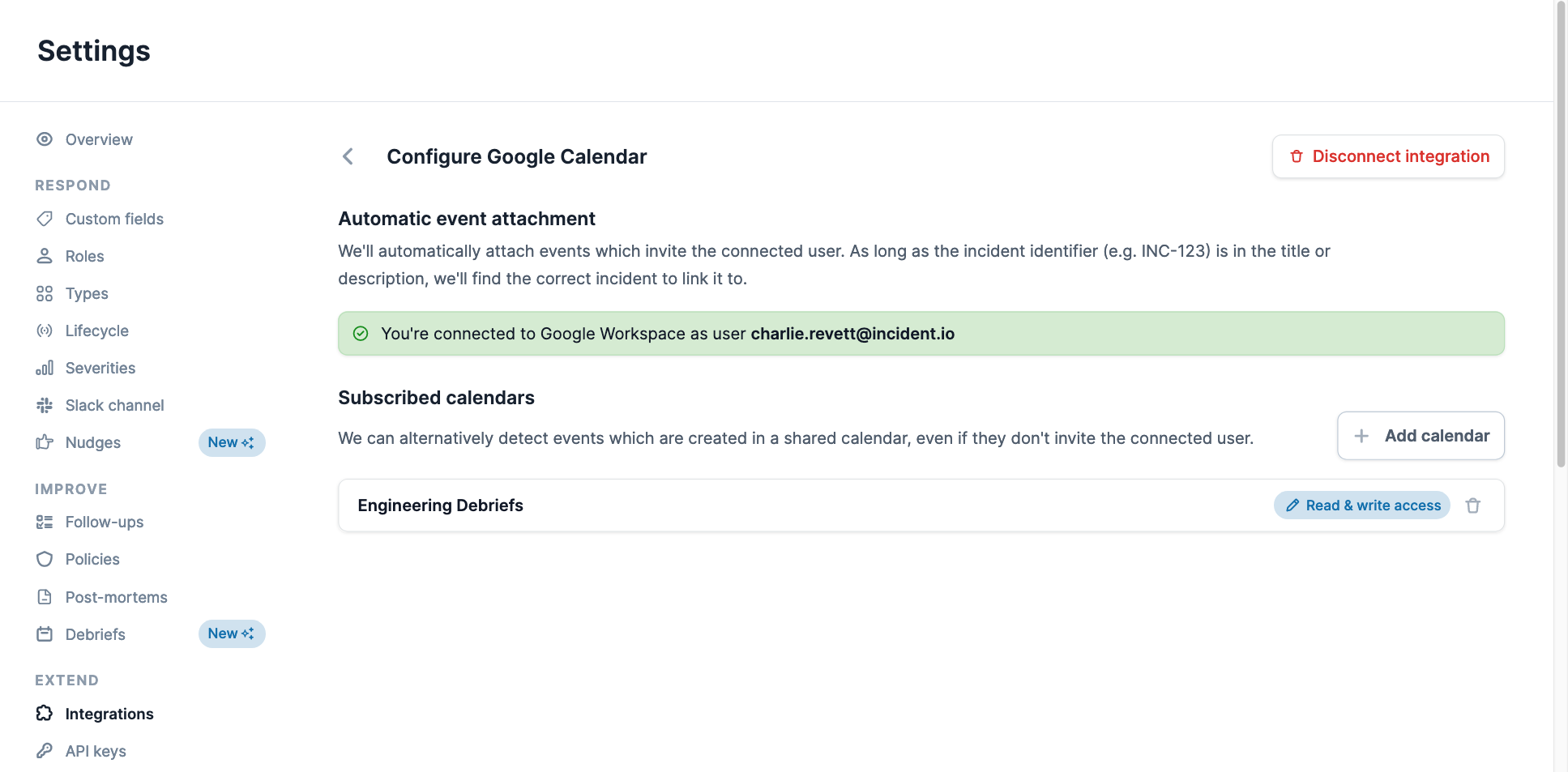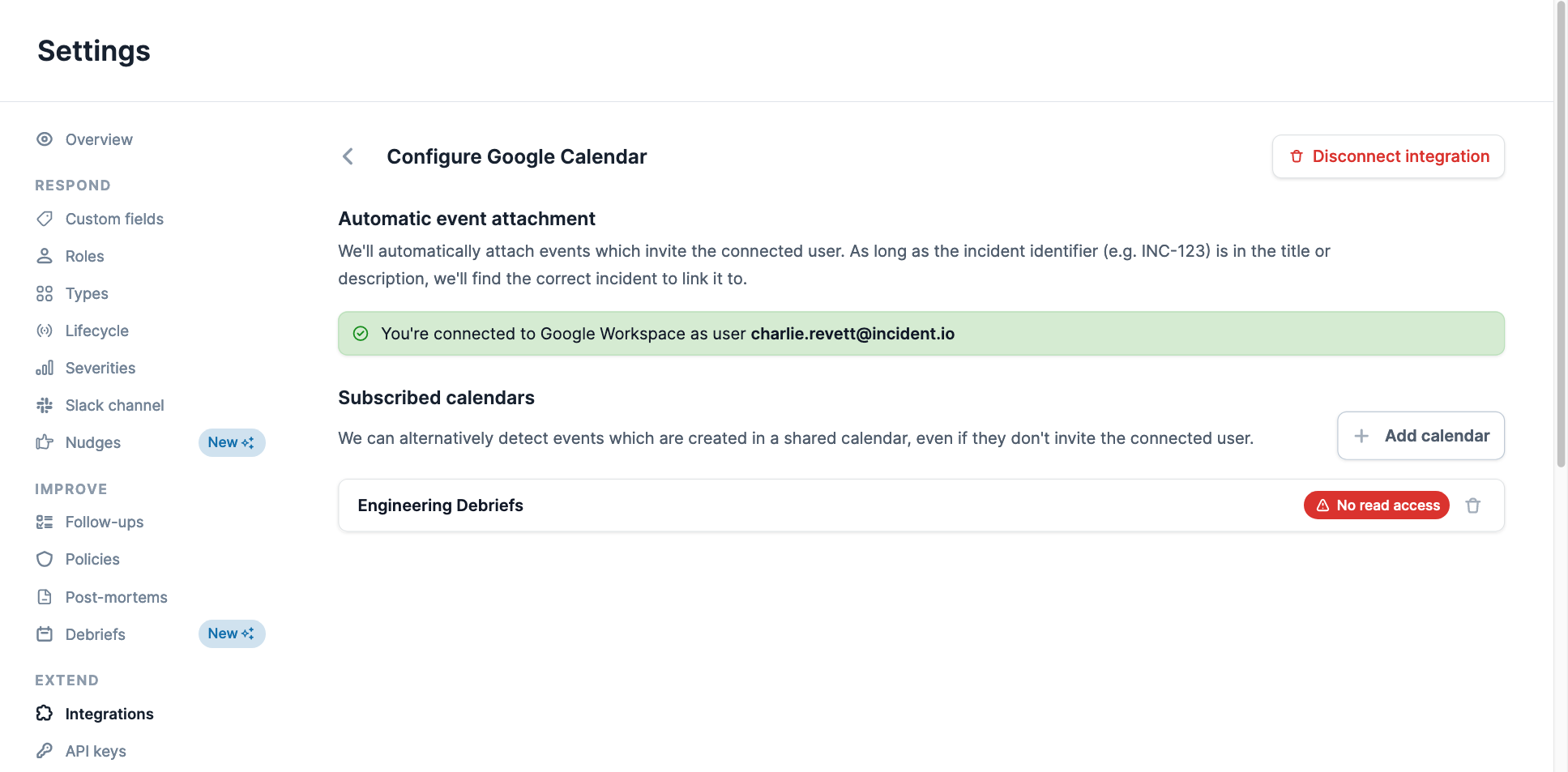
As part of our Google Calendar integration, you can subscribe to calendars. This allows incident.io to detect relevant debrief meetings for your incidents, and schedule an incident’s debrief meeting using a placeholder timeslot. Both of these pieces of functionality require the connected user, the account which was used to add the Google Calendar integration, to have the correct level of access to the subscribed calendar. A “No read access” badge on the Settings → Integrations → Google Calendar → Subscribed calendars section if incorrect access level is currently configured. This help article walks you through configuring the correct level of access for your subscribed calendar.

Permissions

Google Calendar allows calendars to be shared with specific people or groups, using one of the four following access levels :
  1. See only free/busy (lowest access level)
  2. See all event details
  3. Make changes to events
  4. Make changes and manage sharing (highest access level)
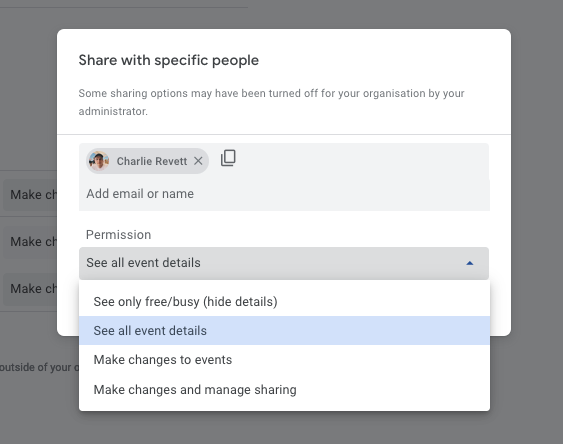
You can make changes to a calendar’s permissions by going to Google Calendar , selecting the calendar in the left-hand sidebar, selecting “Settings and sharing” , then navigating to the “Share with specific people or groups” section. You’ll need to add the connected user to this list.

Requirements

Debriefs

For incident.io to be able to detect debriefs that relate to an incident, the connected user must have at least the “See all event details” access level or higher; this is shown within the dashboard as “Read access” .

Placeholders

For incident.io to be able to schedule a debrief for an incident within a placeholder timeslot, the connected user must have at least the “Make changes to events” access level or higher; this is shown within the dashboard as “Read & write access” .