Connecting Azure DevOps
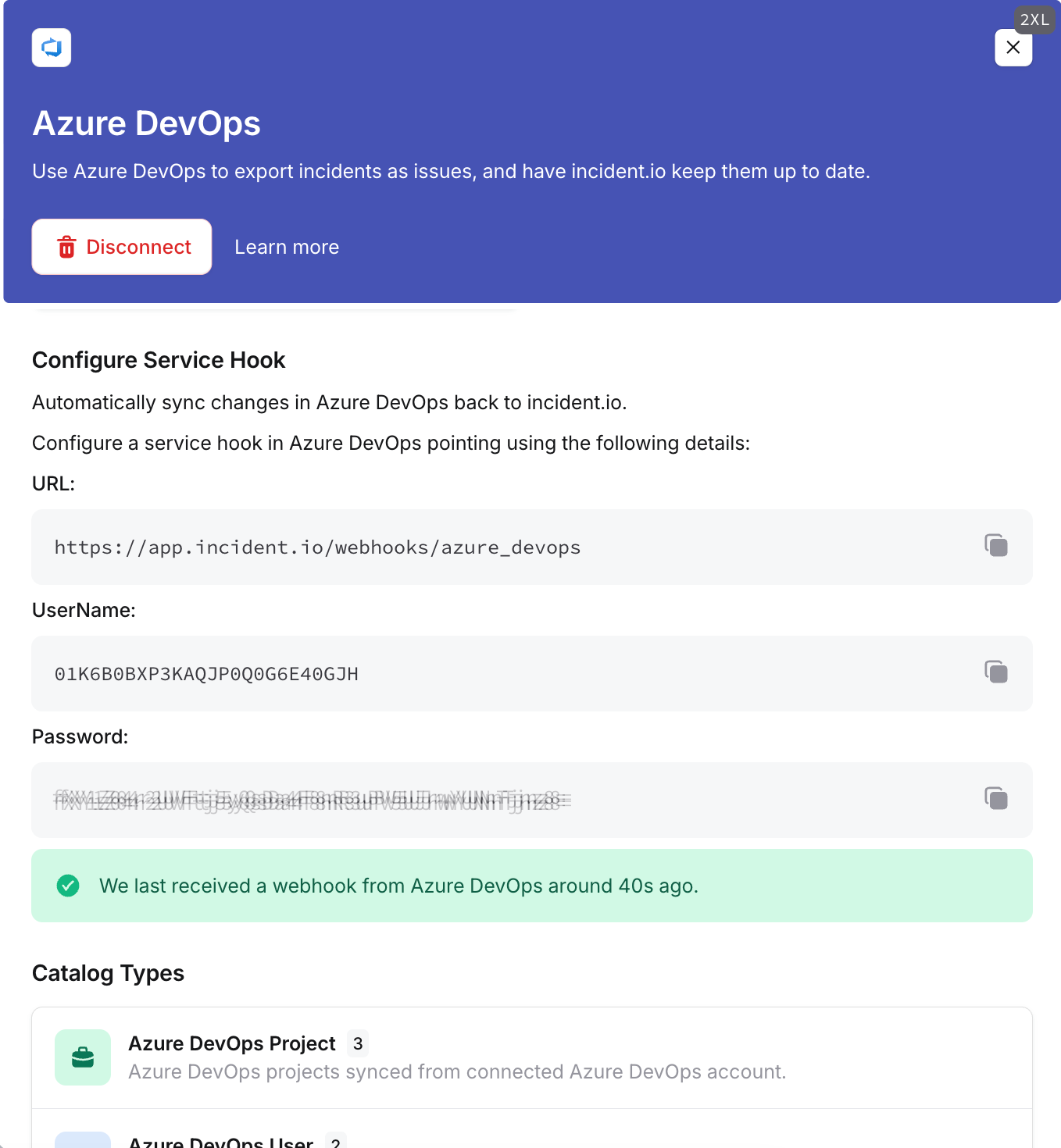
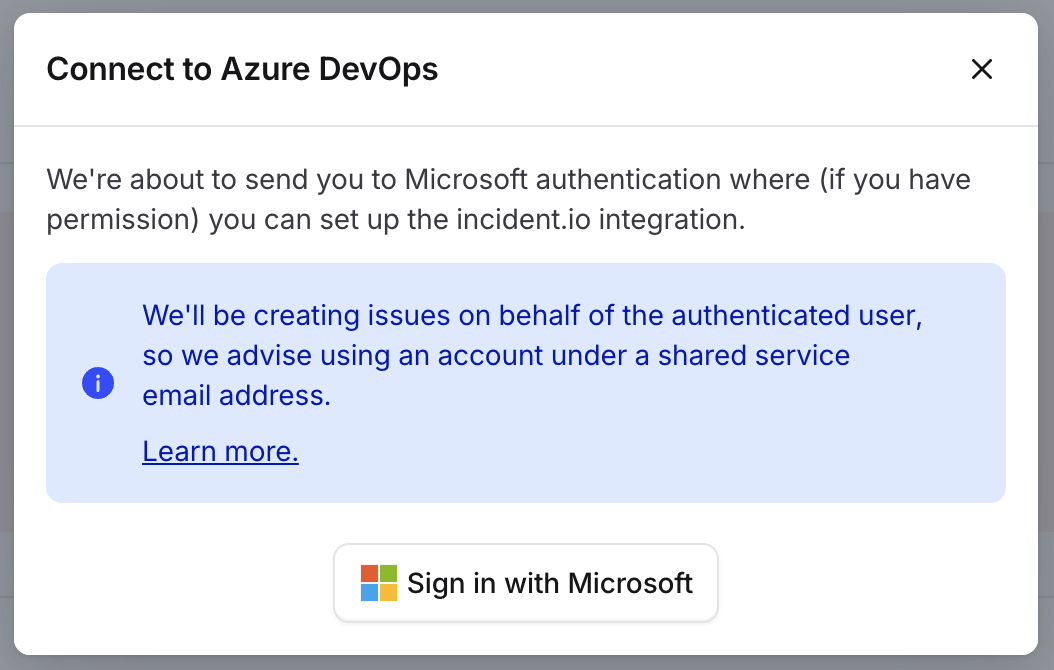
Sign in as an Azure DevOps user with access to the relevant projects, then go to Settings → Integrations, find Azure DevOps, and click Connect. Click Sign in with Microsoft and complete the authorization flow.
Use a personal account under a shared “service” email. Azure service accounts behave differently in the API, so we don’t support them for authentication.
Exporting follow-ups
Export follow-ups as Azure DevOps work items, from the dashboard or from Slack and Microsoft Teams. Use an export template to send them automatically based on incident attributes. The title always comes from the follow-up, and can’t be set in a template. The work item’s title syncs back as the follow-up title instead. Changes in Azure DevOps update the linked follow-up:- Title, description, and tags, which become follow-up labels
- The assignee, which becomes the follow-up owner
- Completion, which completes the follow-up and records when it happened
Incident tickets
Set up incident tickets to create and maintain a work item for each incident, with its title, description and state driven by a template. Templates default to the Issue work item type. Comments added to the work item sync back into incident.io.Service hooks
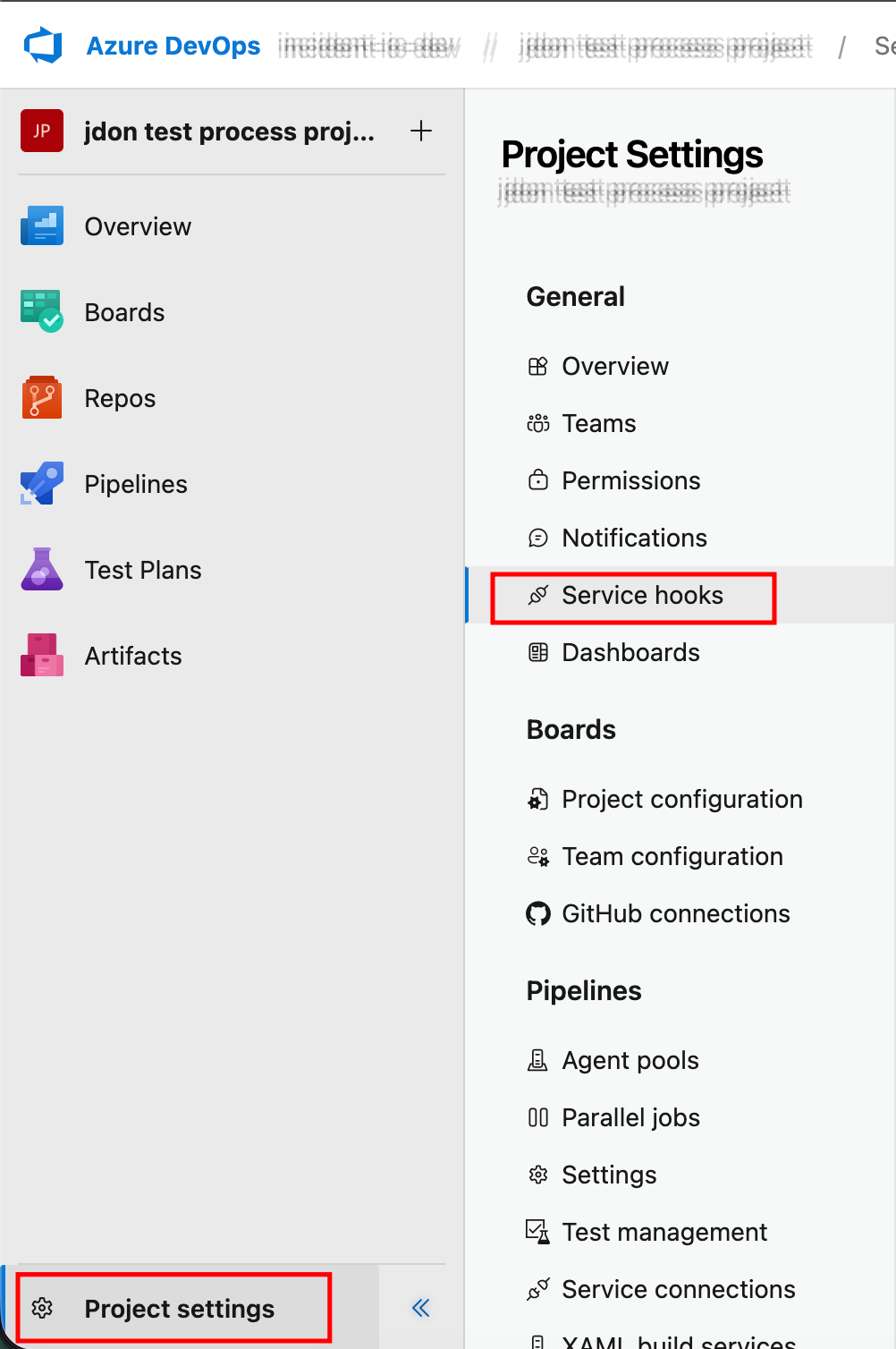
A service hook lets changes in Azure DevOps reach incident.io. Without one, nothing syncs back for follow-ups or incident tickets.- Go to your project, select Project settings, and then select Service hooks.
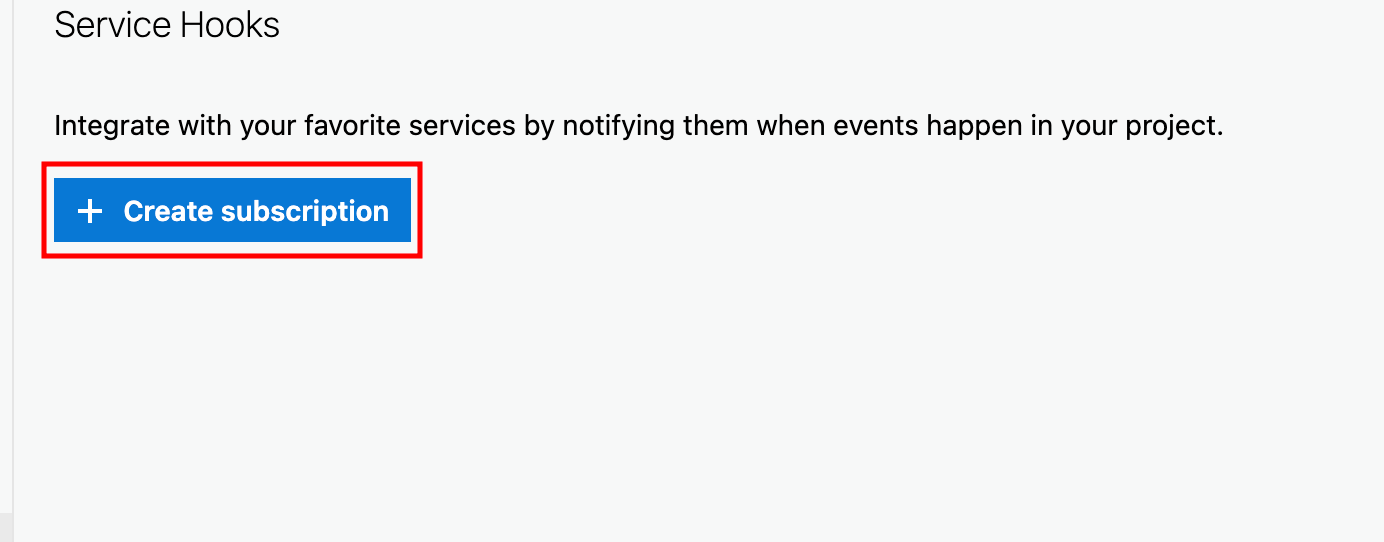
- Select Create subscription.
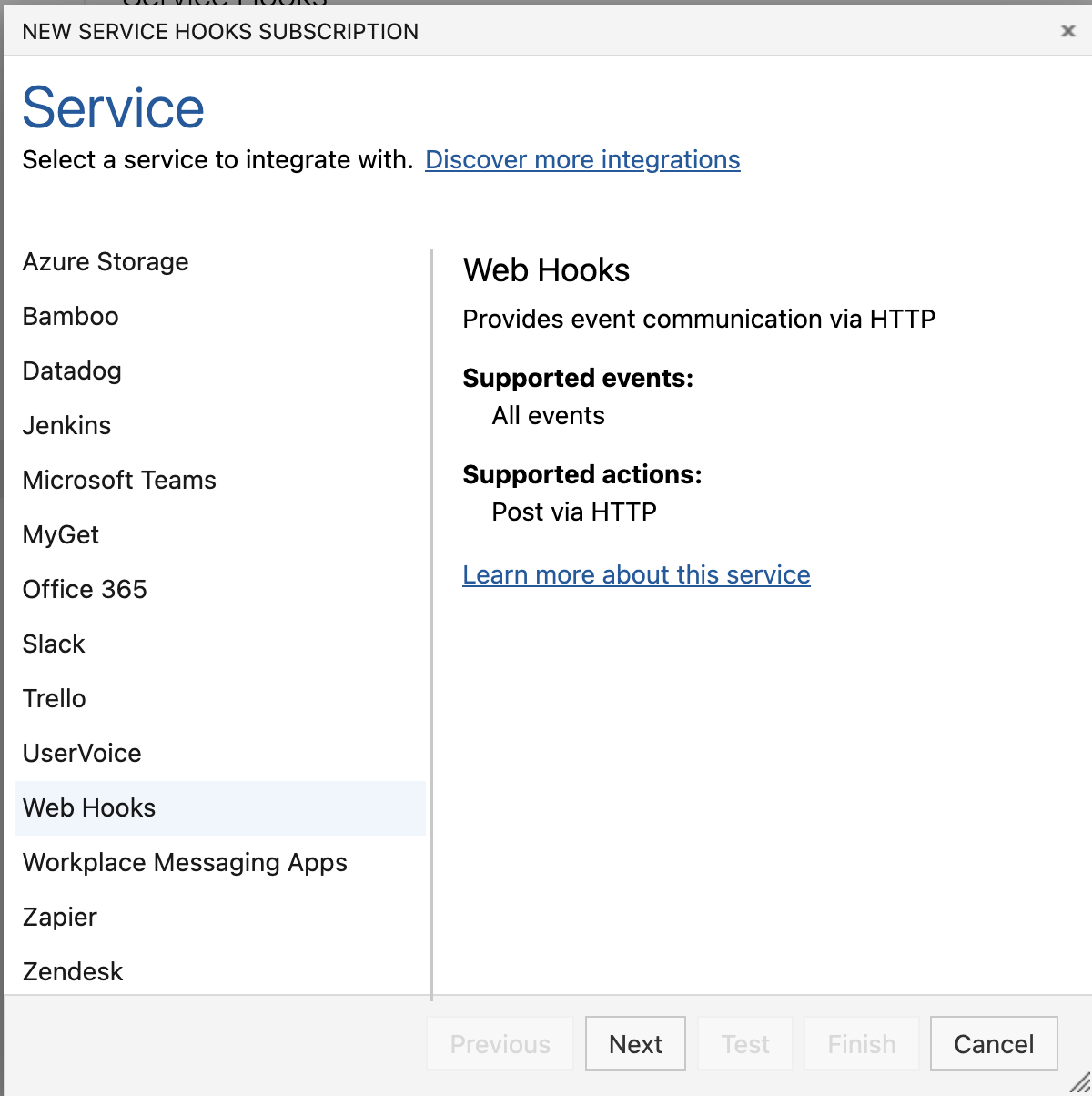
- Select Web Hooks and then click Next.
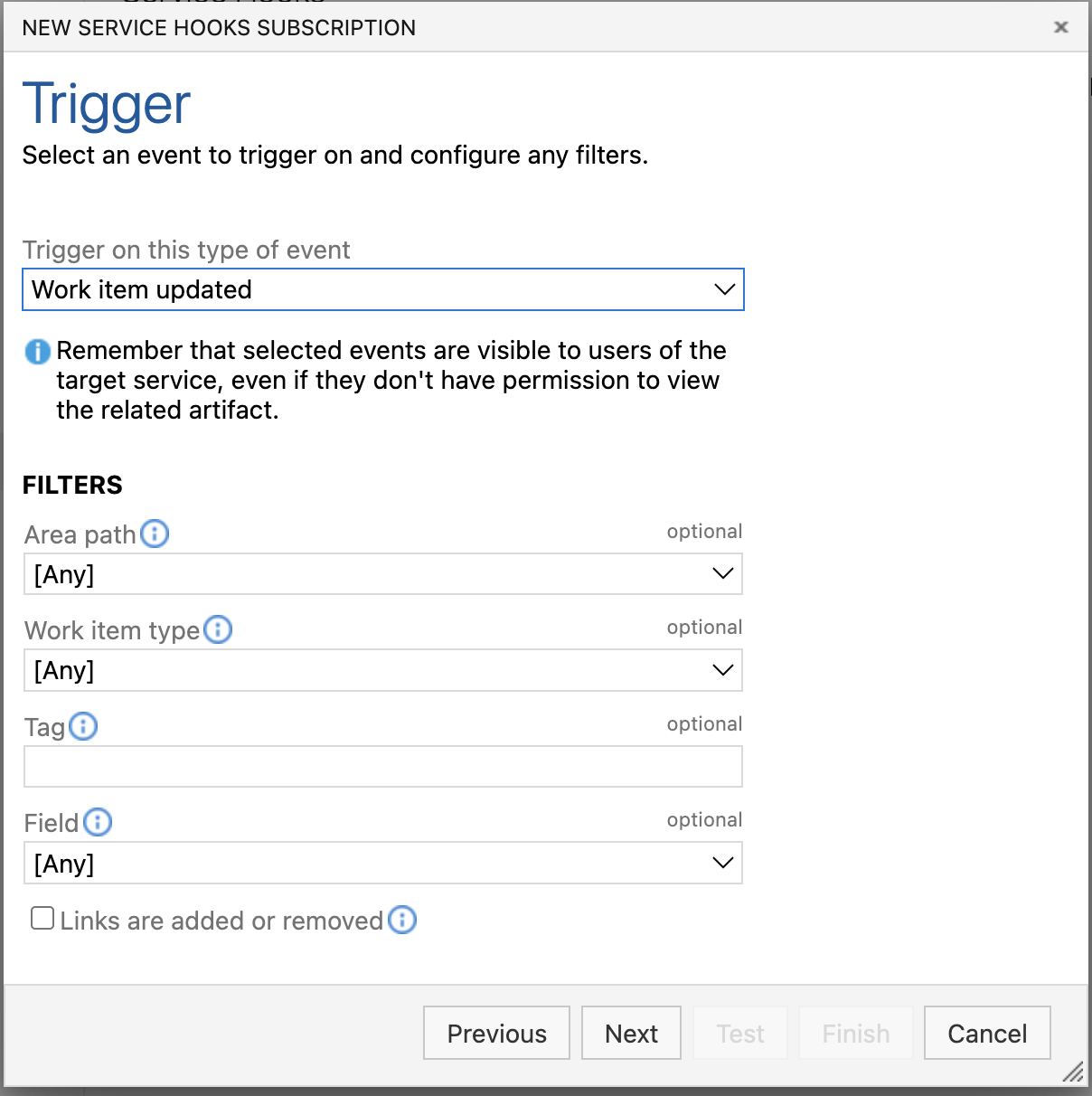
- Change the trigger to Work item updated and then click Next.
- Copy the service hook details from the dashboard into the service hook config.
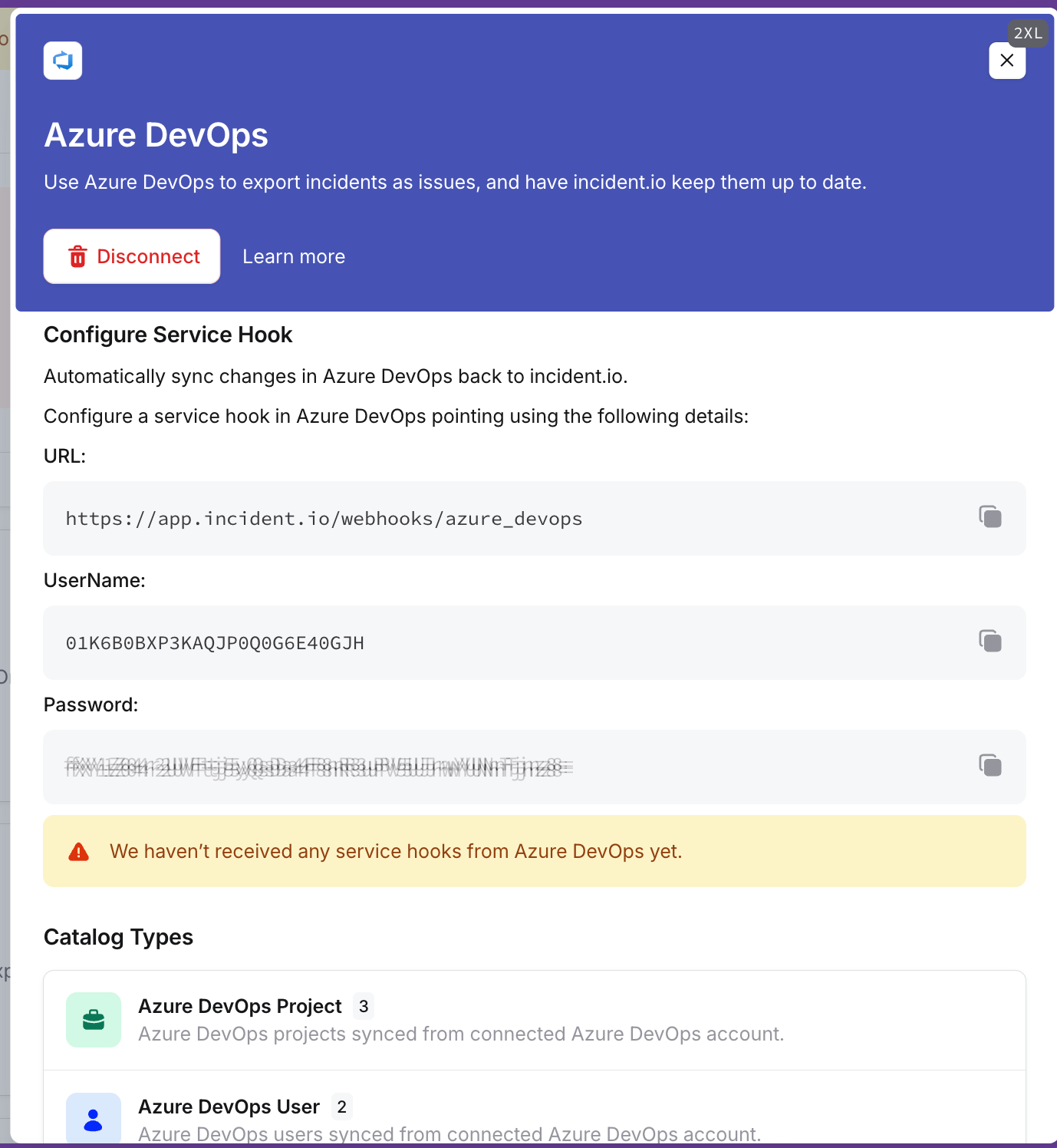
- Click Test, and check the dashboard shows a success.
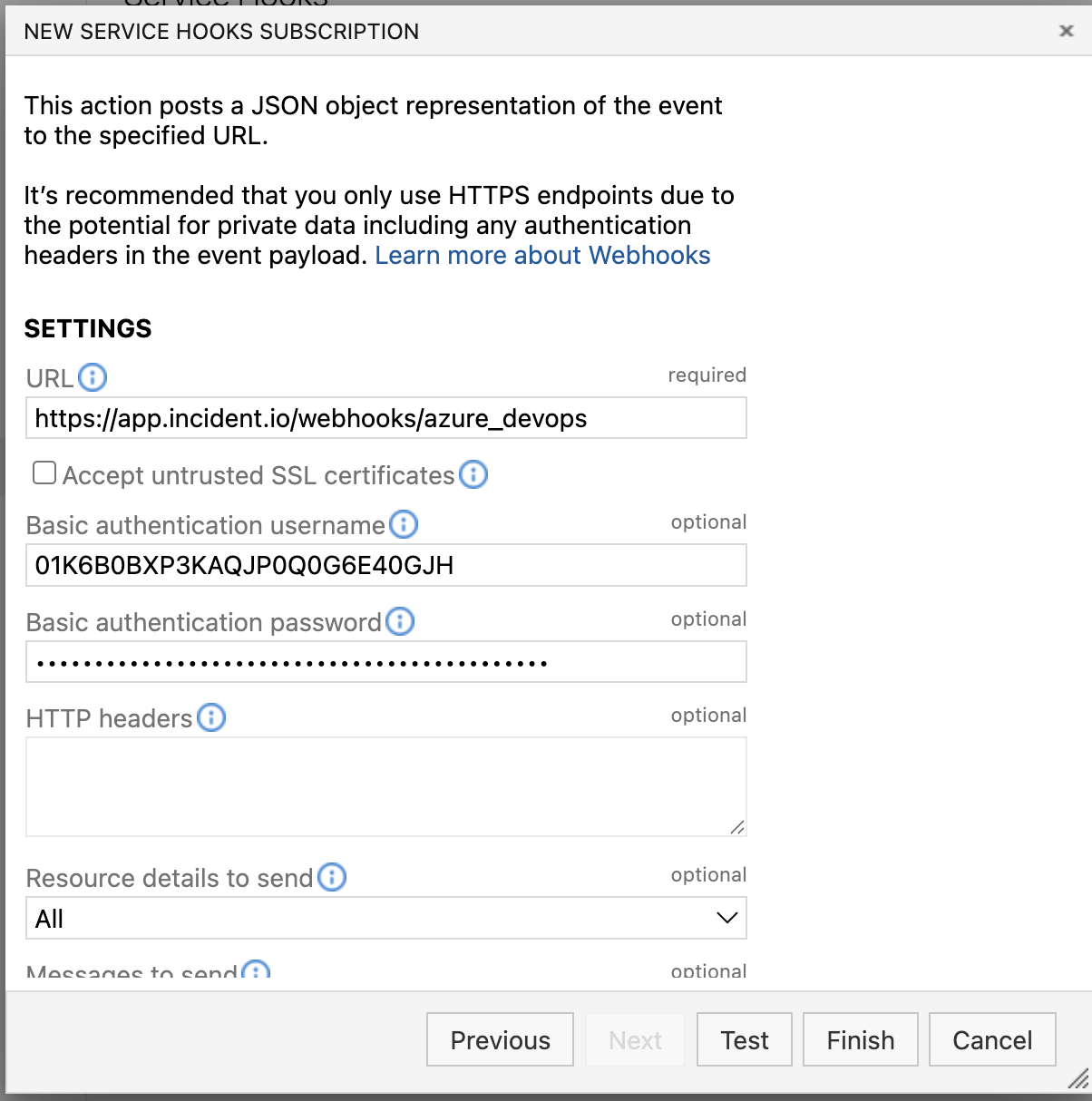
- Click Finish in Azure DevOps to complete the setup.