

You’ll need the Manage organisation settings permission to install a direct HRIS integration.
Using an HRIS that isn’t listed here? If you’re on the Enterprise plan, reach out and we’ll see what we can do. Otherwise, most systems can be brought in with a calendar feed.
Time off policies
When you connect an HRIS directly, we bring in the time off policies your team uses, like annual leave or bereavement. You control how each policy appears in your On-call schedules, so you can keep sensitive HR categories private. For each policy, choose one of:- Visible: the policy name appears in on-call schedules (e.g. “Jane Smith - Annual leave”). Use for everyday policies like annual leave or vacation.
- Private: entries appear with no mention of the policy (e.g. “Jane Smith - Out of office”). Use for sensitive policies like medical appointments or bereavement.
- Ignore: entries don’t appear in schedules at all. Use for things that aren’t really time off, like working from home.
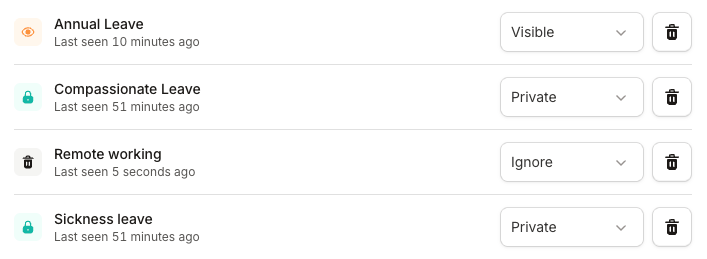
You’ll need the Manage HRIS time off policy types permission to change how policy types are handled.