

Context
Teams often need to notify members when on-call schedules change, including who is coming on/off duty. Setting up automated Slack notifications helps keep everyone informed of these schedule changes.Answer
You can configure automated Slack notifications for on-call schedule changes using workflows. Here’s how to set it up:- Navigate to Workflows and create a new workflow
- Select “An On-call schedule shift changes” as the trigger
- Add a Slack message action and choose your destination channel
- In the message, you can use these variables to display shift information:
- “Previously on-call users” - Shows who was on call
- “Currently on-call users” - Shows who is now on call
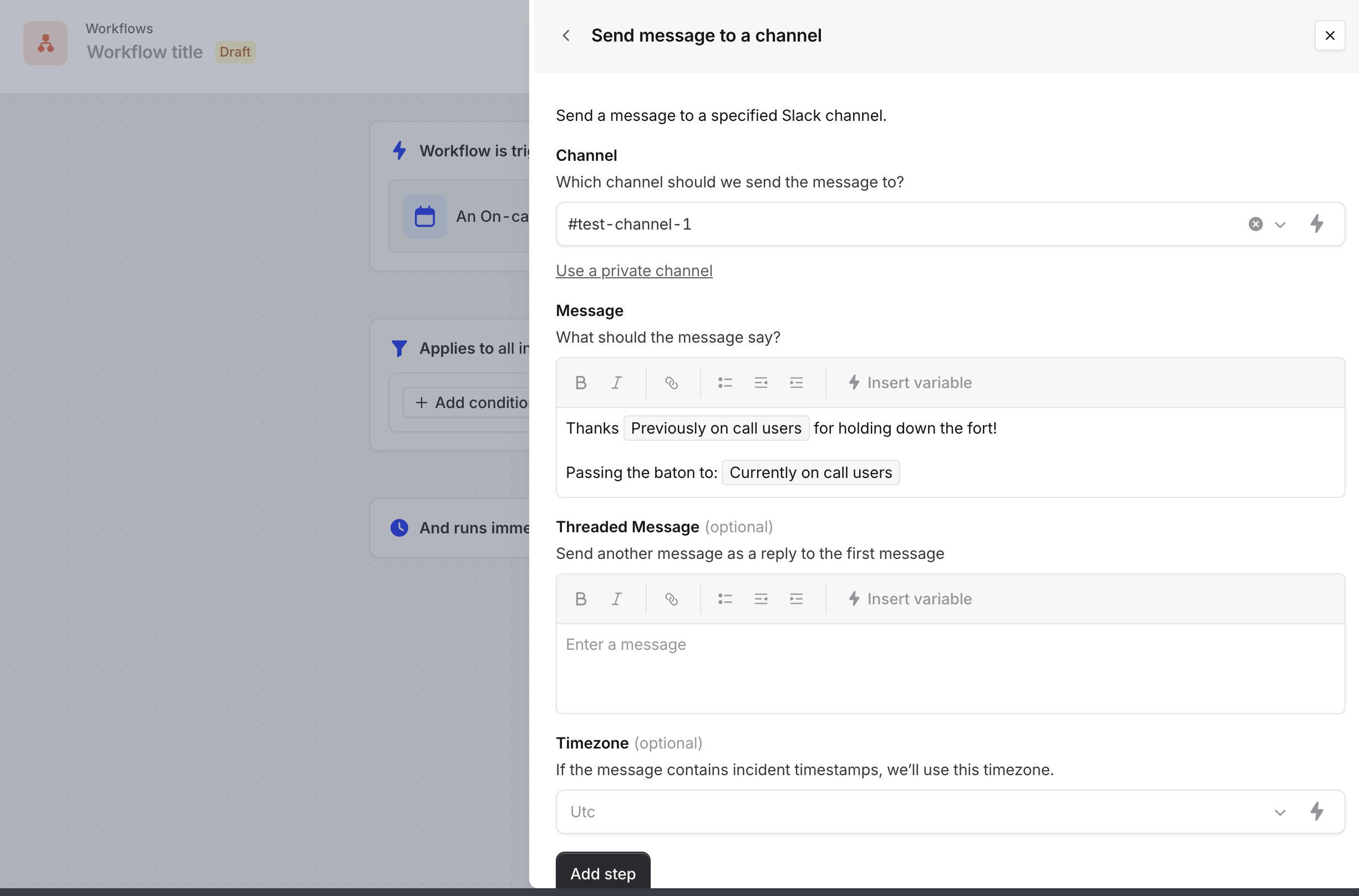
Important notes:
- Individual users can set up personal notifications through User Preferences for shift notifications