

Getting Started
- First, head to On-call within the incident.io dashboard
- Go to Schedules and create a new schedule
- Name your new schedule, set up rotation, and choose the responders who should be in that specific schedule. If you select a team, we’ll add everyone in the team by default.
- Preview your schedule and save
Read how to get started with On-call and how to connect your schedules to Alert routes here.
Rotation
Rotations are a great way to have a rolling schedule for your team to be on-call. Set up the times and people you want to work on specific times. There’s an option for Daily, Weekly, or Monthly rotations.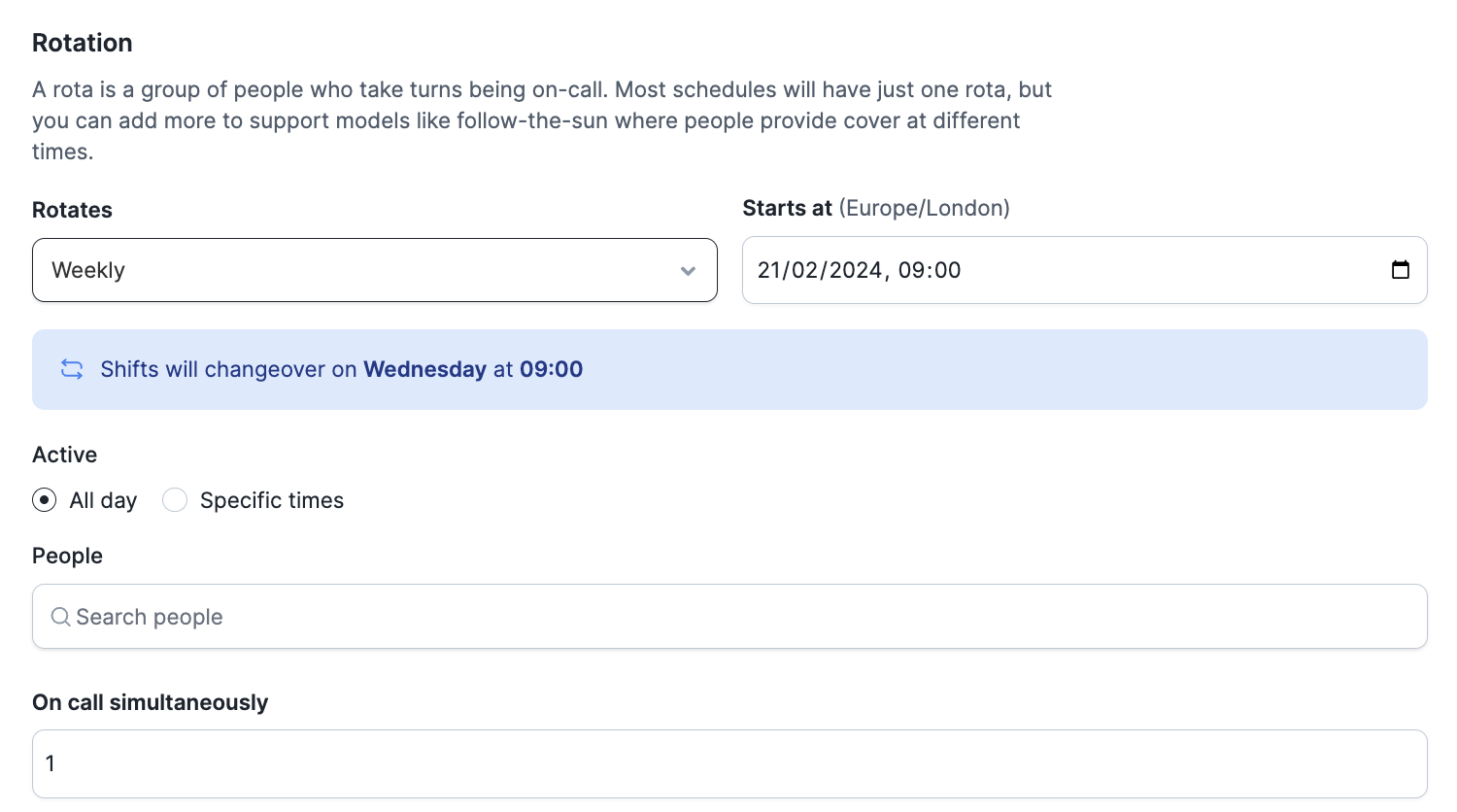
Asymmetric schedule
If you are splitting your shifts to be more asymmetric, you can create time intervals within hours days and weeks. By adding a new interval, you can create a rule to have your shifts to work example in 3 and 4 day shifts. If you create shifts that are asymmetric and the amount of shifts is the same as the people in the schedule, we rotate the people to have a balanced amount of time on-call.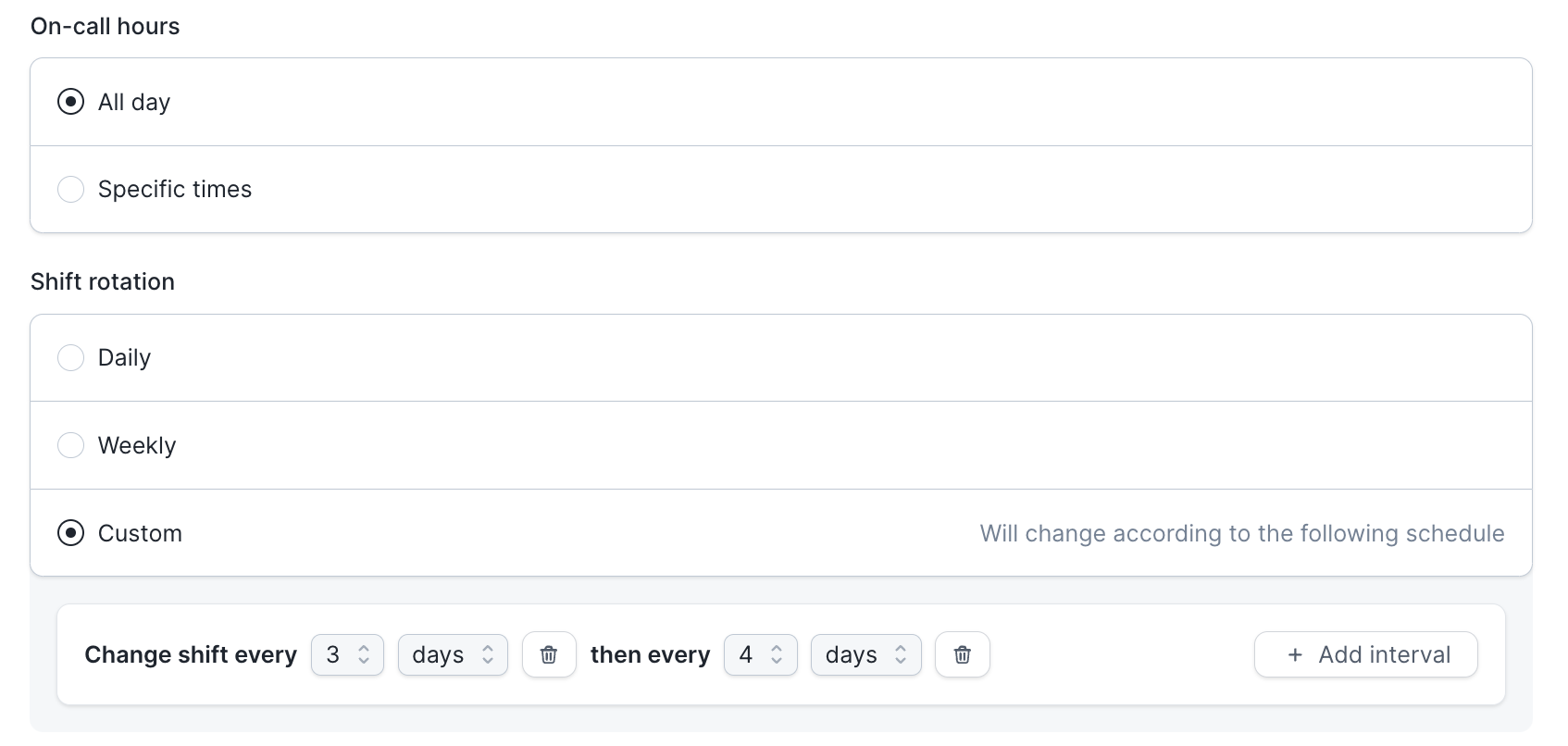
Advanced rotas
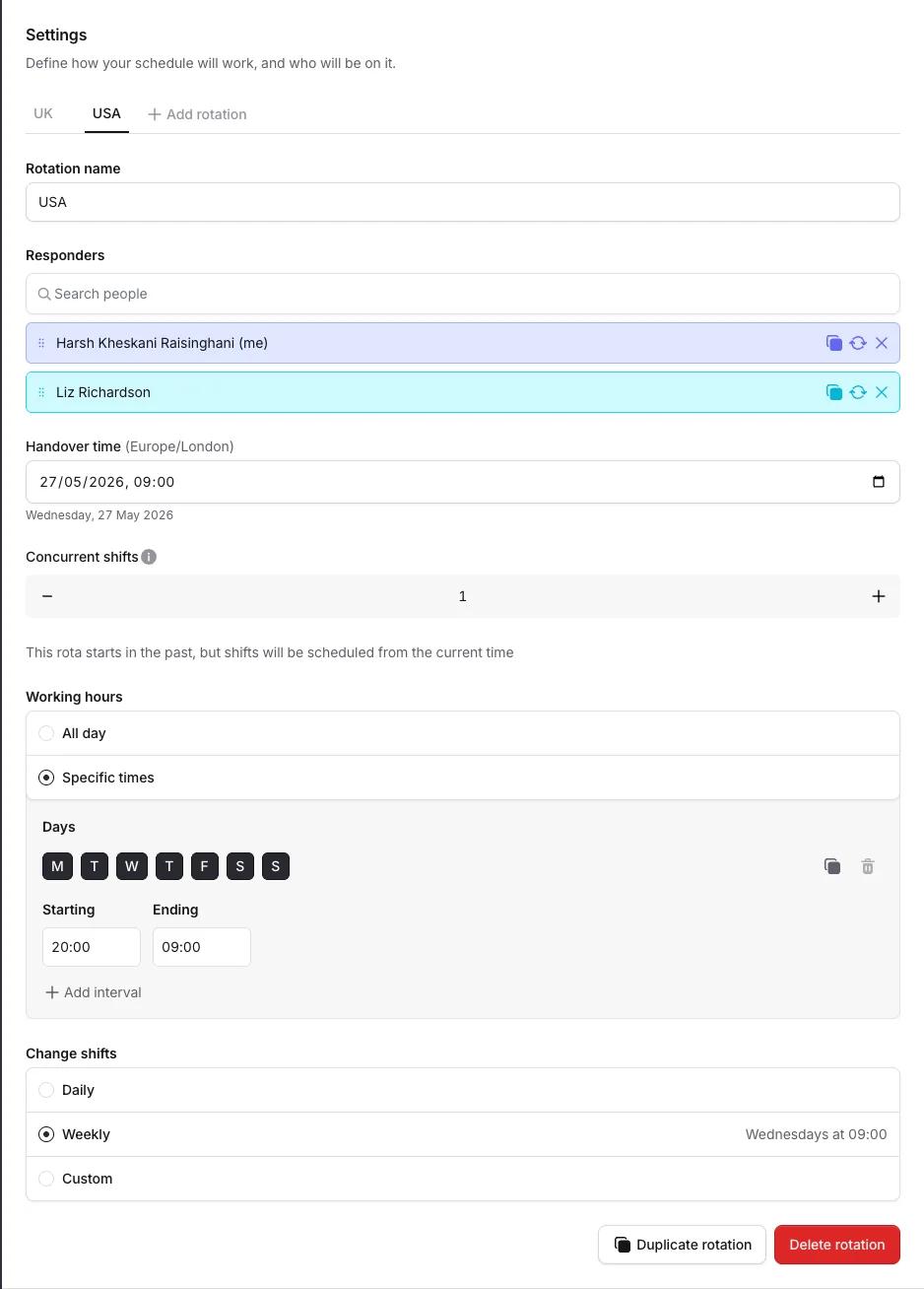
Schedules offer a lot of additional customisations that can help with your organization’s specific setup. Advanced rotas allow you to bring multiple rotas to your schedule. For example, in global companies, we often see rotas that support follow-the-sun. Different locations could be on-call during different times during the day which will allow for all day coverage. We’ve mapped out an example below where we have created two rotas: One for the US and one for the UK. The UK team is on-call between 9 am to 8 pm daily and the US team is between 8 pm to 9 am GMT.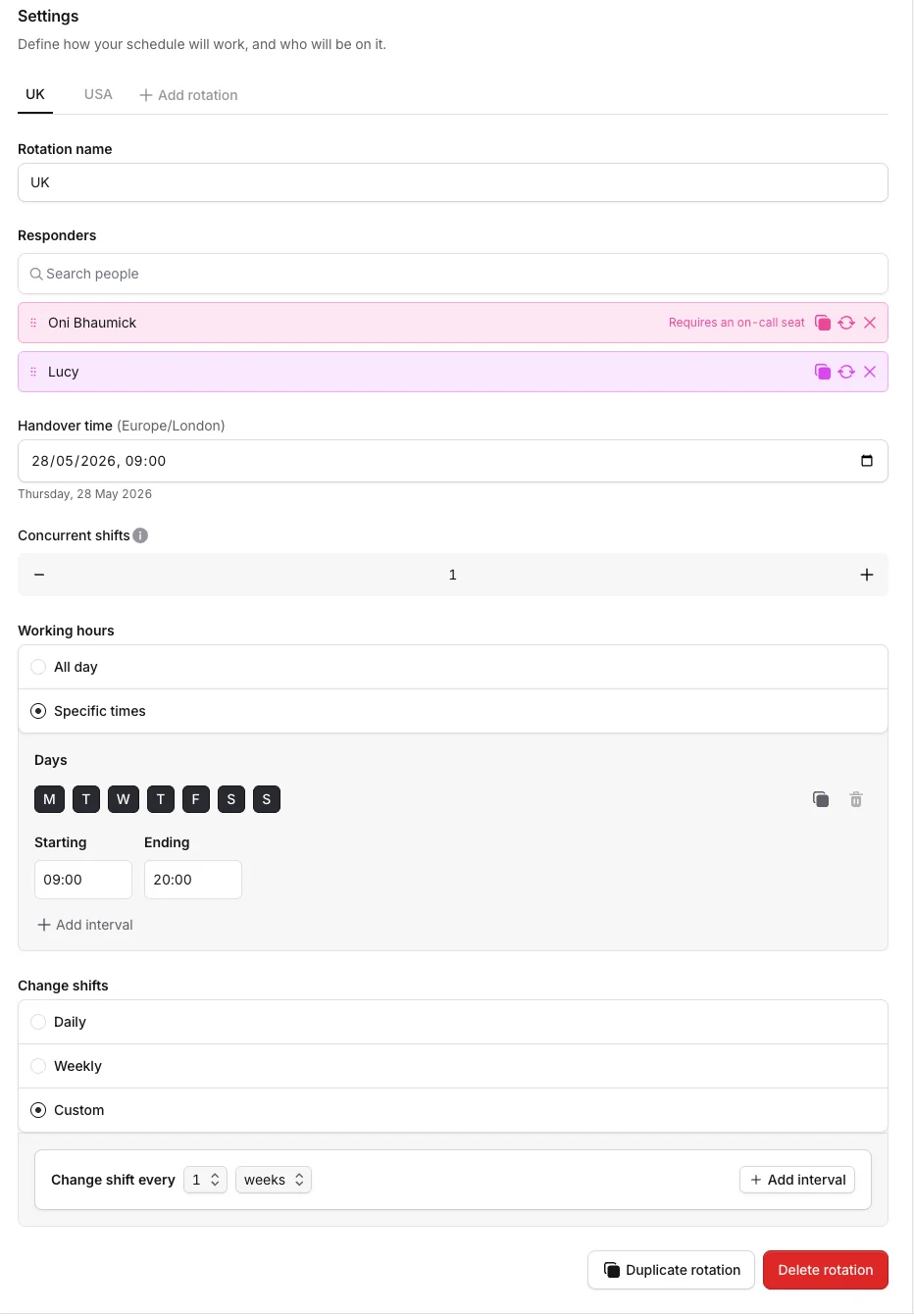
Add a person multiple times to a rota
You can add multiple people to a rota by just choosing the same person multiple times, we’ll let you know if the person appears more than once!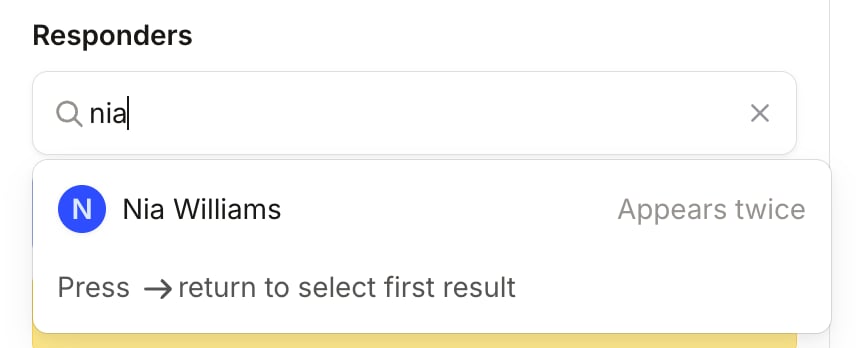
Intervals
Intervals are a great tool to use when you have different shifts throughout your week. For example, if some of the teams are only on-call during office hours you can choose specific times for your office hours.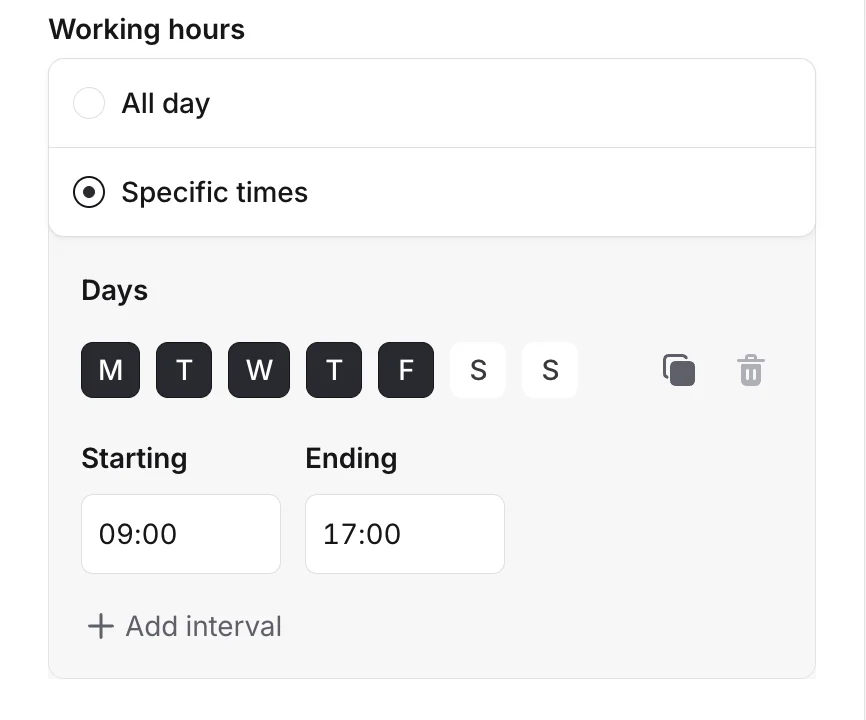
Shadow schedules
When you have new joiners in the team, a great way to get them into the product and schedules is to have a shadow schedule. This way the new joiners can follow alerts and incidents to build more context around your product and get used to being on call. Just add a new rota and name it ‘Shadow Schedule’ and add people and times you want them to shadow alerts and incidents.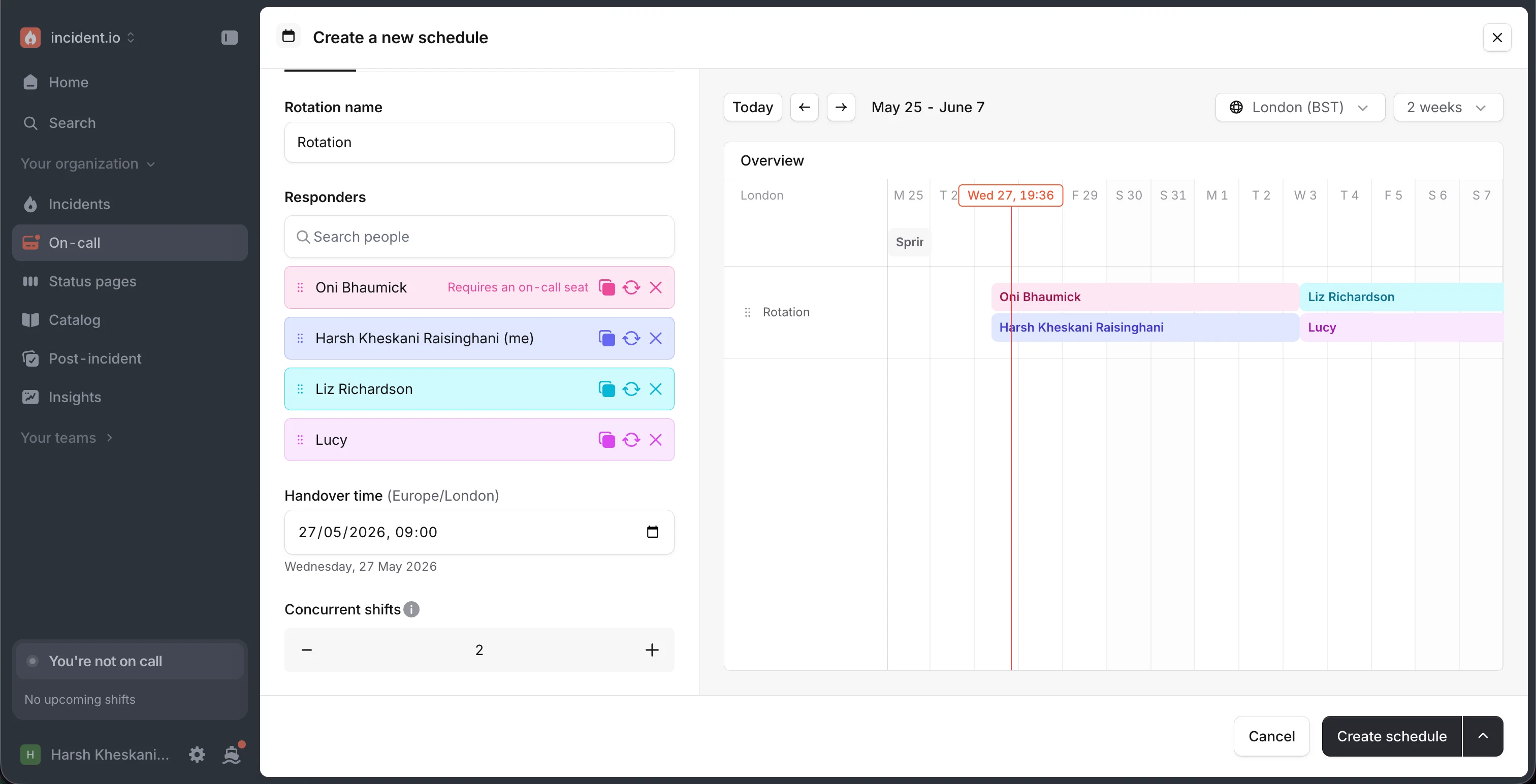
Planning changes to a schedule
If you are looking to make changes like…- Onboarding or removing responders from a certain date / time
- Changing the working hours of your schedule
- Changing the rotation’s interval
- Any combination of the above
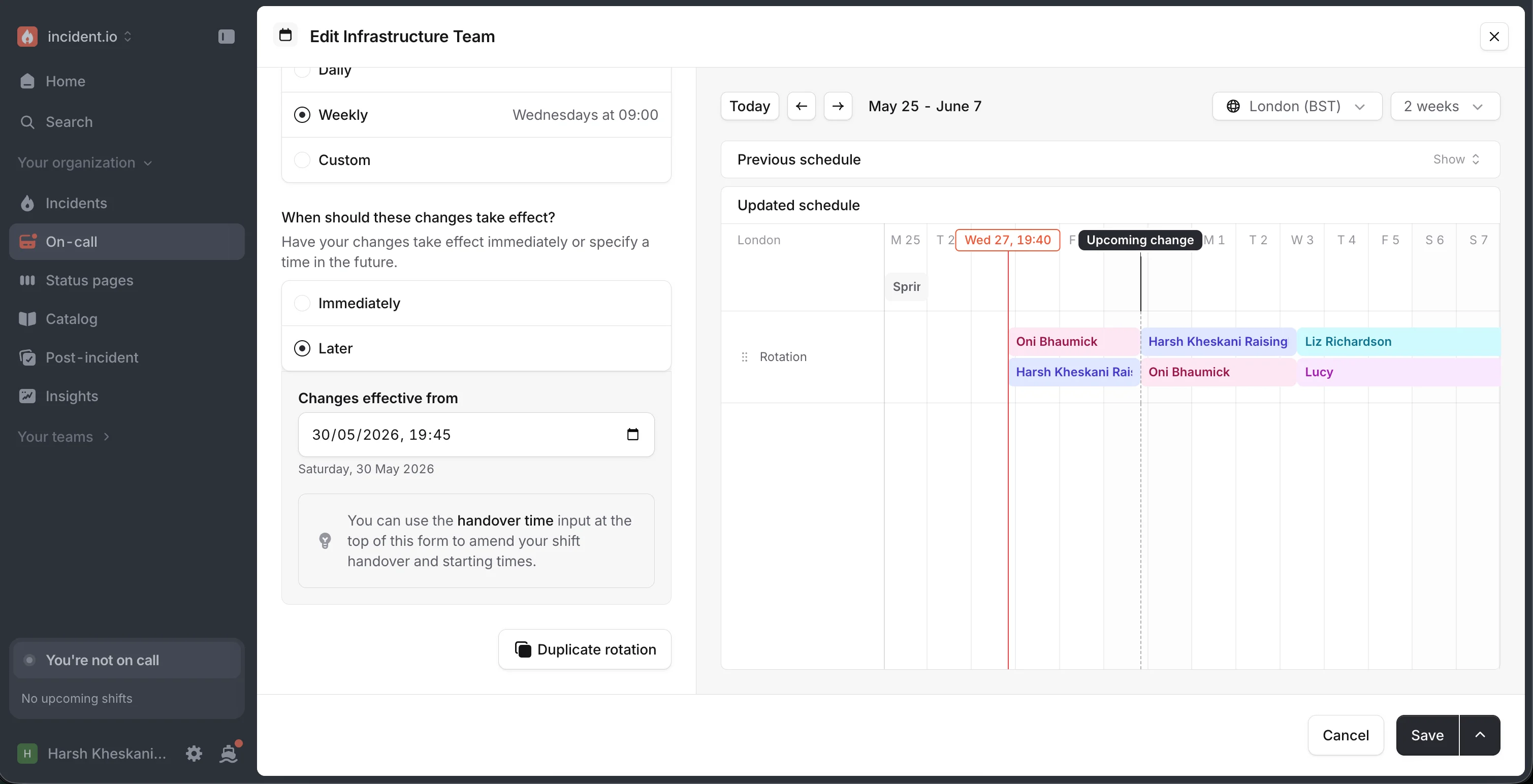
Restoring a previous schedule version
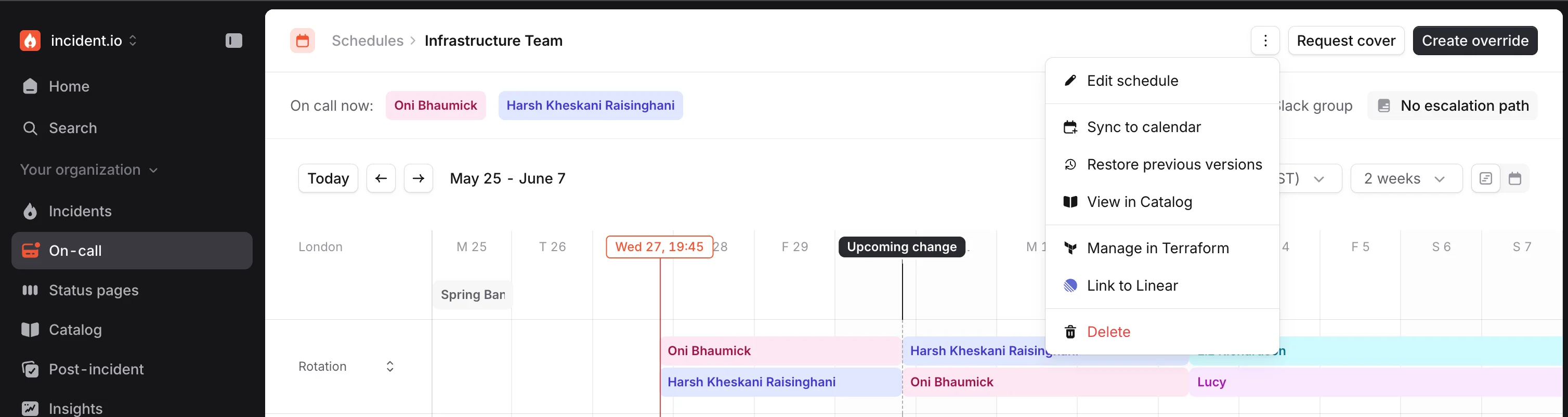
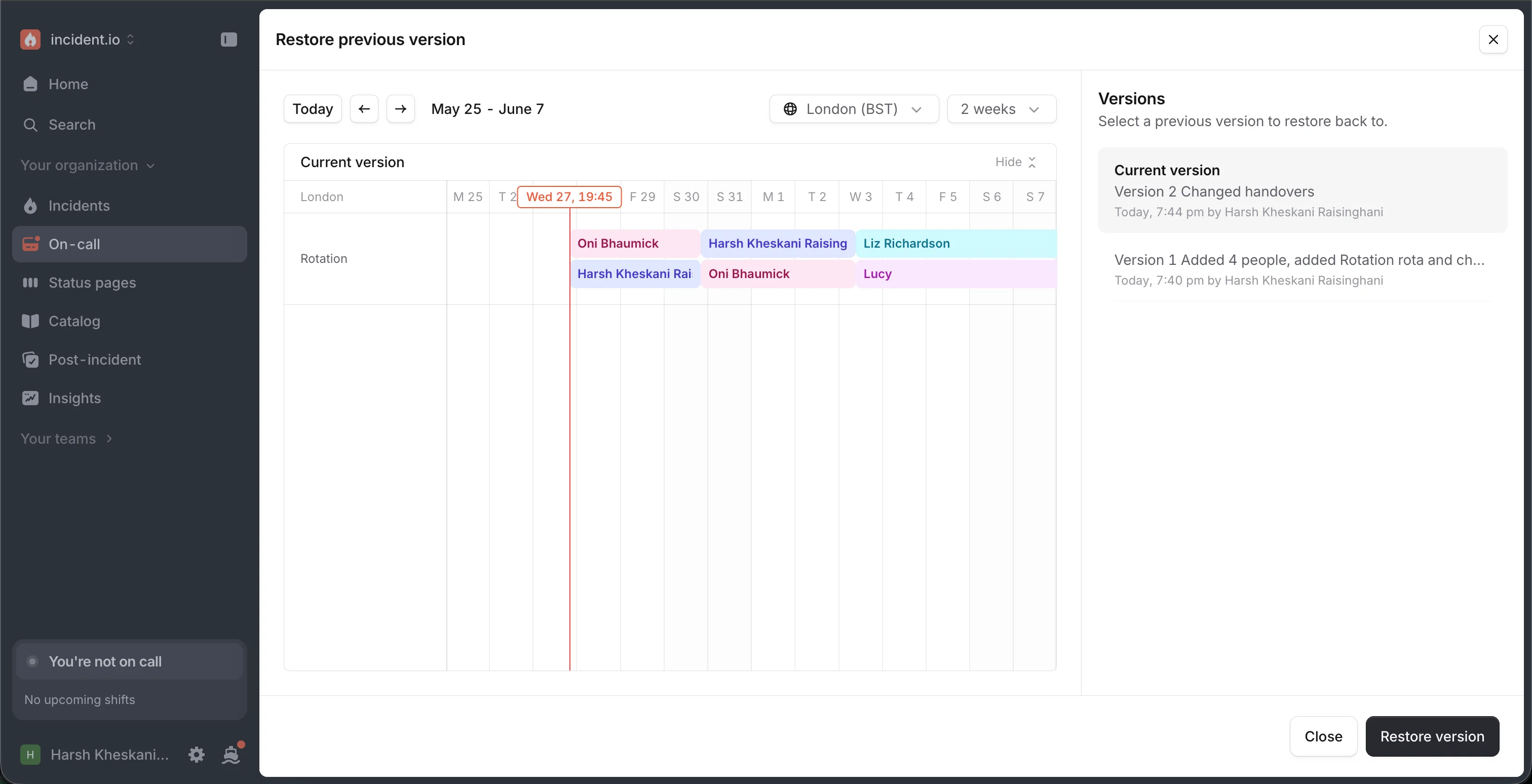
If you make a change to a schedule, and then find you need to restore to a previous version, then you can easily do so from the schedule’s drop down menu. You’ll be able to see a preview of the schedule with the version you’re restoring to.Restoring to a previous version will use the previous version’s config to determine what your schedule shifts look like going forward, but it won’t change historical shifts.
Overrides
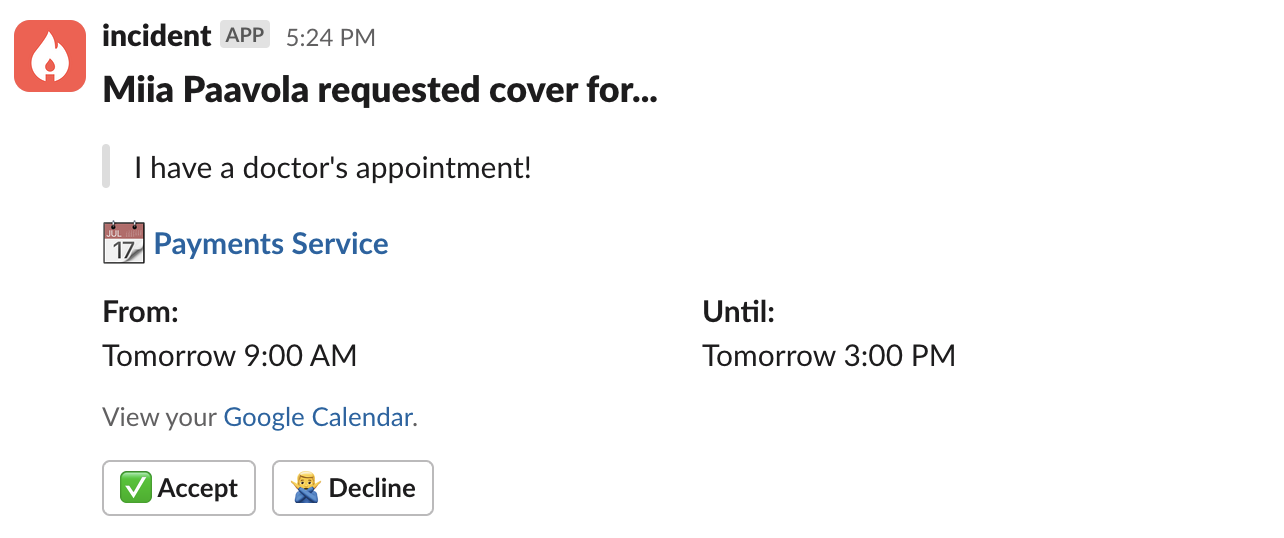
Sometimes your team member is heading on a holiday or might need to head to a doctor’s appointment. In Schedule overrides you don’t need to change your current schedule or rotations, but can create one time changes to suit any miscellaneous events that happen during the week.- To create an override, click ‘Add override’ and add details
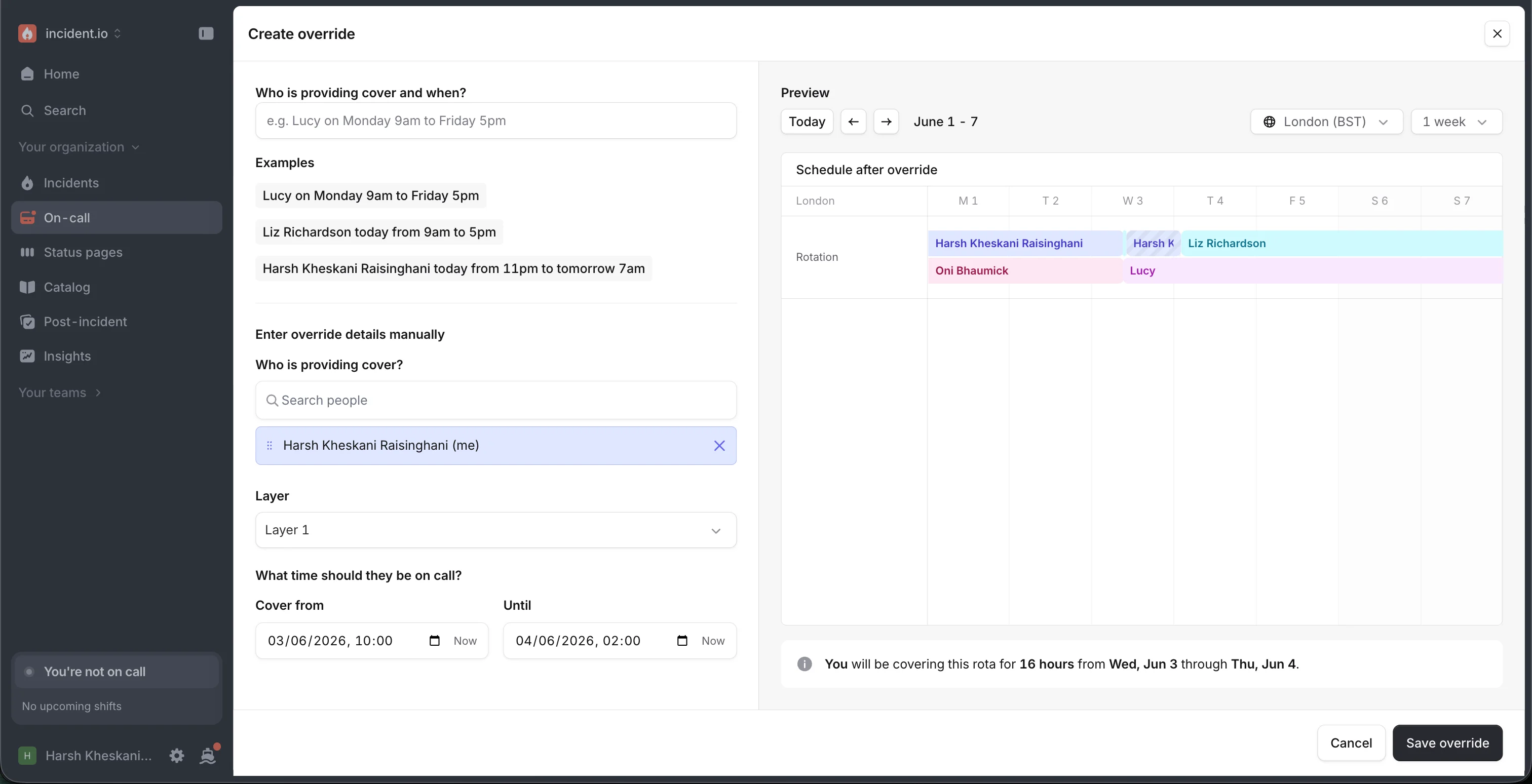
- After you have created the override, you can see and review it on the Schedule’s page and edit it if needed.
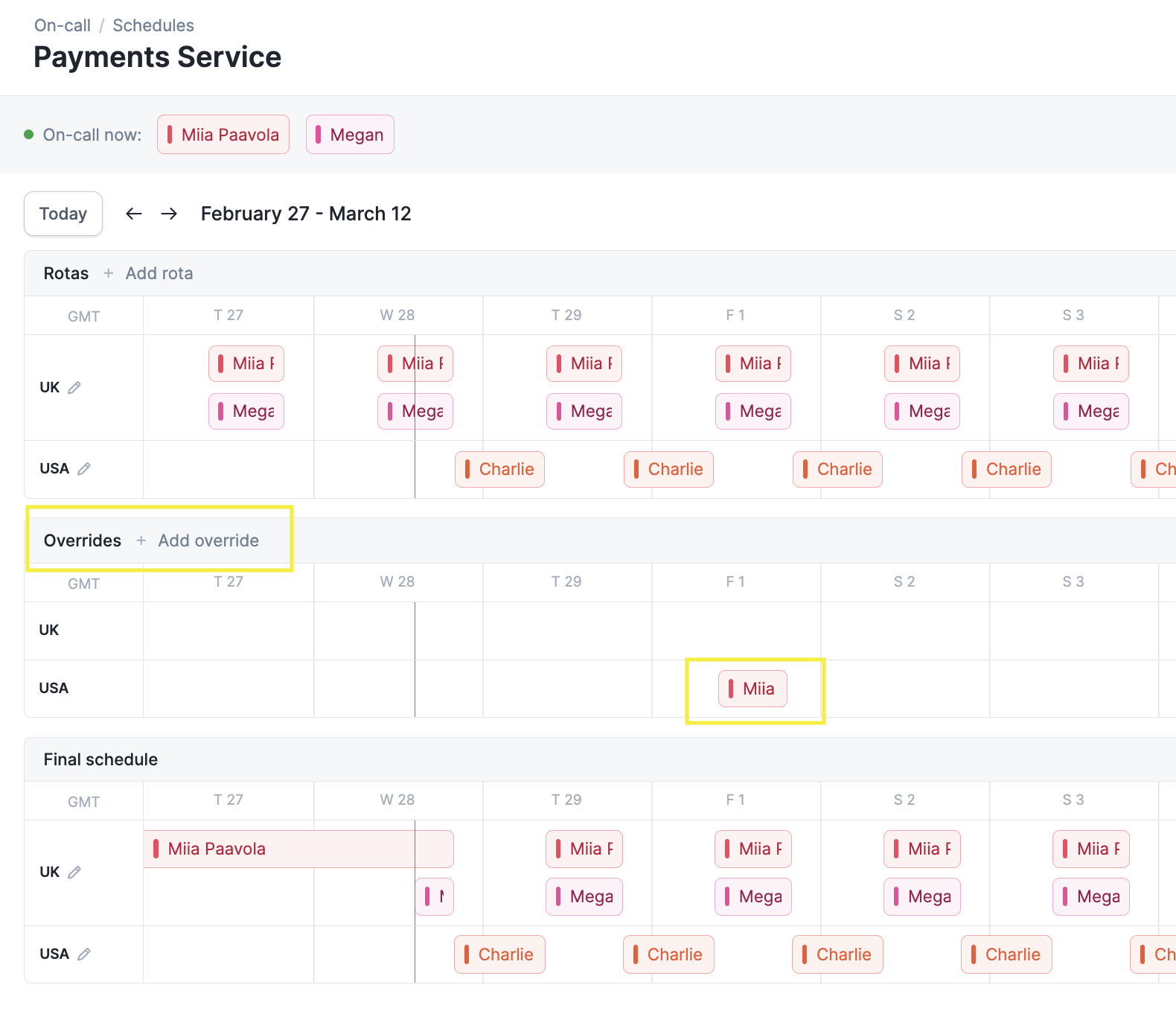
"NOBODY" as the user ID.
Cover me
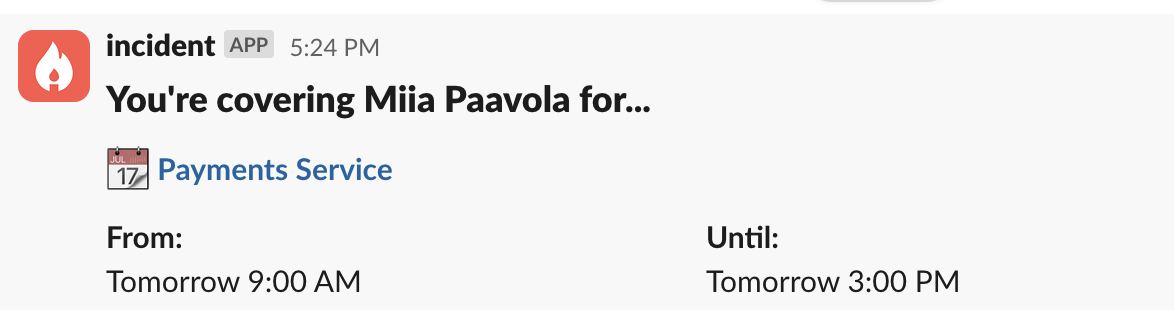
Cover me allows your team to ask for an override instead of just adding someone in.- Go to your #incidents channel in Slack and type
/inc cover me
- Choose your shift and choose the times you need cover for
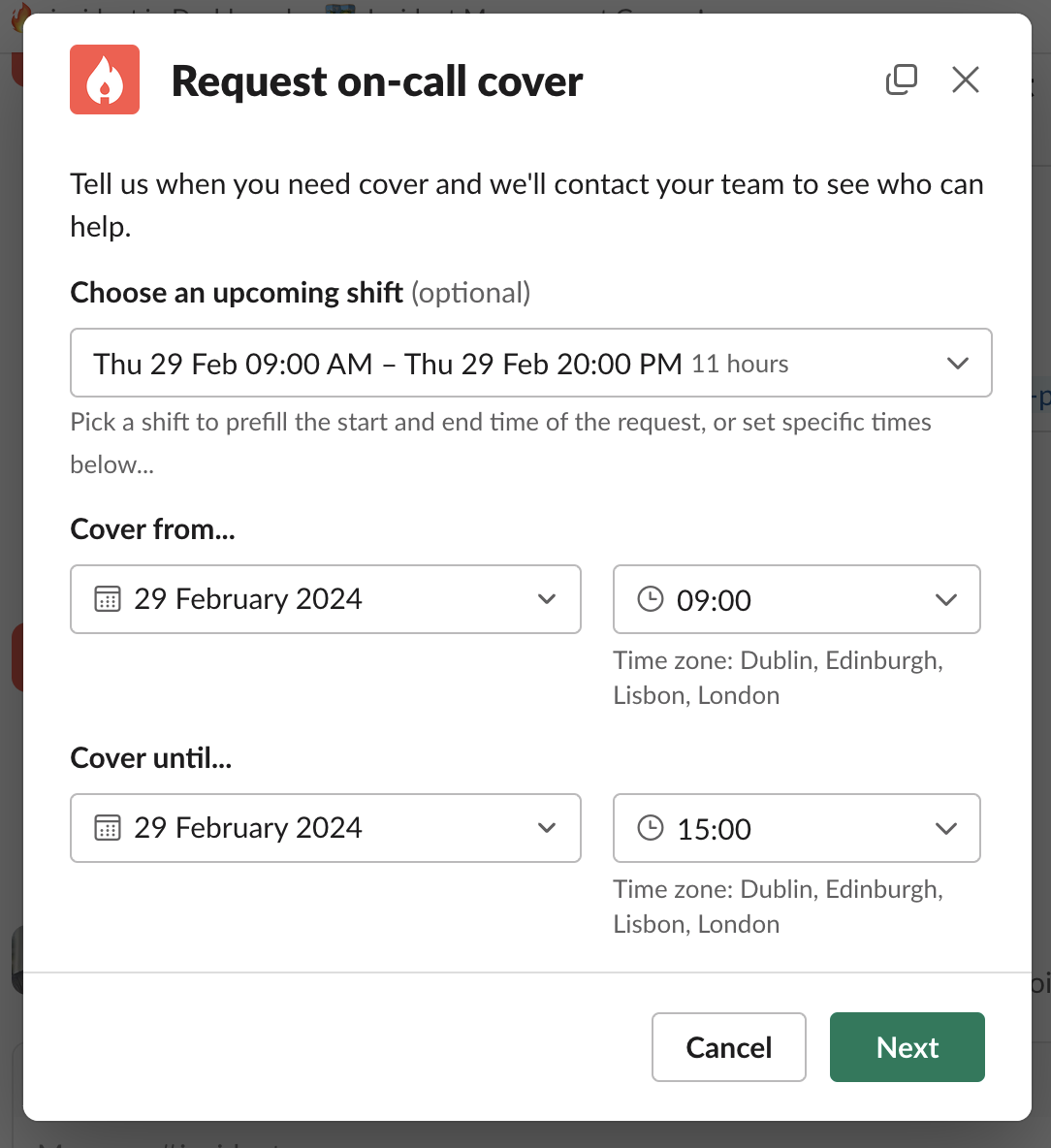
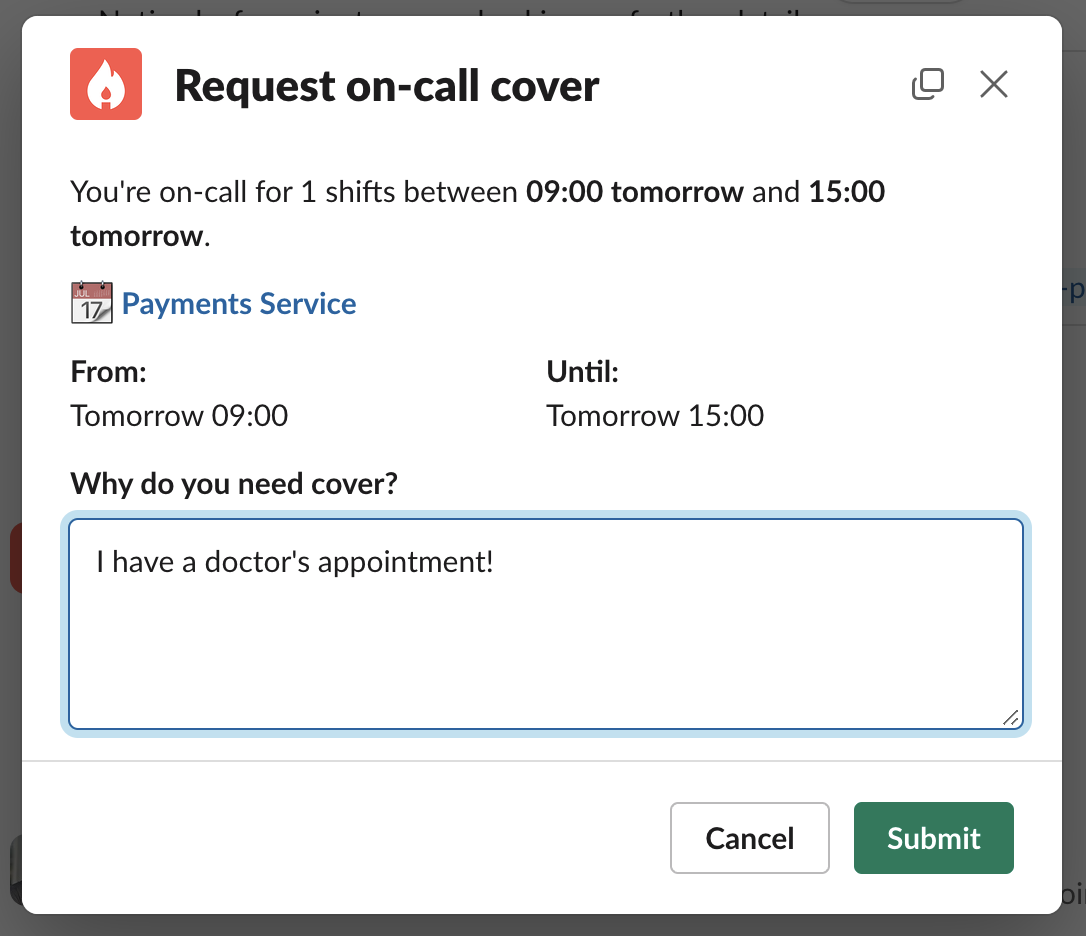
- Add more information and Submit!
Viewing multiple schedules
From the Schedules page, select View multiple to view up to 10 schedules at once. Your selection is saved in the URL, so you can bookmark the view to return to it later.Syncing shifts to a calendar
Select Sync calendar on the Schedules page to get a feed of your own shifts, or of everyone’s, and subscribe to it in Google Calendar, Outlook, or any other calendar app. See Sync on-call shifts to your calendar.FAQs
What happens when an on-call user on a schedule is deactivated or loses their on-call seat?
What happens when an on-call user on a schedule is deactivated or loses their on-call seat?
If you are a responder on the affected schedule with update permissions, or have previously edited it, you will receive a notification whenever someone on that schedule is deactivated (via Slack, Okta, or another provisioning service) or otherwise loses their on-call seat. You are then recommended to update the schedule to ensure you maintain on-call coverage.By default this notification is sent by email. Your organization can also opt in to receiving it as a Slack (or Microsoft Teams) direct message from Settings → On-call → Notifications.If an escalation reaches a deactivated user, we will automatically escalate to the next escalation level. If you run a schedule coverage policy, the gap left by the missing responder is flagged there too.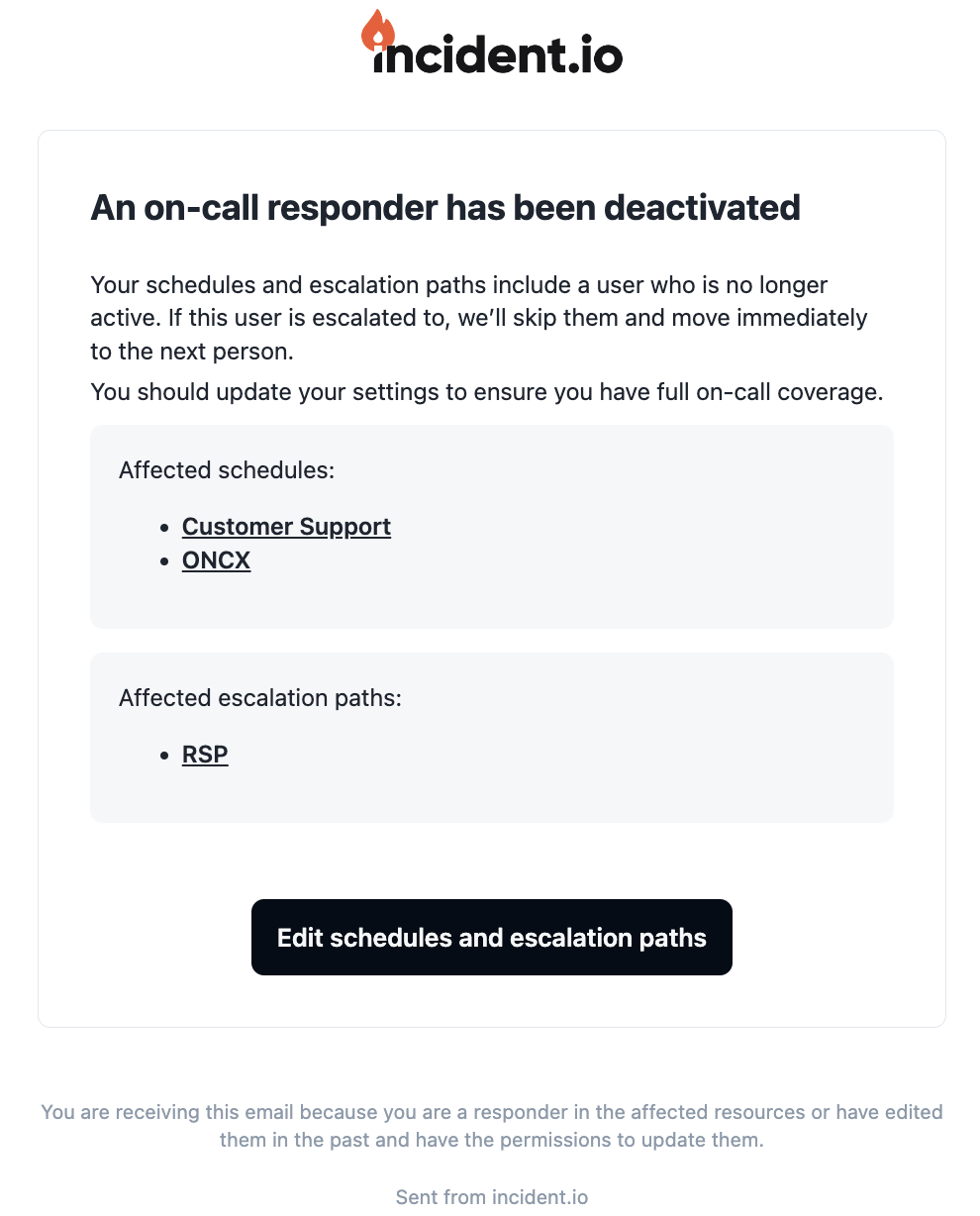
What happens when someone on a schedule pauses their notifications?
What happens when someone on a schedule pauses their notifications?
They keep their shifts, but escalations skip them until the pause ends. The pause shows on the schedule timeline, and a schedule coverage policy flags the paused time as a gap. See Pausing notifications.