

What is mirroring?
When migrating to incident.io on-call, you can import schedules and escalation policies from PagerDuty and Opsgenie to speed up your onboarding. In some cases though, you might be in the process of moving your alert configuration over to incident.io, and you still need to page via PagerDuty, which means you still need to keep your PagerDuty schedule up to date. To help with this, you can enable schedule mirroring in incident.io, which lets you manage a schedule and its overrides in incident.io, and have the changes be automatically reflected in one or more PagerDuty schedules.Does this affect how I’m paged in PagerDuty?
Mirroring is solely related to managing your PagerDuty schedule and mirroring alone will not change the way you get paged. It works by looking at your incident.io schedule whenever anything changes (e.g., you add or delete an override) and then comparing that with your PagerDuty schedule over the next two weeks. If it sees a difference in the two, it’ll create the relevant overrides in PagerDuty to keep that schedule up to date. That means, if someone were to make edits in PagerDuty, they’d be overwritten the next time anything changes on the incident.io schedule.Set up
To set up schedule mirroring, open your schedule in incident.io, click on the three dots in the top right corner, and choose “Mirror in PagerDuty”.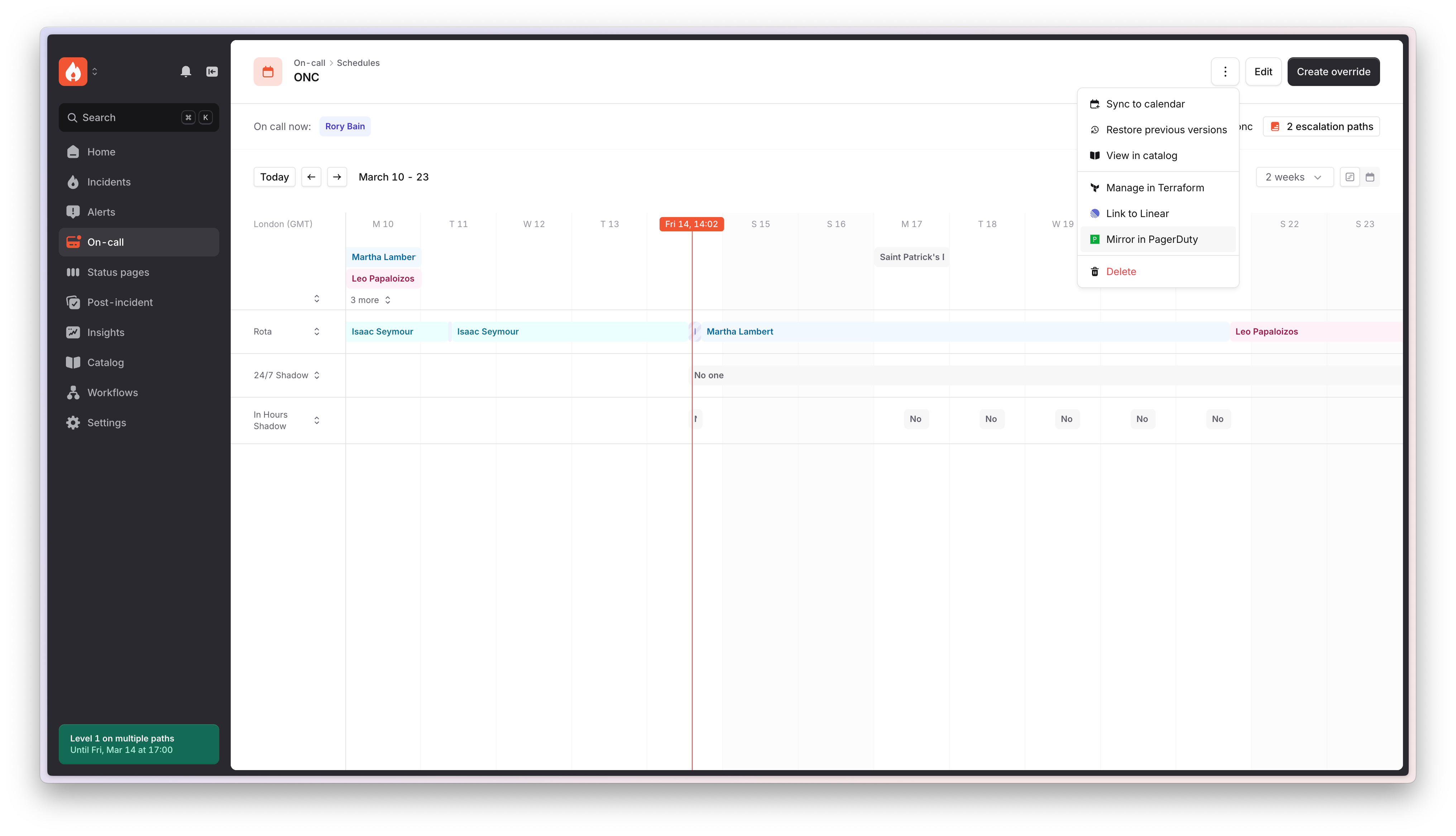
Other details
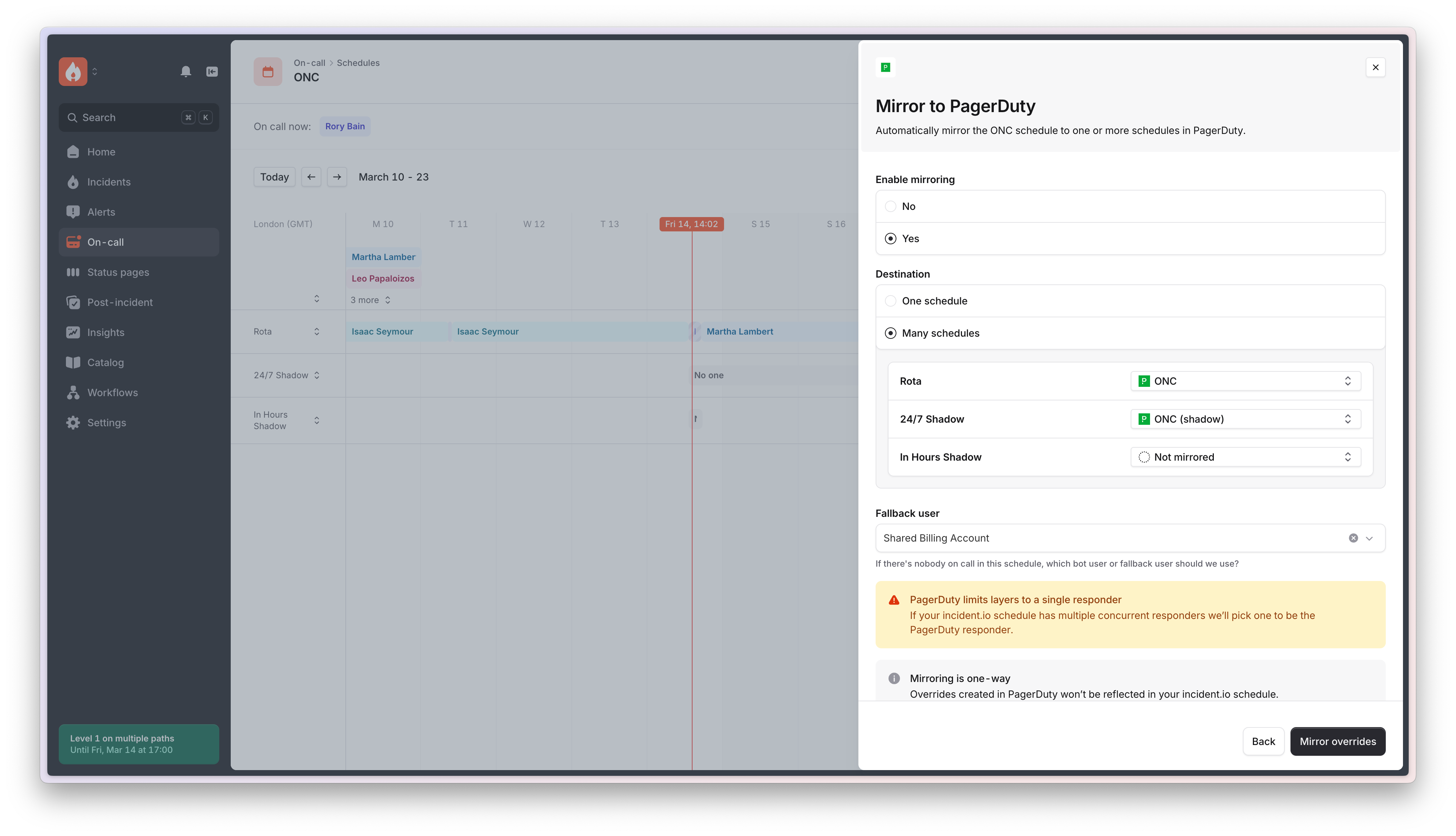
As PagerDuty does not support having multiple users on-call simultaneously, nor does it allow for placeholder shifts (where no one is on call), there are some important considerations: Fallback User You must designate a “fallback” user to be used by mirroring when there are gaps in your incident.io schedule or if you manually override to no user assigned to a shift. If gaps are not anticipated, you can select any user as the fallback. However, in cases where gaps might occur, it is common to create a “bot” user in PagerDuty to serve as a fallback user. Schedules with Many Rotations/Layers If your incident.io schedule involves multiple layers or overlapping rotations that point to the same PagerDuty schedule, incident.io will assign the first user listed in PagerDuty, as only one person can be on-call per schedule in PagerDuty. To address these limitations, organizations often create multiple PagerDuty schedules — one for primary rotation and another for “shadow” users. To accommodate this, incident.io allows a single schedule to map to multiple PagerDuty schedules. Simply select “Many Schedules” as your destination and configure the appropriate rotas for each PagerDuty schedule. Users Without Linked PagerDuty Accounts When installing the PagerDuty integration with incident.io, users from PagerDuty are automatically added to the Catalog, and accounts sharing the same email address in both platforms are linked. However, mismatches may occur due to different email addresses or missing user accounts in incident.io. If a mismatch exists during mirroring setup, a warning banner will notify you about unlinked users. To resolve this, create the user in PagerDuty if they do not exist, and explicitly link the relevant PagerDuty user in the Catalog. For further assistance, refer to the documentation. Sync Period incident.io syncs schedules only up to the next two weeks. This design limits API requests, as schedules are continuously updated in PagerDuty when changes occur in incident.io. Since PagerDuty rate limits apply per API key, this approach minimizes resource usage.Mirroring via the API
You can also manage schedule mirroring programmatically using the Schedule Replicas API. In the API, mirrors are called “schedule replicas”. A replica links an incident.io schedule (or specific rotations/layers within it) to an external schedule in PagerDuty or Opsgenie.Creating a replica
To mirror a schedule, send aPOST request to create a replica:
Listing and viewing replicas
To list all replicas for a schedule:last_synced_at and last_sync_error, as well as user_statuses showing how incident.io users have been mapped to external users.