

Looking for holidays and time off rather than shifts? That’s a separate feature. See Import holidays with calendar feeds.
Get a feed of your own shifts
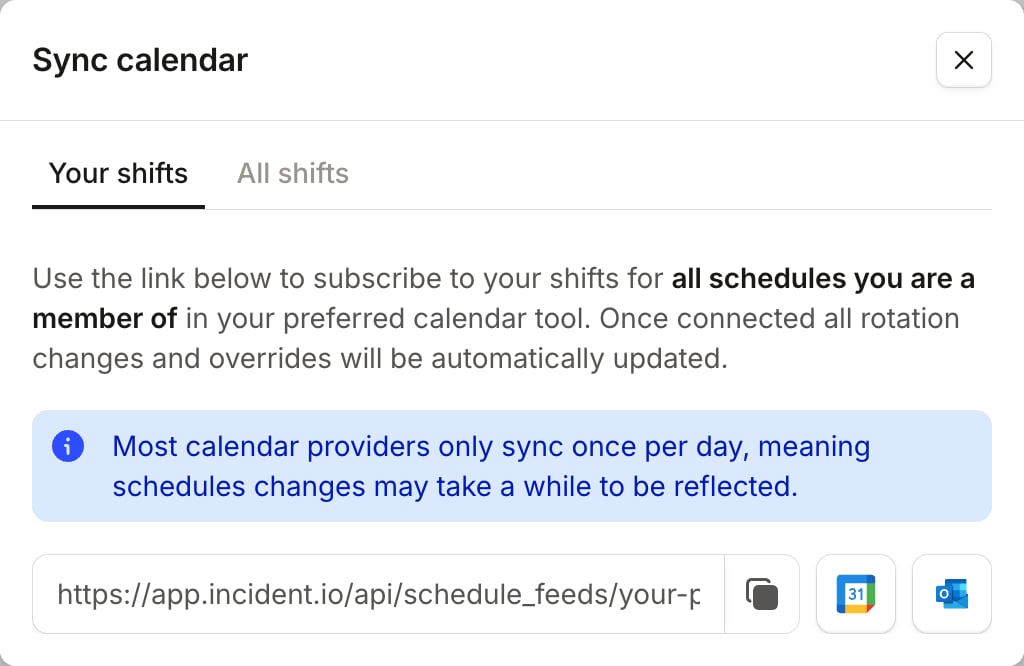
- Head to Schedules and click Sync calendar
- On the Your shifts tab, copy the feed URL, or use the Google Calendar or Outlook buttons to subscribe directly
Get a feed for a single schedule
To follow one schedule instead, open it and choose Sync to calendar from the … menu in the top right.Include everyone’s shifts
Both dialogs have an All shifts tab, which gives you a feed of the whole rotation rather than just your own shifts. Each event names the person on call, so this is the feed to use for a shared team calendar. On a single schedule, All shifts covers every shift on that schedule. From the Schedules list, it covers every shift on the schedules you’re a member of, not every schedule in your organization. To follow a schedule you’re not on, open that schedule and take its feed.Subscribe in Google Calendar or Outlook
Google Calendar: click the Google Calendar button in the dialog. Google Calendar opens with the feed ready to add, so you only need to confirm. Outlook: click the Outlook button to open Outlook’s Add calendar screen, then choose Subscribe from web and paste the feed URL. In any other app, add the URL as a new calendar subscription. Apps label this differently: Apple Calendar calls it New Calendar Subscription, and others use wording like “Subscribe from URL”.What’s in the feed
The feed covers a rolling window from one month ago to three months ahead, and moves forward as time passes. Shifts further out appear as the window reaches them, so use the schedule timeline in the dashboard to look further ahead. Each shift becomes one event:- Events are titled On-call for Primary, using the schedule’s name. On an All shifts feed they name the person too, as in Ed Amame on-call for Primary.
- When a schedule is running more than one rotation, we add the rotation’s name, as in On-call for Primary Shadow.
- The event description links back to the schedule in incident.io, and the event location is the schedule’s timezone.
- Back-to-back shifts for the same person merge into a single event, so a week of daily handovers doesn’t become seven events.
- Stretches where nobody is on call are left out.
FAQs
My shifts changed, so why doesn't my calendar show it?
My shifts changed, so why doesn't my calendar show it?
Most calendar apps only refresh a subscribed feed periodically, often around once a day, and you usually
can’t force them to refresh sooner. A new override or a rotation change can take a while to appear. The
feed itself is always current, so opening the feed URL in your browser shows you what your calendar app
will pick up next.