

Context
When creating on-call schedules, the timezone is set during creation. Users may want to change the timezone of an existing schedule, particularly when working with teams across different regions or after importing schedules from other platforms.Answer
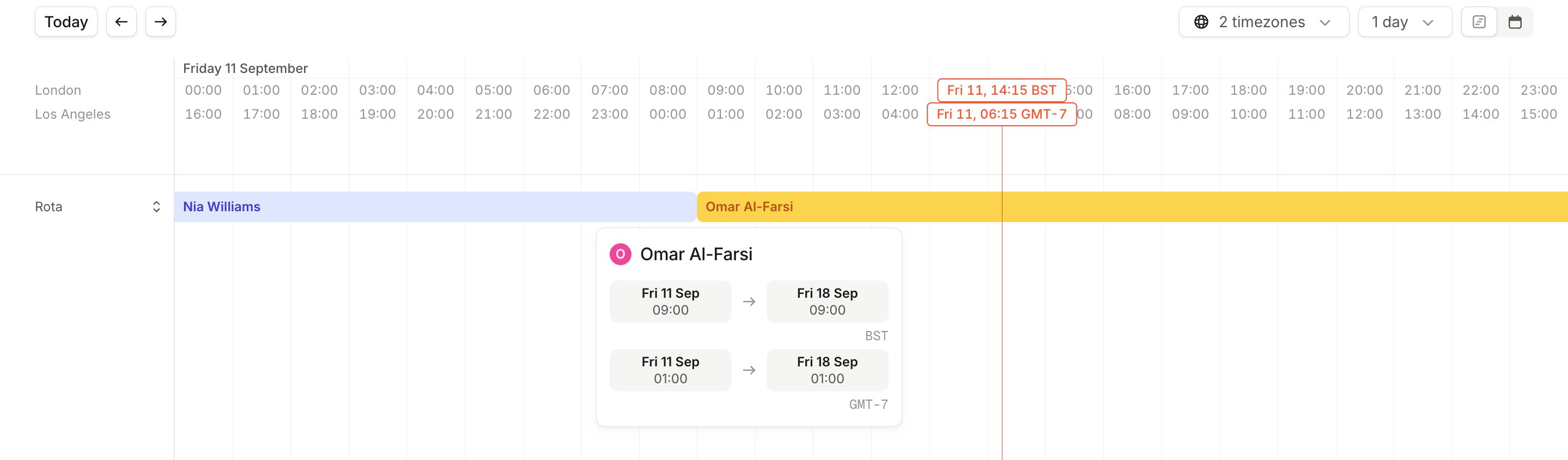
The timezone of an on-call schedule cannot be changed after creation. This is by design, as changing the timezone could affect existing schedules and rotations. If you need a schedule in a different timezone, you will need to create a new schedule with the desired timezone. However, there are several ways to work with different timezones in existing schedules:- Use the daily or 3-hour view to see multiple timezone conversions:
- Switch to the 3-hour or 1-day view of your schedule
- Click the timezone selector to add additional timezone conversions
- When creating overrides:
- The times will be shown in the schedule’s original timezone
- Use the click-and-drag feature in the calendar view to create overrides visually
- Refer to the timezone conversions in the daily view to confirm the correct times
Note: When viewing schedules, the system may display timezone abbreviations (like EST/EDT or PST/PDT) based on whether Daylight Saving Time is in effect. The schedule’s base timezone remains unchanged.