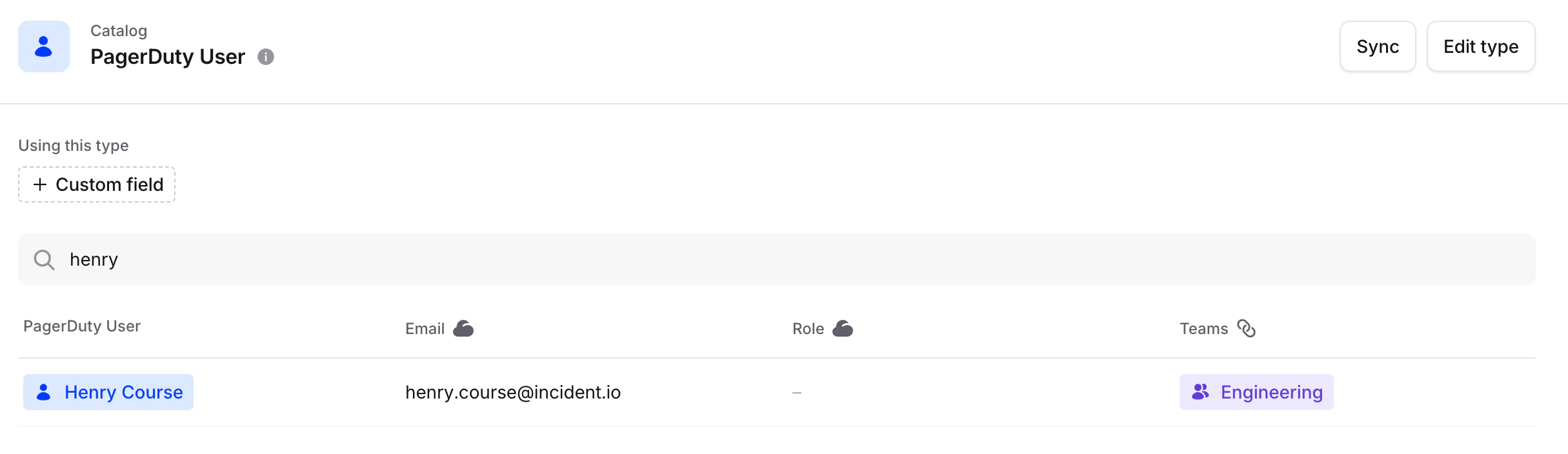
Users of incident.io — your incident responders — are core to the incident management process. Those responders likely have accounts across many daily-use services, including services that you can (and should!) integrate with incident.io, like PagerDuty, Sentry, Linear and more. Connecting third-party users to incident.io lets you build powerful integrations that just work with your existing tools - link Sentry users to identify the relevant people when you receive a Sentry alert and then notify them via Slack. The more you connect, the more you can do. In most cases, when you connect a new integration, these external users will be added to Catalog and where we can, we’ll link them to the relevant incident.io user via a catalog attribute. To see this in action, navigate to the catalog type for an external user type (e.g. PagerDuty User) and click on any of the entries to see information about the external user, and the incident.io user that they’re connected to.Documentation Index
Fetch the complete documentation index at: https://docs.incident.io/llms.txt
Use this file to discover all available pages before exploring further.

FAQs
What's the difference between Catalog Users and Settings Users?
These two areas of the product serve different purposes:
- Settings → Users is where you manage people who can sign in to incident.io and their permissions. You add users via Slack, SAML/SCIM, or manual invite, and assign roles (Standard, Admin, or Owner) along with any custom roles for access control. See User management and User permissions for more.
- Catalog → User is a catalog record that represents a person and can be linked to their accounts in other tools (e.g. Slack, Jira, GitHub, Notion, Salesforce). It’s used to connect and reference external identities — you can manage these links via Connected accounts on the User catalog entry. See Migrating teams and users for more.