

This page is about bringing holidays into incident.io. To send your on-call shifts the other way, out to Google Calendar or Outlook, see Sync on-call shifts to your calendar.
Add a calendar feed
To get started, you’ll need a URL for the calendar feed that contains your team’s holidays. We provide tips on how some popular systems let you set up calendar feed subscriptions below.You’ll need the Manage vacation user feeds permission to add or edit calendar feeds.
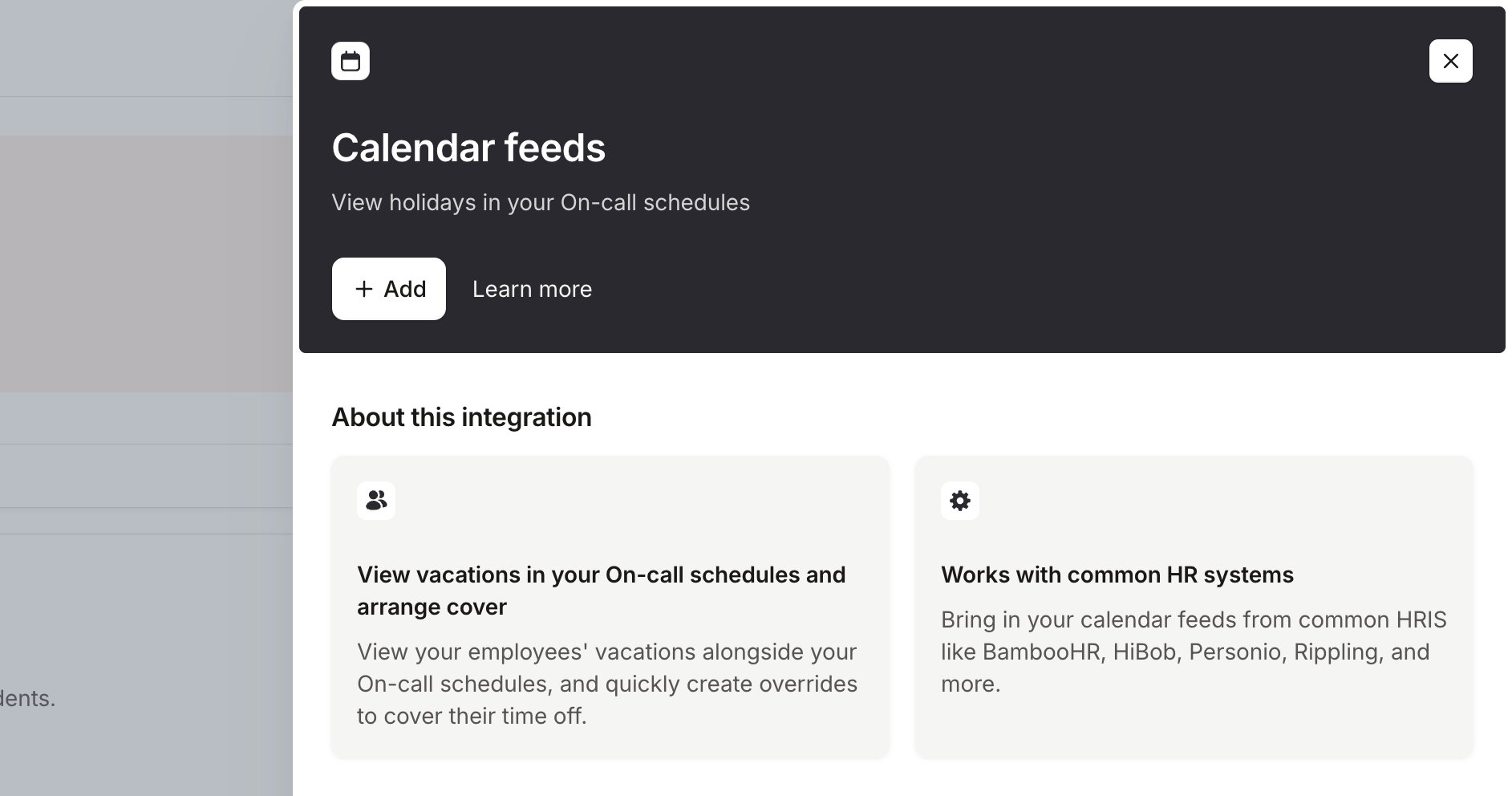
- Head to Settings > Integrations and select Calendar feeds
- Click + Add and enter the URL of the calendar feed you’ve generated in your HRIS or calendar system, and a name for the feed.
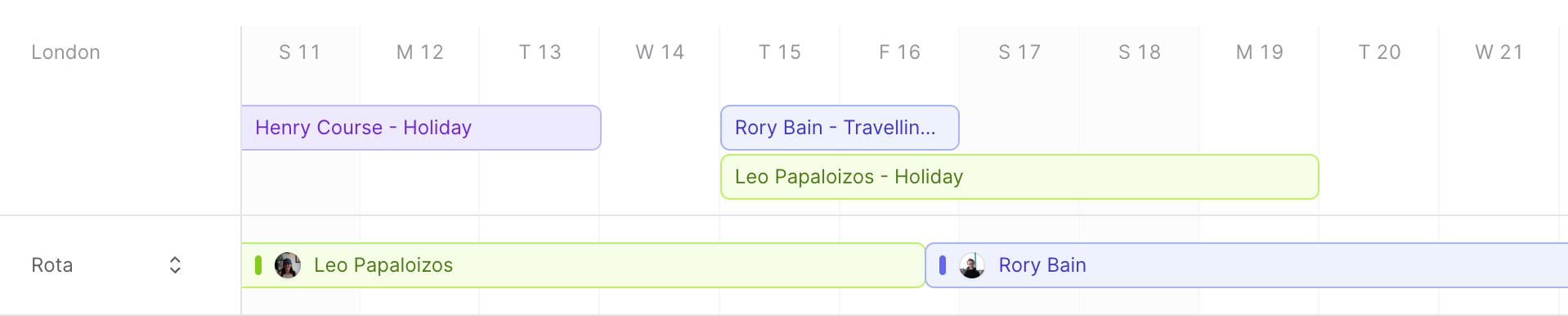
- That’s it. Your calendar feed is parsed and ready to be used within schedules! If we find a holiday that matches a responder on your schedule, we’ll surface that event in the timeline view.
Getting a calendar feed URL
To help you get set up, we’ve detailed how to get a calendar feed URL from some popular systems below.BambooHR
- See Connect BambooHR for how to import time-off via a calendar feed
CharlieHR
- Follow the steps in this help article to get a calendar feed URL
- Follow the steps above to use this calendar feed in incident.io!
HiBob
- See Connect HiBob for how to import time-off via a calendar feed
Personio
- Follow the steps in this help article to get a calendar feed URL
- Follow the steps above to use this calendar feed in incident.io!
Rippling
- Follow the steps in this video tutorial to get a calendar feed URL
- Replace the webcal:// protocol with the https:// protocol in the URL
- Follow the steps above to use this calendar feed in incident.io!
Google Calendar
- If you have a custom calendar in Google Calendar, you can also bring it in!
- In the sidebar, hover over the calendar you care about and open its options menu
- Select Settings
- At the bottom of the page, in the Integrate calendar section copy the URL shown under Public address in ical format - note that you might need to configure this calendar to be public for this to appear.
- Follow the steps above to use this calendar feed in incident.io!
Other systems may support calendar feeds, as we don’t have access to all their documentation. If you use a system which isn’t listed here, and are successful with this feature, please let us know! We’d love to know how you end up using it.