

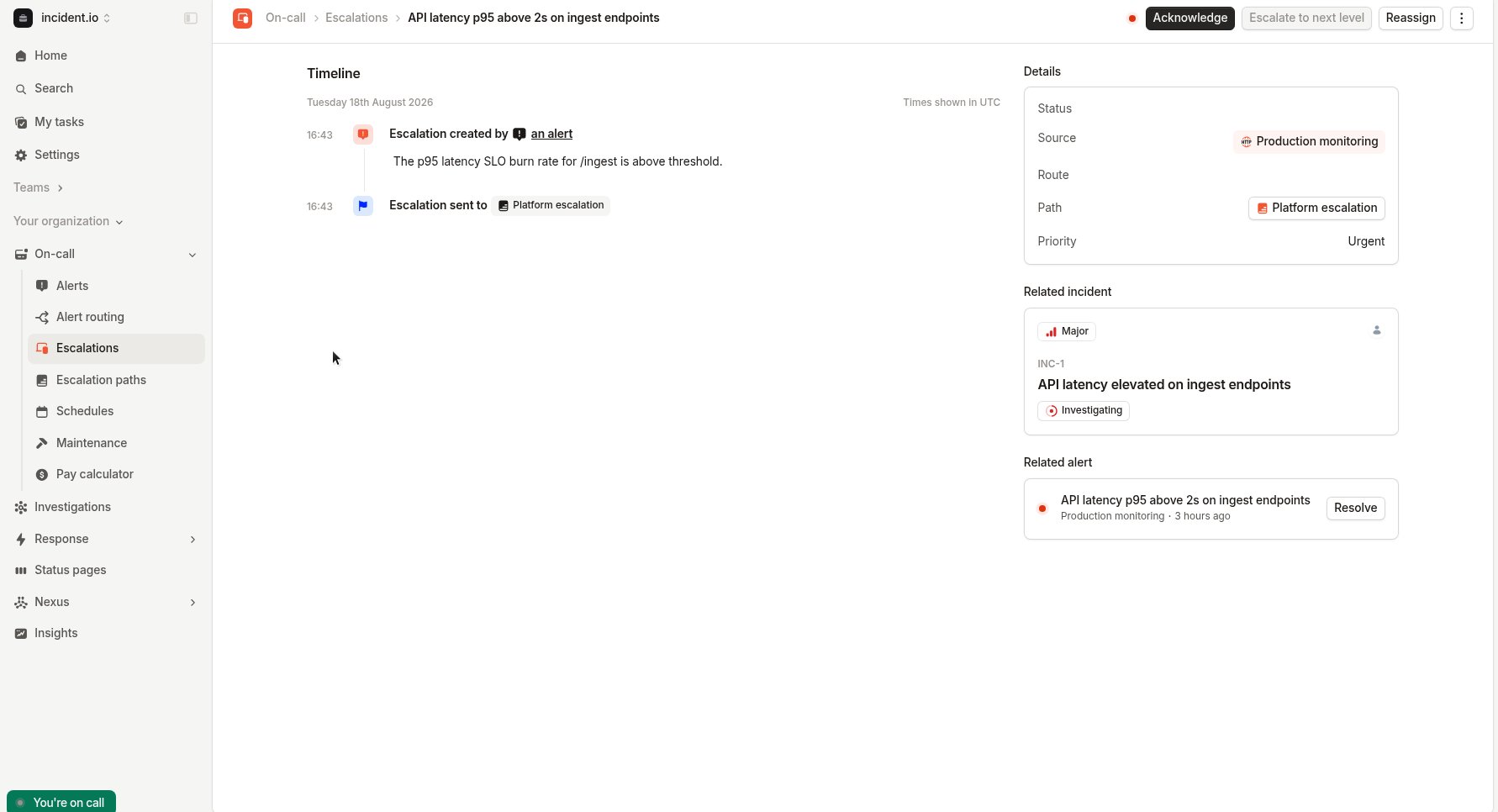
Reassign from the dashboard
- Open the escalation
- Click Reassign
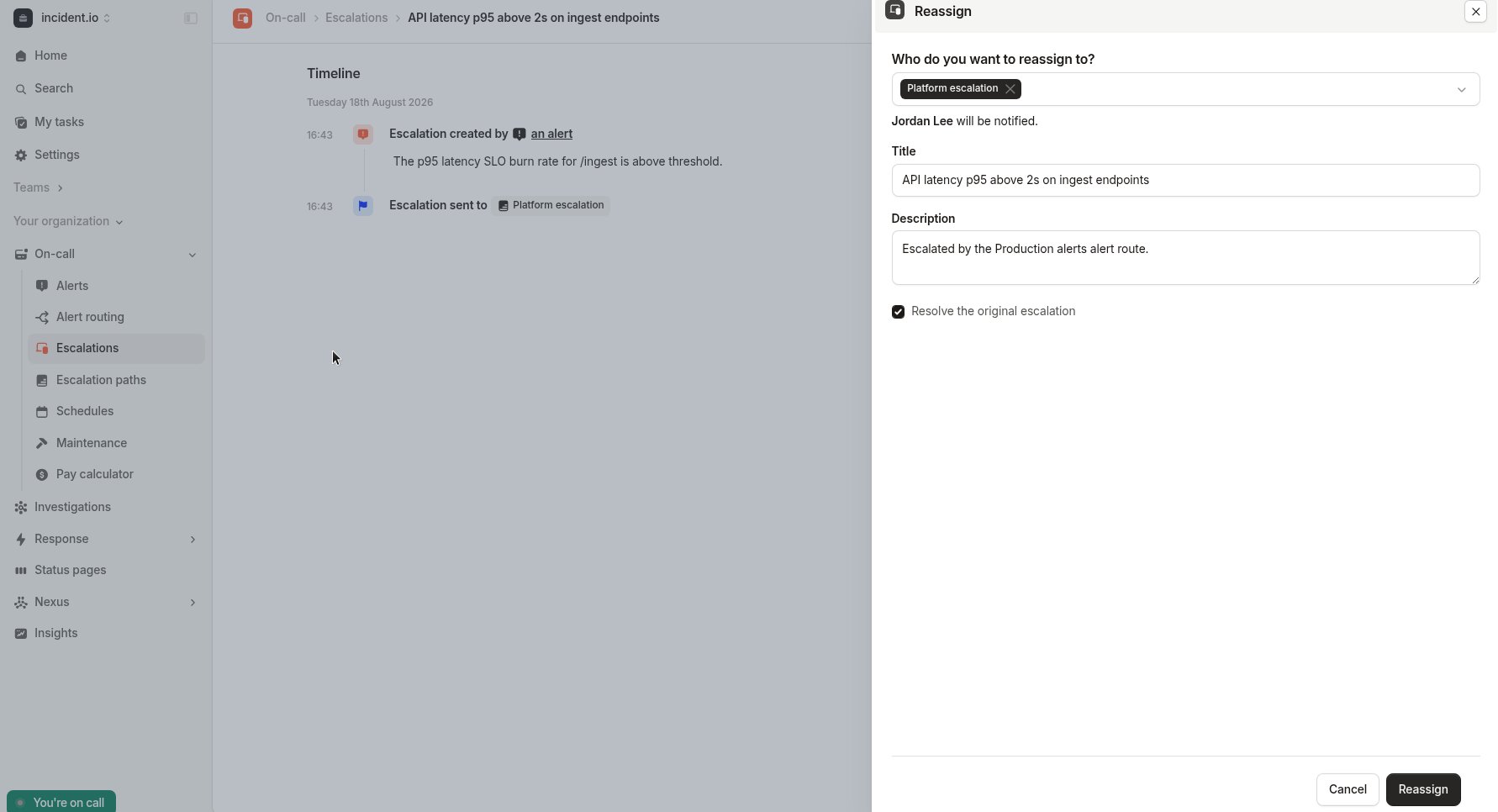
- Choose who to page (escalation path, users, or a Catalog entry)
- Optionally edit the title or description
- Choose whether to Resolve the original escalation (on by default)
- Click Reassign
Reassign from Slack
On the escalation message, click Reassign, fill in the modal, and submit. The original message updates to show where it was reassigned, and the Reassign button is removed.Reassign from Microsoft Teams
Reassign opens the dashboard form (Teams has no in-chat modal). Complete it there, then return to Teams.Reassign with the API
UsePOST /v2/escalations/{escalation_id}/actions/reassign to reassign from your own tooling, so a page follows a change you make somewhere else. Teams who treat a ticketing system as their source of truth use this to move the page when the ticket moves.
Pass either escalation_path_id or user_ids, not both:
resolve_originaldefaults totrue, so the original stops paging. Passfalseto leave it running alongside the new one.- The reassignment is attributed to the API key. To attribute it to one of your users instead, set the
X-Incident-Userheader, which needs the Act on behalf of users permission. - Reassigning again is rejected, because an escalation can only be reassigned once. Keep the ID from the first response: a retry won’t return it, though it also won’t page anyone twice.
Rules
- An escalation can only be reassigned once. To redirect again, reassign from the new escalation or create a manual escalation.
- You can reassign to incident.io escalation paths, users, or Catalog entries that resolve to those. You cannot reassign to external providers (PagerDuty, Opsgenie, etc.).
- Reassigning requires permission to create escalations. See team-based permissions if your organization restricts this by team. Where those restrictions apply, you can only reassign an escalation one of your teams owns, and only to an escalation path one of them owns. Reassigning straight to people needs the permission at the account level, because a page aimed at a person has no owning team.
- To reassign to a Catalog entry, your organization needs an escalate form configured (Settings → Forms → Escalate). Escalation paths and users don’t need one.
Reassigning is different from Escalate to next level, which advances the same escalation to the next tier in its
existing path.