

Grant the permission to a team role
At Settings → Permissions → Team-level, create or edit a team role and select Take actions on alerts and escalations. Assign it to the people on each team who should act on that team’s alerts and escalations.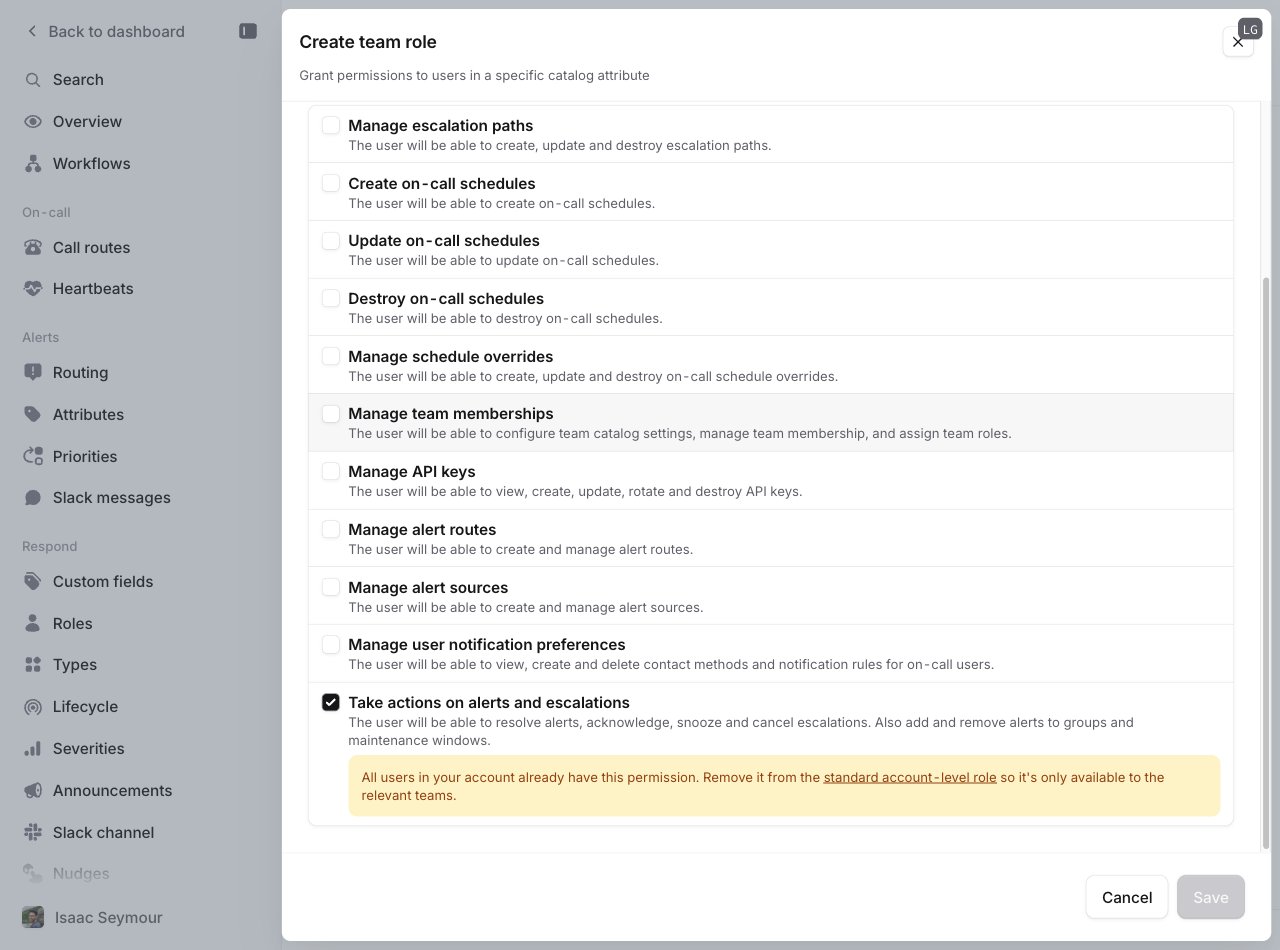
Granting 'Take actions on alerts and escalations' to a team role. The warning is expected here: the permission is still granted to everyone via the Standard role, which you'll fix next.
Remove it from the Standard role
This permission is in the Standard role by default, so until you remove it there everyone still holds it account-wide and the restriction has no effect. At Settings → Permissions → Account-level, edit Standard and uncheck Take actions on alerts and escalations.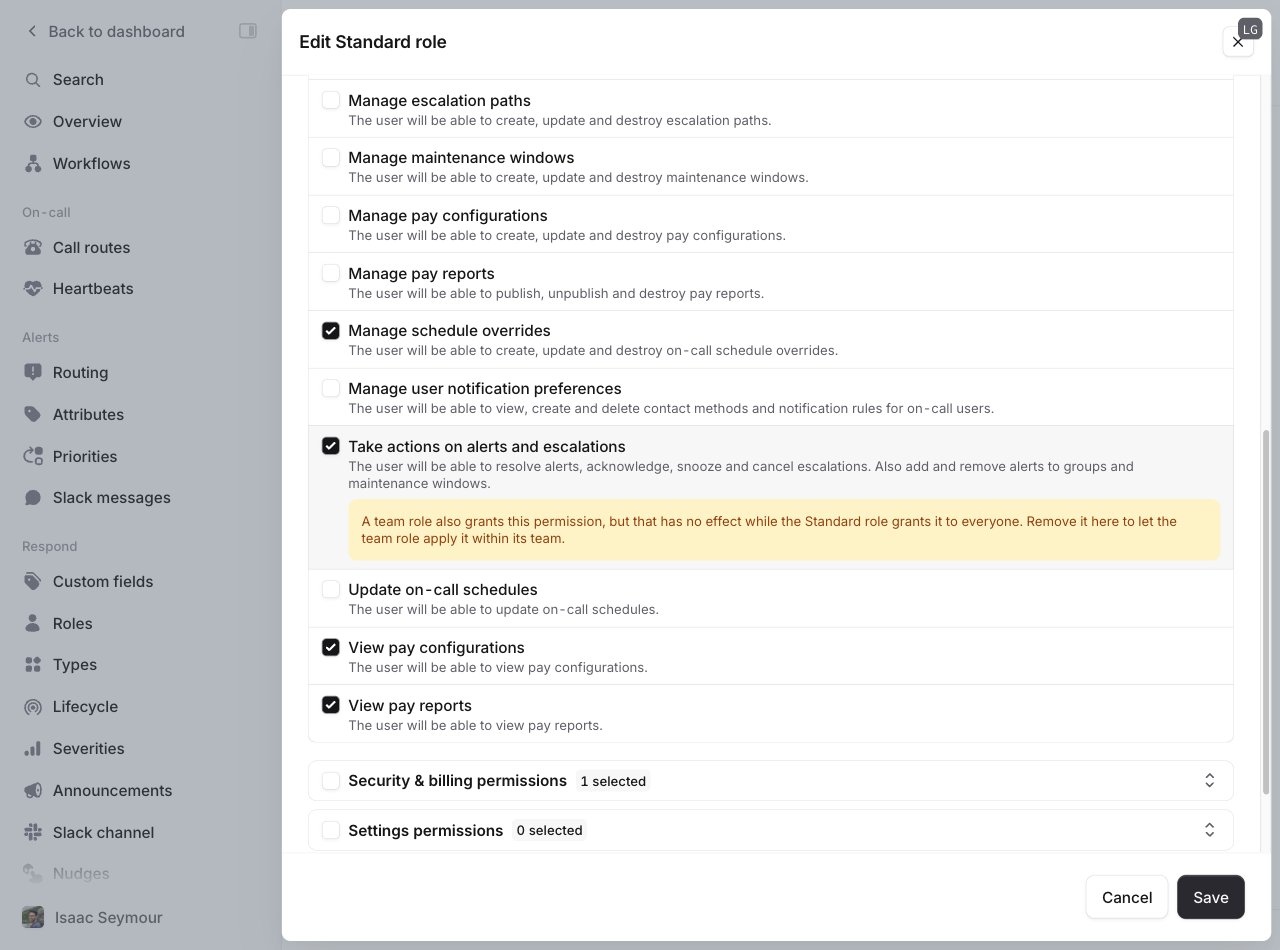
Removing 'Take actions on alerts and escalations' from the Standard role
Check it’s working
Someone who isn’t on the owning team will see the resolve and acknowledge buttons disabled, with a tooltip explaining why. Members of the owning team, and anyone paged by the escalation, can act as normal.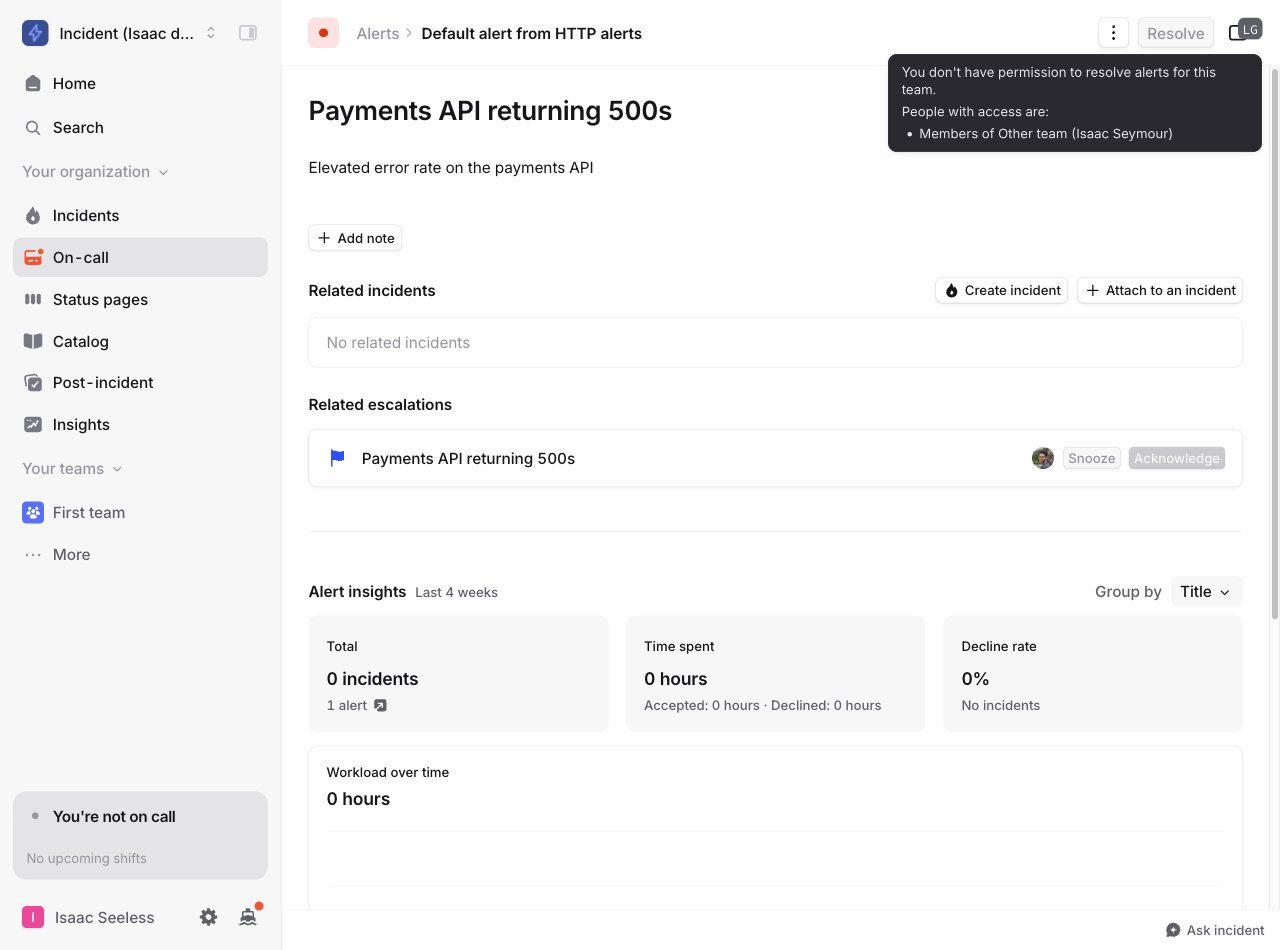
The resolve button disabled for someone outside the owning team
FAQs
What happens to alerts without a Team attribute?
What happens to alerts without a Team attribute?
They have no owning team, so once you’ve restricted the permission, only people who hold it account-wide (such as an
admin) can act on them. If you want a team to handle these alerts, make sure the alert source extracts a Team
attribute. See Alerts and teams.
Can someone who was paged still acknowledge an escalation if they're not on the owning team?
Can someone who was paged still acknowledge an escalation if they're not on the owning team?
Yes. Anyone notified by an escalation can always acknowledge or snooze it, regardless of team membership. This makes
sure a misrouted page can never reach someone who then can’t silence it.
What about manual escalations, which don't come from an alert?
What about manual escalations, which don't come from an alert?
Ownership falls back to the escalation path the escalation was sent to. It can be responded to by anyone who was
paged, anyone who holds the permission account-wide, and members of the team that owns that escalation path.
Does this stop alerts from being auto-resolved?
Does this stop alerts from being auto-resolved?
No. Alerts are still auto-resolved as normal, regardless of who triggers it. These permissions only govern people
resolving alerts directly.
Can admins still resolve any alert?
Can admins still resolve any alert?
Yes. Anyone who holds the permission account-wide can act on any alert or escalation. This is useful for keeping a
small set of administrators who can step in across teams.