

How it works
When an escalation reaches a Reassign step:- The current escalation stops, with a status of Expired, because nobody acknowledged it.
- A new escalation starts on the target path, from its first step.
- The two are linked, so you can move between them from either one.
Add a Reassign step
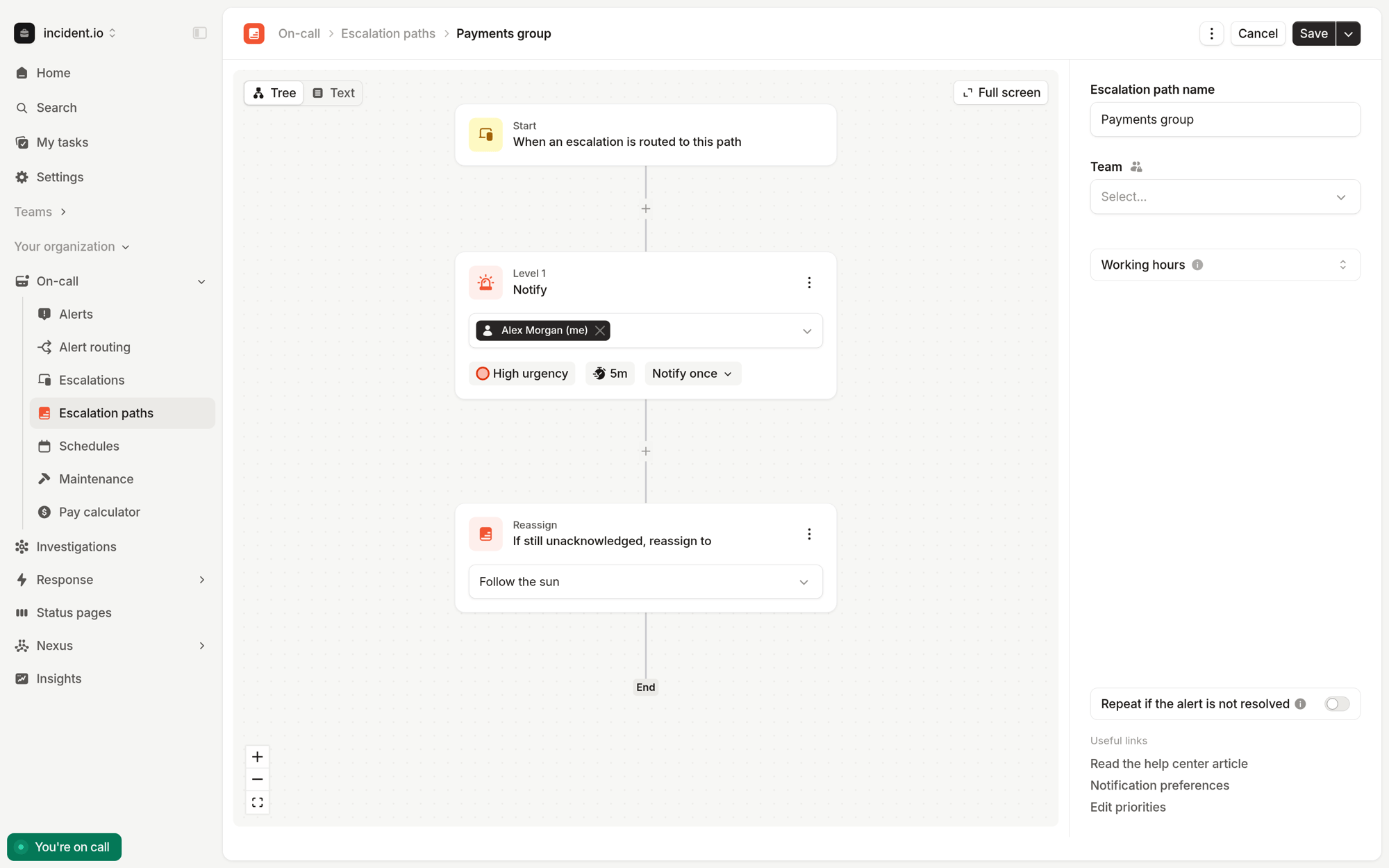
- Open an escalation path and click the + icon at the end of the path, or at the end of a branch.
- Select Reassign to another path.
- Choose the escalation path to reassign to.
- Save the escalation path.
Following a reassignment
The escalation timeline names the target path and links to the new escalation, and the new escalation links back.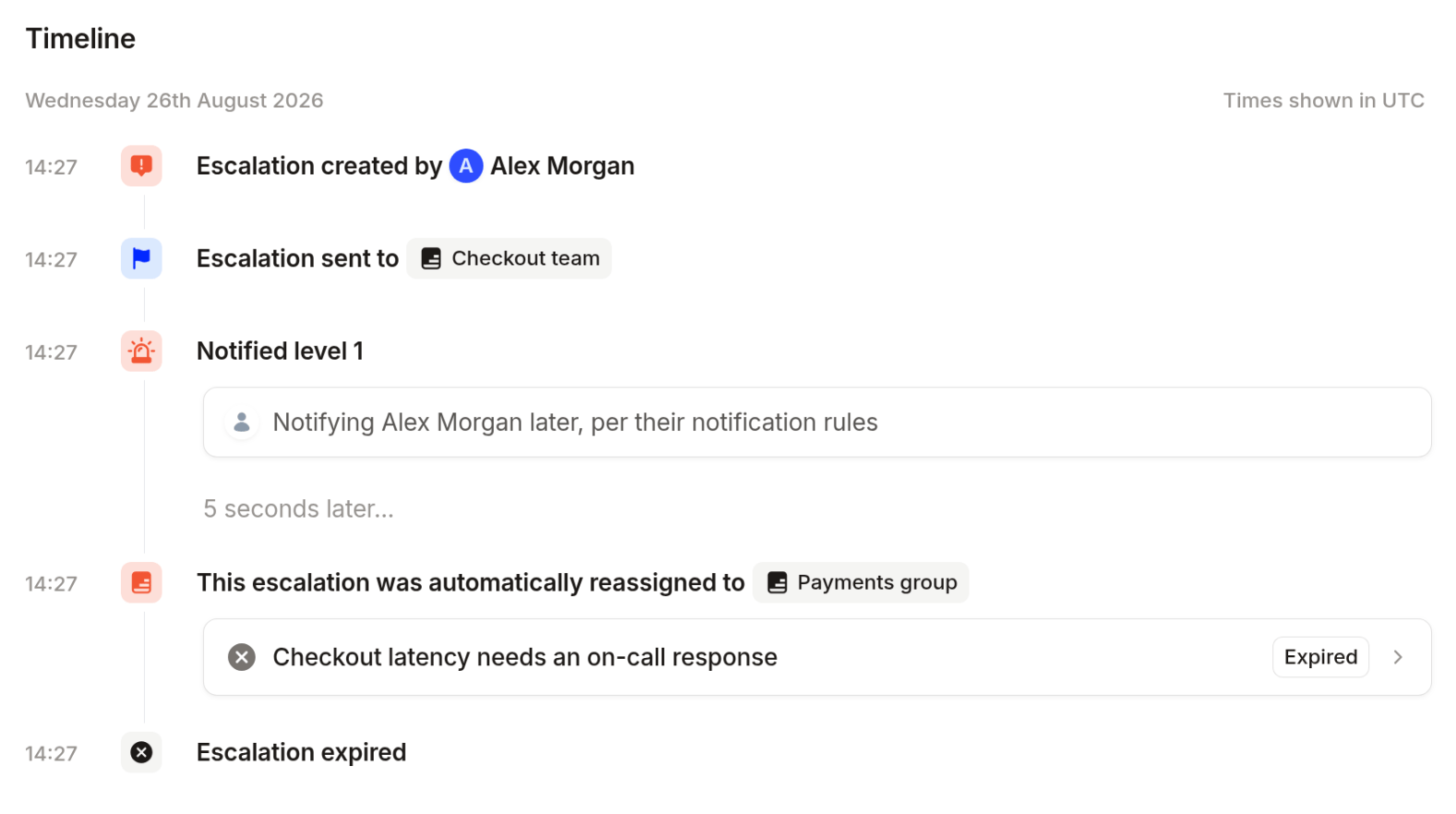

Limits
- There can be no more than 10 consecutive reassignments from the first escalation path. Escalation path configuration that results in more than 10 reassignments is permitted at save time, but escalations will ignore further reassignments and expire after 10 reassignments have occurred.
- You can’t archive an escalation path while another path still reassigns to it.
Reassigning manually
You can also reassign a live escalation manually. That resolves the original escalation rather than expiring it, and it happens because someone chose to, not because the path was built that way. See Reassigning escalations and escalation statuses.FAQs
Can one path reassign to several paths?
Can one path reassign to several paths?
Not from a single step. Branch on priority or working hours first, then add a Reassign step to the end of each
branch.