

Background
There is a lot of terminology used in the on-call space that can have different meanings depending on the paging provider you use. In this help article we aim to clarify what alerts and escalations, common on-call terms, mean in the world of incident.io On-call.Alerts vs. escalations
Most importantly, alerts and escalations are different things! Within incident.io On-call, an alert is an event or issue that can trigger an escalation. An example scenario: An event (alert) fires from Datadog (alert source) and pages (escalation) the person on-call.Alerts
An alert will include details about the event or issue, including:- Alert source (e.g. Datadog, Sentry)
- Alert attributes (e.g. team, feature)
- Timestamps
- Deduplication keys
- Status (see more details below)
- and more
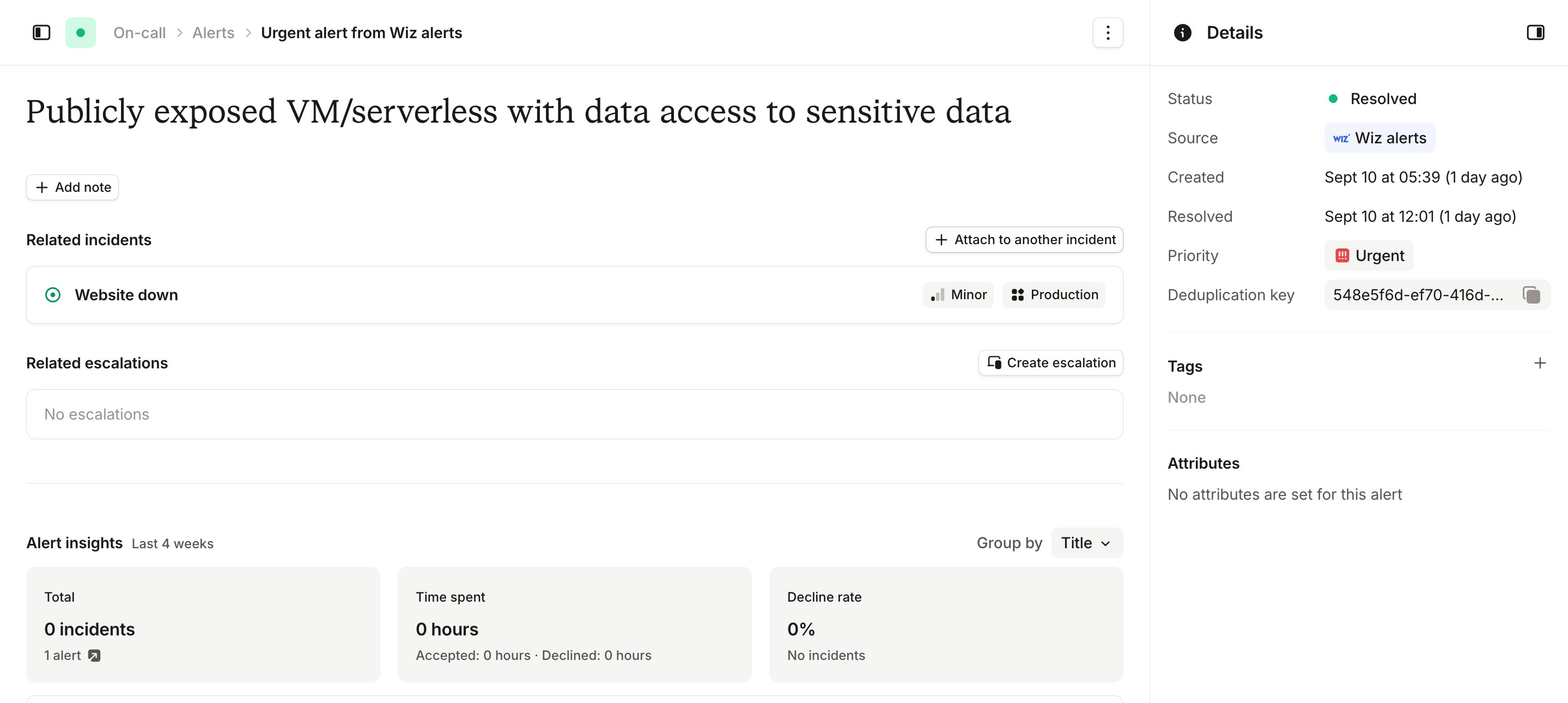
Example alert
Firing- This means there is an event or issue that is currently ongoing and needs to be addressed.Resolved- This means the event or issue no longer exists, or that the alert has been addressed. An alert can be resolved automatically from the alert source or manually in our dashboard or mobile app.
Escalations
An escalation will include information about who was paged. An escalation could be created automatically from an alert or from a manual escalation (ie./inc escalate or /inc page). Escalation information can include:
- Who was paged / notified
- How users were paged / notified (e.g. email, mobile app, Slack, SMS, WhatsApp, phone)
- Alert source
- Alert route
- Escalation path
- Timestamps
- Statuses (see more details below)
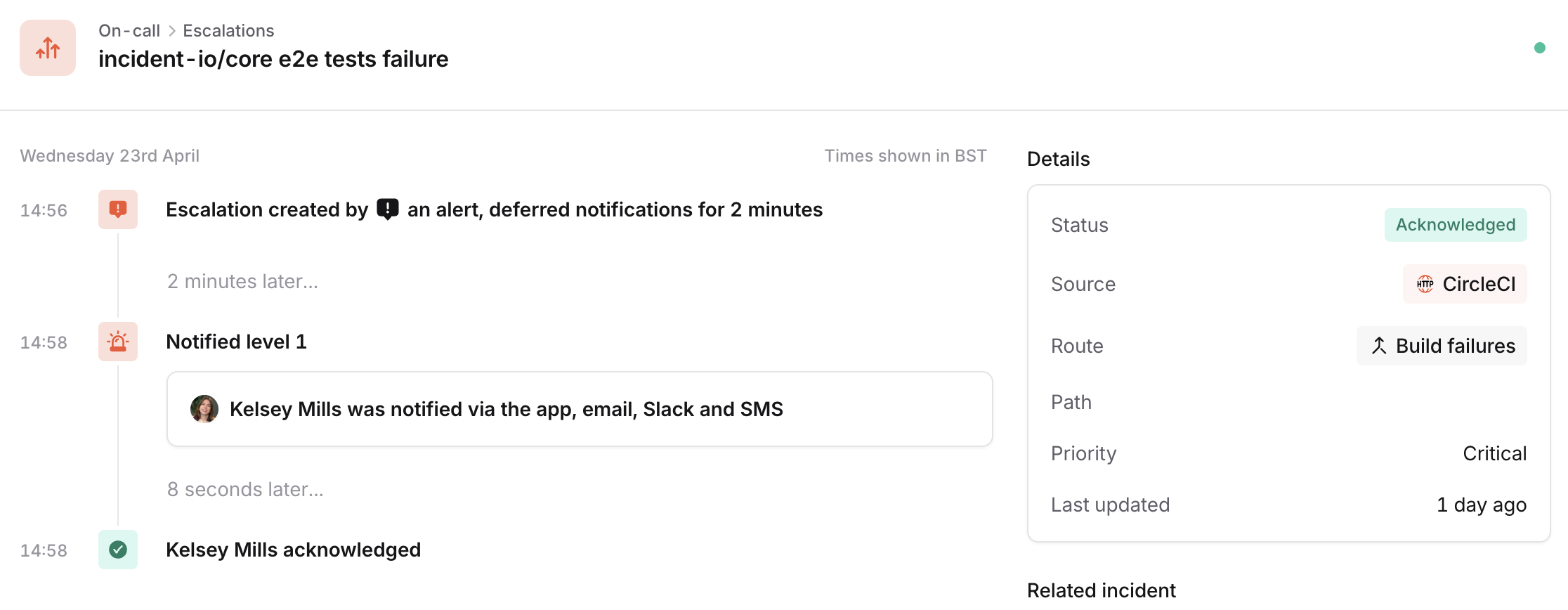
Example escalation
- An escalation can be any of the following statuses:
Pending- This is the state before an escalation has started notifying anyone. You can configure an escalation to wait before paging peopleTriggered- This is when an escalation is actively triggered, is actively moving through levels, and is not yet acknowledgedAcknowledged- An escalation has been ack’d by someone on the escalation path. Acknowledged escalations won’t automatically escalate to further levels, but will continue to page any existing users that haven’t yet acknowledged via their chosen contact methods. A level that is set to notify more than once makes no further attempts once anyone has acknowledged. After acknowledging, you can choose to manually escalate to the next level if you need additional help.Resolved- An escalation that has been acknowledged, and is no longer paging anyone. This occurs when all users have acknowledged, or when a single user has acknowledged, and the escalation time to acknowledge has passed. Note that this state is only available via our API. In the dashboard,Resolvedescalations are shown asAcknowledgedfor simplicity.Expired- This means that an escalation has finished running through the entire escalation path, including any per-level retries and any retries across the path, but has gone unacknowledgedCancelled- If the escalation isn’t actively acknowledged, but some other event means it shouldn’t progress, such as the attached alert being resolved.Snoozed- An escalation has been temporarily paused by a responder. Notifications stop and the escalation does not advance through further levels until the snooze expires, at which point it returns toTriggered. See Snoozing escalations for more details.Delayed- The escalation has reached a delay step in the escalation path and is paused, waiting for a configured amount of time (or a working hours window) to pass before it advances to the next level. No one is notified while an escalation is delayed.Pending repeat- The escalation has terminated while the underlying alert is still firing, and is waiting to repeat from the start of the path. See Repeating acknowledged escalations for more details.
Important things to note
Two important things to remember with alerts and escalations are:- You cannot acknowledge an alert, only an escalation.
- An alert can only be resolved, either manually within incident.io or automatically within the alert source.
Resolving alerts
To help clarify how alerts work in practice, below are ways that you can resolve an alert within incident.io:- Manually resolving an alert within the dashboard or mobile app If you go to the Alerts section in the dashboard or mobile app, and go to an individual alert, you can resolve that alert. This can be found in the top right of the alerts detail page, such as:
- Manually resolving an alert from Slack or Microsoft Teams If you send alerts to a Slack or Microsoft Teams channel via an alert route, similar to the dashboard, you can resolve that alert directly from Slack or Microsoft Teams.
- Alert resolves itself at the source This means that the alert coming from an alert source has auto-resolved and we are now reflecting its most common state. Things to note:
- Some sources like Grafana cannot be manually resolved. This is because they send us an event when the issue is resolved, without any intervention required.
- Alert is auto-resolved after a timeout If the alert source has auto-resolve enabled, alerts will automatically resolve after the configured duration. The timer starts from when the alert first fires. This is useful for alert sources that don’t send resolve payloads, such as email sources. If Skip auto-resolve if alert is attached to an active incident is enabled, auto-resolve will be deferred until the incident is no longer active.
Routing alerts
Alert routes let you configure what should happen to escalations (and incidents) they create, if the alert resolves. You can:- Auto-cancel escalations if alert is resolved Within the alert route - you can auto-cancel escalations if the alert is resolved.
- Auto-decline triage incidents if alert is resolved This is a feature available on the alert route. If the alert resolves before moving into a ‘true’ incident, we will auto-decline the triage incident.
- Resolved escalations This is a status for escalations, in addition to: pending, triggered, acknowledged, cancelled, expired or resolved. One thing to note is if you page multiple people on a level, the escalation will remain “acknowledged” until everyone on the level responds (either with an acknowledge or nack), which it then changes to “resolved.”