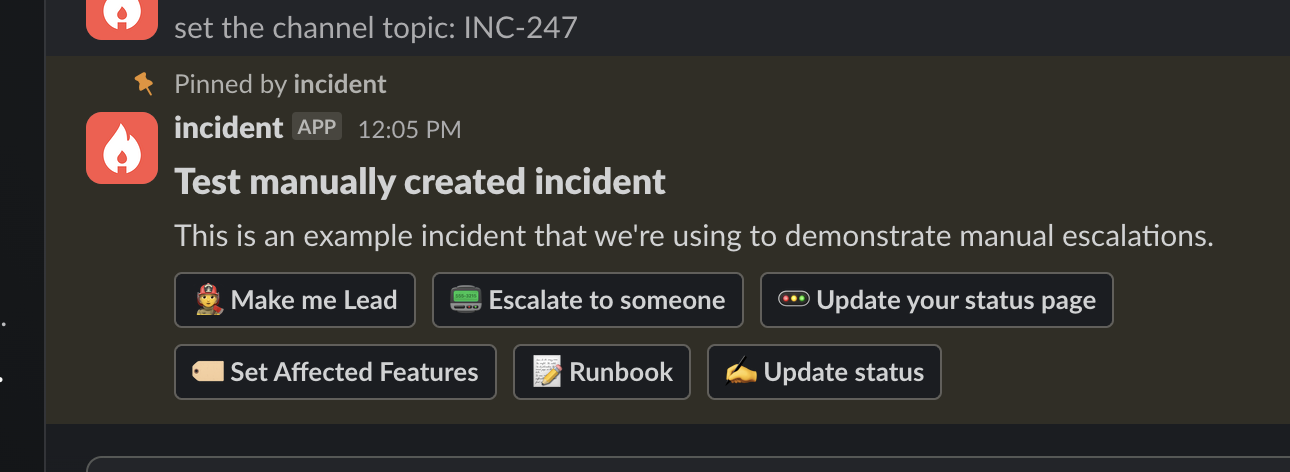
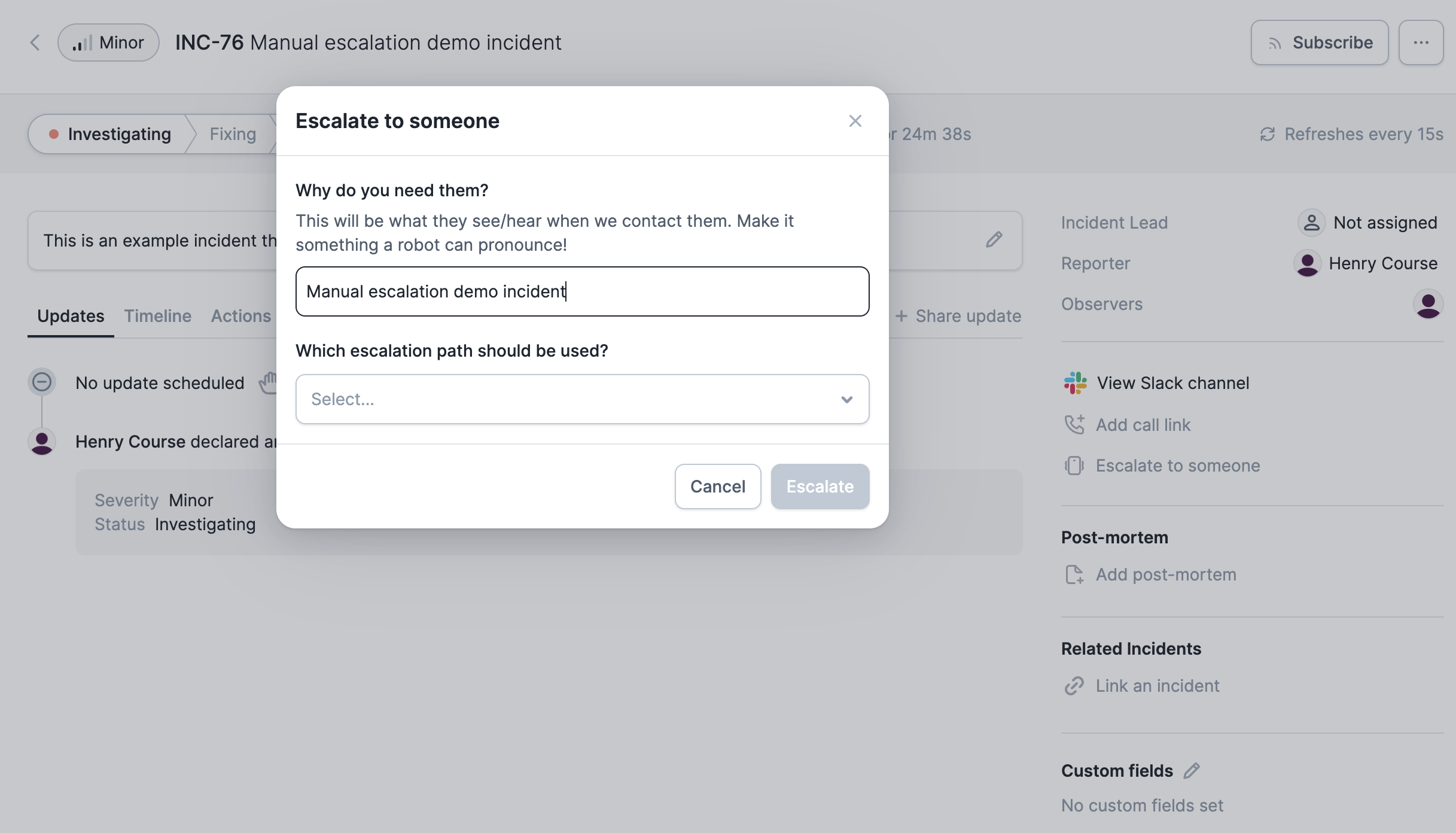
/inc page), in the mobile app and in the web dashboard. The escalation form supports a unified search mode where you can search across escalation paths, users, and catalog types in a single field — you can enable this in your escalation form settings.
How to customize the escalate form
When someone escalates (e.g. using/inc escalate, or clicking on an Escalate to someone quick action), what they’re presented with depends on what escalators you have installed.
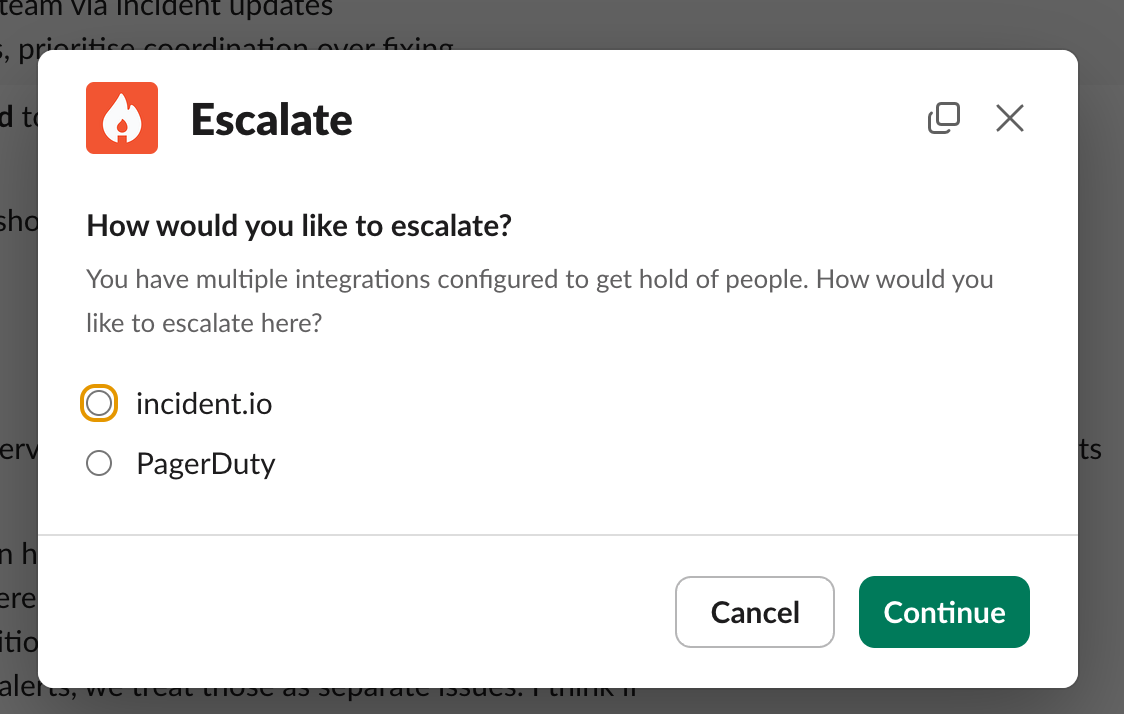
Customize which escalator to use
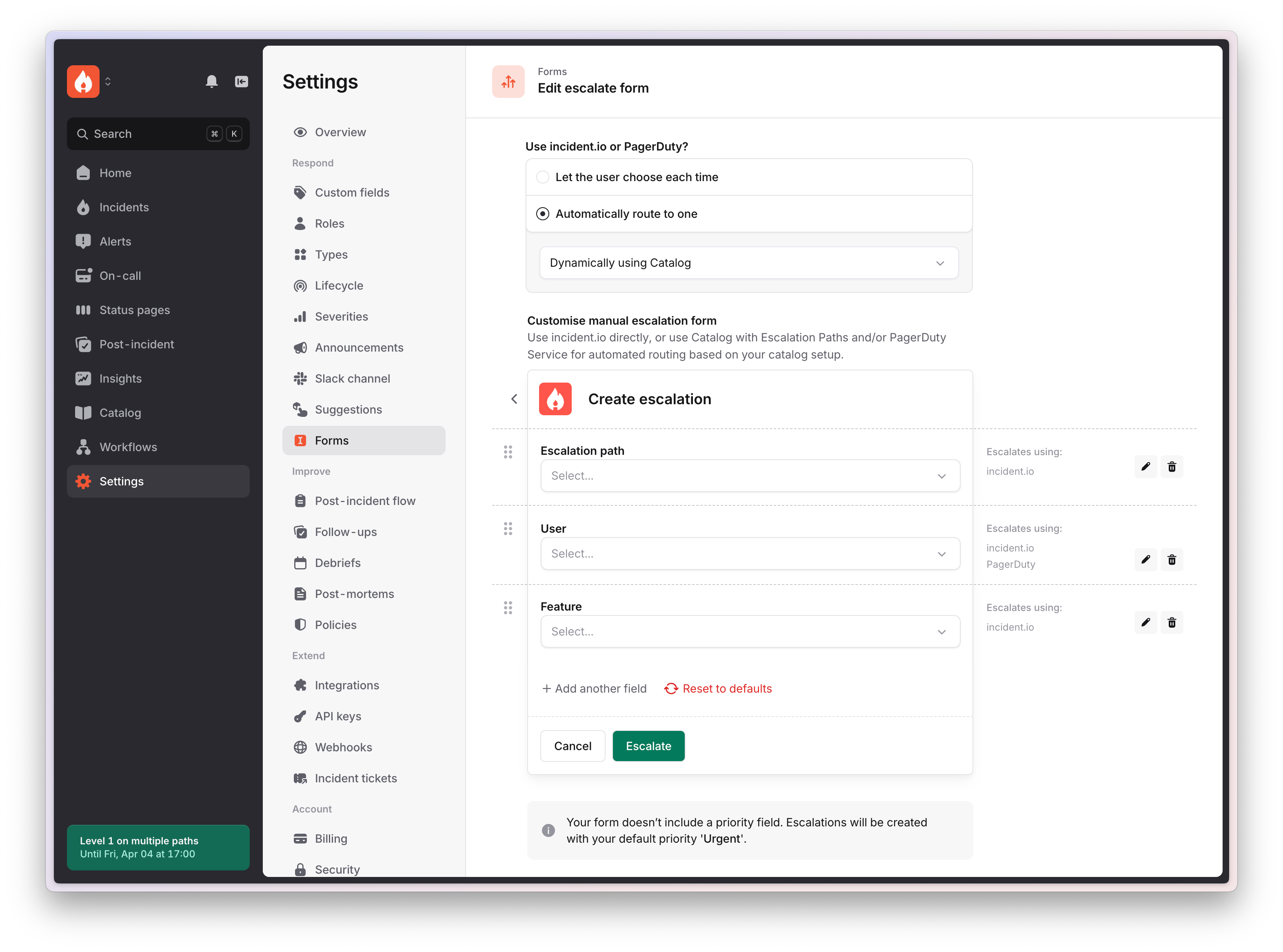
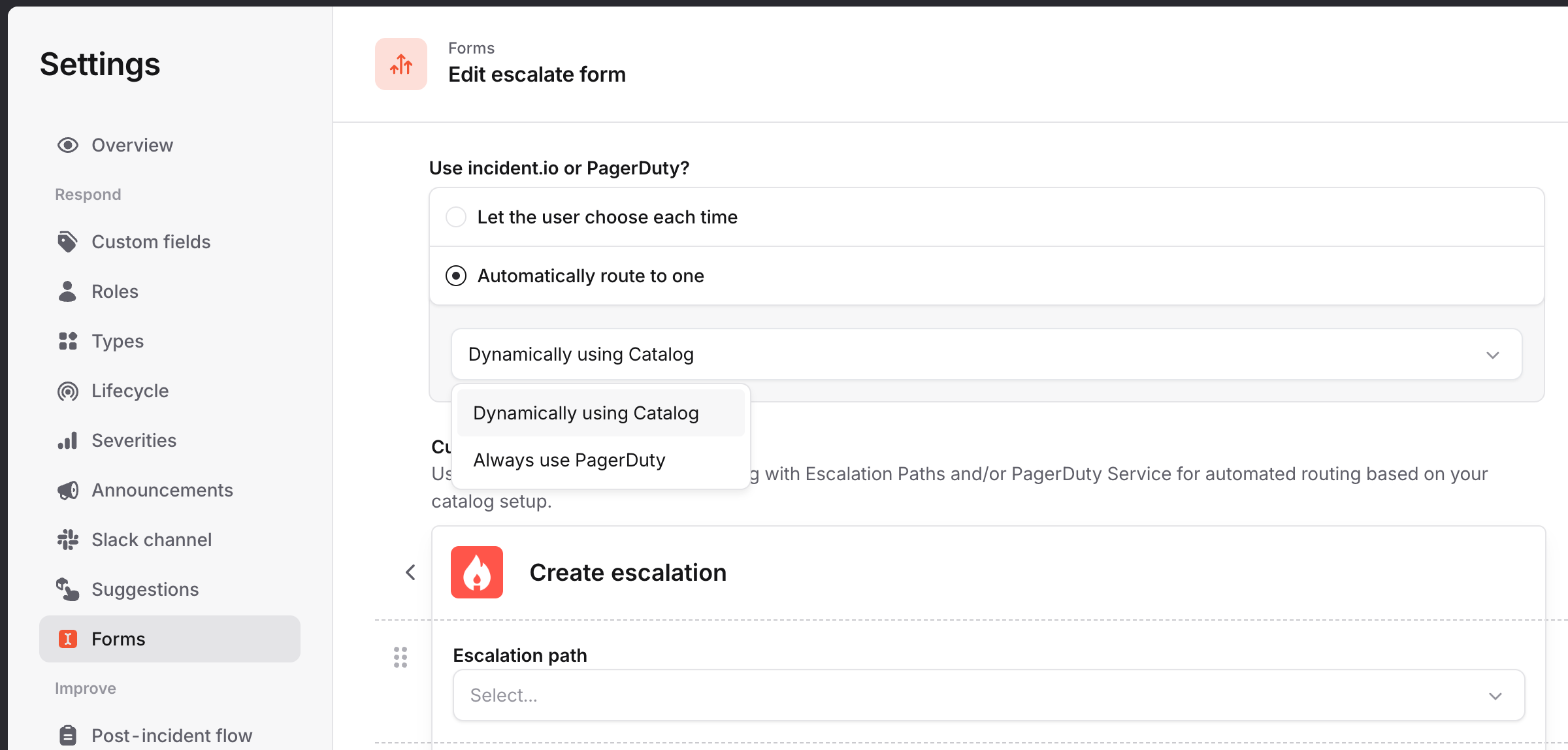
If you’d like to always go to a particular incident.io, PagerDuty, Opsgenie or Splunk On-call escalation form, you can do this by going to the incident.io dashboard, then choosingSettings → Forms → Escalate and choosing one of those.
Escalating to users
If you choose to escalateDynamically using Catalog and you have multiple providers available to escalate with (e.g. incident.io, PagerDuty, Opsgenie), then users will be searchable across those providers.
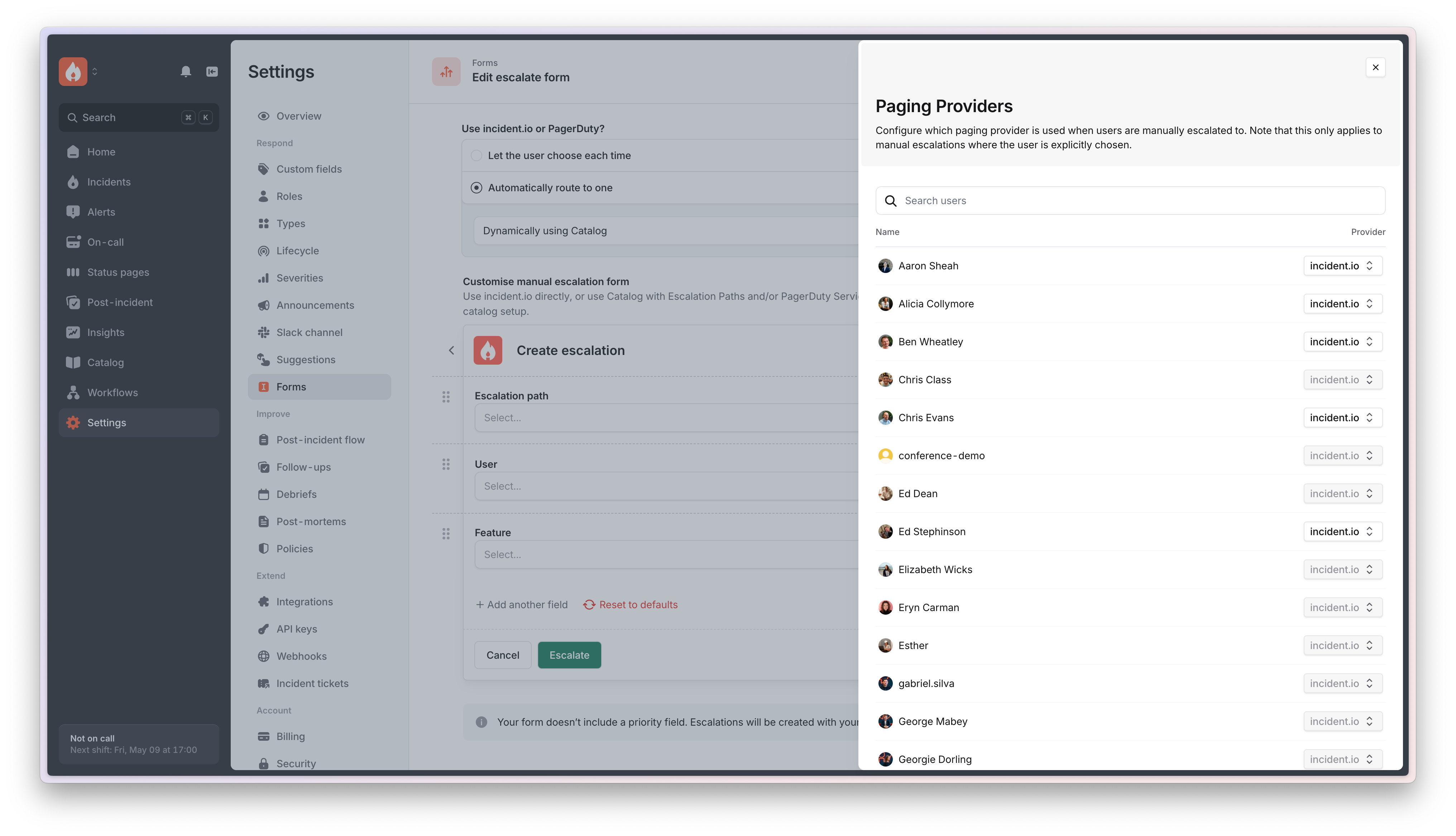
By default, if a user has an incident.io on-call seat, they’ll be paged using incident.io. However, they can customize this in their preferences or by pressing the edit icon beside the User input.
When you open this edit drawer, you can see all the users across both providers, and where it’s possible, you can change the preferred provider for users in your organization.
If a user has an account in external provider (e.g. PagerDuty) and doesn’t have a related incident.io account, then they’ll only be pageable via that external provider.
If a user is showing up twice, it might be that their email in the external provider does not match their email in incident.io. You can manually link the accounts in Catalog by finding the user under the “Users” catalog type and then choosing their account in the external provider.
Escalating using a Catalog type
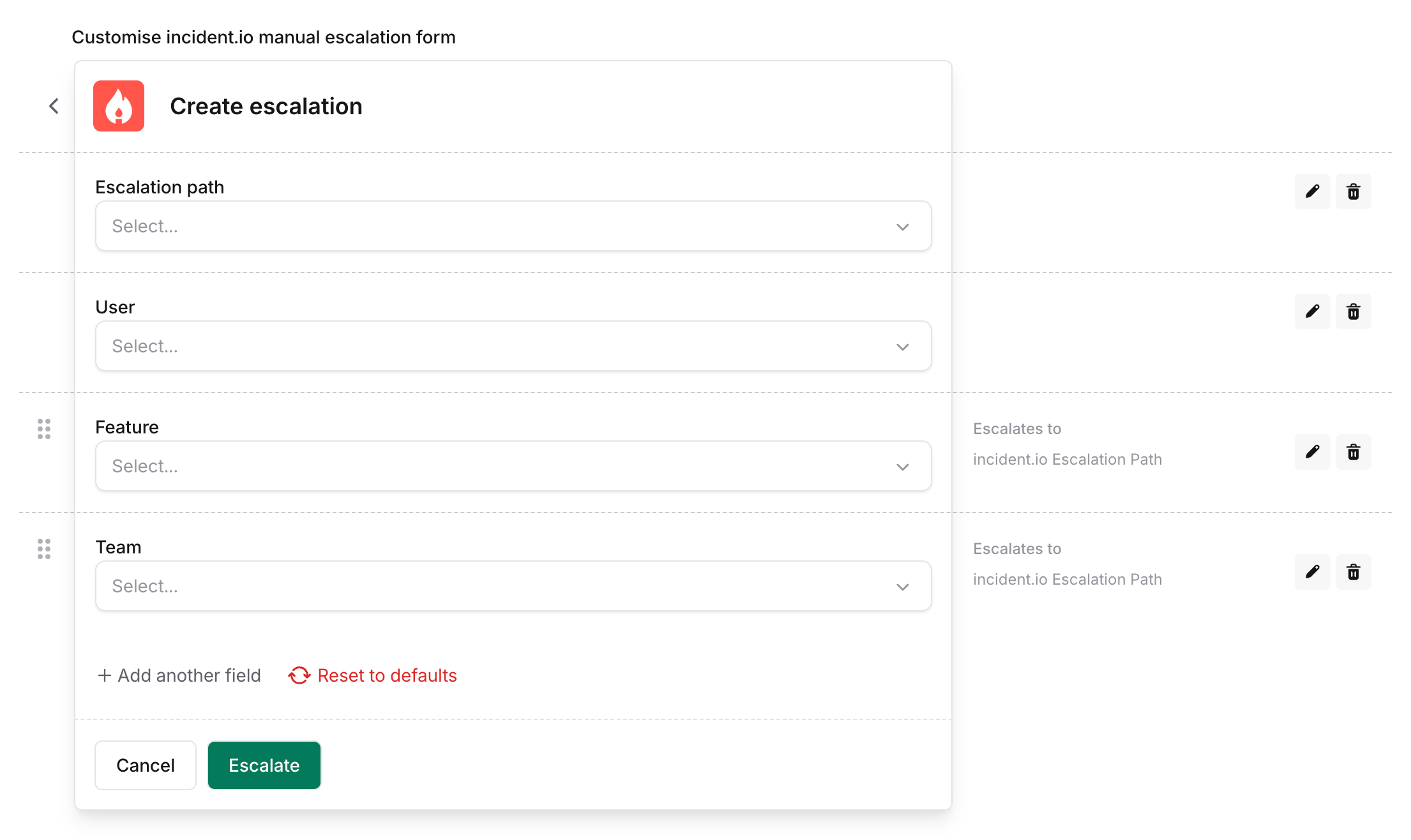
By default, you can escalate by letting users choose from a person or an escalation path that they’d like to page. However, if you’re a person escalating, you might not always know who to escalate to, or which escalation path to use. For example, you might work in customer support and you spot an issue with Login. You might not know which team is responsible for Login, so you don’t know who to escalate to. You can customize the Escalate form so that you can search for any Catalog type, and so long as you tell us how that Catalog type relates to an Escalation Path, we’ll escalate to the appropriate people. For example:- You could let people search for
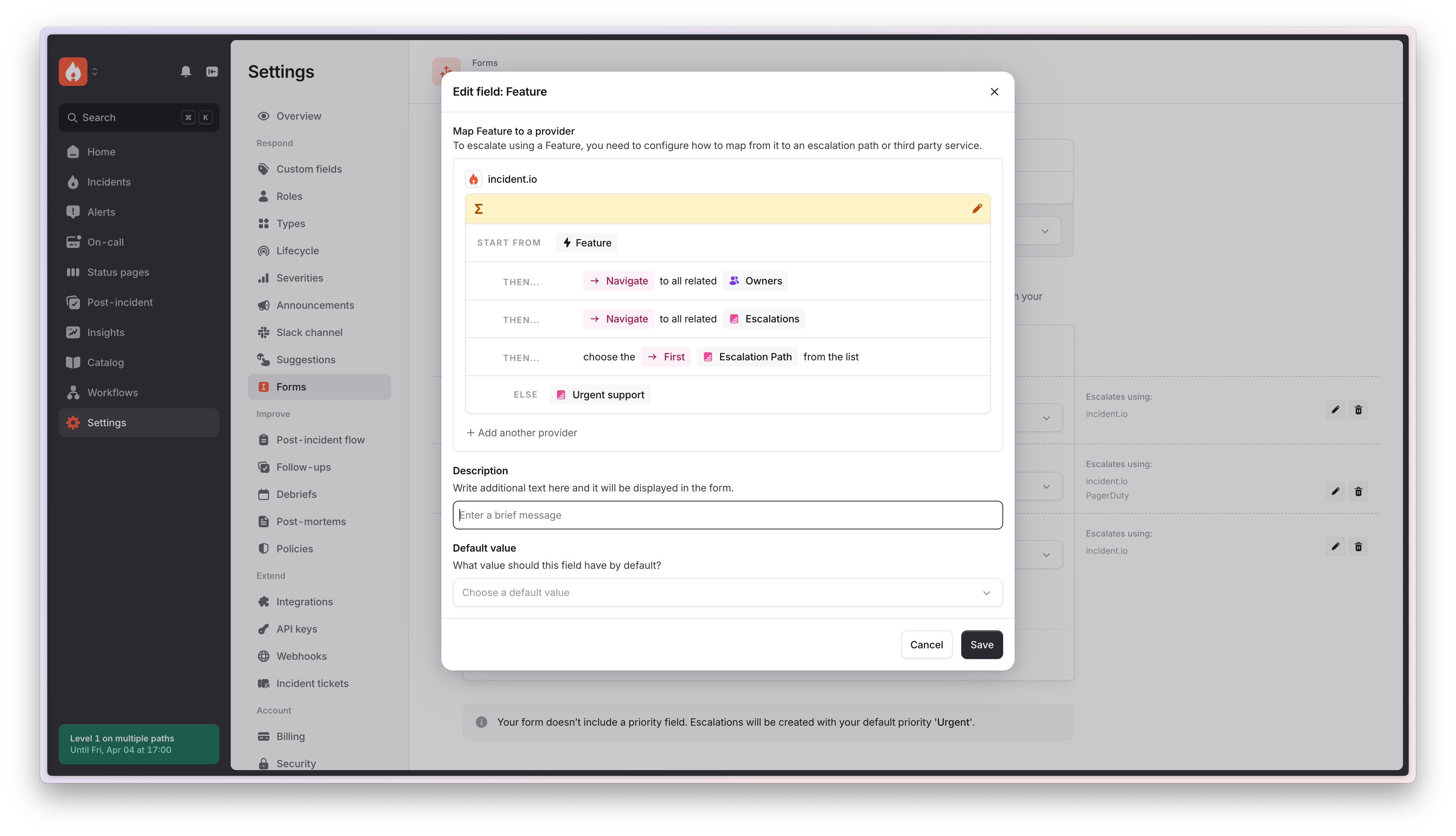
Features. Then yourFeaturestype has a relatedTeam, which has anEscalation path, so we’ll automatically escalate to the team that own that feature. - You could let people search for
Services, which have an associatedTeam, which has anEscalation path, so we’ll automatically escalate to the team responsible for that service.
Settings → Forms → Escalate and scroll down to Add another field. Here you can choose which Catalog type you’d like to let people search for.
Once you’ve chosen a Catalog type, you’ll need to tell us how to map from this type to a related escalation path.
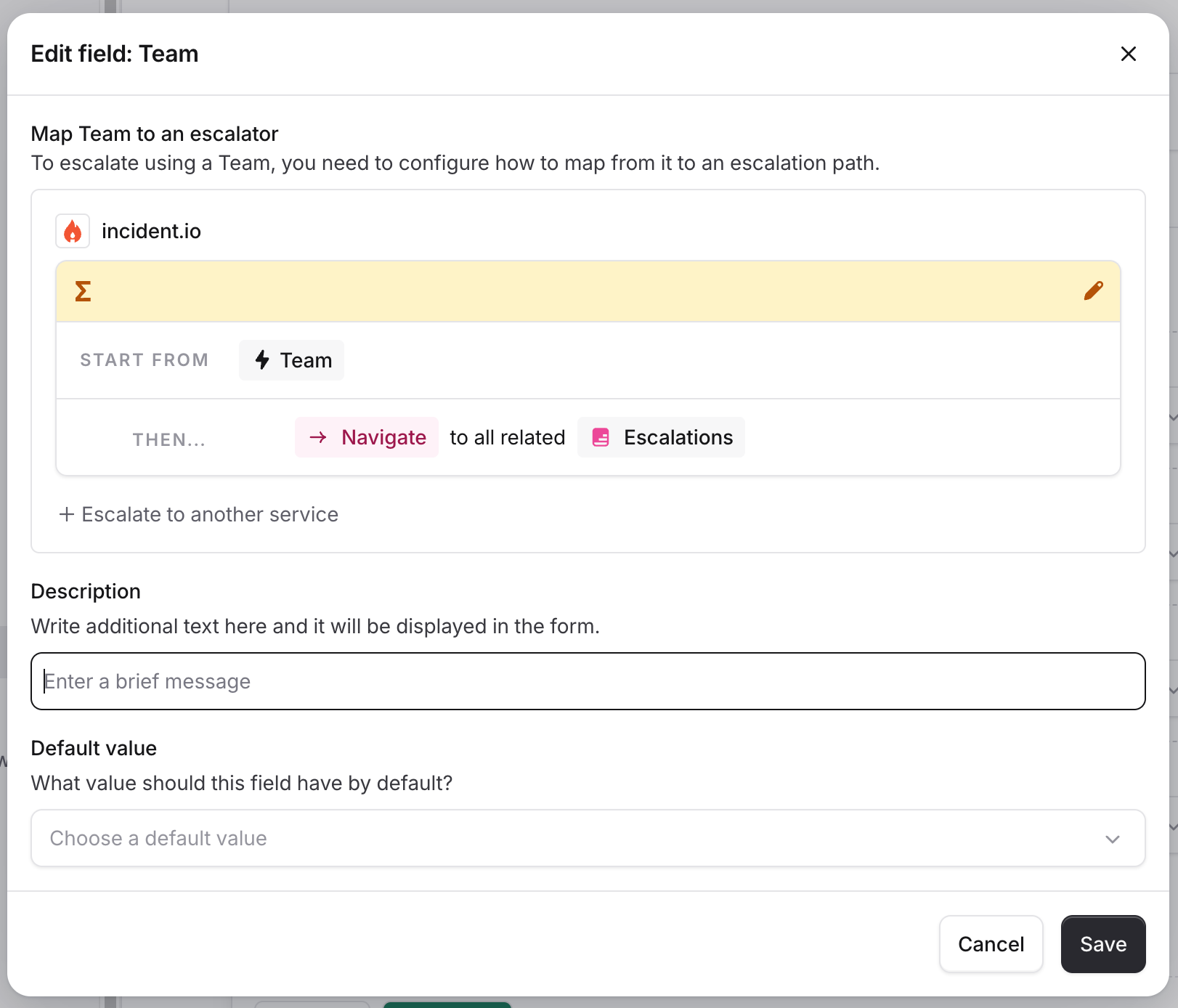
What if I’m in the middle of migrating to incident.io?
If you’re in the middle of migrating, or you’re testing out incident.io on-call, you can default to escalating via incident.io, but still escalate to other providers for certain teams. To get started with this, you need to set up a Catalog type that people can search for. This is most often aTeam type.
You’ll then want to give your Team type some attributes such as:
- Escalation path - so you can tell us how to escalate using incident.io
- PagerDuty service - if you’re using PagerDuty, so you can tell us which teams should still be contacted using PagerDuty
- Opsgenie team - if you’re using Opsgenie, so you can tell us which teams should still be contacted using Opsgenie
On-call team can be escalated to using incident.io via the ONC escalation path. And the Infrastructure team can be escalated to using PagerDuty for the Database service.
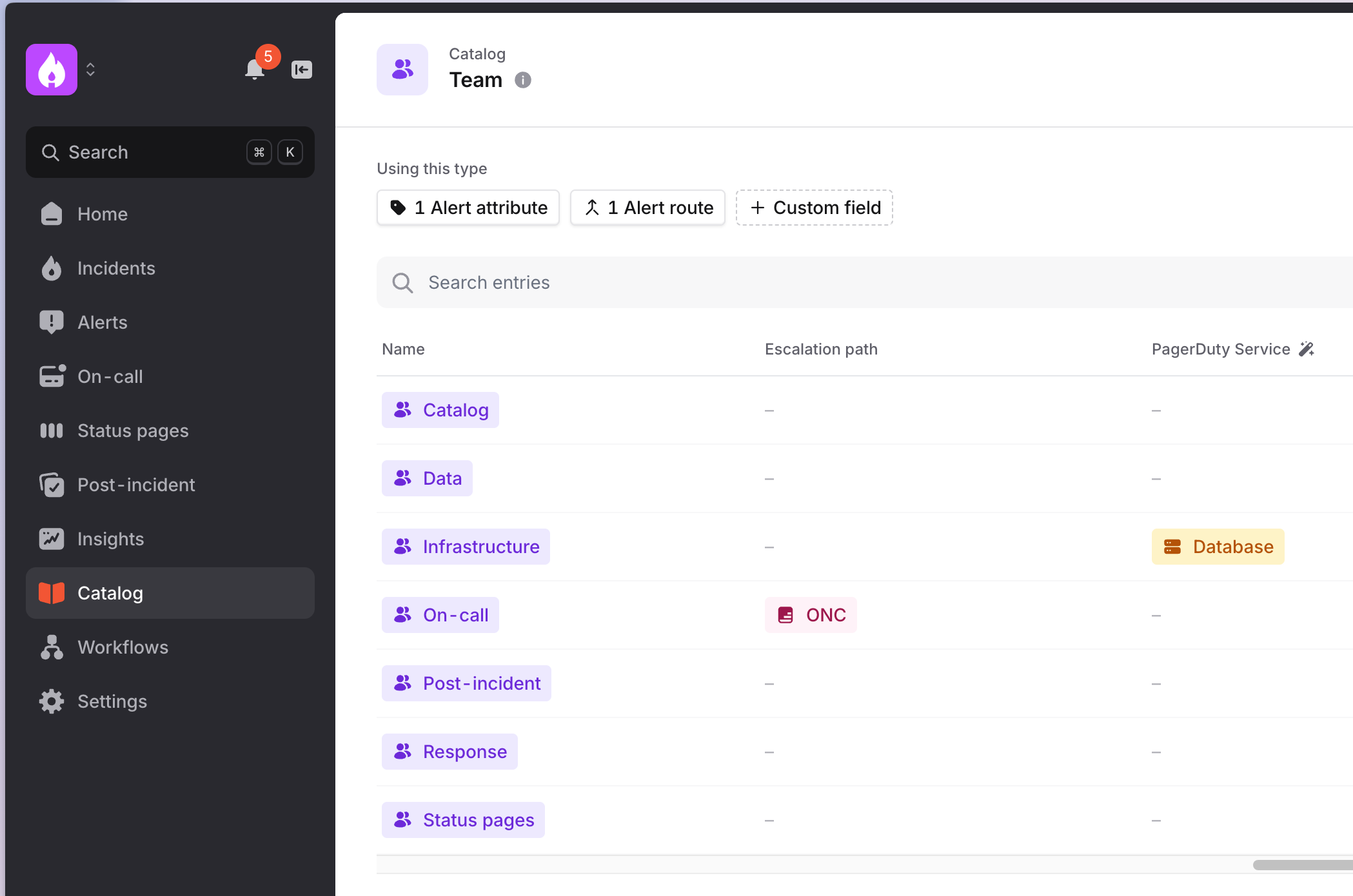
Settings → Forms → Escalate and choose Add another field. Pick your Catalog type and then tell us how to map from that Catalog type to an escalation path.
Then press Escalate to another service and tell us to map from that type to either a PagerDuty Service or an Opsgenie Team.
Once that’s done, choose incident.io as the place to ‘send manual escalations to’, as otherwise we’ll still ask users which escalator to use each time they escalate. When incident.io is selected, if you’ve defined other escalators using Catalog, we’ll still escalate using those other escalators, not just incident.io.