What makes triage incidents special?
When you create an incident inTriage, it is not considered “live” yet. The Triage incident status is managed by us and denotes incidents which are being triaged ie. someone is deciding whether or not they’re looking at a problem.
Once a responder has made their decision (perhaps by bringing other users into the incident channel or using decision flows), they can then either:
- Accept the incident - this means it will move to the first live status and can start being investigated
- Decline the incident - this should be chosen if a responder concludes that the triage incident is not actually a problem. We archive the incident channel 5 minutes after you decline. If you change your mind, you can undecline it
- Merge the incident - this should be chosen if the incident is a duplicate of another one


How can I create a triage incident?
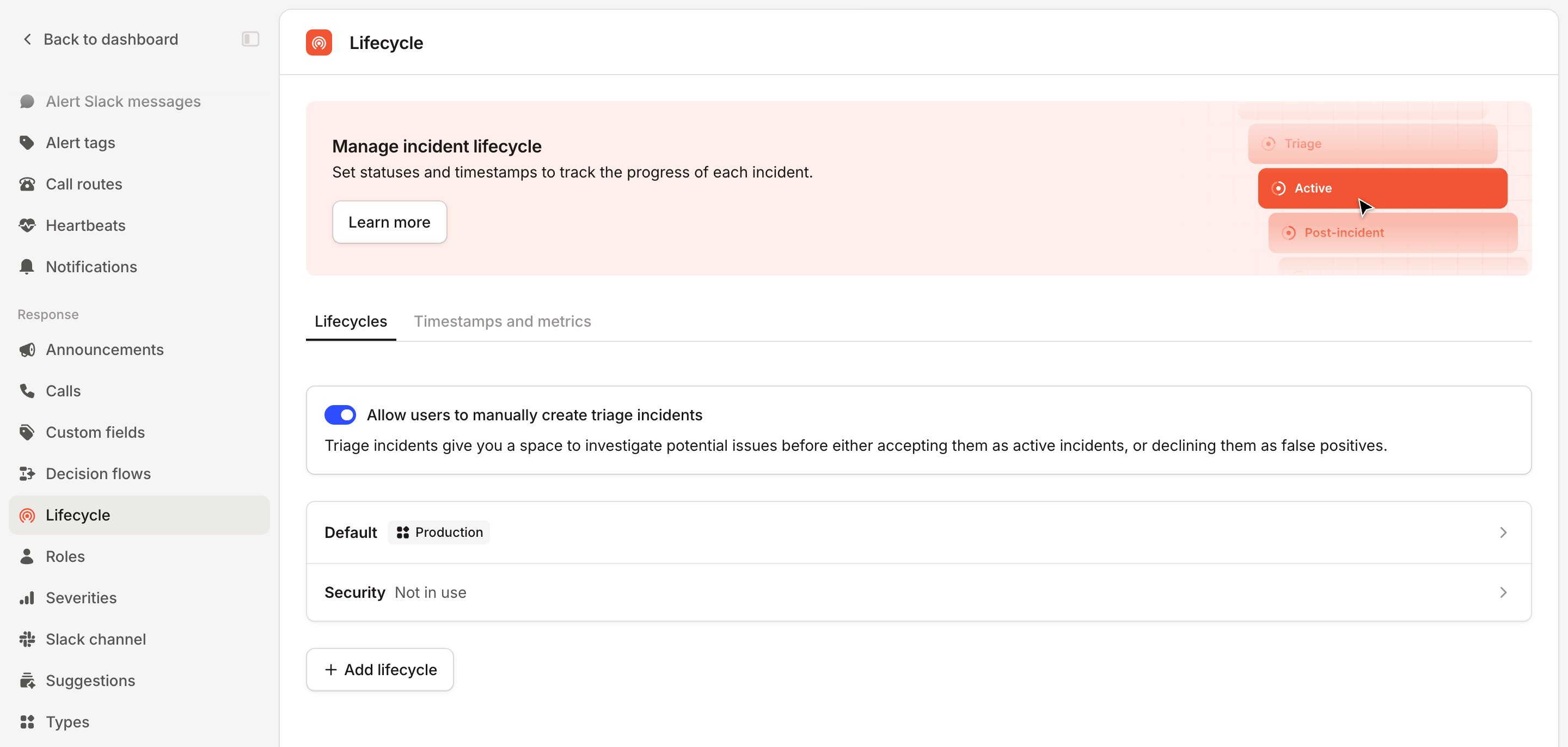
Triage incidents are available on every plan. To create them manually, turn on Allow users to manually create triage incidents in Settings > Response > Lifecycle. Once it’s on, next time you declare an incident from within Slack, you’ll notice some radio buttons for configuring whether or not the incident should start from theTriage status.

Triage state.
Your incident will look and act similar to a normal “Live” incident, for example you can escalate or assign roles, and workflows will run (unless you configure them not to). But there are a few key differences:
- You won’t be able to use the full range of commands. For example, we won’t let you update your StatusPage from a triage incident, or create actions or follow-ups. We believe these should be reserved for incidents that are confirmed issues.
- Every now and then we’ll nudge the channel to make a decision. This stops you from accidentally getting stuck into fixing the issue without moving the incident through the lifecycle.
- After the usual welcome message at the beginning of the channel, we’ll send you some options for quickly making a decision :

/inc update.
If you choose to merge or decline the triage incident, we’ll update the announcement post so it takes up less space:

Undeclining an incident
If you decline an incident and later realise it needs attention, you can move it back toTriage. From there you can accept, decline or merge it as usual.
To undecline an incident, you need the Update incident fields permission. The Standard, Admin and Owner base roles all include it.
From Slack
In the incident channel, click Move back to triage on the “Incident declined” message.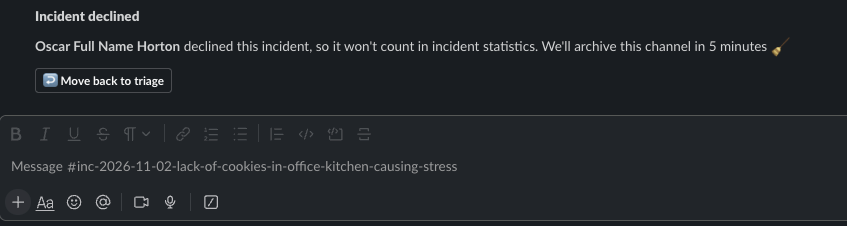
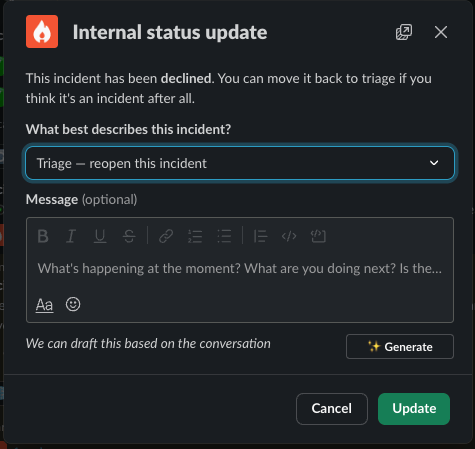
/inc update in the incident channel. Choose Triage — reopen this incident, then click Update.
From the dashboard
- Open the incident’s homepage.
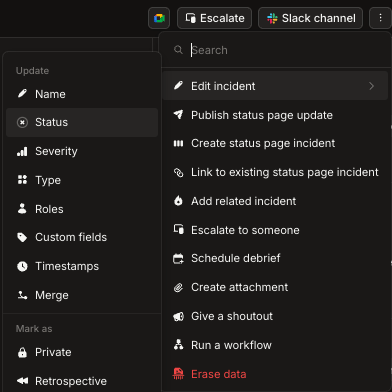
- Click the ⋮ menu at the top right, then Edit incident → Status.
- Choose a
Triagestatus and click Save.
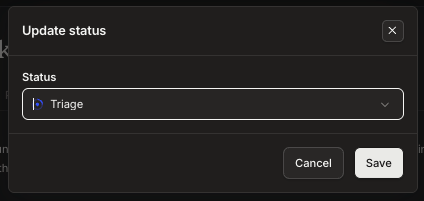
What happens when you undecline
- We don’t page anyone. Undeclining doesn’t escalate to anyone, and neither does accepting the incident afterwards. Escalations that were cancelled when you declined stay cancelled. To page someone, escalate manually from the incident.
- Workflows can run again. Workflows don’t run on declined incidents. Once the incident is back in
Triage, workflows triggered by an incident update or a status change can run, as long as their conditions match. A workflow that’s set to run once per incident won’t run again if it already ran before you declined. If any of these workflows include an escalation step, they can page someone. - New alerts join this incident again. If alerts created the incident, new alerts for the same issue attach to it instead of creating a new incident.
- It stays out of your metrics until you accept it. The incident is back in
Triage, so it’s still not live.
What happens to the Slack channel
We archive the incident channel 5 minutes after you decline.- If you undecline within those 5 minutes, the channel stays open.
- If the channel is already archived, undeclining or accepting doesn’t unarchive it, and we don’t create a new channel. To keep working in Slack, unarchive the channel in Slack. We pick it back up straight away, and messages and commands work as usual.
Using /inc on a declined incident
/inc commands only work in the incident channel. On a declined incident, /inc update is the only command available.
If you run /inc anywhere else, for example in a thread on the announcement post, we’ll offer to declare a new incident instead.
What are the benefits of using this feature?
You can discover problems faster
It’s common for our customers to discover an a issue, but not have enough context to know what type of incident they’re dealing with or how severe it is. Discussion to ascertain whether it’s a problem can be slow and exclude the right people. Equally (and quite understandably), many users are wary of declaring a live incident in this case because it could be a false alarm. Triage incidents lower the bar to creating an incident channel - they don’t require an incident type or severity to be set during creation, and you can easily remove the incident from your metrics if it turned out to be nothing to worry about.More insights
We track a timestamp associated with each of these decisions:Accepted at, Declined at, and Merged at. They’ll appear on an incident homepage to help you piece together what happened.
You can also create a custom duration like “Time to accept” from the lifecycle settings page and use our MTTX insights dashboard to track how well you’re doing at triaging your incidents.
Quality control
For some of our customers, there’s a very high bar for a problem to be declared an incident. That’s why we’re letting you enforce all incidents to start in triage, if you wish. This is configured per incident type to support different processes in different teams. Just head to Settings → Types and flip the toggle for the relevant incident type.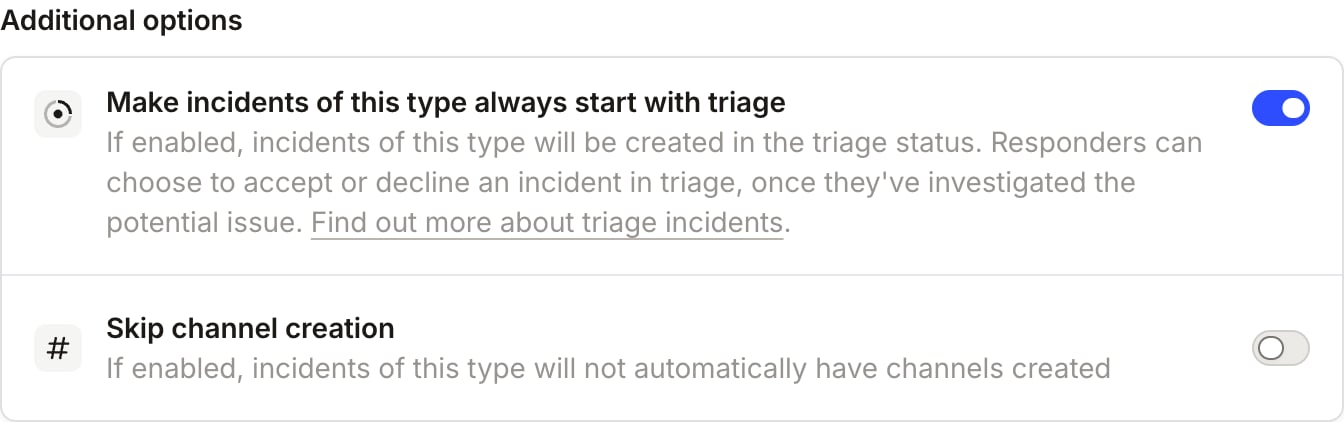
Completeness
When the discussion takes place within an incident channel, you don’t lose any context that might have taken place elsewhere in Slack. You make it easier for yourself to curate the timeline (by pinning messages) and for anyone in the future to understand what happened.Can I disable this feature?
If you like, you can prevent users from creating triage incidents. To do this, you’ll need to be an organization owner or admin. Head over to the lifecycle page and scroll down toTriage, then disable the toggle.