

Responders in Mainland China have a few setup differences — see On-call in China.
Contact methods and notification preferences
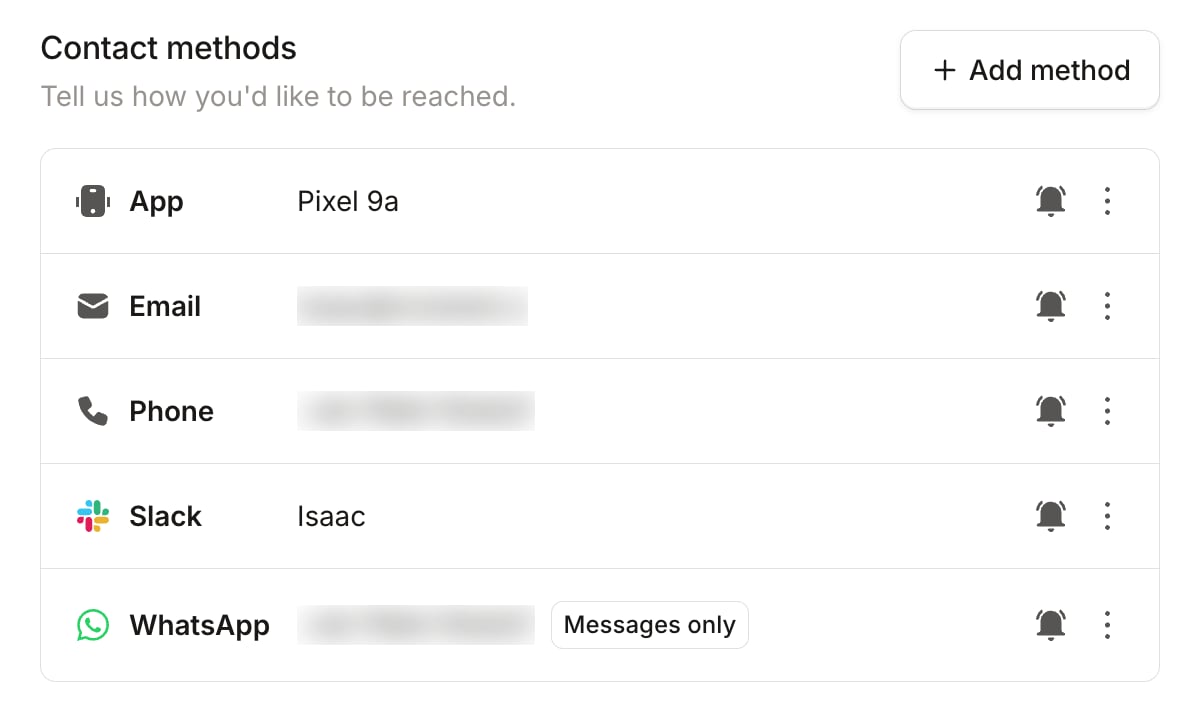
Set up all contact methods you’d like to use within the incident.io dashboard. Navigate to Settings → Your account → User preferences to find them.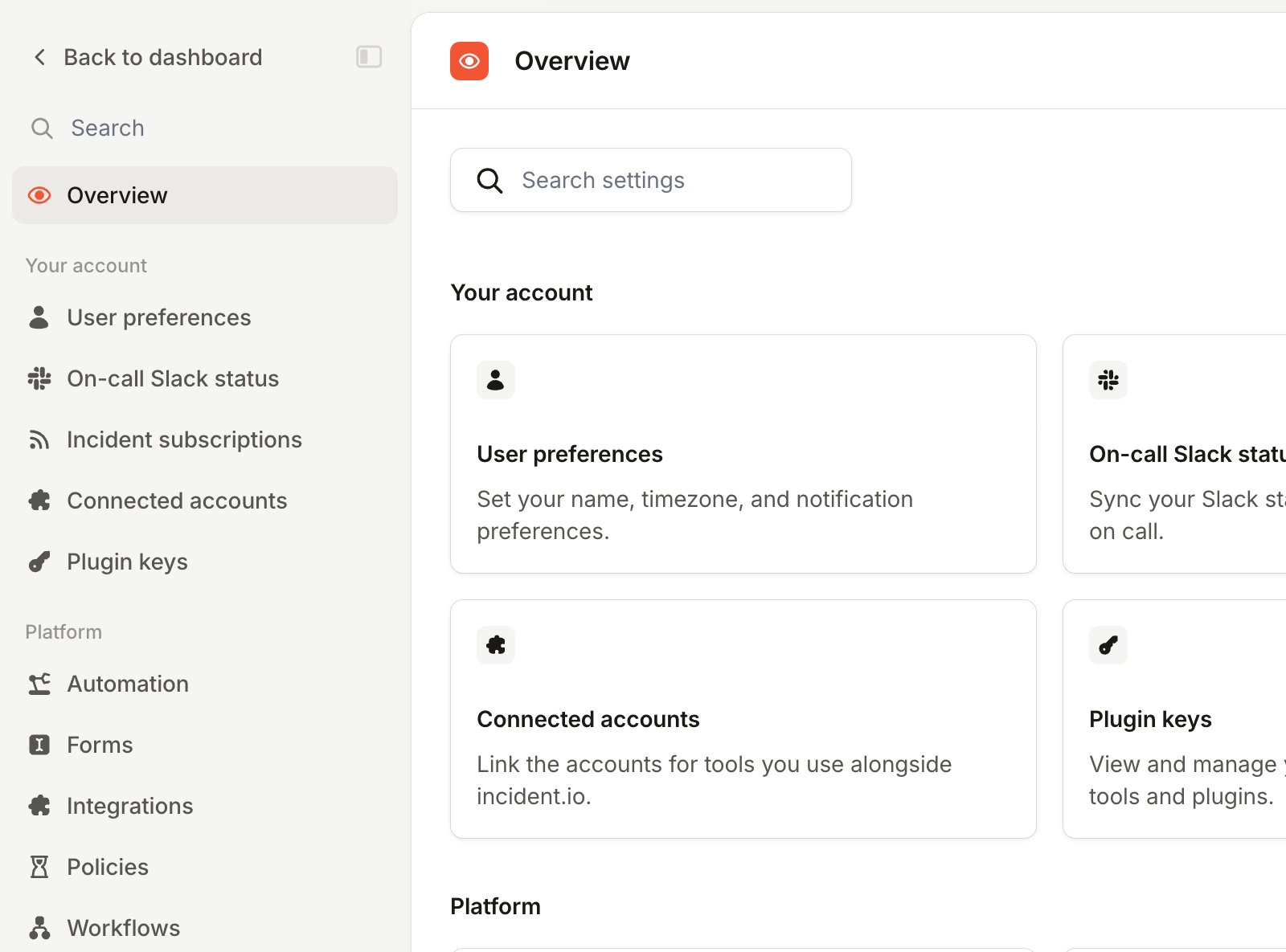
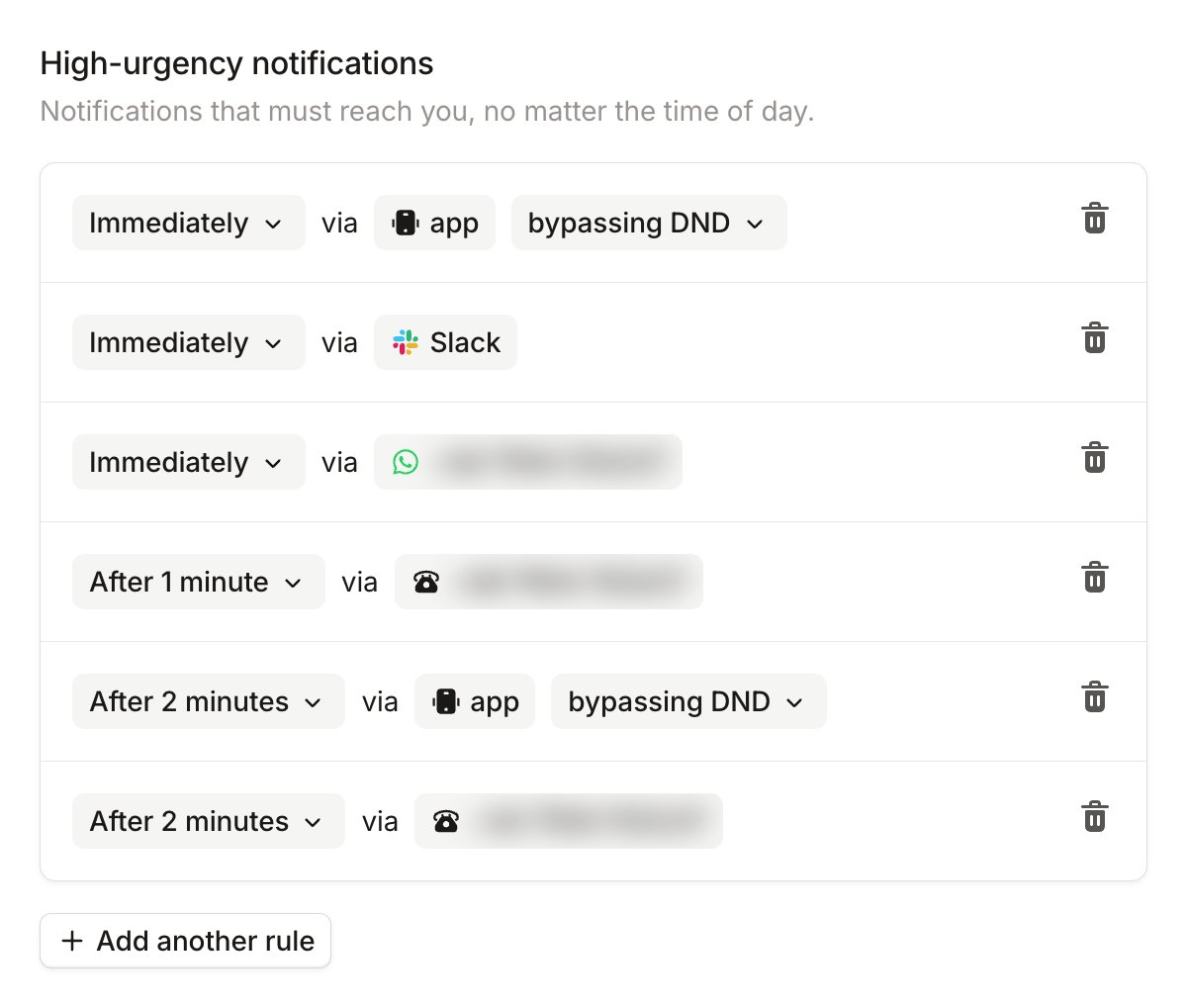
If an escalation level is set to notify more than once, every attempt starts your rules again from the beginning. A rule with a delay longer than the interval between attempts therefore only completes on the final attempt. For example, if a level notifies every 5 minutes and your rules call you after 7 minutes, the call only happens on the last attempt.
Mobile app settings
Download the incident.io mobile app and sign in using one of these methods:- Slack, Microsoft Teams, or SAML: Open the mobile app and sign in directly
- QR code from the dashboard: Open the sidebar or command palette in the web dashboard and select Sign in on mobile. Scan the QR code with your phone’s camera to sign in instantly — no need to type credentials on your phone
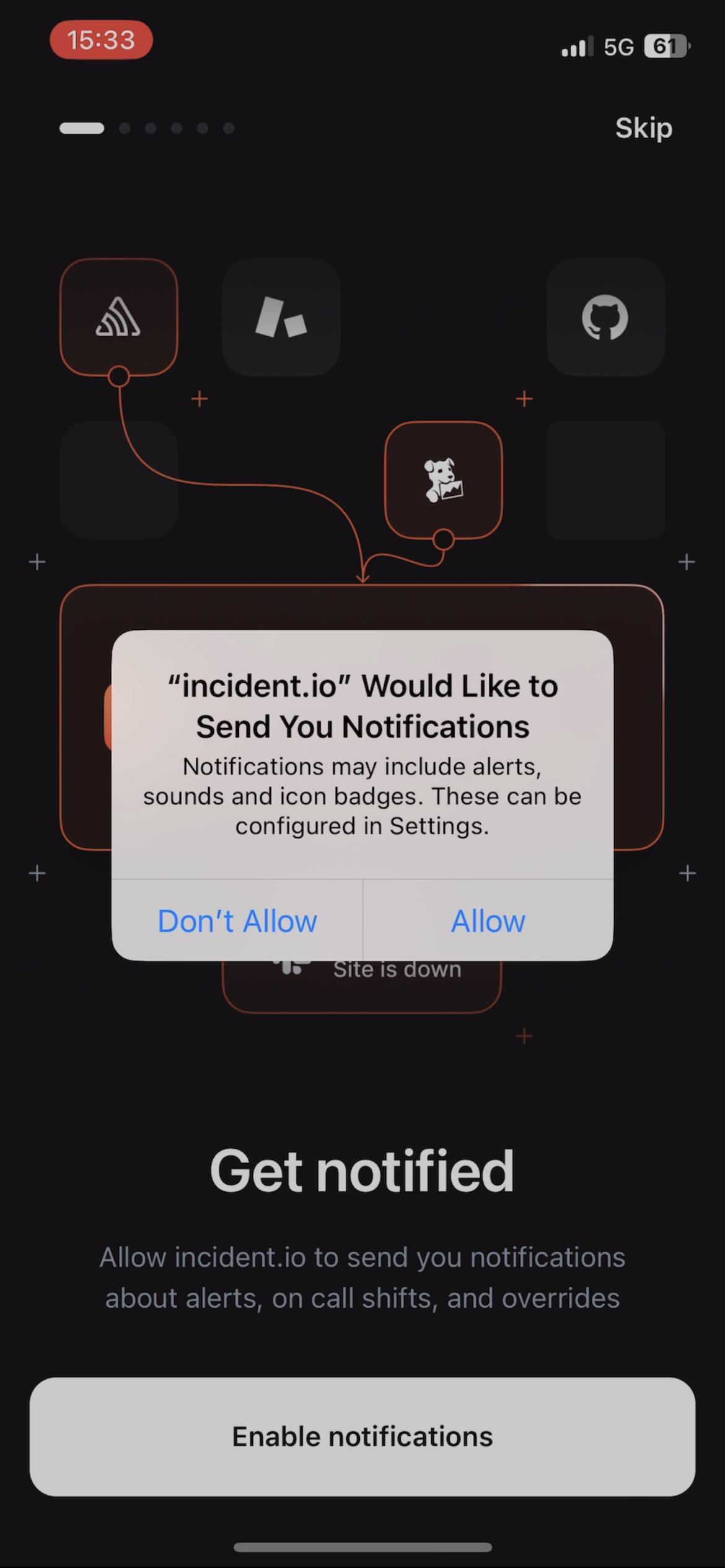
- Enabling Push Notifications
- Enabling Critical Notifications
- Adding and verifying your phone number
- Adding our contact card to your phone: adding the incident.io contact on iOS 26 and later, or providing Contacts access on iOS 18 and earlier and Android. You can save a copy yourself instead.
- Bypassing the ‘Do not disturb’ mode
Testing
After setting up all notifications and preferences, you can test that every notification path works. Click the bell Send a test notification button on a contact method in the dashboard, or Test in the mobile app, and the test arrives on that method. We send the app test at the same urgency as a real page, so it also proves that pages get through Do Not Disturb on that phone. For what each test sends and what to do when a test doesn’t arrive, see Test your on-call notifications.
Mobile app preferences
Additionally, you will be able to change appearance between Light and Dark mode on the settings page of the mobile app. You can also just follow the device’s theme you have set up.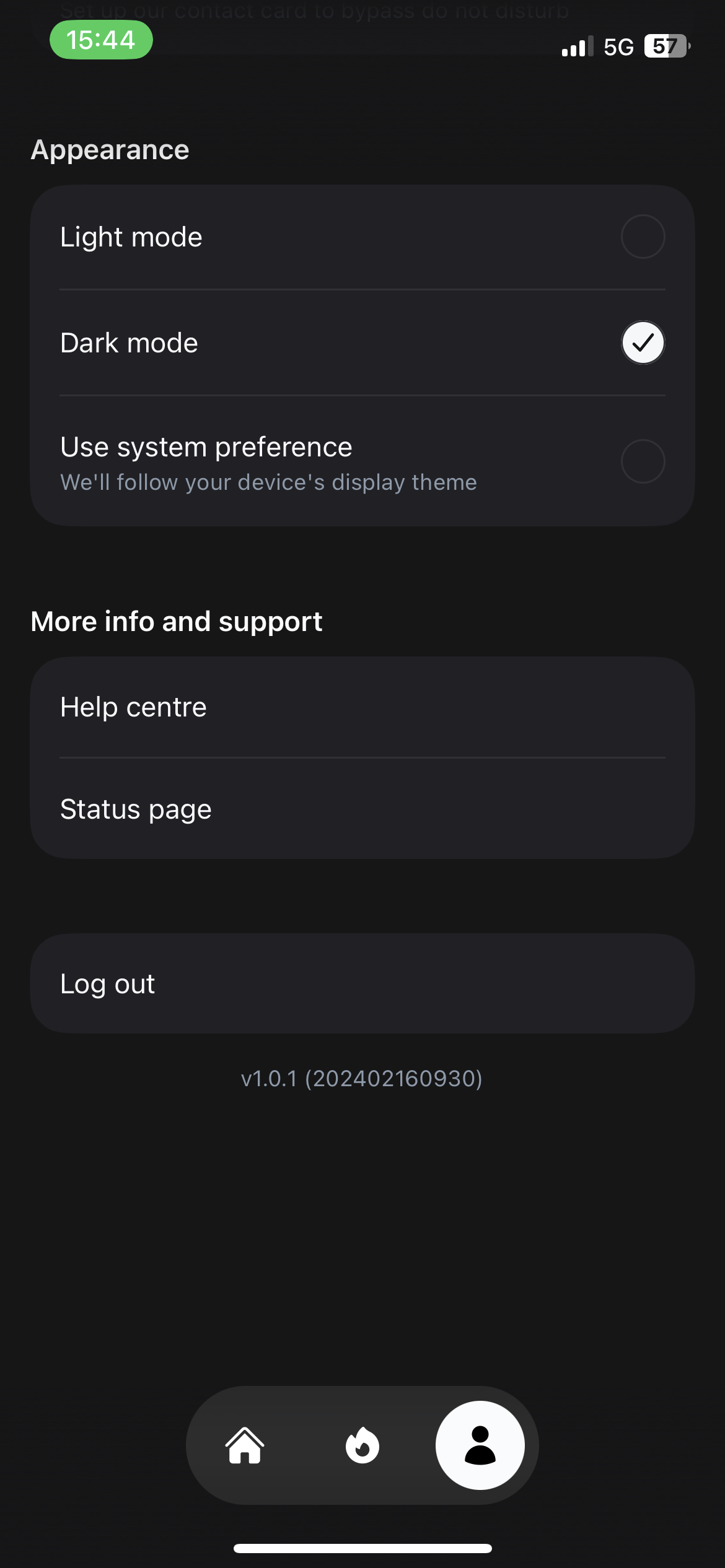
You can find more details about bypassing the ‘Do not disturb’ mode in iOS and Android in this help article
Notification pauses
To stop being paged while you’re on holiday or leave, schedule a pause from Notification pauses on the same page. Escalations skip you until it ends. See Pausing notifications.Adding contact methods for other users
If you need to add a contact method on behalf of another user, admins can do this from the team members page. See Adding contact methods for another user for details.FAQs
Why doesn't my phone number support SMS?
Why doesn't my phone number support SMS?
For non-mobile numbers — VoIP, Google Voice, or landlines — we default to voice calls only because most can’t reliably receive SMS. Mobile numbers get both SMS and voice by default.If your number does in fact receive SMS, you can enable it from your notification preferences (see below).
How do I enable SMS for a Google Voice or VoIP number?
How do I enable SMS for a Google Voice or VoIP number?
Some VoIP and Google Voice numbers can receive SMS even though we can’t detect this automatically. To enable SMS:
- Open your notification preferences and find your phone number
- Send a test SMS to confirm the number actually receives it
- Toggle on SMS support and confirm that you’ve checked the number does support SMS
Can I disable SMS or voice on a phone number?
Can I disable SMS or voice on a phone number?
Yes. You can turn off either capability from your notification preferences — useful if your number is voice-only or SMS-only.Before disabling a channel, remove any notification rules that depend on it. We block the change if a rule would be left targeting an unsupported channel.
Why can't I enable SMS or voice for my number?
Why can't I enable SMS or voice for my number?
Some countries don’t support SMS or voice routing through our providers. If a capability can’t be delivered to your
country, we block the override. See supported countries for the full list.
What's the HELP/STOP welcome message I received?
What's the HELP/STOP welcome message I received?
When you enable SMS on a non-mobile number, we send a one-off message explaining how to opt out (reply STOP) or get help (reply HELP). This is a US carrier compliance requirement and sends once per number.