

How it works
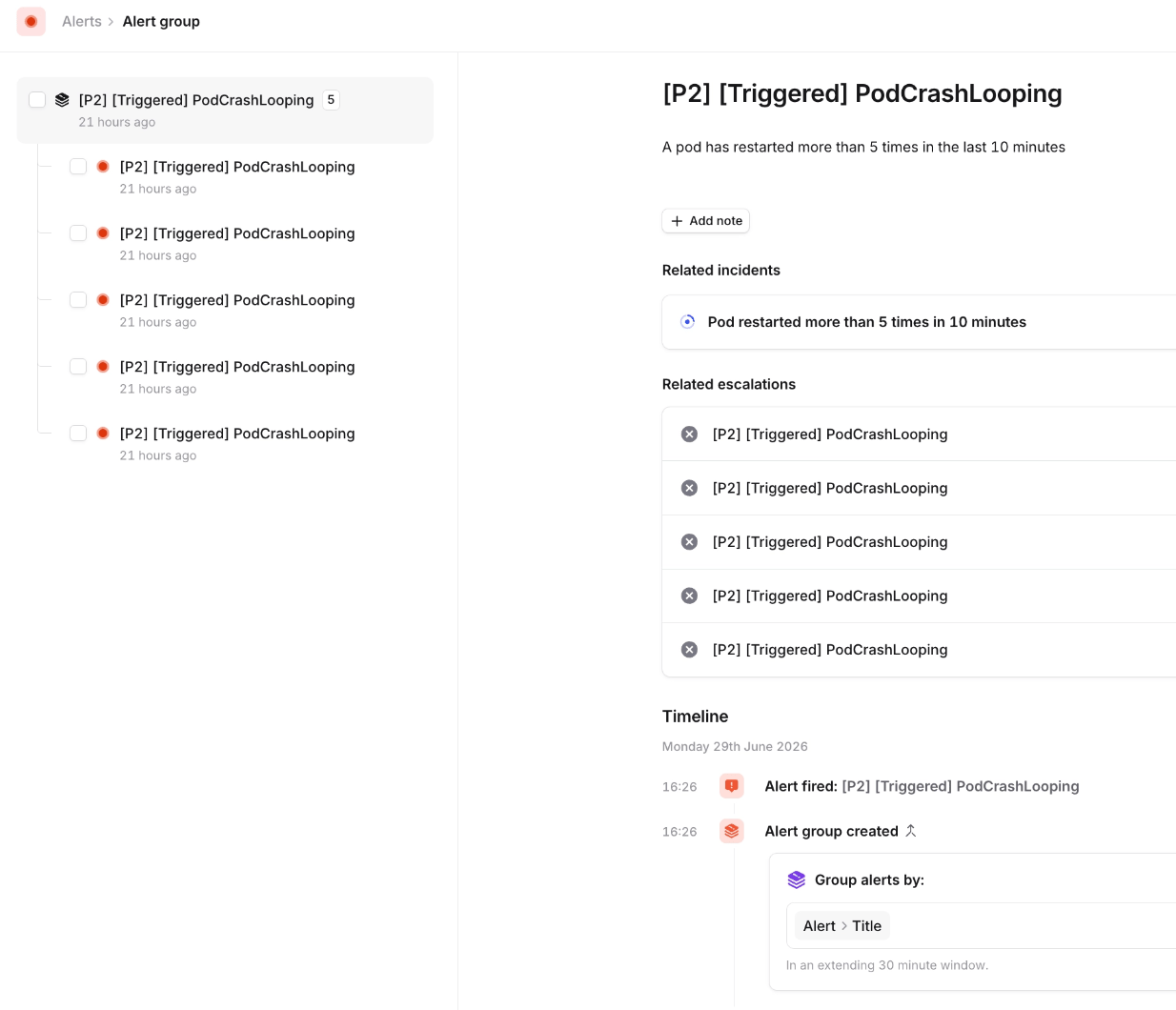
You choose which alerts on a route are grouped together. From widest to narrowest:- Alerts arriving within a time window — every alert on the route that arrives within the window joins one group.
- Alerts with matching attributes — only alerts in the window that share the attributes you pick, such as service or region, join the same group.
- Alerts that look similar (Beta) — AI groups a team’s alerts in the window that look like the same problem, even when their details differ. See AI-powered grouping below.
- Fixed window — the group closes a set time after its first alert arrives.
- Extending window — the group closes a set time after its most recent alert arrives, so it stays open while related alerts keep arriving.
Setting up grouping
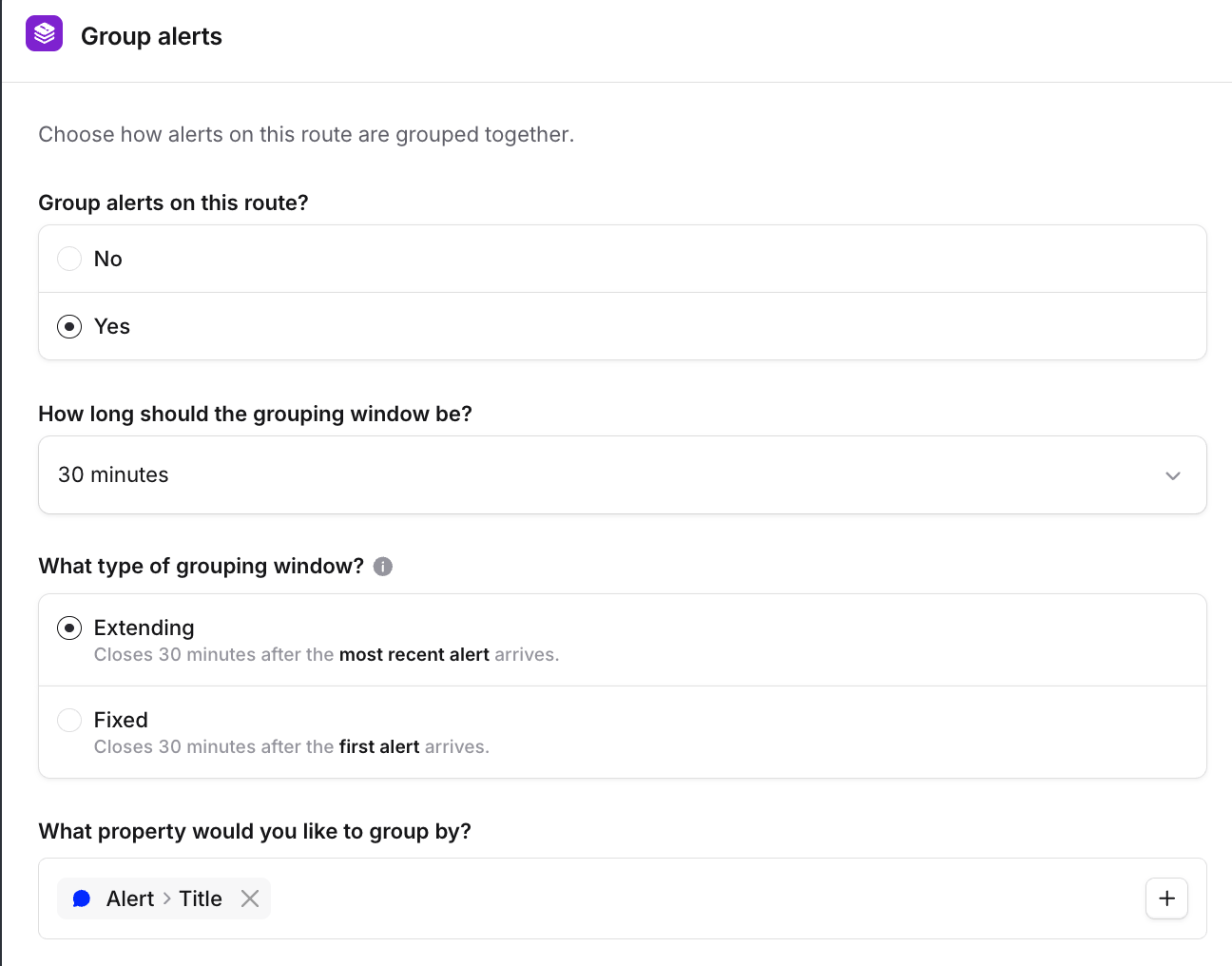
Grouping is configured per alert route, as the route’s Default grouping config:- Open the alert route you want to group alerts on, and edit its grouping.
- Choose which alerts should be grouped together: Alerts arriving within a time window, Alerts with matching attributes, or Alerts that look similar.
- For matching attributes, pick at least one attribute to match on.
- Choose how long the window is, and whether it’s extending or fixed. Each window type shows how it groups a run of alerts before you pick it.
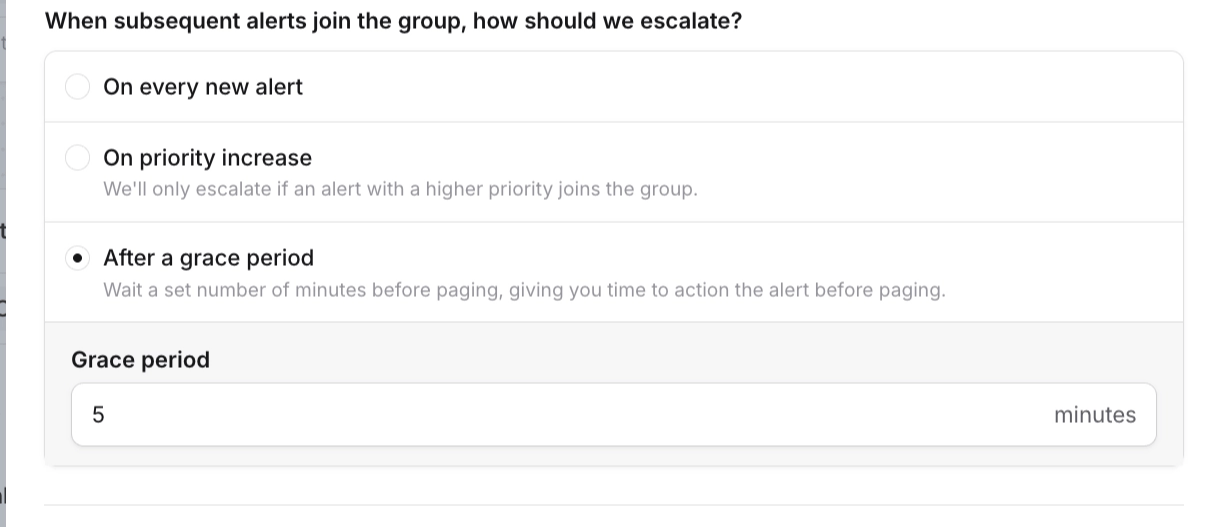
- On every new alert — page each time an alert joins the group.
- On priority increase — only page when an alert with a higher priority joins the group.
- After a grace period — wait a set number of minutes before paging, giving you time to action the alert first.
Team grouping preferences
Team grouping preferences let each team choose how its own alerts are grouped, whichever alert route they arrive through. When an alert belongs to exactly one team and that team has a preference, the team’s settings take priority. An alert with no team, or tagged with more than one, always follows the route’s default. Alert routes continue to control escalation, channel messages, and incident creation of both individual alerts and of groups, while team preferences only apply to alert groups.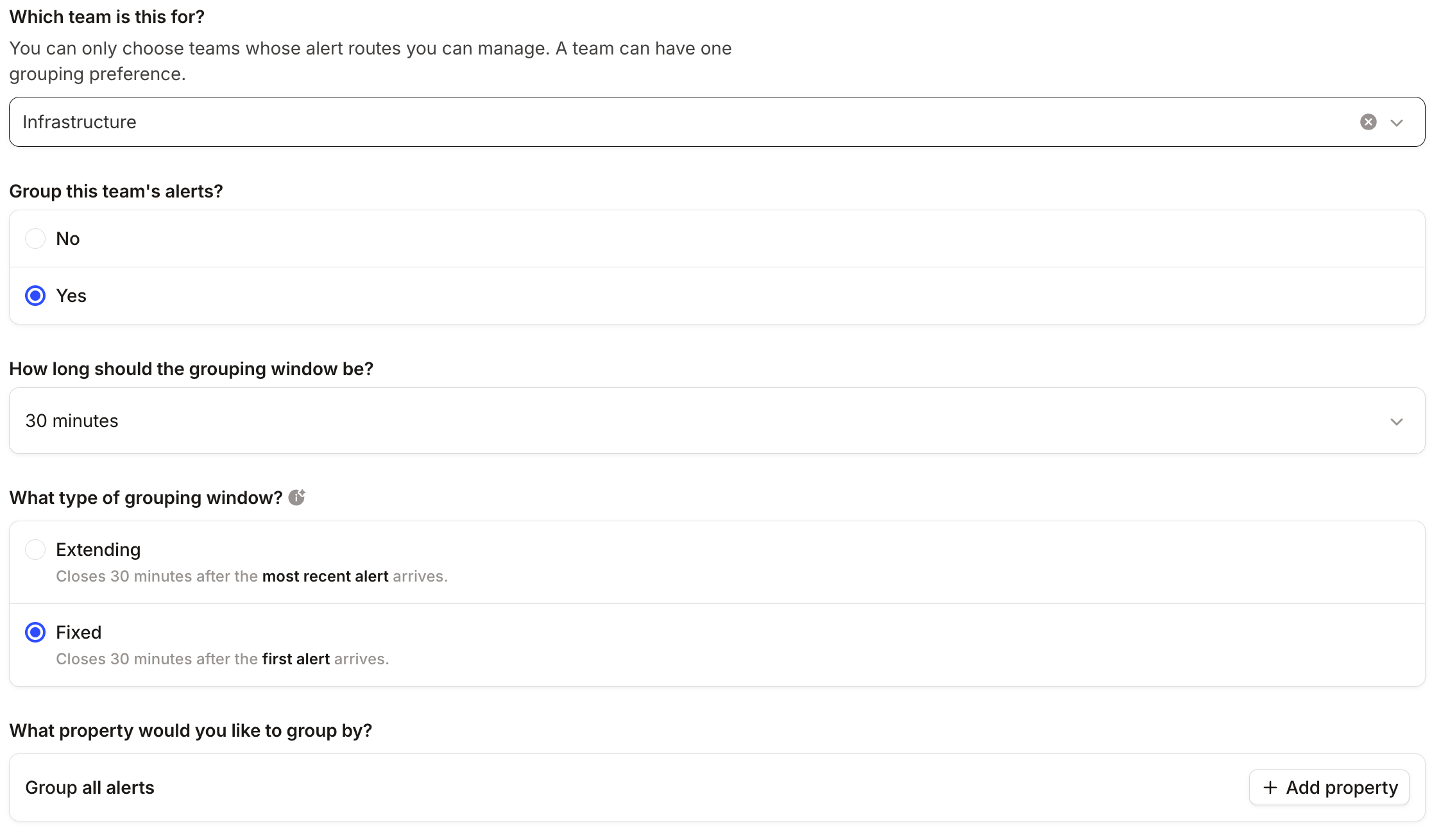
Setting a team’s preference
You need teams set up with a Team alert attribute, or a fixed alert source, so that alerts carry a team, and the Manage alert grouping permission. Team grouping preferences are available on the Team, Pro, and Enterprise plans. Removing a team’s preference puts the team’s alerts back on each route’s default.Who can manage preferences
The Manage alert grouping permission is held by Owners and Admins by default, and anyone who holds it account-wide can manage every team’s preference. To let teams manage their own, grant it to a team role. A team’s members can then change their own team’s preference, and nobody else’s. Team grouping preferences are also available in the public API and the Terraform provider as theincident_team_grouping_preference resource.
AI-powered grouping
AI-powered grouping is in beta, and we’re rolling it out gradually.
Attaching groups to incidents
If incident creation is enabled on the route, alert groups are attached to incidents automatically. You can also attach a group to a new or existing incident yourself.Managing alerts in a group
Sometimes an alert doesn’t belong in the group it’s landed in. Take one or more alerts out of a group by clicking Ungroup, either for a single alert from its own page, or for several at once from the bulk actions bar. From the dashboard, Slack, or Microsoft Teams, this shows you what the alert route would do with the ungrouped alerts, pre-filled and editable, so you can review and confirm rather than guess:- Do you want to create an incident?: create a new incident (pre-filled with the title, severity, type, and any custom fields the alert route would have set, and fully editable), merge into an existing incident, or don’t create one.
- Do you want to escalate to anyone?: escalate to the people or escalation path the alert route would have paged (also editable), or don’t escalate.
Private alerts
If you’ve created a private alert route then you’ll be able to group those alerts and create private alert groups. The visibility of private alert groups is inherited from the visibility of the constituent alerts.Alert group limit
We have a limit of 1,000 alerts joining an alert group. Once that limit has been reached, we’ll create a new alert group for subsequent alerts to group into. If this is an issue for your organisation, then please get in touch.FAQs
Can I rename an alert group?
Can I rename an alert group?
For groups created by attribute-based grouping, no: their title and description come from the first alert to join
and aren’t editable. AI-created groups are different. You can rename their AI-generated title and description at any
time.
Why wasn't an alert grouped by AI?
Why wasn't an alert grouped by AI?
Either the AI decided it was a different problem, or it couldn’t place the alert in time, or too many alerts arrived
at once. In each case the alert is handled on its own and routed as normal. See AI-powered
grouping.
Can I close a group manually?
Can I close a group manually?
No. Groups close automatically when their window expires, or when all attached incidents are resolved. You can
resolve a group’s alerts, but there’s no manual close.
Can I unlink the group that created an incident?
Can I unlink the group that created an incident?
You can detach other groups attached to an incident, but not the group that originally opened it.
Are alert messages grouped too?
Are alert messages grouped too?
They can be — it’s up to you. When you add a Slack or Teams channel to an alert route, that channel has a Send one
message per group option, which will send one message per alert group, and update as alerts within the group
resolve.
How long can alerts be grouped together?
How long can alerts be grouped together?
The grouping window is configurable per alert route, up to a maximum of 48 hours — we preselect 30 minutes when you
first enable grouping, but you can choose any duration in that range, as either a fixed or extending window. If a
new alert arrives after the window has expired, it starts a new alert group (and, if the route creates incidents, a
new incident).
Which alerts does a team's grouping preference apply to?
Which alerts does a team's grouping preference apply to?
Alerts tagged with exactly that team through the Team attribute, on any route. An alert with no team, or with more
than one team, follows the route’s Default grouping config. See Alerts and teams for setting
the Team attribute.
Can a team change how its groups escalate or post to channels?
Can a team change how its groups escalate or post to channels?
No. Those settings belong to the route, because they shape the escalation paths and channels that route sends to. A
team that needs different escalation behavior needs its own route.
Can a team have different grouping on different routes?
Can a team have different grouping on different routes?
No. A preference is per team and applies on every route its alerts pass through. If a team needs grouping to differ
between routes, leave it without a preference and set each route’s Default grouping config instead.
What happens to open groups when I change a team's preference?
What happens to open groups when I change a team's preference?
The same as when you change grouping on a route. Alerts already in a group stay there, shortening the window closes
any open group that would already have closed under the new window, and lengthening an extending window keeps open
groups open for longer. Removing a preference leaves open groups as they are.