- Sign Up (via Slack)
- Select your integrations
- Add incident.io to Slack
A couple of notes You will need a Slack admin to install us due to Slack’s permissioning model. The app uses
/inc and /incident as slash commands. If you already have an app installed or install one after ours that uses either of these commands, then just note that Slack will default to using the most recently installed app when that command is run.1. Sign Up (via Slack)
From the sign-up page, you’ll be asked to ’ Sign in with Slack ’.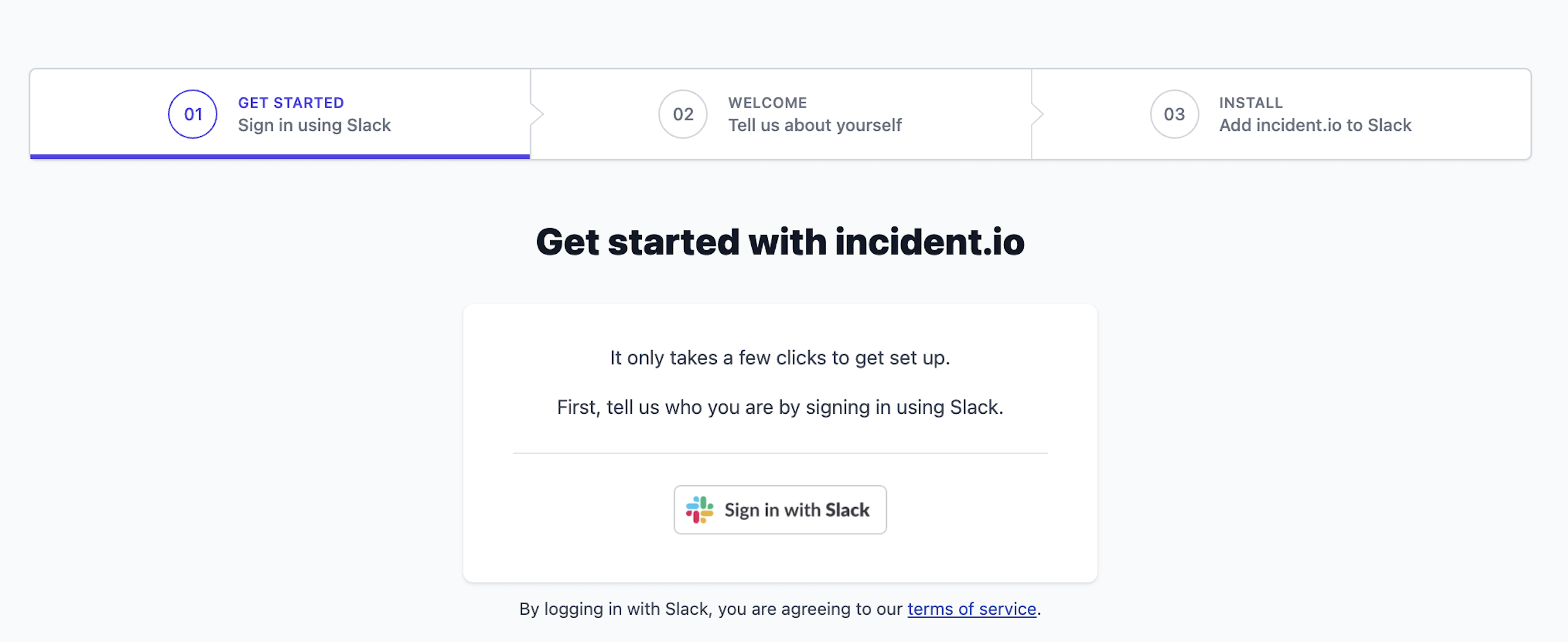
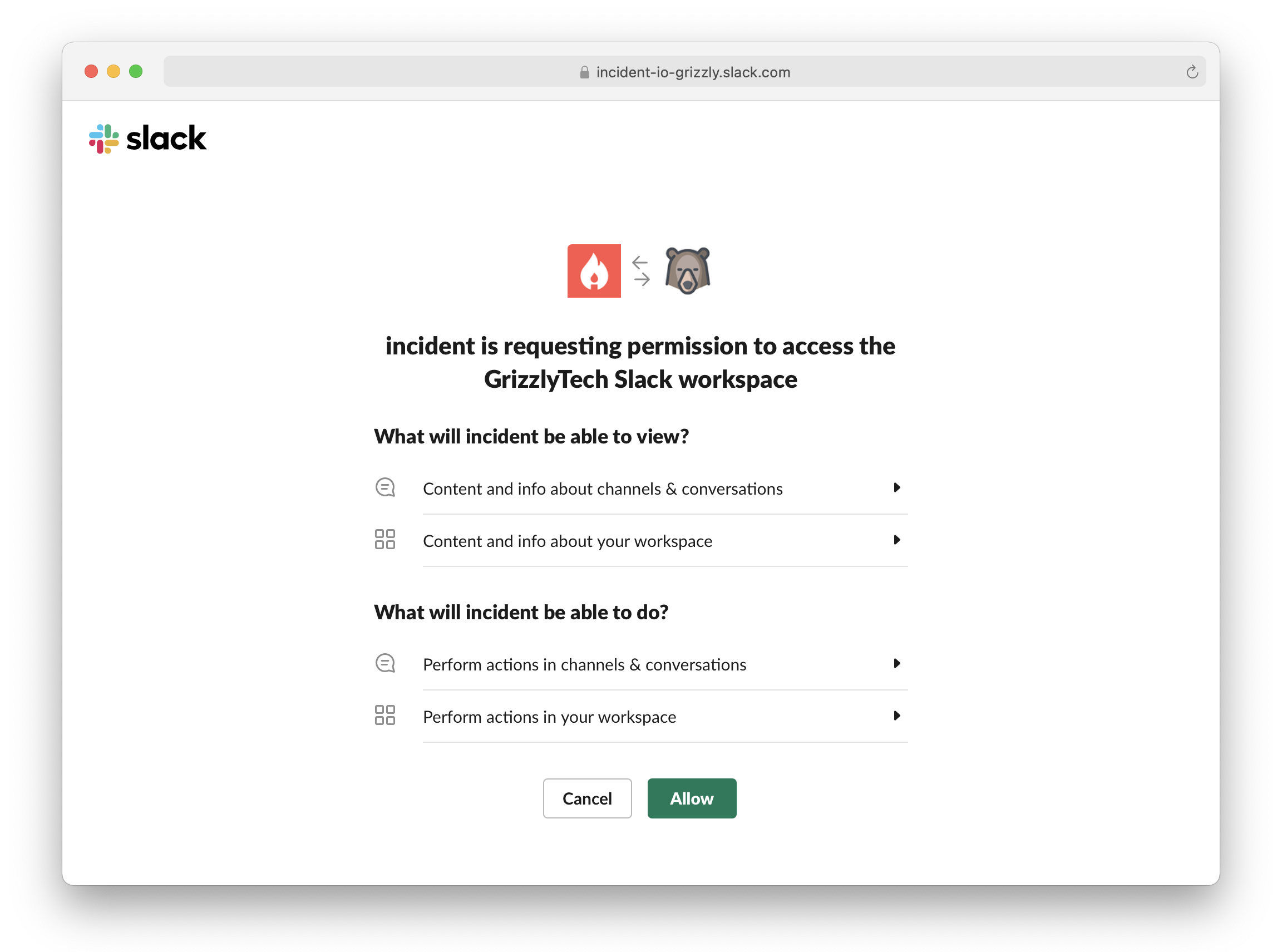
2. Select your integrations
This is just so we get a sense of the most-used tools in our user base. We explain how to set up your integrations → here.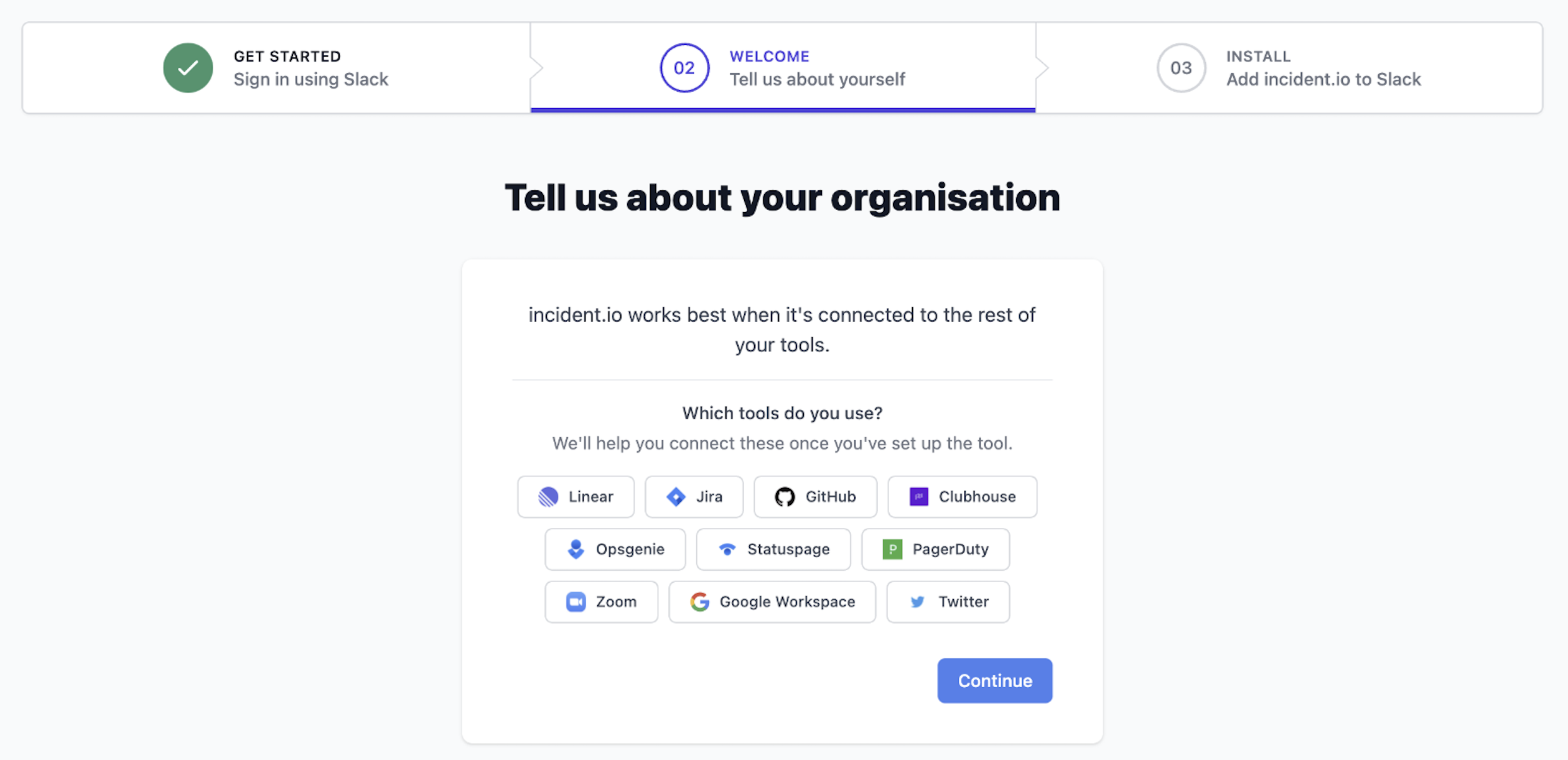
3. Add incident.io to Slack
Last step: ’ Add incident.io to Slack ’.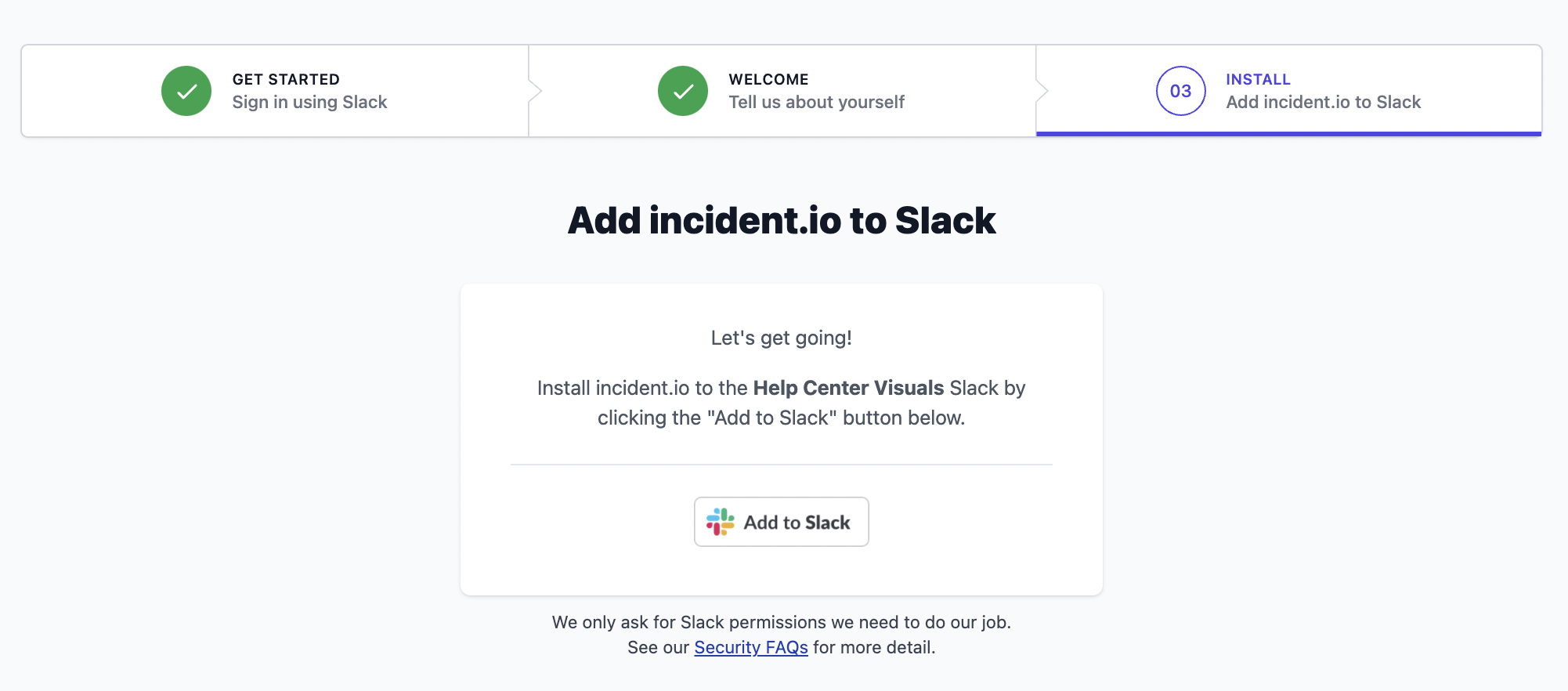
Having issues installing? Email our support team directly or jump on a 1:1 call and we’ll get it sorted in no time!
Troubleshooting
Why can't I sign up for incident.io?
Why can't I sign up for incident.io?
Signing up to incident.io is restricted to those using a corporate or company email address. Our product is designed for companies rather than individuals, and this helps us avoid abuse.If you see a sign-up error, try again using your company email address. If you’re still having trouble, get in touch.
Will incident.io clash with existing Slack commands?
Will incident.io clash with existing Slack commands?
incident.io has two slash commands:
/inc and /incident. Slack only lets one application listen to a particular command, so if you have an existing app that uses either of these, incident.io will take over those commands when installed (the most recently installed app wins).Installing incident.io won’t remove the other application. If you’re migrating from an app that uses /inc and want to avoid disruption, re-install that application after installing incident.io.You can find a cheatsheet of all /inc commands here.I can't install due to channel restrictions
I can't install due to channel restrictions
incident.io needs to create channels in your Slack workspace — a main 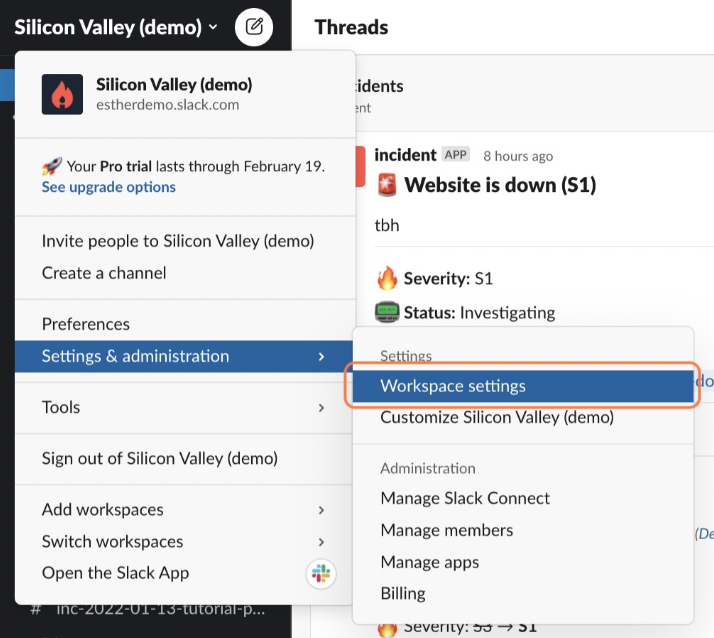
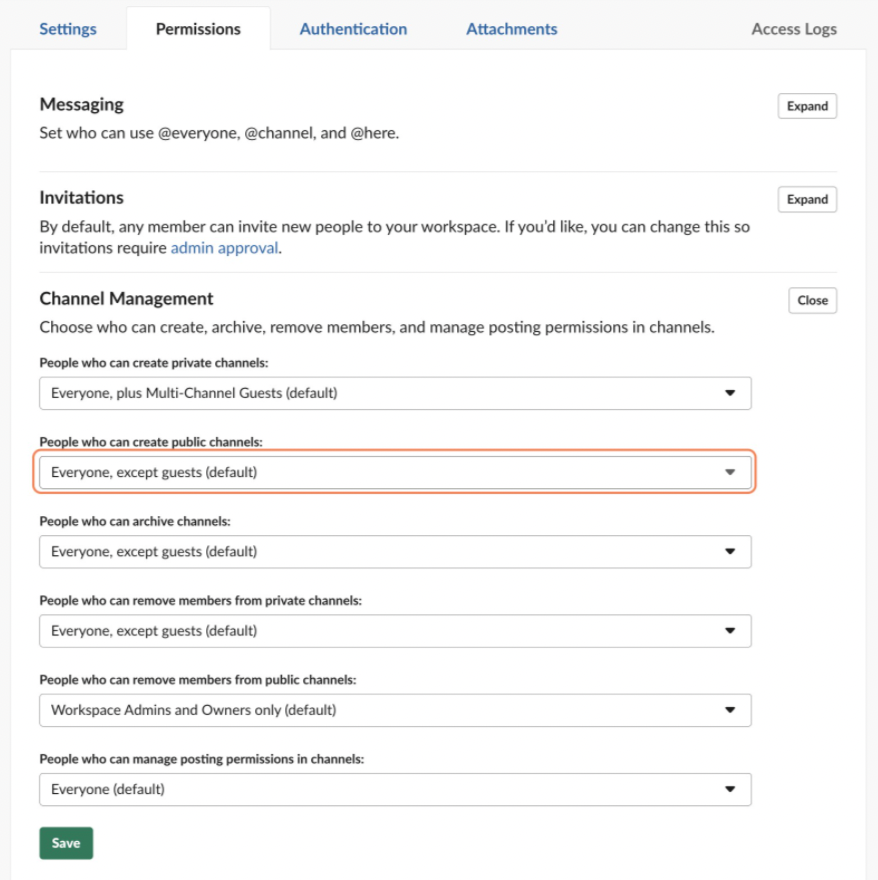
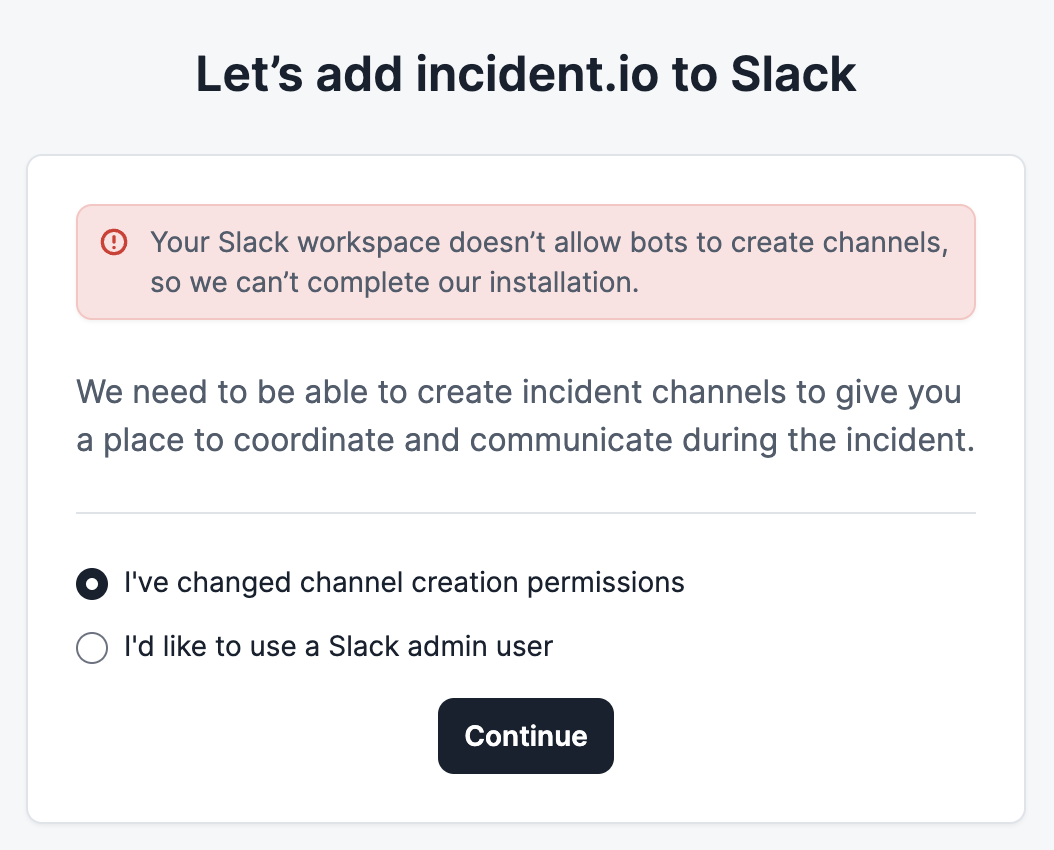
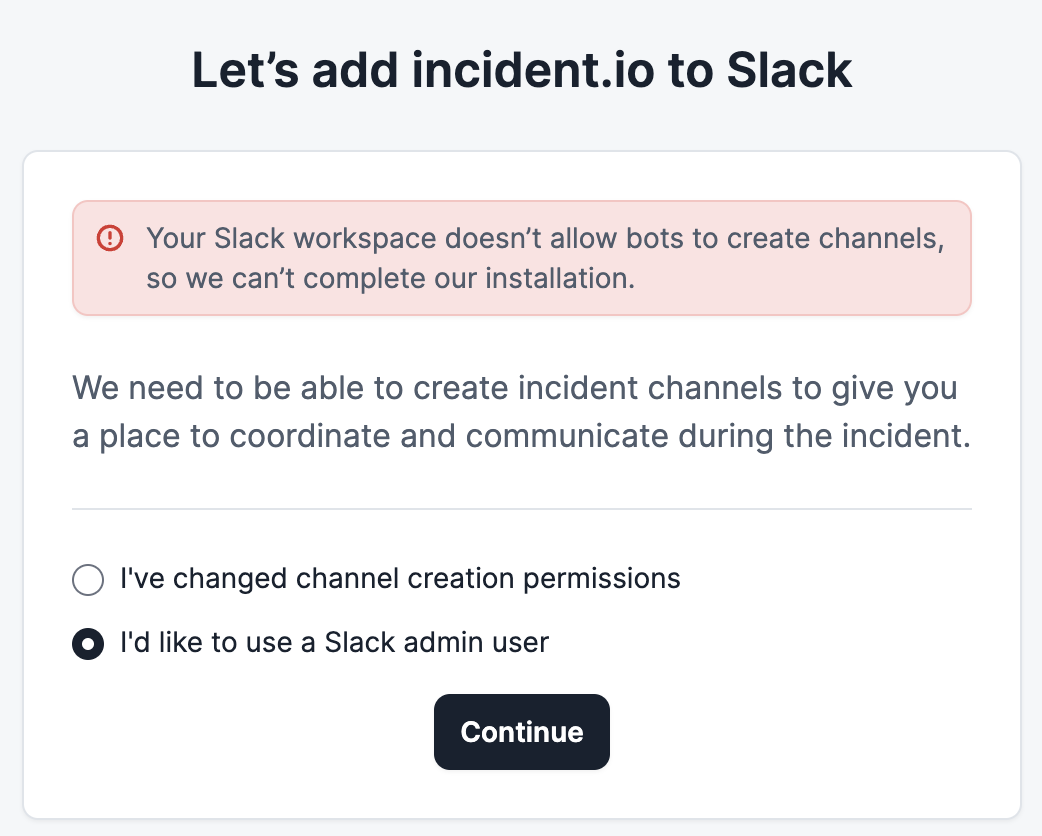
#incidents announcement channel during install, and individual #inc-... channels for each incident. If your workspace restricts channel creation, installation will be blocked.You’ll need a workspace admin to fix this.Option 1: Allow all members to create channelsGo to your Slack workspace settings and set People who can create public channels to Everyone except guests. Then select “I’ve changed channel creation permissions” and complete the installation.I'm seeing a no_bot_scopes_requested error
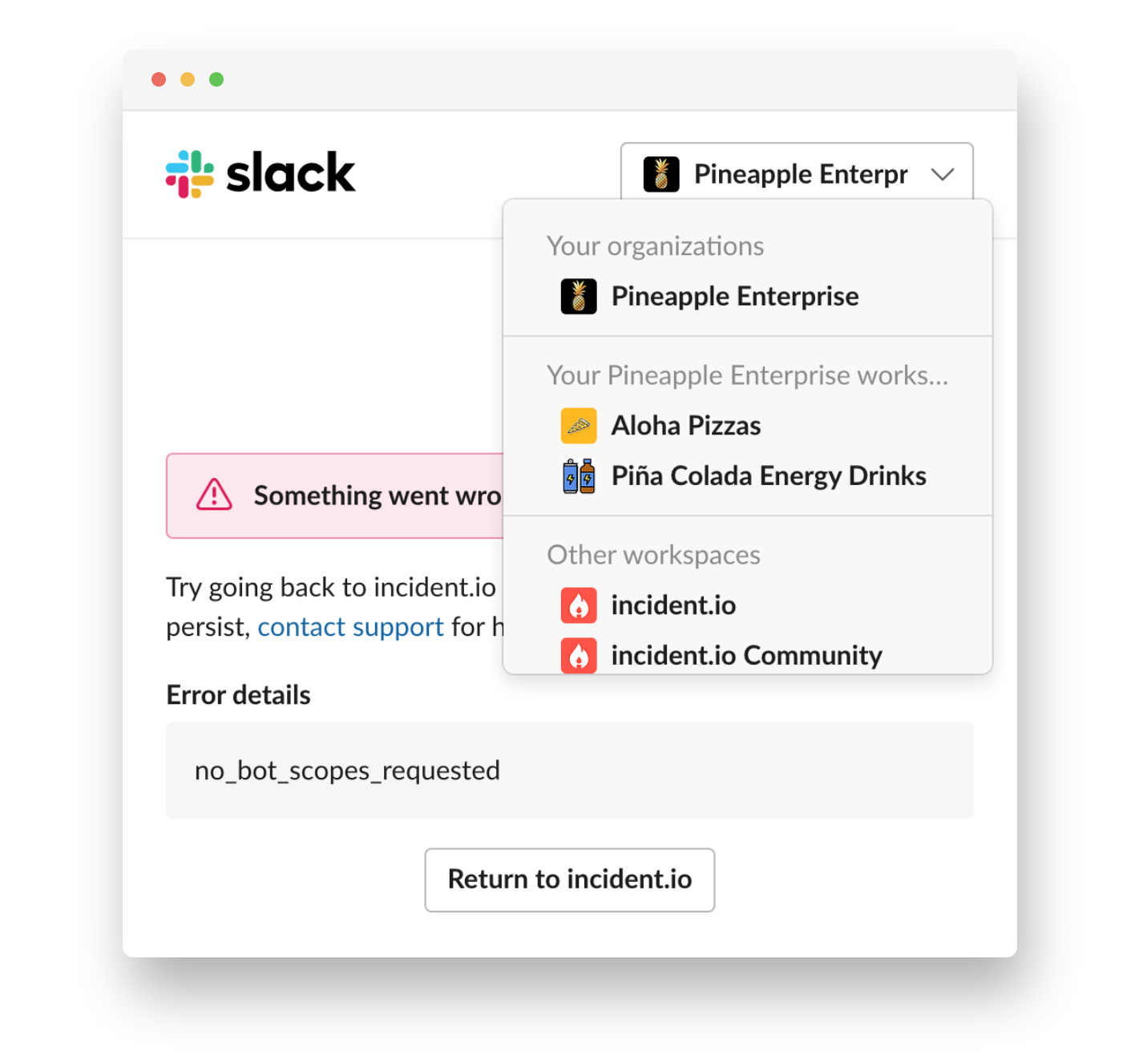
I'm seeing a no_bot_scopes_requested error
This error appears when you try to sign in with a Slack Enterprise (organization) instead of a Slack Workspace.To fix it, click the dropdown in the top right of the Slack sign-in screen and select a Workspace rather than an Organization.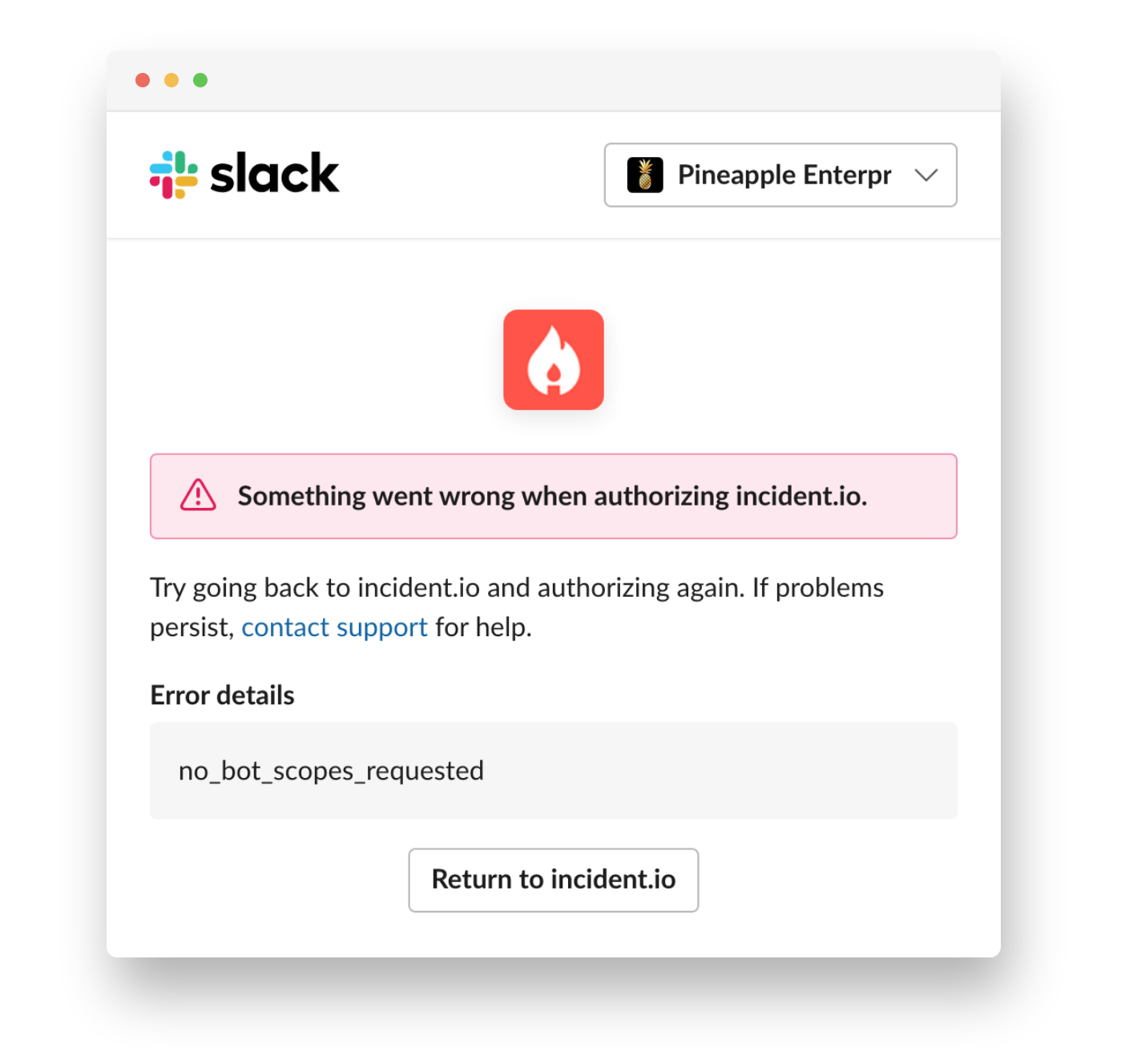
I'm seeing a 'not in this incident's channel' error
I'm seeing a 'not in this incident's channel' error
This usually means the incident’s Slack channel has been archived. There are two ways to resolve it:Option 1: Unarchive the channelIn Slack, click the channel name and select “Unarchive channel” in the Settings tab. Then refresh the incident page.