Channel Management
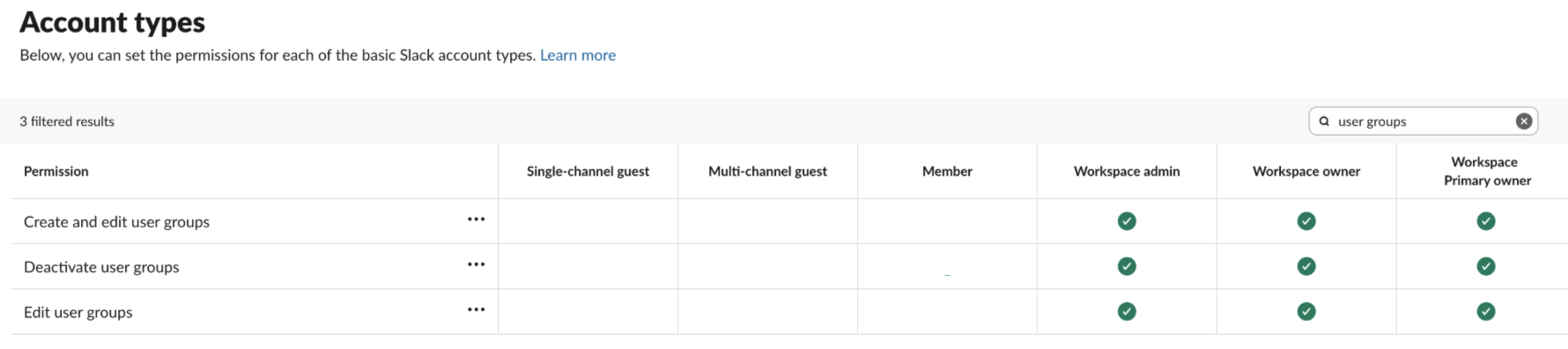
You can check these settings at https://app.slack.com/admin/permissions/account-types. Alternatively you can access the settings directly from Slack if you click on the workspace per se → Tools&settings → Workspace settings. On the left side of the screen select Administration → Manage permissions. Proceed with selecting Account types. Using the filtering option on the right side, you should search for:- Create private channels - Workspace admins and owners only
- Create public channels - Everyone (except guests by default)

- Archive channels - Workspace admins and owners only

- Remove users from private channels - Workspace admins and owners only
- Remove users from public channels - Workspace admins and owners only (by default)

- Edit channel posting permissions - Everyone (except guests by default)

People who can create private channels
If this is set to “Workspace admins and owners only” or “Workspace owners only”, we won’t be able to create private incident channels. If you’d like to use private incidents you’ll need to connect a Slack Workspace Owner. The connected user will be invited to all private incidents, so we recommend creating a Slack user just for this purpose. Learn how here.People who can create public channels
If this is set to “Workspace admins and owners only” or “Workspace owners only”, we won’t be able to create incident channels. You’ll need to connect a Slack Workspace Admin or Workspace Owner to get started. The connected user will be invited to all incidents, and appear as the “channel creator” in Slack:
People who can archive channels
If this is set to “Workspace admins and owners only” or “Workspace owners only”, we won’t be able to automatically archive old incident channels. Connect a Slack admin or owner to enable this feature. The connected Slack admin will be added to incident channels to archive them, so we recommend creating a Slack user just for this purpose. Learn how here. The connected Slack user will only be invited to private incidents if they are a Slack Workspace Owner.People who can remove users from private channels
If this is set to “Workspace admins and owners only” or “Workspace owners only” the incident.io bot won’t be able to remove access to private incidents automatically: they must be removed from the channel first, either by an admin, or by leaving voluntarily. Connect a Slack Workspace Owner to have incident.io automatically remove private incident participants with/incident revoke.
Note that the connected Workspace Owner will be invited to private incidents. We recommend creating a Slack user just for this purpose. Learn how here.
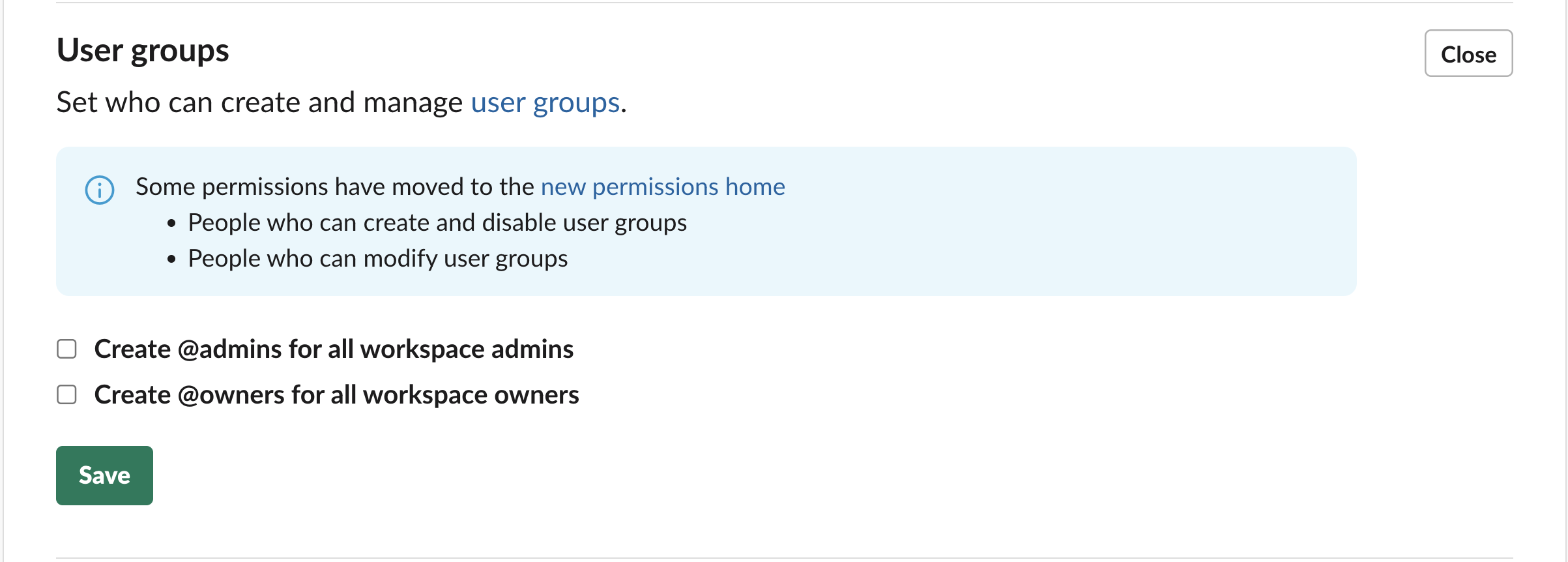
User groups
You can check these settings at https://app.slack.com/admin/user_groups Alternatively you can access the settings directly from Slack if you click on the workspace per se → Tools&settings → Workspace settings. On the left side of the screen select Administration → User groups.