

Microsoft Intune on mobile is available on the Enterprise plan, and requires version 1.15.10 or later of the
incident.io app on iOS and Android.
How it works
When Intune is enabled for your organization:- Users log into incident.io normally (SSO, email, etc.)
- The app detects that your organization requires Intune and asks them to sign in with their Microsoft work account
- incident.io checks that the account belongs to your linked Microsoft Entra tenant and matches their incident.io email
- The app registers with Intune and your app protection policies are applied. Intune may restart the app the first time a policy applies.
Prerequisites
- The Manage security settings permission in incident.io
- A Microsoft Entra ID tenant with Intune licenses, plus admin access to the Microsoft Entra admin center and the Microsoft Intune admin center
- An app protection policy in Intune for iOS/iPadOS, Android, or both
- On Android, the Intune Company Portal app installed on each device. Intune requires it to apply app protection policies on Android.
- Everyone’s incident.io email must match the email on their Microsoft work account
Setting up Intune
1
Connect Microsoft Entra
Navigate to Settings → Security and find Microsoft Intune on mobile. Click Connect Microsoft Entra, confirm your company’s email domain, then sign in with your Microsoft work account. incident.io links your organization to the tenant you signed in to.For the link to succeed:
- Your Microsoft account email must match your incident.io email
- Your account must be a member of the tenant, not a guest
- The tenant must have verified the domain you entered
- The tenant can’t already be linked to another incident.io organization
2
Enable Intune in incident.io
Still in Settings → Security, enable Microsoft Intune on mobile.Once enabled, incident.io activates the Intune enrollment gate in the mobile app. The next time each user logs in, they are asked to register the app with Intune before they can continue. People who are already signed in are not interrupted until then.
3
Grant admin consent for the incident.io app registration
The incident.io mobile app uses a Microsoft Entra ID app registration to sign people in and to enroll with the Intune MAM service. A tenant admin needs to grant consent for it.incident.io app registration:
- Client ID:
68ac5791-0672-47f9-a1e1-f2ef2b656f61 - App name: incident.io
1
Open Enterprise applications in Entra ID
In the Microsoft Entra admin center, go to Identity → Applications → Enterprise applications.
2
Search for the incident.io app
Search for the incident.io client ID:
68ac5791-0672-47f9-a1e1-f2ef2b656f61.If it doesn’t appear, grant admin consent first (next step). Consenting is what adds the app to your tenant.3
Grant tenant-wide admin consent
Open this URL in your browser, replacing Sign in as a Global Administrator or Application Administrator and accept the requested permissions.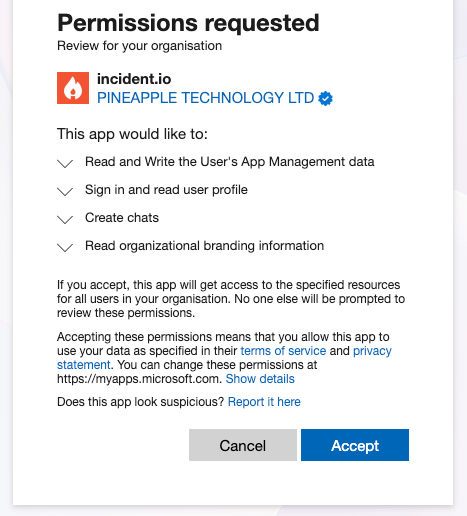
{TENANT_ID} with your Entra tenant ID:4
Verify permissions
Back in Enterprise applications → incident.io → Permissions, check that both of these are granted:
- Microsoft Graph:
User.Read(Sign in and read user profile) - Microsoft Mobile Application Management: Read and Write the User’s App Management data
4
Add incident.io to your app protection policy
In the Microsoft Intune admin center, go to Apps → App protection policies and open the policy you want to apply, or create one. Under Apps, add incident.io as a custom app:
Under Assignments, include the groups whose members use incident.io. A policy applies only when both the app and the person are targeted.Policy changes can take a few hours to reach devices. People can force a sync from the Company Portal app.
Signing in on mobile
Here’s what your team sees once Intune is on:- Sign in to the incident.io app as usual, with Slack, Microsoft, SAML, or an email code
- The app shows App protection required. Tap Continue with Microsoft and sign in with the Microsoft work account that shares your incident.io email. If Microsoft Authenticator is installed, the sign-in goes through it.
- The app registers with Intune. Intune may ask to restart the app the first time a policy applies.
What changes when Intune is on
- Sign in on mobile via QR code is unavailable.
- Mobile access restrictions is replaced. Your Intune policies protect sensitive information instead of redaction, and the mobile app always signs in through your primary SAML connection.
- If you enforce SAML SSO, it still applies. Intune adds a requirement rather than replacing one.
- Turning Intune on or off, and linking your Entra tenant, are recorded in audit logs.
Troubleshooting
Most problems show up when a responder taps Continue with Microsoft. Fix the cause, then have them tap Try again.FAQs
Do devices need to be enrolled in Intune (MDM)?
Do devices need to be enrolled in Intune (MDM)?
No. Intune on mobile uses app protection policies (MAM), so it works on personal devices as well as MDM-enrolled
ones. Full device enrollment through Company Portal isn’t required.
Will my app protection policy stop responders being paged?
Will my app protection policy stop responders being paged?
No. Pages reach responders as push notifications, and SMS, phone call, Slack, and email escalations don’t go through
the app at all. Keep Org data notifications set to Allow in your policy so pages always get through.
Does this work with the 事件incidentio app in Mainland China?
Does this work with the 事件incidentio app in Mainland China?
No. Intune on mobile is available in the incident.io app only. Read more about the mobile app in
China.
What does incident.io read from Microsoft?
What does incident.io read from Microsoft?
The basic profile of the responder signing in, which is enough to confirm their tenant and email match their
incident.io account. incident.io doesn’t read your Intune policies or device inventory.