

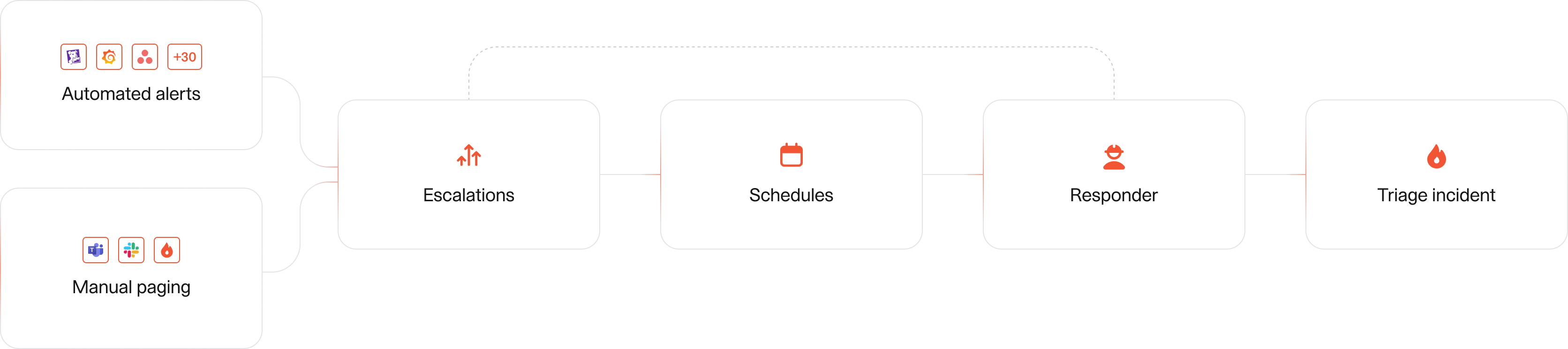
Creating incidents manually
To create incidents your team can use the Web Dashboard or/inc command in Slack or MS Teams.
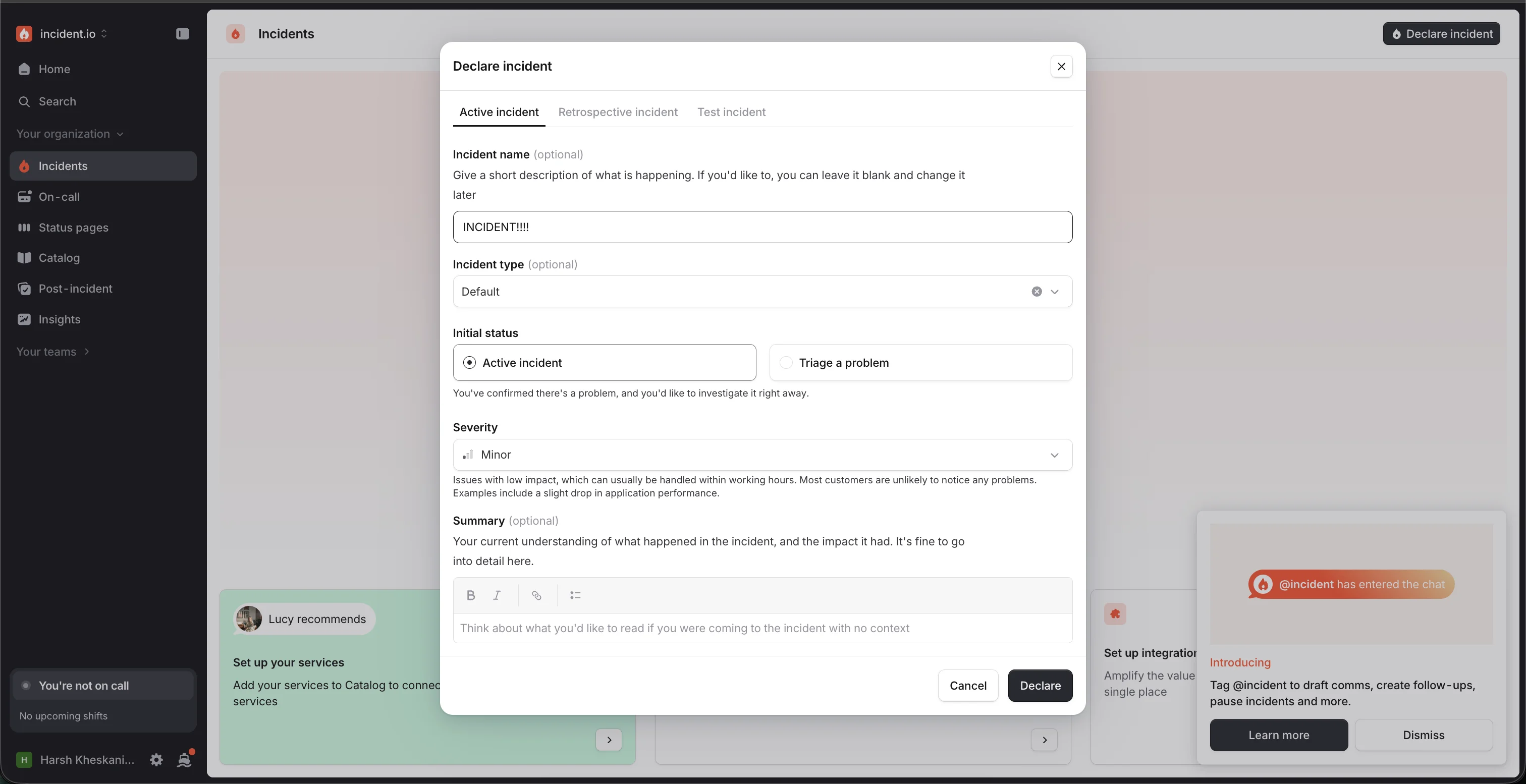
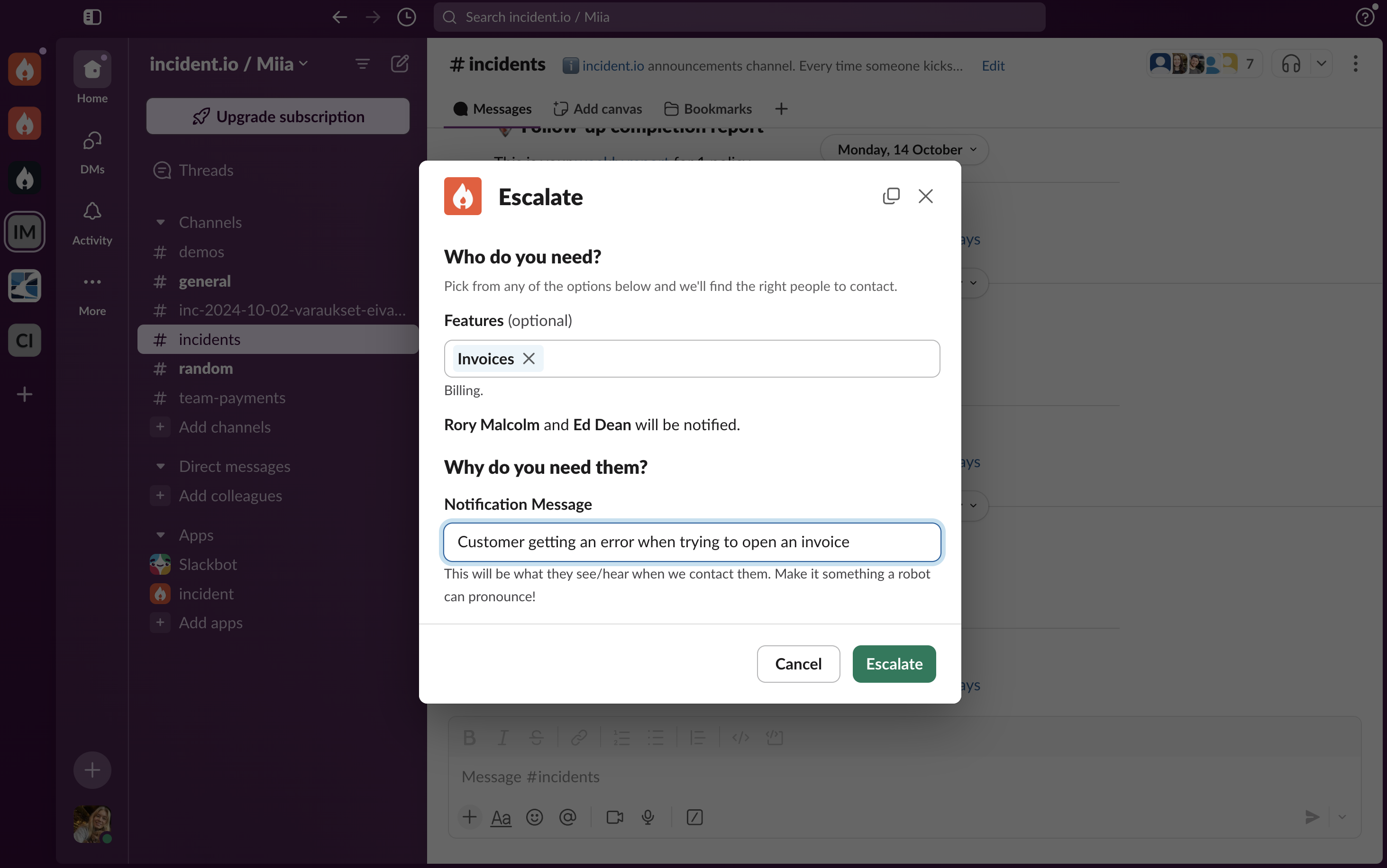
For both incident declaration and escalation forms, you can configure fields with information essential for responders, guiding the person escalating on whom to page. Options include selecting by feature, team, or even a service.
How to set up manual incident creation
While alerts may generate most incidents, customer-facing teams may occasionally need to raise incidents manually. To make this easier, use the Catalog to escalate incidents to the appropriate team based on the feature—no need for customer-facing teams to know exactly who owns what. Here’s how to help your teams to create incidents and to page the right people- Head to the Catalog and create a new type like Features.
- Ensure that the Features are connected to teams
- Go to Settings and Custom fields
- Create a new Standard custom field for Features
- Then go to Forms and go to ‘Declare’
- Add ‘another field’ and choose ‘Feature’
- Then head to Workflows and create a new workflow
- Choose the template ‘Escalate via incident.io’
- Ensure that Status for incident is either Triage or Active
- Edit the step ‘Escalate via incident.io and create an expression that navigates from the Feature to the Escalation path
- Save draft and set live!
Escalations
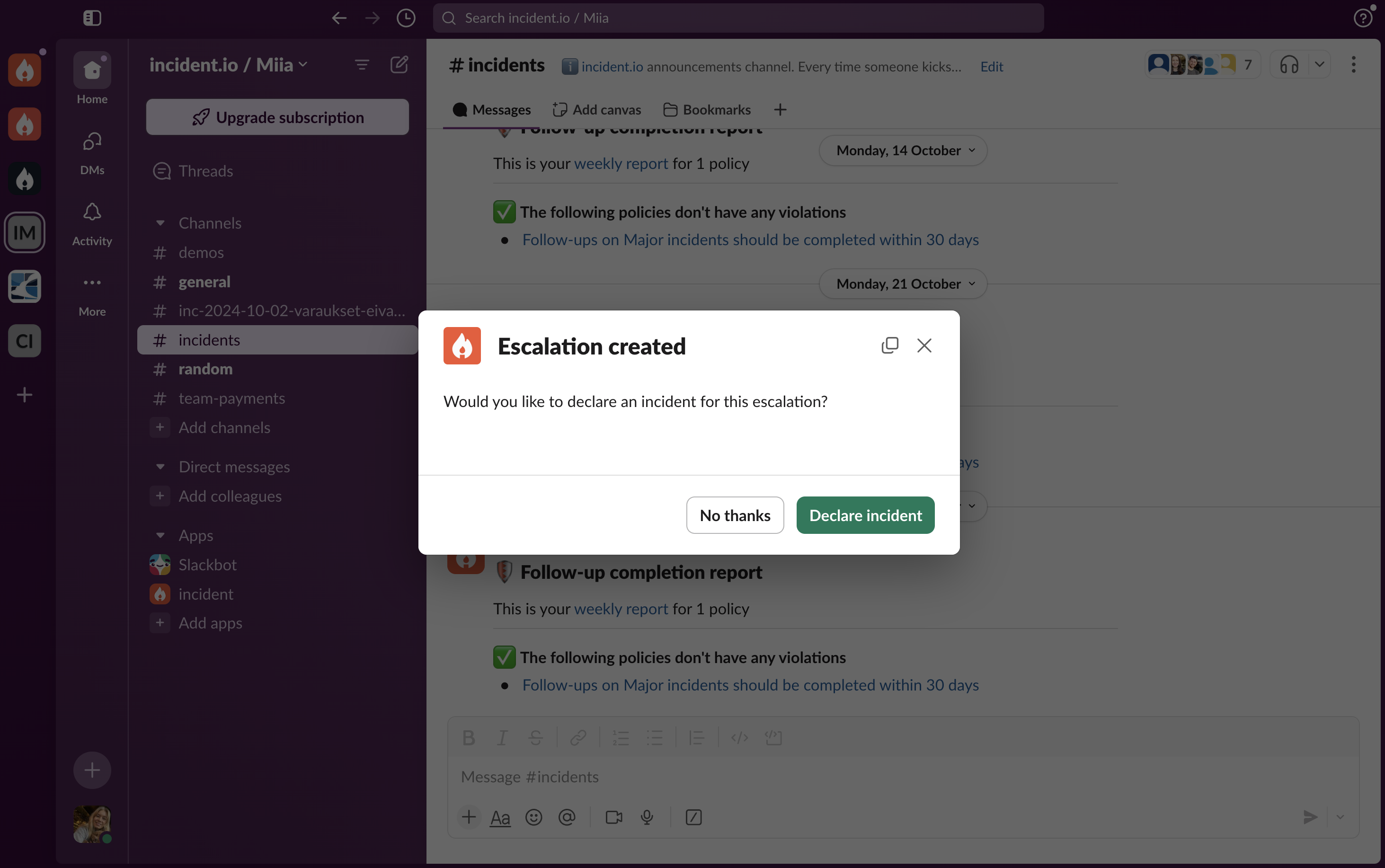
You are also able to escalate incidents further or just escalate before creating incidents. To page, team members can go to Escalations in our Web Dashboard, or use the/inc escalate command in Slack. Our Microsoft Teams bot doesn’t take slash commands, so escalate from the dashboard instead. See what to expect on Microsoft Teams.
Creating incidents with a third-party paging tool
If you’re still using a third-party paging tool, like PagerDuty or Opsgenie, you can send alerts to us through those tools or directly from your observability tools. Sending alerts directly from the source allows for smarter grouping by Service and time period, especially when using the Catalog.Creating incidents
Incident creation through a third-party paging tool works similarly, though escalation configurations aren’t available on our side.- You can create incidents from Alerts with a third-party paging tool. Read more about automatically creating incidents here
- Creating incidents manually with
/inccommand
Escalating incidents
You can escalate incidents via a 3rd party tool - the set up is exactly the same as the rest of the article, but the workflow will need to include- Step - ‘Escalate via third party’, instead of incident.io
Using both our On-call and Response product can create a lot of benefits like unified data flow, continuous feedback on your alerts and so, better noise management all under in a single pane of glass. Learn more about our On-call here.