

How to set up
When you’re invited to be an on-call responder, you’ll receive an email from us. After that, it’s time to set everything up! Here’s what we recommend:- Download the mobile app
- Check your notification settings
- Learn how to request cover and create overrides
- Know how to acknowledge (ack) when you get paged
1. Downloading the mobile app
- To get started, download our app from your phone’s app store:
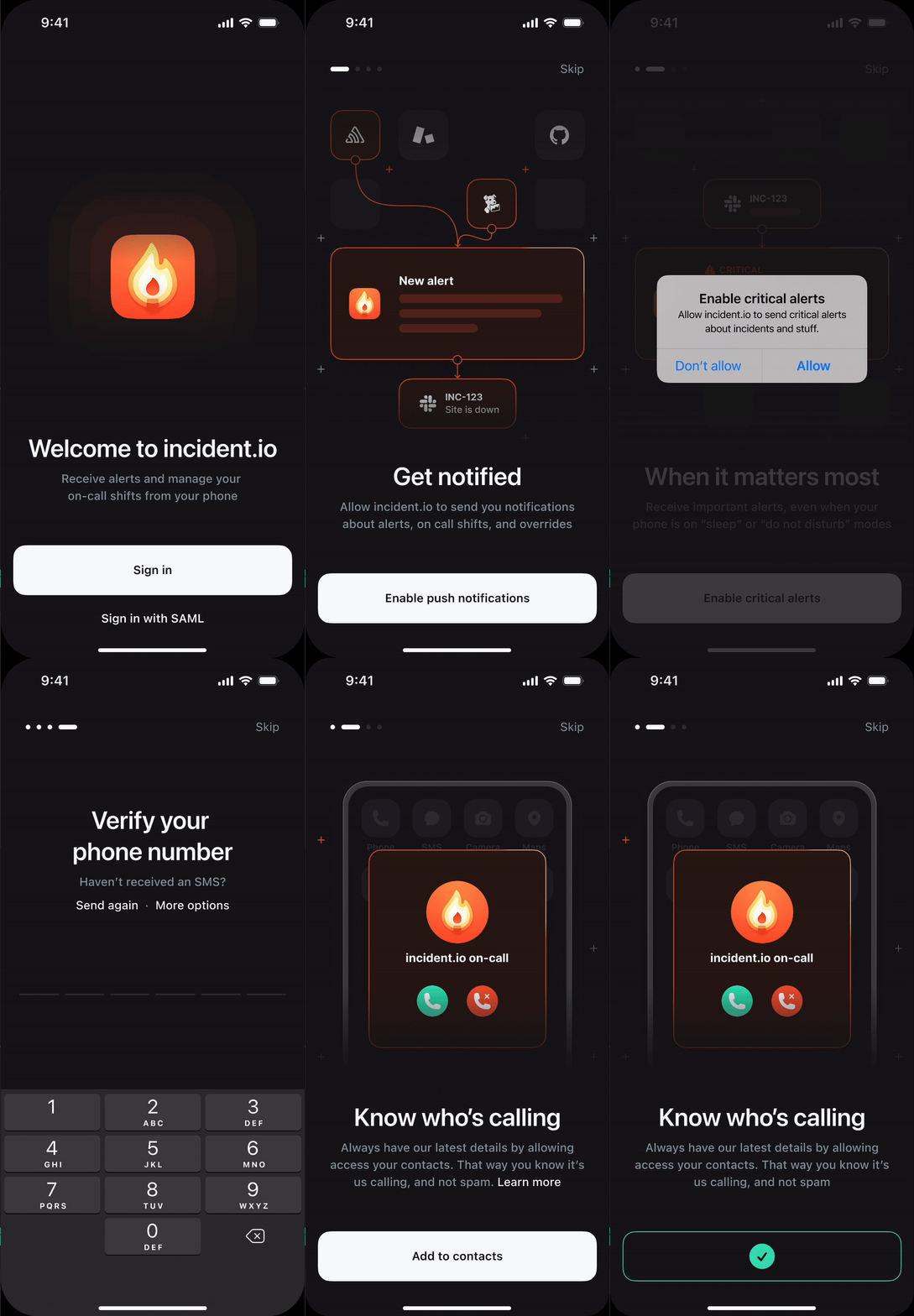
- Once the app is installed:
- Sign in
- Enable push notifications
- Enable critical alerts
- Verify your phone number
- Discover the app Explore the app to get familiar with these key features:
- View incidents and escalations
- See your schedules
- Test notification sounds
After you have enabled all permissions, we create sensible defaults in your notification settings. These are:High Urgency
- Immediately via App and Slack/MS teams
- After 1 minute via phone
- After 3 minutes via SMS
- After 5 minutes via email
- Immediately via email and Slack/MS teams
2. Checking your notification settings
Want to customize your notifications? You can easily adjust the order of how you get alerted in the web dashboard, under Settings → Your account → User preferences. You can also add more contact methods and change how you want to be notified about upcoming shifts. To see your shifts alongside the rest of your week, subscribe to a shift calendar feed from the Schedules page.3. Request cover and create overrides
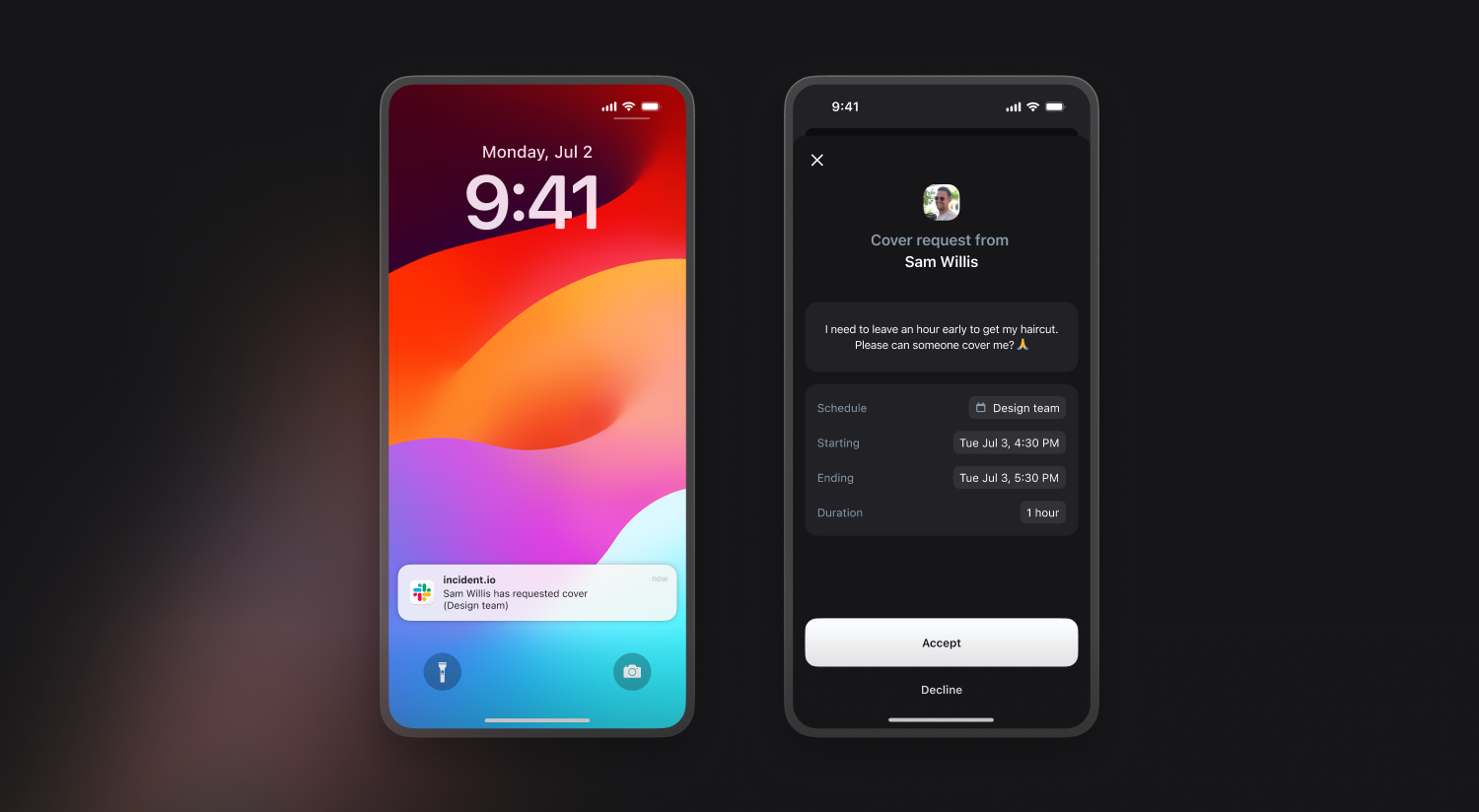
Managing your shifts is simple through the web dashboard, mobile app, or Slack/MS Teams.- Create an override to swap out your scheduled shift
- Send a cover request to ask another team member to cover your shift
4. Acking a page
When you receive a page, you can acknowledge it through any method. This lets you jump straight to the incident channel and start investigating.If you have multiple escalations for related issues, you can bulk acknowledge them in the mobile app. Read more about bulk and auto acking here.
Other useful commands
/incor/incident- Creates a new incident/inc cover me- Create a cover request for your shift/inc whoisoncall- See who is on-call