

- Automatic sync (e.g: Github, Slack)
- Manually force a sync (e.g: Slack)
- Re-run
catalog-importer(e.g: Backstage)
1. Automatic sync
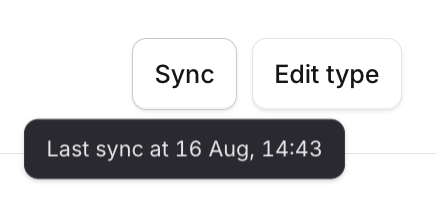
We keep lots of data sources in-sync with a scheduled automatic sync. Typically this runs every three hours and doesn’t require any input from you. In the dashboard, when you open a specific Catalog type, you’ll see a button calledSync. If you hover, we’ll tell you when the type was last synced.
2. Manually force a sync
We’ve already given away how you can force a sync - Pressing the sync button mentioned above will trigger a sync for that catalog type. This does the same work as the automatic sync job; but can be useful if you want to get upstream changes into your catalog quickly. Be aware that sync jobs can take a few minutes for very large collections of upstream resources.3. Re-run the catalog-importer
If you’re managing your catalog type externally, e.g. withcatalog-importer; just trigger another run.
It’ll be clear if you’re managing your catalog types externally as we’ll show you in the UI, you won’t be able to make edits directly via the UI.
If you need a refresher, you can find documentation on how to run the catalog-importer in its repository README file.